
Table of Contents >> Show >> Hide
- What You Need Before You Start
- How Chromecast Works with Google Photos
- How to Cast Google Photos Using Chromecast on Android
- How to Cast Google Photos Using Chromecast on iPhone or iPad
- How to Cast Google Photos Using Chromecast from a Computer
- How to Use Google Photos as a Chromecast Slideshow
- Common Problems and How to Fix Them
- Best Ways to Use Google Photos on TV
- Real-World Experiences with Casting Google Photos Using Chromecast
- Conclusion
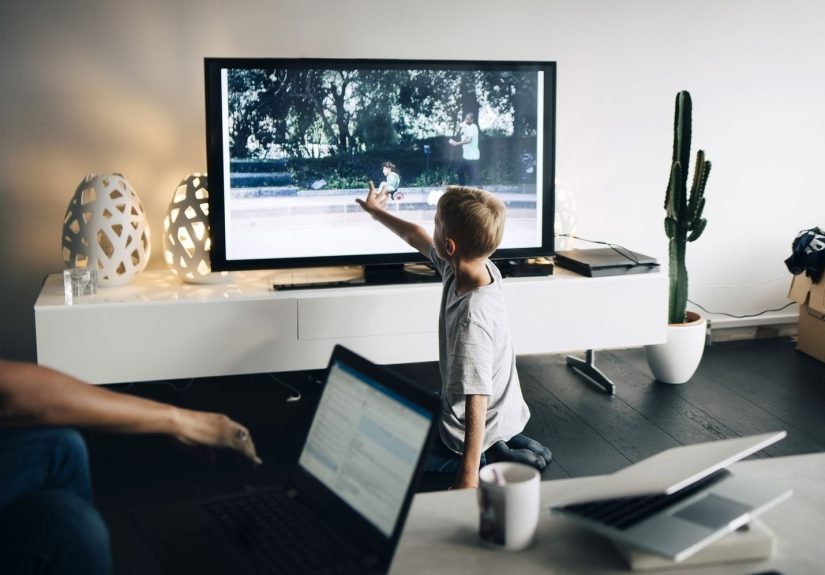
If your phone is full of vacation shots, birthday pictures, dog photos, and approximately 97 accidental screenshots of your lock screen, good news: you can move the good stuff to the big screen. Learning how to cast Google Photos using Chromecast is one of the easiest ways to turn your TV into a family slideshow, a low-effort digital picture frame, or a “look at this ridiculous photo from 2018” machine.
The best part is that it does not require a film-school degree, three adapters, or a mysterious cable living in your junk drawer. In most cases, you just need Google Photos, a Chromecast or Google Cast-enabled TV, and a shared Wi-Fi network. From there, you can cast individual photos, albums, and even some videos stored in Google Photos.
This guide walks through exactly how to cast Google Photos to TV from Android, iPhone, iPad, and desktop. It also explains how to use Google Photos with Chromecast Ambient Mode, plus what to do when the cast button seems to have gone on a spiritual retreat.
What You Need Before You Start
Before you try to cast Google Photos using Chromecast, make sure the basics are in place. This is the boring part, but it saves a lot of “Why is my TV ignoring me?” frustration later.
- A Chromecast, a Google TV device, or a TV with Google Cast built in
- A phone, tablet, or computer connected to the same Wi-Fi network as the TV
- The Google Photos app on Android or iPhone/iPad, or Google Chrome on desktop
- Your Google Photos library signed in and ready to go
- A little patience if your home Wi-Fi behaves like a dramatic house cat
Even though Google has moved on from the old Chromecast hardware era toward newer Google TV devices, the casting experience is still very much alive. So if you already own a Chromecast, you do not need to hold a memorial service for it. If you have a newer Google TV setup, the steps are still similar because Google Cast is the engine doing the work behind the scenes.
How Chromecast Works with Google Photos
When you cast Google Photos, you are usually not mirroring every single thing on your screen. Instead, you are sending selected content from the Google Photos app or website to the TV. That is a big difference. It means you can keep browsing on your phone without turning your television into a giant display of notifications, text messages, and whatever chaos is happening in your camera roll.
This makes casting Google Photos with Chromecast much cleaner than basic screen mirroring. You choose the photo, album, or video you want to show, and the TV focuses on that content. Your phone stays in control like a tiny remote with better taste.
How to Cast Google Photos Using Chromecast on Android
If you are using an Android phone or tablet, this is usually the smoothest route.
- Open the Google Photos app.
- Make sure you are signed in to the correct Google account.
- Select the photo, video, or album you want to display.
- Tap the Cast option or cast icon if it appears. On some versions, you may need to tap the menu first.
- Choose your Chromecast or TV from the device list.
- Open the media you want to show on the TV.
- Swipe through photos to move the slideshow along.
That is it. No wizard robe required. Once connected, your selected Google Photos content should appear on your TV screen. If you open a different photo, the TV updates too. It is a simple and surprisingly satisfying way to share pictures with friends or family without passing your phone around like a party baton.
Android Tip
If the Chromecast device does not appear, check whether the Google Photos app has the permissions it needs and confirm that both devices are on the same Wi-Fi. That single issue causes a shocking amount of unnecessary side-eye toward perfectly innocent TVs.
How to Cast Google Photos Using Chromecast on iPhone or iPad
Yes, iPhone and iPad users can join the party too. Google Photos supports casting on iOS, so you do not need to invent a workaround involving screen recordings, hopes, and vibes.
- Open the Google Photos app on your iPhone or iPad.
- Sign in to your Google account.
- Choose the photo, video, or album you want to cast.
- Tap the Cast control or cast-related option in the menu.
- Select your Chromecast-enabled device.
- Start viewing the image or album on your TV.
Once connected, your TV should display the Google Photos content you selected. You can swipe to the next image on your phone, and the television follows along. It is a handy trick for family gatherings, holiday recaps, or proving that yes, your toddler did somehow put a shoe in the freezer.
iPhone Tip
If you are thinking about screen mirroring from iPhone instead, remember that direct casting from Google Photos is usually the cleaner option. Mirroring can be clunkier and may show extra interface clutter, while direct casting keeps the TV focused on the photos themselves.
How to Cast Google Photos Using Chromecast from a Computer
If your photos are easier to manage on a laptop or desktop, you can cast from your browser too. The key detail here is Google Chrome. Not just any browser. Chrome is the one built for this job.
- Open Google Chrome.
- Go to photos.google.com.
- Sign in to your Google account.
- Open the photo or album you want to show.
- Click the three-dot Chrome menu.
- Choose Cast.
- Select your Chromecast or Google Cast-enabled TV.
Depending on your setup, Chrome may cast the tab or offer additional source choices. If needed, you can also use Chrome’s broader casting tools to cast a tab or even your full screen. That can help if you want to present a larger album view, compare edited photos, or show a full browser-based slideshow.
Desktop Tip
If you want the cleanest viewing experience, keep only the Google Photos tab open and switch to full-screen viewing when possible. That way your TV looks like a gallery wall instead of a workday browser with twelve tabs and two questionable shopping carts still open.
How to Use Google Photos as a Chromecast Slideshow
If you want your TV to show your pictures when you are not actively watching something, use Ambient Mode on Chromecast or Google TV. This turns your screen into a passive Google Photos slideshow, which is dramatically more elegant than staring at a blank black rectangle all evening.
There are two common ways to do this:
Option 1: Set It Up in the Google Home App
- Open the Google Home app.
- Select your Chromecast or Google TV device.
- Open Settings.
- Choose Ambient Mode or a similar personalization setting.
- Select Google Photos.
- Choose the albums or photo sources you want displayed.
Option 2: Set It Up on Google TV
- On the TV, open Settings.
- Go to System.
- Select Ambient Mode.
- Choose Google Photos.
- Pick the albums you want the TV to show.
This is ideal if you want a low-maintenance photo frame experience. You can use vacation albums, family highlights, pet albums, or anything else that deserves more than a lonely existence in cloud storage.
Some devices also let you fine-tune details such as portrait photo display, personal photo curation, or whether album names appear. That can help you make the slideshow look more polished and less like your TV is narrating your file system.
Common Problems and How to Fix Them
If Google Photos will not cast to Chromecast, do not panic. Most issues come down to setup, permissions, or Wi-Fi, not a grand technological betrayal.
1. Your Chromecast Is Not Showing Up
First, confirm that your phone, tablet, or computer is connected to the same Wi-Fi network as the Chromecast or TV. If your phone is on guest Wi-Fi and your Chromecast is on the main network, they may behave like total strangers.
2. The Google Photos App Cannot Find Devices
Update the Google Photos app and make sure any required local network or location-related permissions are enabled. Some cast-enabled apps rely on those permissions to discover nearby devices.
3. Desktop Casting Is Not Working
Use Google Chrome, not a random browser that looked exciting for six minutes. Chrome has the built-in Cast menu and remains the most dependable route for desktop Google Photos casting.
4. Ambient Mode Is Showing the Wrong Photos
Check which albums are selected in Google Home or Google TV Ambient settings. If the TV keeps showing oddball images, you may be pulling from highlights instead of a hand-picked album. That is how one blurry receipt photo can become the unexpected star of your living room.
5. Everything Is Connected but Still Acting Weird
Restart the phone, restart the TV, and reboot the Chromecast. It is the tech equivalent of telling everyone to take a lap and come back with a better attitude. Surprisingly effective.
Best Ways to Use Google Photos on TV
Once you know how to cast Google Photos using Chromecast, the practical uses pile up fast.
- Family gatherings: Show albums from reunions, weddings, birthdays, and holidays without crowding around a phone.
- Travel recaps: Turn your latest trip into an instant slideshow on the biggest screen in the house.
- Home décor: Use Ambient Mode to make your TV feel more like a digital art frame and less like a giant black mirror.
- Creative work: Review images, compare edits, or display portfolio shots for clients or collaborators.
- Grandparent duty: Keep a rotating album of kids, pets, and milestones on the TV for maximum smiles per minute.
It is also a nice option when you want to share photos without posting them everywhere online. Casting lets you keep the moment personal while still making it feel bigger and more celebratory.
Real-World Experiences with Casting Google Photos Using Chromecast
One of the best things about Google Photos on Chromecast is how ordinary moments suddenly feel a little more special. A phone gallery is convenient, but a TV slideshow changes the mood of a room. It slows people down. Instead of one person scrolling while everyone else squints over a shoulder, the whole group can actually see the pictures at once. That alone makes family visits less chaotic and way more fun.
For example, a lot of people first use Chromecast with Google Photos after a vacation. They come home with 400 beach photos, 22 food pictures, and one accidental video of the sidewalk. On a phone, that collection can feel like clutter. On a TV, though, the best images start to feel like a story. You notice details you missed on the small screen, like the colors in a sunset, funny facial expressions, or the exact moment someone lost a battle with a windstorm on a hiking trail.
It also works surprisingly well during holidays. Instead of leaving the TV idle, families can cast old albums while cooking or hanging out. Suddenly the room is full of Thanksgiving flashbacks, baby photos, awkward middle school haircuts, and at least one picture everyone agrees should have stayed hidden forever. That shared laughter is a huge part of why this feature feels useful rather than gimmicky.
Another real-life use is turning the TV into a low-key digital frame with Ambient Mode. This is especially nice in living rooms, offices, or even waiting areas where a blank screen feels cold. Curated Google Photos albums can make the space feel more personal and less like a dormant appliance is judging your furniture choices. If you organize albums well, you can keep the look polished and avoid random screenshots from barging into the slideshow like uninvited guests.
There is also a practical side for photographers, designers, and creators. Seeing your pictures on a larger display can help you notice composition issues, editing mistakes, or color choices that looked fine on a phone but not so great on a bigger screen. It is not a full professional review setup, of course, but it is an easy way to evaluate visual work without sending files all over the place.
And then there is the simplest experience of all: sharing everyday life. Pet photos, kids’ school events, gardening progress, before-and-after home projects, and little weekend memories all feel more meaningful when they are displayed big enough for everyone in the room to enjoy. That is really the charm of casting Google Photos with Chromecast. It takes images that were quietly sitting in the cloud and gives them a stage, even if that stage is just your couch, your coffee table, and somebody asking for snacks halfway through the slideshow.
Conclusion
If you want a simple way to show your photo library on a bigger screen, casting Google Photos using Chromecast is still one of the easiest options around. On Android and iPhone, you can cast directly from the Google Photos app. On desktop, Chrome handles the job. And if you want an always-on slideshow, Ambient Mode turns your TV into a giant digital frame without much effort.
The formula is simple: same Wi-Fi, the right app, the right account, and a Chromecast-compatible device. Once that is in place, your living room becomes a much better place for travel slideshows, family highlights, creative reviews, and all the photo-sharing moments that deserve more than a five-inch screen.
In other words, your memories do not have to stay trapped in your phone forever. Let them stretch their legs on the TV.




 Close
Close