
Table of Contents >> Show >> Hide
- What Is a GIF, Exactly?
- Before You Start: 5 Smart Rules for Better GIFs
- How to Make a GIF from a Video on a Computer
- How to Make a GIF from a Video on an iPhone
- How to Make a GIF from a Video on Android
- How to Make a GIF from a Video on a Tablet
- Best Settings for a Good-Looking GIF
- Common Mistakes to Avoid
- When a GIF Is Better Than a Video
- Which Device Is Best for Making GIFs?
- Real-World Experiences: What I Learned Making GIFs on Computer, Tablet, and Phone
- Final Thoughts
If a picture is worth a thousand words, a GIF is worth at least a thousand reactions. It is the internet’s favorite tiny drama queen: quick, looped, expressive, and often funnier than a full video. The good news? You do not need fancy editing software, a film degree, or a secret membership card to the Meme Council. You can make a GIF from a video on a computer, tablet, or phone with tools you probably already have access to.
This guide breaks down the easiest ways to turn a video into a GIF on every major device. You will learn which method is fastest, which gives you the most control, and how to avoid creating a gigantic file that takes longer to load than a dial-up webpage from 1999. We will also cover practical settings, common mistakes, and real-world tips so your finished GIF actually looks good instead of resembling a haunted flipbook.
What Is a GIF, Exactly?
A GIF is a short, looping animation that usually plays without sound. That is why it works so well for reactions, tutorials, mini demos, product moments, and social posts. Think of it as the sweet spot between a still image and a full video: lighter, quicker, and easier to share.
When people want to make a GIF from a video, they are usually trying to do one of three things:
- Turn a funny or useful moment into a loop
- Create a short visual for social media, email, or messaging
- Show a quick tutorial without forcing someone to watch a full video
That is why the best GIFs are usually short, focused, and easy to understand at a glance. Nobody opens a GIF hoping for a ten-act emotional arc.
Before You Start: 5 Smart Rules for Better GIFs
1. Keep the clip short
Most great GIFs live in the three- to six-second range. Shorter clips load faster, loop better, and do not test your audience’s patience.
2. Focus on one moment
A GIF should communicate one clear idea: one joke, one reaction, one action, one step. If your clip tries to explain an entire process, it is probably begging to stay a video.
3. Crop out the boring stuff
Extra background means more pixels, and more pixels mean a bigger file. Tight cropping often improves both clarity and performance.
4. Watch the file size
Huge GIFs are the digital version of bringing a grand piano to a picnic. Lowering the dimensions, reducing the frame rate, and trimming the length usually helps.
5. Make the loop feel smooth
The best GIFs loop so cleanly that viewers barely notice where they restart. A bad loop feels like the animation tripped over its own shoelaces.
How to Make a GIF from a Video on a Computer
If you are using a desktop or laptop, congratulations: this is usually the easiest place to make a GIF. You get a larger screen, easier trimming controls, and more export options.
Method 1: Use an Online Video-to-GIF Tool
This is the easiest option for most people. Browser-based tools let you upload a video, trim the part you want, adjust the size, and export the final GIF without installing heavyweight software.
Popular options include Adobe Express, Microsoft Clipchamp, Canva, GIPHY, and other web-based GIF makers. The overall process is usually the same:
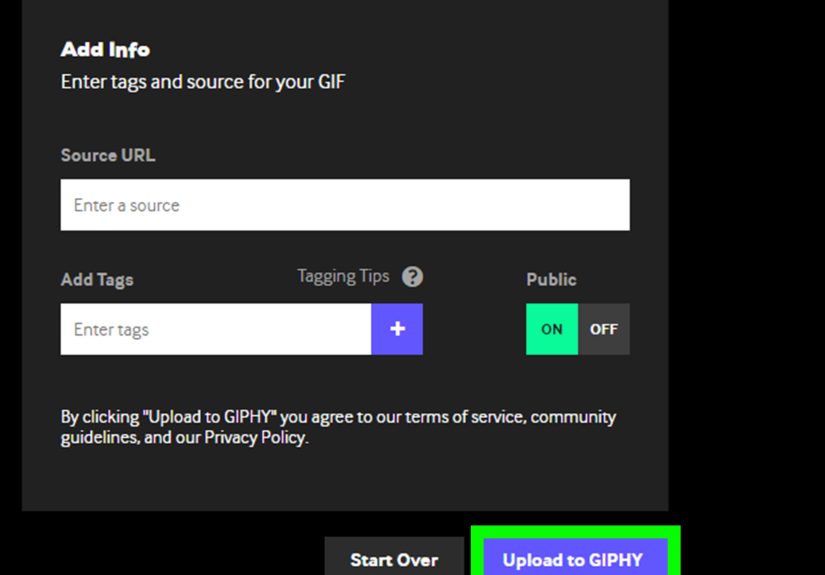
- Open a video-to-GIF tool in your browser
- Upload your video file
- Select the exact start and end points
- Adjust size, frame rate, or quality if needed
- Export and download the GIF
This method works especially well for social clips, blog visuals, reaction GIFs, and product demos. If you are in a hurry, it is hard to beat. It is the microwave dinner of GIF creation, but in a good way.
Method 2: Use a Desktop App for More Control
If you need advanced editing, a desktop app can give you more precision. This is useful when you want to tweak frame rate, crop more carefully, add text overlays, optimize file size, or record part of your screen as a GIF.
Desktop workflows are best for:
- Tutorial creators
- Designers and marketers
- Anyone making GIFs regularly
- People who enjoy adjusting tiny details until 2 a.m.
A good app-based workflow lets you import a clip, trim the exact moment, resize the canvas, change the playback speed, and export a smaller, cleaner animation.
Method 3: Turn a Screen Recording or Demo into a GIF
If the “video” you want to convert is actually something happening on your screen, like software instructions, a web page, or a quick walkthrough, you can record the screen and export it as a GIF. This is especially useful for help docs, onboarding pages, and product support articles.
For example, you might record:
- How to click through a settings menu
- How a design effect looks in action
- How to complete one step inside an app
This kind of GIF is often more useful than a long support video because the viewer can understand it in seconds.
How to Make a GIF from a Video on an iPhone
On iPhone, you have several options, but the two most practical are Shortcuts and third-party GIF tools.
Option 1: Use the Shortcuts App
If you want to turn an actual video into a GIF on an iPhone, the Shortcuts app is one of the best built-in routes. Apple’s automation system supports GIF-related actions, and many users rely on a simple “Video to GIF” shortcut to handle the conversion.
Here is the basic idea:
- Open the Shortcuts app
- Find or add a Video to GIF shortcut
- Select the video from your Photos library
- Trim the part you want
- Save the finished GIF back to Photos or Files
This method is handy because it is quick and does not force you into a complicated editor. It also feels delightfully efficient, which is exactly the kind of thing iPhone users enjoy bragging about.
Option 2: Use a GIF App
If you want more editing tools, use a dedicated app such as GIPHY or a browser-based tool that works on mobile. These usually let you trim the clip, add text, place stickers, apply filters, and save the result directly.
This is a good choice if your GIF is meant for social media or casual sharing.
What About Live Photos?
Live Photos are a separate thing from normal video clips, but they can also be turned into GIF-like looping animations. If you are working from a Live Photo rather than a standard video, iPhone gives you simple looping effects such as Loop and Bounce. Helpful? Yes. A substitute for full video-to-GIF conversion? Not always.
How to Make a GIF from a Video on Android
Android is a little more flexible and a little more chaotic, which is classic Android behavior. Some phones offer built-in motion-photo or export features, while others are better served by apps or browser tools.
Option 1: Use a GIF App
For most Android users, the simplest method is to use an app like GIPHY or a mobile-friendly web tool. The workflow is very similar to iPhone:
- Open the app or browser-based converter
- Upload or select your video
- Trim the best moment
- Optionally add text or effects
- Export the GIF to your gallery
This is easy, fast, and works across many Android devices, which is important because Android manufacturers love giving every phone its own little personality crisis.
Option 2: Export a Motion Photo as a GIF
Some Android phones, especially Pixel devices with Motion Photos, can export those moving stills as GIFs. This works well when you did not record a full video but still captured a short burst of movement.
That said, if you want to convert a normal video clip into a GIF, dedicated apps or browser tools are usually the more reliable option.
How to Make a GIF from a Video on a Tablet
Tablet workflows are basically the best parts of phone and computer life mashed together. You get a touch-friendly interface, but with more screen space for trimming and previewing.
On an iPad, your best choices are:
- Shortcuts for simple video-to-GIF conversion
- Browser-based tools like Adobe Express or Canva
- GIF apps for more visual editing controls
On an Android tablet, browser-based tools and GIF apps are usually the easiest routes. If your tablet handles cloud storage smoothly, you can upload a clip from Google Drive or local storage, trim it, and export the GIF without much fuss.
Tablets are especially useful if you want to make a GIF while traveling, presenting, or working away from your main computer. They are also great for people who hate editing on tiny phone screens but do not want to sit at a desk.
Best Settings for a Good-Looking GIF
If you want your GIF to look crisp without becoming absurdly large, use these practical guidelines:
- Length: 3 to 6 seconds is a strong sweet spot
- Dimensions: Smaller is often better for web sharing
- Frame rate: Moderate frame rates often look smooth enough without bloating the file
- Crop: Show only the important part of the frame
- Text: Keep it short, bold, and readable
- Loop point: End the clip where it can restart naturally
If your first export looks too big, do not panic. Reduce the size, shorten the duration, and trim harder. GIF-making is often less about adding more and more about cutting the fluff with zero remorse.
Common Mistakes to Avoid
Using a clip that is too long
A long GIF is often less funny, less clear, and much heavier to load.
Leaving in dead time
If nothing interesting happens for the first two seconds, cut it. Your audience will not miss the suspense.
Choosing tiny text
If you add captions, make them readable on mobile screens.
Ignoring file size
Especially for email, blogs, and mobile pages, oversized GIFs can slow things down and annoy viewers.
Forgetting where the GIF will be used
A support-doc GIF has different needs than a meme for a group chat. Build for the destination.
When a GIF Is Better Than a Video
Choose a GIF when you want something short, silent, and instantly understandable. GIFs are ideal for reaction moments, before-and-after comparisons, quick tutorials, and product snippets. They remove friction. Nobody has to tap play, turn up sound, or commit to a full viewing session.
Choose a video when you need audio, a longer explanation, or better visual quality. Sometimes the smartest move is knowing when not to force everything into GIF form. Not every clip was born to loop.
Which Device Is Best for Making GIFs?
Here is the honest answer:
- Computer: Best for control, precision, and cleaner exports
- Phone: Best for speed, convenience, and social sharing
- Tablet: Best middle ground for touch editing with more space
If you only make GIFs occasionally, use whatever device is closest to your hand. If you make them often for work, content, or marketing, a computer usually gives you the smoothest experience.
Real-World Experiences: What I Learned Making GIFs on Computer, Tablet, and Phone
One thing I learned very quickly is that making a GIF from a video sounds easier than it actually is for the first five minutes. The first time I tried it on a phone, I assumed I would tap one magical button labeled “Make Internet Gold.” Instead, I spent a few minutes trimming a clip, making it too long, exporting it, noticing the file size was ridiculous, and then going back to trim it again. That tiny moment taught me the golden rule of GIFs: what feels short in a video often feels long in a loop.
On a computer, the experience was the smoothest by far. The bigger screen made it easier to spot the exact moment where the action started and stopped. I could crop more accurately, compare different exports, and tweak the settings without my thumbs covering half the preview. For blog content, tutorials, and work-related visuals, the computer felt like the grown-up option. It was faster, cleaner, and less likely to produce a GIF that looked like it had been compressed inside a sandwich bag.
On a phone, the process was more convenient but also more chaotic. It was perfect for quick sharing, especially when the video already lived in my camera roll. I could turn a funny clip into a GIF while standing in line, sitting on a couch, or pretending to listen during a boring meeting. But editing on a small screen made me less precise. I also noticed that I was more likely to keep unnecessary seconds in the clip because trimming with a finger is not exactly surgical work.
Using a tablet surprised me in a good way. It felt like the sweet spot between casual and serious. The larger screen helped with trimming, but the touch interface still felt fast and low-pressure. If I were traveling or working away from my desk, I would happily use a tablet for most GIF tasks. It especially shines when you want a browser-based tool without dealing with the cramped feel of a phone.
The biggest lesson from all three devices was that the source clip matters more than the tool. A boring video stays boring even after becoming a GIF. The best results came from clips with one obvious moment: a reaction, a movement, a transition, a visual punchline, or one quick tutorial step. Once I stopped trying to squeeze entire scenes into one file, the GIFs looked better, loaded faster, and got a lot more engagement. In other words, the secret was not “find the fanciest app.” The secret was “stop overcomplicating it and pick the good part.”
Final Thoughts
If you want the easiest way to make a GIF from a video, start with a browser-based converter on your computer. If you want speed, use your phone. If you want a comfortable middle ground, use a tablet. No matter which device you choose, the recipe stays the same: pick a short clip, trim ruthlessly, keep the frame focused, and export something that loops smoothly.
A good GIF is not just a converted video. It is a tiny piece of edited communication. It says exactly what it needs to say, then cheerfully repeats itself until someone laughs, learns something, or sends it to a friend. And honestly, that is a pretty respectable career path for a little animated file.






 Close
Close