
Table of Contents >> Show >> Hide
- Why “How You Check Gmail” Actually Matters
- Way #1: Check Google Mail in a Web Browser (The Classic, Full-Feature Option)
- Way #2: Check Google Mail Using the Gmail Mobile App (Fast, Portable, Notification-Friendly)
- Way #3: Check Gmail Through a Desktop Email Client (IMAP/POP in Outlook, Apple Mail, Thunderbird, and More)
- Way #4: Check Google Mail Offline (When the Internet Ghosts You)
- Inbox Survival Skills (Because Checking Email Is Only Half the Battle)
- Quick Comparison: Which Gmail-Checking Method Should You Use?
- Experiences: What These 4 Ways Feel Like in Real Life (Extra Notes From the Trenches)
- Conclusion
“Google Mail” and “Gmail” are basically the same thingkind of like how “soda” and “pop” can start a friendly argument in the comment section.
Gmail is Google’s email service, and it gives you multiple ways to check your messages depending on where you are, what device you’re holding, and how
patient you feel today.
In this guide, you’ll learn four practical, real-life ways to check email using Google Mail, plus tips to stay organized, avoid scams, and keep your
inbox from turning into a digital junk drawer. No keyword stuffing. No robotic vibes. Just helpful steps, quick examples, and a few “been there”
moments.
Why “How You Check Gmail” Actually Matters
Checking your email isn’t one-size-fits-all anymore. Some days you’re at a desk with a full keyboard and coffee that means business. Other days you’re
thumbing through messages on a phone while balancing a backpack and pretending you’re not lost. And sometimes you’re offlineon a plane, in a basement,
or in that one café where the Wi-Fi password is basically a cryptography exam.
Gmail is built to handle all of those situations. The trick is picking the method that matches your day:
fast access in a browser, mobile convenience, a desktop email client that keeps multiple accounts together, or an offline mode for “no internet, still
productive” energy.
Way #1: Check Google Mail in a Web Browser (The Classic, Full-Feature Option)
If you want the most complete Gmail experiencesearch, labels, filters, settings, and all the little productivity goodiesthe web version is your best
friend. It’s also the easiest way to manage your inbox if you’re doing more than just reading one message and running away.
How to check Gmail on the web
- Open a web browser (Chrome, Safari, Firefox, Edgeyour choice).
- Go to Gmail and sign in with your Google account.
- Open your inbox and click any message to read it.
- Use the left sidebar to switch between Inbox, Sent, Drafts, Spam, Trash, or any labels you’ve created.
Real-life example: “Where is that email with the attachment?”
On the web, Gmail search is powerful. Instead of scrolling forever, you can search with helpful operators. For example:
has:attachment to find emails with files, or from:[email protected] to narrow messages by sender.
This is the difference between “I’ll find it eventually” and “I found it before my coffee got cold.”
Web Gmail pro tips (quick wins)
- Use the search bar like a superpower: try searches like newer_than:7d or older_than:1y to filter by time.
- Turn chaos into order with filters: automatically label newsletters, receipts, or work emails so your inbox stays readable.
- Try Snooze: hide a message until a time you’ll actually deal with it (your future self will thank you).
-
Keyboard shortcuts: if you live in your inbox, enabling shortcuts can speed up reading, archiving, and replyingwithout constant
mouse travel.
Safety note for shared computers
If you’re checking Gmail on a public or shared computer, use private browsing/guest mode when available, and always sign out when you’re done.
It’s not paranoiait’s basic digital hygiene.
Way #2: Check Google Mail Using the Gmail Mobile App (Fast, Portable, Notification-Friendly)
The Gmail app is for people who want email to fit into real life. You get push notifications, quick swipes, one-tap archiving, and the ability to
switch accounts without doing the “log out, log in, regret everything” routine.
How to check Gmail on your phone or tablet
- Install the official Gmail app from your device’s app store.
- Open the app and sign in (or add your Google account if it’s not already on the device).
- Tap an email to read it, or use the search bar to find something specific.
- Use the menu to jump to Inbox, Starred, Sent, Drafts, Spam, or labels.
Make the mobile app work for you
- Turn on the right notifications: choose whether you want alerts for every message or only “high priority.”
- Use swipe actions: set swipes to archive, delete, mark as read, or snoozewhatever matches your style.
- Multiple accounts: personal + school + work can all live in one app without constant switching pain.
- Search is still powerful: yes, even on mobile, Gmail search can dig up old messages quickly when you know what to type.
Real-life example: “I need that verification code… right now.”
Many services send one-time codes, password reset links, or confirmation emails that expire quickly. The Gmail app is often the fastest way to grab
themespecially if notifications are enabled. It’s the email equivalent of keeping your keys in the same place every day: not exciting, but extremely
effective.
Way #3: Check Gmail Through a Desktop Email Client (IMAP/POP in Outlook, Apple Mail, Thunderbird, and More)
Some people prefer checking email in a dedicated email program instead of a browser tab that’s competing with 37 other tabs. Desktop email clients can
be great if you manage multiple inboxes, want a unified “all mail” view, or like having email integrated with your computer workflow.
IMAP vs. POP: which one should you use?
IMAP is usually the better option for most people because it syncs your mail across devices. Read an email on your laptop? It shows as
read on your phone too. Archive something? It stays archived everywhere.
POP is more old-school. It downloads email to one device and can be useful for specific setups, but it’s easier to end up with messages
“here but not there.” If you check Gmail on multiple devices, IMAP is typically the smoother ride.
Step 1: Enable IMAP (or POP) inside Gmail settings
- Open Gmail in a browser.
- Go to Settings (the gear icon), then See all settings.
- Open the Forwarding and POP/IMAP tab.
- Enable IMAP (recommended) or configure POP if that’s your specific need.
- Save changes.
Step 2: Add Gmail to your email client
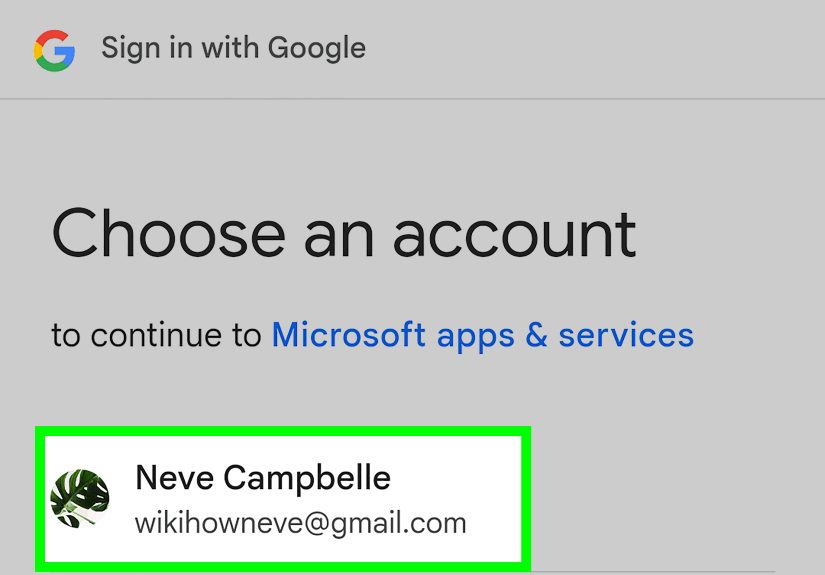
Most modern email clients support “Sign in with Google,” which is the safest and easiest option. Instead of manually typing server settings, you often
just add the account and follow the Google sign-in prompt.
If your client asks for server details, you may need the standard Gmail IMAP/POP and SMTP settings (your client will usually guide you). Also, if your
Google account uses 2-Step Verification, some older apps may require an app password rather than your normal password.
Real-life example: “Work wants Outlook, I want Gmail.”
This is common. A workplace might prefer Outlook because it’s part of their routine, but you still want Gmail as your mailbox. Adding Gmail to Outlook
can let you check messages and reply from one place, while Gmail continues to store and organize your mail behind the scenes.
Security tips when using third-party clients
- Prefer “Sign in with Google” when available.
- Turn on 2-Step Verification for stronger account protection.
- Use app passwords only if needed (usually for older apps that can’t do modern Google sign-in).
- Watch for phishing: scammers love fake “account locked” messages designed to steal your login.
Way #4: Check Google Mail Offline (When the Internet Ghosts You)
If you travel, commute, or work in places with unreliable internet, Gmail’s offline mode can be a lifesaver. It lets you read (and often search) synced
messages even when you’re not connected. You can also draft emailsthen Gmail sends them when you’re back online.
How Gmail Offline works (in plain English)
Gmail stores a recent chunk of your mailbox in your browser so you can access it without live internet. Think of it like downloading a “mail snapshot”
that you can browse later. It’s not magic, but it feels close when you’re stuck without Wi-Fi and still want to be productive.
How to enable offline mail in Gmail
- Open Gmail on a computer using Chrome.
- Go to Gmail settings and find the Offline section.
- Check Enable offline mail.
- Choose how many days of email you want available offline.
- Save changes and let it sync.
When offline mode is the best choice
- Flights or trains: draft replies while you’re offline, then send when you reconnect.
- Spotty internet: keep moving instead of refreshing your inbox like it owes you money.
- Deep focus sessions: read what’s already synced without getting pulled into new incoming messages.
A quick caution
Offline mode is great on a personal computer. It’s not ideal on a shared computer because it stores mail locally in that browser profile. If you’re on a
device other people can access, skip offline mode and stick with secure sign-in habits.
Inbox Survival Skills (Because Checking Email Is Only Half the Battle)
Once you’ve picked your favorite way to check Google Mail, you’ll get the biggest benefit by making your inbox easier to manage. Here are practical,
non-annoying habits that help no matter which method you use.
1) Use Search Instead of Scrolling
Gmail was practically built on the idea that you shouldn’t have to “sort everything perfectly” to find what you need. Use search operators like
from:, subject:, has:attachment, or time filters such as newer_than: to find messages
fast.
2) Filters and labels beat willpower
Willpower says, “I’ll organize later.” Filters say, “This newsletter goes to a label automatically, forever.” If you get recurring messages like
receipts, shipping updates, school notices, or work alerts, filters can keep them out of your main inbox while still making them easy to find later.
3) Snooze emails you can’t handle yet
Snooze is perfect for emails that matter, but not right now. It removes the message from your inbox temporarily and brings it back when you’re ready.
That means fewer “unread guilt” messages lingering for weeks like a silent judgment panel.
4) Don’t get tricked: basic anti-phishing rules
- Be suspicious of urgent messages demanding you “verify now” or “your account will close.”
- Don’t enter your password after clicking a random email linkgo directly to the official website instead.
- Check sender details carefully. Scammers often imitate real brands with tiny spelling changes.
- Report suspicious messages as spam or phishing inside Gmail when appropriate.
Quick Comparison: Which Gmail-Checking Method Should You Use?
- Web browser: Best for full features, settings, deep searching, and managing labels/filters like a pro.
- Mobile app: Best for speed, notifications, and checking messages on the go.
- Desktop email client (IMAP/POP): Best if you like a unified inbox or need Gmail inside Outlook/Apple Mail/Thunderbird workflows.
- Offline mode: Best when internet is unreliable, or you want to read/draft messages without being online.
Experiences: What These 4 Ways Feel Like in Real Life (Extra Notes From the Trenches)
Let’s be honest: “checking email” sounds simple until you’re actually doing it in the middle of a busy day. Here are some real-world experiences that
make each method shine (or, occasionally, make you want to fling your laptop into the sunfiguratively).
Experience #1: The web browser “I’m getting things done” session
When you open Gmail on a computer, you suddenly become a more organized version of yourself. You can see your inbox clearly, search without typos caused
by thumb-keyboard chaos, and knock out emails in batches. This is where labels and filters feel powerful. For example, you might label receipts and
shipping emails automatically, then search label:receipts newer_than:30d when you’re tracking expenses. It’s not glamorous, but it’s
efficient.
The web version is also where you fix the stuff that annoys you everywhere else. If mobile notifications feel too loud, you adjust settings. If your
inbox is cluttered, you set up filters. If you want shortcuts, you enable them. It’s like tuning your car instead of just driving it and hoping it
behaves.
Experience #2: The mobile app “I need an answer right now” moment
The Gmail app is the hero of quick decisions: confirming an appointment, grabbing a verification code, or replying with a fast “Got it, thanks!” while
walking between places. It’s also the best way to catch time-sensitive emails because notifications pull the message to you instead of making you go
hunting for it.
The downside? It’s easy to get pulled into email too often. The app is so convenient that you can end up checking messages every five minutes “just to
be safe,” which is how inboxes quietly steal your attention. A practical fix is setting notifications to only alert you for important mail, or choosing
specific labels that can notify you (like “School” or “Work”) while everything else stays quiet.
Experience #3: The desktop email client “all my mail in one place” setup
Using Outlook, Apple Mail, or Thunderbird with Gmail is a very specific kind of comfort: you sit down, open one app, and there’s everythingmultiple
inboxes, calendars (sometimes), and a familiar interface. This is especially useful if your day already revolves around a desktop workflow and you don’t
want Gmail living in a browser tab next to streaming music, shopping carts, and a half-finished research rabbit hole.
In practice, IMAP setups feel the smoothest because you can read on one device and still have everything match everywhere else. You archive an email on
your laptop and it’s archived on your phone too. That “sync harmony” is what people want when they say, “I just want my email to behave.”
The key is using modern sign-in methods when possible, because security matters. If an app asks for an app password, that’s your clue it’s older or
needs special permissionand you should pause and confirm you trust it.
Experience #4: Offline Gmail “I refuse to waste this time” productivity
Offline Gmail is underrated until you need it. The best example is travel: you’re on a plane or somewhere with weak internet, and you decide to clean up
your inbox or draft replies. You can read what’s already synced, star what needs attention, and write drafts with calm focus. Then, once you’re back
online, Gmail sends the draftslike a helpful assistant who waited patiently while the Wi-Fi got its life together.
Offline mode also creates a weirdly peaceful email experience because nothing new arrives while you’re working. No pop-ups, no fresh subject lines
pulling you into a new thread, no “quick question” that becomes a 20-minute detour. If you’re prone to getting distracted, offline time can be a secret
weapon for finishing the emails that already existbefore you invite in more.
Bottom line: Gmail doesn’t force you into one way of checking email. You can use the method that fits your contextweb for management, mobile for speed,
desktop clients for unified workflows, and offline for those moments when the internet isn’t cooperating. Pick the one that matches your day, and you’ll
spend less time “checking email” and more time actually finishing what you opened your inbox to do.
Conclusion
Google Mail (Gmail) gives you four reliable ways to check email: the web browser for full control, the mobile app for speed and notifications, desktop
email clients for a unified workflow, and offline mode for internet-free productivity. Mix and match based on where you are and what you needthen use
search, filters, and basic security habits to keep your inbox useful instead of overwhelming.





 Close
Close