
Table of Contents >> Show >> Hide
- Why Make a Copy of a Word Document Instead of Editing the Original?
- The Best Ways to Copy a Word Document on a Windows PC
- How to Make a Copy of a Word Document on Mac
- How to Copy a Word Document in OneDrive, Dropbox, or the Web
- Quick Comparison: Which Copy Method Should You Use?
- Common Problems When Duplicating a Word Document
- Best Practices for Managing Document Copies
- Final Thoughts
- Experience: What Copying Word Documents Looks Like in Real Life
If you have ever opened a Word file, made a few “tiny” edits, and then realized you just bulldozed the original draft, welcome to the club. It is a crowded club. The good news is that making a copy of a Word document on PC or Mac is easy once you know which method fits your situation. Sometimes the fastest choice is Save As or Save a Copy inside Microsoft Word. Other times, it is quicker to duplicate the file in File Explorer on Windows or Finder on Mac. And if your document lives online, the process changes again.
This guide walks through the simplest ways to copy a Word document on both Windows and macOS, explains when each method makes sense, and shows you how to avoid the classic mistake of editing the original file by accident. In other words, this article is here to save your document, your time, and possibly your mood.
Why Make a Copy of a Word Document Instead of Editing the Original?
Before we get into the steps, let’s answer the obvious question: why bother making a duplicate at all? Because copying a Word file is one of the easiest ways to protect your work. A duplicate lets you:
- Preserve the original draft for reference
- Test edits without fear
- Create a client version and an internal version
- Reuse a document as a template
- Share a copy while keeping your master file private
This matters even more if your file is stored in OneDrive or another cloud service. AutoSave is great until it becomes a little too enthusiastic and saves changes you never meant to make to the original. That is why knowing how to make a copy of a Word document is more than a convenience. It is a small but mighty survival skill.
The Best Ways to Copy a Word Document on a Windows PC
On a Windows PC, there are three practical ways to duplicate a Word file. The best one depends on whether you are already inside the document, working from your desktop, or managing files in a synced folder like OneDrive.
Method 1: Use Save As or Save a Copy in Microsoft Word
This is the cleanest option when the document is already open in Word. It is especially useful if you want to rename the file, save it to a different location, or create a new working version before you start editing.
- Open the Word document.
- Click File.
- Select Save As or Save a Copy.
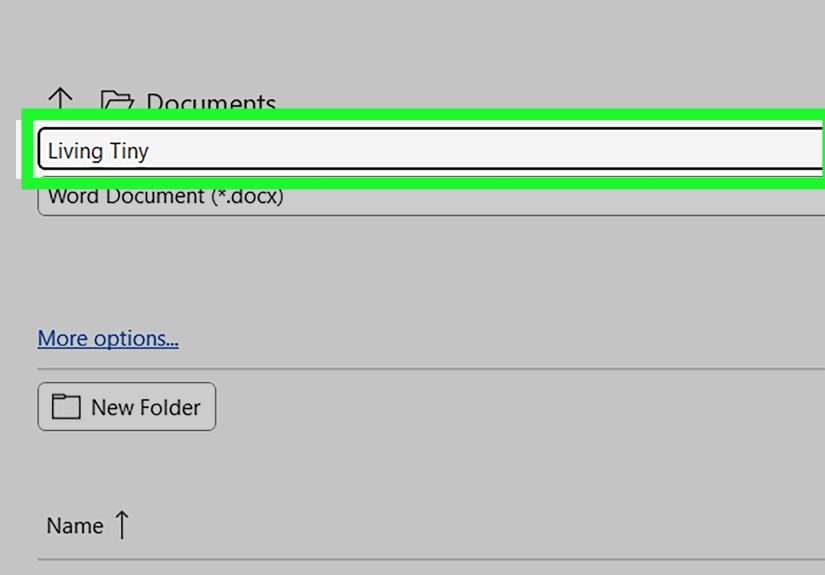
- Choose the folder where you want the duplicate saved.
- Type a new file name.
- Click Save.
Example: if your original file is called Quarterly Report.docx, you might save the duplicate as Quarterly Report – Revised.docx. That tiny rename prevents a giant headache later.
This method is ideal when you want to keep formatting, comments, headers, and layout exactly as they are. You are not creating a stripped-down copy. You are creating a full duplicate of the Word document with a new name or destination.
Method 2: Copy and Paste the File in File Explorer
If the document is closed, or if you simply prefer file-level control, use File Explorer. This is the fastest method for copying a Word file from one folder to another on Windows.
- Open File Explorer.
- Find the Word file you want to copy.
- Right-click the file and choose Copy.
- Go to the destination folder.
- Right-click inside the folder and choose Paste.
You can also use keyboard shortcuts:
- Ctrl + C to copy
- Ctrl + V to paste
This method works beautifully when you need to place a copy on your desktop, in a project folder, on an external drive, or in a synced OneDrive folder. It is also handy when you want several duplicates quickly. Right-click, copy, paste, done. No drama. No accidental edits. No digital tragedy.
Method 3: Duplicate a Word Document Before Editing a Shared File
If the file lives in a shared cloud folder, copying it before editing is the safest move. Shared Word files can update in real time, which is amazing for collaboration and terrible for anyone who wanted to “just test something real quick.”
A smart workflow looks like this:
- Open the shared document.
- Immediately use Save a Copy.
- Save the new version to your own folder or OneDrive space.
- Edit the duplicate instead of the original.
This is the best way to create a personal version of a team file without rewriting someone else’s work history.
How to Make a Copy of a Word Document on Mac
On a Mac, you have two strong options: duplicate the file in Word, or duplicate it directly in Finder. Both are easy, and both are worth knowing.
Method 1: Save a New Copy in Word for Mac
If the file is already open in Microsoft Word for Mac, create a new version from inside the app. This is perfect when you want to change the file name, move the document into another folder, or save a backup before you begin revising.
- Open the Word file.
- Go to the File menu.
- Choose the save option that lets you create a new version.
- Enter a new file name.
- Select the destination folder.
- Save the duplicate.
For example, if you are sending one version to a client and keeping another version with internal notes, duplicating in Word gives you a neat, controlled split.
Method 2: Use Finder to Duplicate the File
Finder is the Mac equivalent of File Explorer, and it makes copying Word documents wonderfully simple.
- Open Finder.
- Locate the Word document.
- Select the file.
- Choose File > Duplicate or press Command + D.
Mac will create a duplicate in the same folder, usually with “copy” added to the name. You can then rename it to something more useful than Final Final Copy 2 Really Final.docx. We have all seen that file name in the wild. Some of us have created it. No judgment.
You can also copy and paste manually:
- Command + C to copy
- Command + V to paste
Method 3: Option-Drag to Copy to Another Folder on Mac
Mac has a slick shortcut that many people miss. If you want to place a copy of a file into another folder while keeping the original where it is, hold the Option key and drag the file. That creates a copy instead of moving the original.
This method is excellent when you are organizing drafts into folders like:
- Current Drafts
- Archived Versions
- Client Copies
- Ready to Publish
It feels almost too easy, which is exactly why Mac users love it.
How to Copy a Word Document in OneDrive, Dropbox, or the Web
Documents are not always stored locally anymore. A lot of Word files now live in cloud storage, and the method changes slightly depending on where the file is stored.
Copying a Word File in OneDrive
If your Word document is in OneDrive, you can either:
- Use Save a Copy from Word
- Copy the file in a synced OneDrive folder using File Explorer or Finder
- Download a copy from the web interface if needed
This is useful when you want a local backup or a separate editing version that will not overwrite the shared cloud file.
Copying a Word File in Dropbox
Dropbox also supports easy duplication. You can duplicate files on the website, or copy and paste files in the Dropbox folder on your computer. If you already use Dropbox through Finder or File Explorer, the process feels almost identical to working with a local file.
Copying a Word File in Google Docs or Word for the Web
If you opened a Word file in a browser, the process is a little different. Word for the web and Google Docs both make copies through their file menus. Usually, you will see an option like Create a Copy, Save As, or Make a copy.
This matters because browser-based documents often auto-save. If you do not create a separate copy first, your edits may instantly affect the original version. And that is a plot twist nobody asked for.
Quick Comparison: Which Copy Method Should You Use?
| Situation | Best Method | Why It Works |
|---|---|---|
| You already opened the document in Word | Save As or Save a Copy | Best for renaming and saving to a new location |
| The file is closed on Windows | File Explorer copy and paste | Fast and simple |
| The file is closed on Mac | Finder Duplicate or Command + D | Creates an instant duplicate |
| You want a copy in another Mac folder | Option-drag | Keeps the original and creates a copy elsewhere |
| The file is shared or in the cloud | Save a Copy before editing | Helps avoid overwriting the original |
Common Problems When Duplicating a Word Document
I changed the copy, but the original changed too
This usually happens when you started editing the original cloud file before saving a separate version. In shared or synced environments, create the copy first, then edit the duplicate.
I cannot find Save As in Word
Depending on the version of Word and where the file is stored, Microsoft may show Save a Copy instead. The idea is the same: create a new file with a different name or destination.
The copied document has a weird name
That is normal. Systems often append words like “copy.” Rename the file immediately so you can find it later without playing detective in your Downloads folder.
I only wanted to duplicate one page, not the whole file
That is a different task. Duplicating a file makes a copy of the entire document. If you need to copy a single page, you would copy and paste the page content within Word instead.
Best Practices for Managing Document Copies
Making copies is easy. Managing them well is where adults earn their gold stars. Here are a few habits that help:
- Use descriptive file names such as Proposal-v2 or Resume-Client-Version
- Store originals in one clearly labeled folder
- Keep working drafts separate from final versions
- Create a copy before editing cloud-based files
- Back up important files to OneDrive, Dropbox, or an external drive
If you do this consistently, you spend less time hunting for the right file and more time actually finishing your work. A revolutionary concept, really.
Final Thoughts
Learning how to make a copy of a Word document on PC and Mac is one of those small skills that pays off constantly. On Windows, Save As, Save a Copy, and File Explorer are your best friends. On Mac, Finder Duplicate, Command + D, and Option-drag make the process fast and painless. If the file lives in the cloud, always create the duplicate before you start editing.
The bottom line is simple: if a document matters, do not gamble with the original. Make the copy first. Future you will be grateful, calmer, and far less likely to whisper dramatic things at your laptop.
Experience: What Copying Word Documents Looks Like in Real Life
In real-world use, people rarely make a copy of a Word document just for fun. They do it because they are under pressure. A student is revising an essay and wants to preserve the submitted draft. A project manager is updating a contract but needs the signed version untouched. A freelancer is reusing a proposal from last month but does not want to delete the old pricing by accident. In all of these situations, making a duplicate is not just a file-management trick. It is risk control.
One common experience on Windows is this: someone opens a document from OneDrive, starts editing immediately, and only later realizes the original team file has already changed. That is where Save a Copy becomes a lifesaver. People who work with shared folders eventually learn this lesson the same way people learn not to put metal in a microwave: ideally from reading instructions, but often from one unforgettable mistake.
Mac users usually run into a different pattern. They may not even open the document first. Instead, they work in Finder, hit Command + D, rename the duplicate, and move on. It is quick, clean, and perfect for anyone who likes to organize first and edit second. That workflow is especially useful for writers, designers, and consultants who keep multiple versions of the same file for different clients or stages of review.
Another practical experience comes from job hunting. Many people keep one master resume in Word, then create copies tailored to specific roles. One copy emphasizes management experience. Another highlights technical skills. A third removes older positions to fit a tighter one-page layout. The point is not just duplication. It is strategic duplication. The original document stays safe while each copy becomes purpose-built.
Teachers and office staff do something similar with templates. A syllabus, meeting agenda, invoice, or project brief often starts as one original Word file. Instead of rebuilding the format each time, they duplicate the file and replace the content. It saves time, preserves consistency, and prevents that annoying moment when you realize you edited the only clean version of your template. Suddenly, even the blank spaces are no longer blank.
People also make copies for emotional reasons, even if they do not phrase it that way. A duplicate feels safer. It creates freedom to experiment. You can cut sections, rewrite paragraphs, test formatting, or add comments without worrying that you are wrecking the source document. That psychological benefit is real. When users know the original is protected, they work faster and more confidently.
So yes, making a copy of a Word document is technically simple. But in practice, it supports better workflows, cleaner version control, safer collaboration, and less stress. That is why such a small action shows up everywhere: in classrooms, offices, legal teams, freelance businesses, and home desktops with folders named something mysterious like Important Stuff New. The method may vary between PC and Mac, but the reason stays the same: when the document matters, copying first is the smart move.






 Close
Close