
Table of Contents >> Show >> Hide
- First, Check Your Order Status (Because the “Cancel” Button Plays Hide-and-Seek)
- Way 1: Cancel From “Your Orders” (Best for Items That Haven’t Shipped Yet)
- Way 2: Request Cancellation for Third-Party Seller Orders (or When “Cancel Items” Isn’t Available)
- Way 3: If It Already Shipped, “Cancel” Turns Into Refuse Delivery or Return
- Common “Why Can’t I Cancel?” Problems (And What to Do Instead)
- Mini Checklist: Cancel Faster Next Time
- Real-Life Cancellation Stories and Lessons (So You Don’t Learn the Hard Way)
- Conclusion
Amazon makes it dangerously easy to buy things. One minute you’re searching for “AA batteries,” and the next minute you’ve somehow ordered a 64-pack of glitter
glue, a “life-size” plush sloth, and a phone case for a phone you don’t own. The good news: in many cases, canceling an Amazon order is fast. The slightly
less good news: Amazon’s shipping is also fastso the window to cancel can be… let’s call it “blink-and-it’s-gone.”
This guide walks you through three practical ways to cancel an order on Amazonwhether your item is still chilling in the “not shipped yet”
zone, trapped in a third-party seller timeline, or already on a delivery truck living its best life.
First, Check Your Order Status (Because the “Cancel” Button Plays Hide-and-Seek)
Before you do anything, go to your order and look for the status. Amazon’s cancellation options depend heavily on where the order is in the fulfillment
process and who’s selling and shipping it (Amazon vs. third-party seller).
Quick translation of Amazon status language
- Not yet shipped / Not yet dispatched: You’re in the easiest cancel zone.
- Preparing for shipment / In fulfillment: You may see Request cancellation instead of a guaranteed cancel.
- Shipped: Cancellation is often no longer possible. You’ll likely need to refuse delivery or return the item.
- Delivered: It’s no longer a cancellationnow it’s a return.
Also note: digital orders and subscriptions follow different rules (more on that later), and some items are non-returnable.
Way 1: Cancel From “Your Orders” (Best for Items That Haven’t Shipped Yet)
This is the classic, most reliable method: cancel directly from your Amazon account. If the order hasn’t entered the shipping process, Amazon usually lets you
cancel in just a few clicks.
How to cancel on desktop (website)
- Sign in to Amazon on a web browser.
- Go to Returns & Orders (sometimes shown as Your Orders).
- Find the order you want to cancel.
- Select View or change this order (wording can vary).
- Choose Cancel items (or Request cancellation).
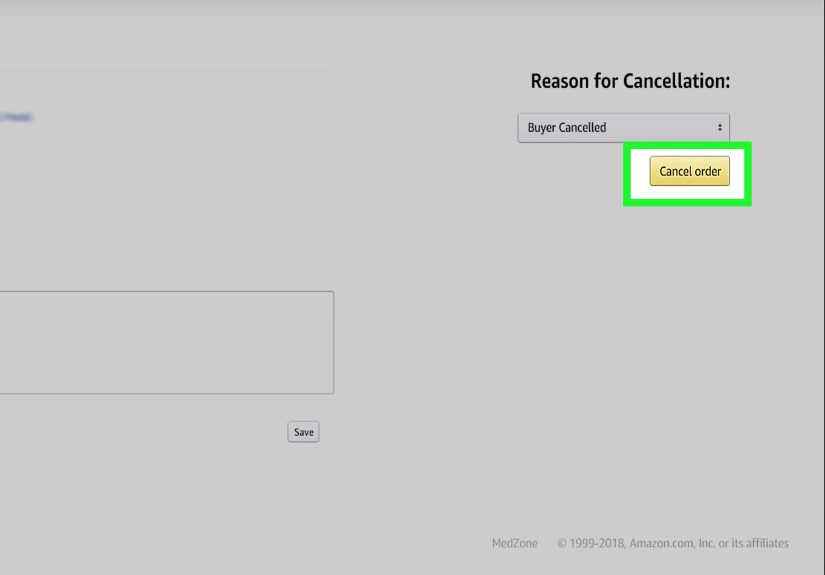
- Check the box next to each item you want to cancel (or select all items to cancel the entire order), pick a reason, then confirm.
How to cancel in the Amazon Shopping app
- Open the Amazon Shopping app.
- Go to the Me tab (or your account icon).
- Tap Your Orders.
- Select the order, then tap Cancel item (or Cancel order).
- Confirm the items and submit.
What to expect after you cancel
- You’ll typically see a confirmation message and/or email.
-
If the order was eligible and you canceled in time, it should switch to a canceled status quickly. If you had to request cancellation, you may
see “cancellation requested” while Amazon (or the seller) processes it. -
Refund timing varies by payment method and order type. In some cases you’ll see an authorization drop off quickly; other times the refund posts after
processing.
Example: canceling a multi-item order without nuking the whole thing
Let’s say you ordered three things: a blender, replacement filters, and a recipe book you were convinced would change your life. Then reality taps you on the
shoulder and says, “You do not need a seventh blender.” Cancel only the blender: check the blender box, leave the others unchecked, and confirm. Easy win.
Way 2: Request Cancellation for Third-Party Seller Orders (or When “Cancel Items” Isn’t Available)
Amazon is a mix of items sold by Amazon and items sold by third-party sellers. That’s where cancellations can get a little spicy.
When this method matters
- Your order is sold and shipped by a third-party seller.
- You only see Request cancellation instead of Cancel items.
- The order moved into fulfillment quickly, and you’re racing the clock.
How to request a cancellation from a third-party seller
- Go to Your Orders.
- Open the order details.
- If you see a seller option like Contact seller, use it and choose a cancellation-related message (wording varies).
- Send a short, clear note asking to cancel immediately.
A “copy/paste” message that works
“Hi! Please cancel this order if it has not shipped yet. I placed it by mistake and no longer need it. Thank you!”
Pro tips so you don’t get stuck in limbo
- Move fast. Some third-party orders can be canceled directly only for a short window after purchase.
- Keep it simple. Sellers don’t need your life storyjust the request and urgency.
- If the seller doesn’t cancel and it ships anyway: switch strategy to Way 3 (refuse/return).
Need human help? Contact Amazon Customer Service
If your order is stuck, the seller isn’t responding, or the options on your screen don’t match what you expect, Amazon customer service can help you figure
out next steps. Many shoppers use chat or phone support for cancellation edge casesespecially when timing matters.
- Use chat when you want a written record and quick back-and-forth.
- Use phone support when it’s urgent, complicated, or you’re dealing with a delivery issue.
- Use the Help pages if you want the official steps for your exact situation.
Way 3: If It Already Shipped, “Cancel” Turns Into Refuse Delivery or Return
Here’s the hard truth: once an Amazon order has shipped, you often can’t truly cancel it. At that point, your best options are:
refuse delivery (when possible) or return the item after it arrives.
Option A: Refuse delivery (when you can)
Refusing delivery is basically telling the carrier, “No thankssend it back.” This works best when a delivery is handed to you in person (or when the carrier
gives you a refusal option). If the package is left at your door, refusal may be harderso don’t rely on this as your only plan.
- If the driver hands you the package: say you’re refusing delivery.
- If it’s a third-party seller shipment: refusal may still work, but refunds may process after the seller receives the return.
- If it’s already marked delivered: you’ll need to return it instead.
Option B: Return the item (the most common “post-shipping cancellation”)
For most physical items, Amazon’s standard return window is often around 30 days after delivery (with exceptions). Some categories have
different rules, and certain products are non-returnableso always check the return eligibility shown on your specific order.
How to return an item through Amazon
- Go to Your Orders.
- Find the item and select Return or replace items.
- Choose a reason, then follow the prompts for your return method.
- Drop off or ship it back using the instructions Amazon provides.
Refund timing: what’s normal?
Refund speed depends on what you bought, who sold it, how you returned it, and your payment method. Amazon notes that refunds can take up to several weeks in
some scenarios, especially if processing or shipping takes longer than expected.
Watch-outs: non-returnable and special-category items
Some purchases can’t be returned (and therefore can’t be “undone” the same way), including things like many digital products and gift cards. Other categories
may have special rules or shorter windows. If you’re not sure, check the return notes on the product page and your order details before you assume you can
send it back.
Common “Why Can’t I Cancel?” Problems (And What to Do Instead)
“The Cancel button is missing.”
- Likely cause: the order is already in fulfillment or shipped.
- Do this: try Way 2 (request cancellation) or Way 3 (return/refuse).
“It says ‘cancellation requested’now what?”
- Meaning: the request is submitted, but approval/processing is still happening.
- Do this: monitor the order status and email updates; if it ships, switch to returns.
“It’s a digital order.”
Digital purchases can have different cancellation rules. For example, certain in-app or streaming purchases may require canceling from a transactions page or
digital order management page instead of the normal shipping order flow. If you don’t see a cancel option in the app, check your digital orders/transactions
area in your account.
“It’s a subscription (Subscribe & Save, Prime add-ons, software subscriptions).”
A subscription is not the same thing as a one-time order. Canceling the subscription usually stops future deliveries/renewals. You may still need
to return a recent shipment if it already processed.
Mini Checklist: Cancel Faster Next Time
- Act immediately when you notice the mistakeminutes matter.
- Use the app if you’re away from a computer; the “Me” tab → “Your Orders” path is quick.
- Know the seller: Amazon-sold vs. third-party-sold changes your cancellation options.
- If it ships, pivot fast to refusal/return instead of refreshing the cancel page 47 times.
- Save your confirmation email/screen until the cancellation or refund is complete.
Real-Life Cancellation Stories and Lessons (So You Don’t Learn the Hard Way)
Let’s make this practical with some real-world-style scenariosbecause “Cancel items” is easy to understand until you’re sweaty-palming your phone at 1:12 a.m.
after accidentally ordering something that looks like a scammy “limited-time deal” (it’s not limited, and the time is always now).
Story #1: The Midnight Misclick. You’re shopping for a simple phone charger. You add one to cart. Then you see “Customers also bought…” and
suddenly you’re comparing braided nylon cables like you’re judging a talent show. You hit Buy Nowexcept your thumb slips and you buy the 3-pack
premium ultra-fast “dragon lightning” cable that costs three times more. If you catch it immediately, Way 1 saves you: go straight to Your Orders,
cancel the item, and move on with your life. The lesson? If you regret it instantly, don’t “think about it.” Cancel first. Think later.
Story #2: The Gift That Accidentally Ships to You. You order a birthday gift and carefully choose your friend’s address. Then your brain
short-circuits, and you realize you left the default address as your own. If the order hasn’t shipped, Way 1 is your herocancel and reorder to the correct
address. If it’s sold by a third-party seller and you only see “Request cancellation,” Way 2 becomes your best move. The lesson? Address mistakes are common,
but the fix depends on speed. When in doubt, cancel and reorder. It’s usually faster than chasing a package across town.
Story #3: The Third-Party Seller Time Trap. You spot a great price from a marketplace seller. You buy it. Ten minutes later, you find the same
item shipped by Amazon for the same price with faster delivery and easier returns. Now you want out. Sometimes you can cancel quickly from Your Orders, but
sometimes you’ll need to contact the seller (Way 2). The lesson? With third-party sellers, the cancellation experience can vary. If your screen is giving you
fewer buttons than you expected, don’t panicrequest cancellation and message the seller right away.
Story #4: The “It Shipped in 12 Seconds” Surprise. You place an order, then realize you selected the wrong size. You go back to cancel and the
button is gone. It already shipped. This is when people get mad at Amazon for being efficient (a very modern problem). Way 3 is your path: prepare to return
it, or refuse delivery if that’s realistic in your situation. The lesson? Amazon shipping speed is amazing until it’s inconvenient. When the cancel window
closes, don’t waste time trying to force itswitch to return mode.
Story #5: The “Non-Returnable” Plot Twist. You buy something that seems returnable… until you discover it’s a digital product, a code, or an
item category with special restrictions. Now cancellation isn’t just “hard,” it’s sometimes “not a thing.” The lesson? Before you buy digital or special items,
glance at return eligibility. If you already bought it, check your account’s digital orders/transactions area for any available cancellation options, and contact
support if you’re stuck.
Bottom line: Most Amazon cancellation stress comes from one issue: waiting. The faster you act, the more options you have. And when the cancel
option disappears, it’s not personalyour package is just already on an adventure. That’s when you calmly pivot to refusal (if possible) or a return, and save
your energy for the next truly urgent tasklike explaining to your household why a giant plush sloth is now “part of the decor.”
Conclusion
Canceling an Amazon order doesn’t have to feel like defusing a bomb with oven mitts. Use Way 1 when the item hasn’t shipped, switch to
Way 2 when a third-party seller is involved or you only see “request cancellation,” and rely on Way 3 (refuse/return) once
shipping is already in motion. The key is speed, clarity, and knowing which buttons matter for your specific order.





 Close
Close