
Table of Contents >> Show >> Hide
- Before You Start: Know What Kind of Sync You Actually Need
- Method 1: Add Your Google Account Directly to Outlook
- Method 2: Subscribe to a Google Calendar or Any iCal Calendar in Outlook
- Method 3: Sync iCloud Calendar with Outlook
- Method 4: Use Google Workspace Sync for Microsoft Outlook
- Which Method Should You Choose?
- Common Problems When Outlook Calendar Sync Fails
- Real-World Experiences: What This Looks Like in Everyday Life
- Final Thoughts
If your schedule lives in three places at once—Outlook for work, Google Calendar for life, and iCloud for that mysterious dentist appointment you swear you never booked—welcome to modern adulthood. The good news is that syncing your calendar with Outlook on PC or Mac is absolutely possible. The less-good news is that the word sync can mean several different things depending on the method you choose.
Sometimes sync means true two-way updates, where an event created in one calendar appears in the other and can still be edited later. Other times it means a read-only subscription, which is still useful but not exactly magical. And occasionally, it means a one-time workaround that solves today’s problem while quietly creating tomorrow’s confusion.
This guide breaks down four practical ways to sync your calendar with Outlook on PC or Mac, including the best method for Google Calendar, the most reliable option for iCloud, and the business-friendly route for Google Workspace users. Along the way, we’ll also cover limitations, common headaches, and how to choose the setup that won’t make you yell at your laptop before coffee.
Before You Start: Know What Kind of Sync You Actually Need
Before clicking buttons with the confidence of someone who definitely read the instructions, decide what outcome you want:
- True two-way sync: You can create or edit events in Outlook, and they also update in the original calendar service.
- One-way live subscription: Outlook shows updates from another calendar automatically, but editing is limited or unavailable.
- Single import or migration: You move events once, but future changes do not continue syncing.
That distinction matters because a lot of people think they synced a calendar when they actually imported a snapshot. That works great until next Tuesday disappears.
Method 1: Add Your Google Account Directly to Outlook
If you use Google Calendar and want the cleanest, most natural Outlook experience, adding your Google account directly to Outlook is usually the best place to start. On supported versions, this gives you a more integrated setup than a simple calendar subscription.
How it works
Instead of pasting a calendar link into Outlook, you sign in with your Google account and let Outlook connect to your Google data. That makes this method feel more like a real account connection and less like duct tape with a login screen.
How to do it on a Windows PC
- Open Outlook.
- Go to account settings and choose Add Account.
- Enter your Gmail address.
- Sign in through Google.
- Approve the permissions Outlook requests.
- Finish setup and let Outlook load your account data.
How to do it on a Mac
- Open Outlook for Mac.
- Go to Outlook > Settings.
- Select Accounts, then add a new account.
- Enter your Gmail address and continue.
- Sign in with Google and approve access.
- Wait for Outlook to pull in your account information.
Why this method is great
This setup is the closest thing to a native experience for many Google users. It is easy to manage, works well for people who live in Outlook all day, and avoids the awkward limitations of view-only calendar feeds.
It is especially handy if you want your personal Google Calendar to sit beside your work calendar so you can spot conflicts without playing tab roulette. It also feels less fragile than an old-school import, because the connection is tied to your account rather than a single downloaded file.
What to watch out for
Feature support depends on your Outlook version and platform. On Mac, calendar and contacts syncing with Google has historically depended on supported Outlook builds and Microsoft 365 subscription support. On newer Outlook experiences, Microsoft also routes some non-Microsoft account syncing through the Microsoft Cloud, which can improve features but may introduce occasional sync quirks.
In plain English: this is the best general option for Google Calendar users, but you should not panic if menus look slightly different on your machine. Outlook loves changing its furniture without telling anyone.
Method 2: Subscribe to a Google Calendar or Any iCal Calendar in Outlook
If direct account sync is unavailable, or you only need to see another calendar inside Outlook, subscribing to an internet calendar is a simple and reliable alternative. This works well for Google Calendar, shared family calendars, school schedules, club calendars, and other feeds that use the iCal or ICS format.
How it works
You copy a calendar URL from the source calendar and add it to Outlook as a web subscription. Outlook then pulls updates automatically. This is much better than importing a static file because the calendar continues refreshing over time.
How to subscribe to a Google Calendar in Outlook
- Open Google Calendar in a browser.
- Find the calendar you want under My calendars.
- Open Settings and sharing.
- Scroll to Integrate calendar.
- Copy the Secret address in iCal format if the calendar is private.
- Open Outlook.
- Choose Add calendar or Subscribe from web.
- Paste the iCal URL and save or import it.
Why this method is useful
This option is easy, flexible, and works across lots of services. If all you need is visibility, it is excellent. For example, maybe your spouse shares a family calendar in Google, or your community center publishes a public events calendar. Subscribing lets you see everything in Outlook without changing your main workflow.
It is also ideal if you want to keep a side calendar visible but do not want to fully connect another account. Less commitment, fewer settings, and no need to wonder which service owns your Tuesday at 3 p.m.
The big limitation
This is usually not true two-way sync. In most cases, you are subscribing to a feed, not editing the original calendar from Outlook. It is best for visibility, not collaboration.
Also, keep your secret iCal address actually secret. The name is not being dramatic.
Method 3: Sync iCloud Calendar with Outlook
Apple users get a slightly more complicated path, because syncing iCloud with Outlook is not identical on Windows and Mac. In other words, one operating system gets a relatively straightforward road, and the other gets a scenic route with extra signage.
On Windows: Use iCloud for Windows
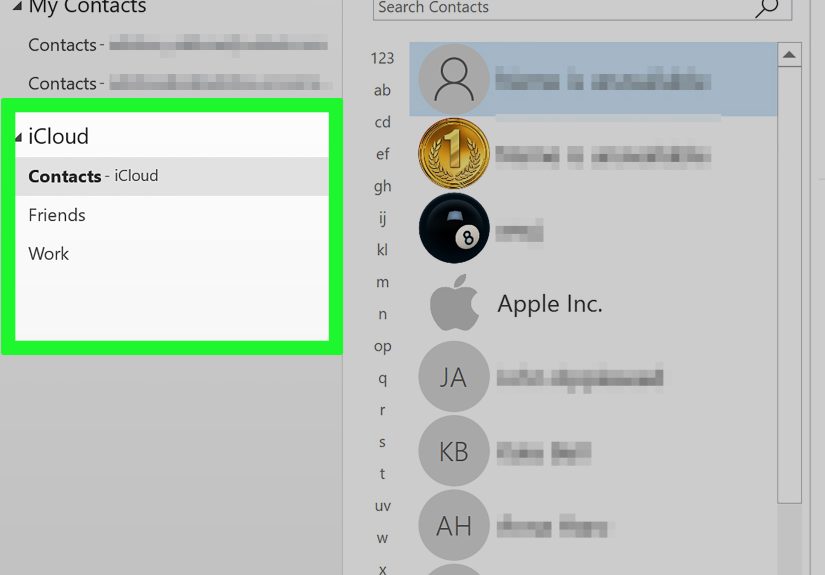
If you use an iPhone, iPad, or Mac but want your calendar in Outlook on a Windows PC, the best-known route is iCloud for Windows.
- Install and open iCloud for Windows.
- Sign in with your Apple account.
- Enable Calendars and Contacts for Outlook.
- Apply the changes.
- Open Outlook and confirm your iCloud calendar appears.
This method is helpful for people who live in Apple’s world but still use Outlook on a work PC. It can keep your personal schedule visible without forcing you to manually copy events one by one like a time traveler from 2004.
On Mac: Subscribe to iCloud Through Outlook on the Web
Outlook for Mac has an important limitation: it does not natively support CalDAV or CardDAV for direct iCloud sync the way many users expect. So the workaround is to publish the iCloud calendar and subscribe to it through Outlook on the web, which then makes it appear in Outlook for Mac.
- Sign in to iCloud on the web.
- Open Calendar.
- Choose the calendar you want to share.
- Enable Public Calendar and copy the calendar link.
- Open Outlook on the web in another browser tab.
- Go to Calendar > Add calendar > From internet.
- Paste the iCloud link and save it.
- Open Outlook for Mac and wait for the subscribed calendar to appear.
Why this method matters
If you use a Mac and Outlook together, this is one of the few realistic ways to bring an iCloud calendar into the Outlook environment. It is not as seamless as many users want, but it does work for visibility.
The catch
This is more of a subscription-based display method than a full native iCloud-to-Outlook sync experience. It is useful, but not dreamy. Think “functional commuter car,” not “luxury sports sedan.”
Method 4: Use Google Workspace Sync for Microsoft Outlook
If you use a paid Google Workspace account for work or school, Google offers a dedicated tool called Google Workspace Sync for Microsoft Outlook, often shortened to GWSMO. This is the heavy-duty option for people who want Outlook to work closely with Google Workspace data.
How it works
GWSMO creates a profile in Outlook that syncs your Google Workspace account data, including calendar information. This is a much stronger solution than a simple read-only calendar feed and is designed for people who actively work in Outlook.
Basic setup steps
- Confirm your Google Workspace administrator allows GWSMO.
- Close Outlook.
- Download and install Google Workspace Sync for Microsoft Outlook.
- Sign in with your Google Workspace account.
- Open Outlook using the Google Workspace profile created during setup.
- Allow the sync to complete.
Why this method is powerful
If your office runs on Google Workspace but you prefer Outlook, this is often the most complete option. You can work in Outlook while keeping data tied to your Google Workspace account. For many business users, that is the sweet spot between familiar Outlook tools and Google’s cloud ecosystem.
It is also more realistic for people who need regular ongoing sync, not just a borrowed view of another calendar.
The important limitations
This method is for Google Workspace, not free personal Gmail accounts. It also is not supported on macOS, so it is a Windows-only path. If you are on a Mac and hoping GWSMO will save the day, I regret to inform you that the day remains unsaved.
Which Method Should You Choose?
Here is the quick decision guide:
- You use personal Google Calendar and Outlook regularly: Start with direct Google account setup in Outlook.
- You only need to view another calendar in Outlook: Use an iCal subscription.
- You use iCloud and Outlook on Windows: Use iCloud for Windows.
- You use iCloud and Outlook on Mac: Use the Outlook-on-the-web subscription method.
- You use a paid Google Workspace account on Windows: Use GWSMO.
The best sync method is the one that matches your calendar provider, your operating system, and your tolerance for setup screens that look like they were designed by three different committees.
Common Problems When Outlook Calendar Sync Fails
1. The calendar appears, but new events do not
This often means you imported a file instead of subscribing to a live calendar feed. Imports are snapshots. Subscriptions refresh.
2. Events show up, but you cannot edit them
You are probably using a read-only internet calendar subscription. That is expected behavior for many iCal setups.
3. Google account menus look different from the tutorial
Outlook versions vary, and Microsoft changes interface labels often. Look for account settings, add account options, or calendar subscription menus with similar names.
4. iCloud is behaving like a diva
On Windows, make sure iCloud for Windows is installed properly and Outlook is supported. On Mac, remember that Outlook for Mac does not directly sync iCloud via CalDAV, so the web subscription workaround matters.
5. Business account sync seems restricted
Your organization may control access, sharing, or Google Workspace Sync settings. When work accounts are involved, the final boss is usually your admin.
Real-World Experiences: What This Looks Like in Everyday Life
In real life, people usually discover calendar sync because something already went wrong. It is rarely a peaceful journey of proactive organization. More often, it starts with a double-booked meeting, a missed pediatric appointment, or the sudden realization that your work laptop knows nothing about the dinner reservation your phone has been politely remembering for weeks.
For Google Calendar users, the direct account method tends to feel the most normal once it is set up. Your personal events appear in Outlook, your workday feels less fragmented, and you can quickly check whether a late afternoon meeting is about to collide with soccer practice, a haircut, or the noble act of doing absolutely nothing. The biggest benefit here is mental relief. Instead of checking multiple apps like an overcaffeinated air traffic controller, you get one calmer view of your schedule.
The iCal subscription method is popular with people who do not need editing power, just visibility. Parents often use it for school calendars. Freelancers use it to keep a partner’s schedule in sight. Managers use it to overlay shared team calendars. It is not glamorous, but it is dependable. The downside is that some users assume they can change an event in Outlook and have it sync back automatically, which leads to confusion, muttering, and occasionally a dramatic sigh directed at the monitor.
Apple users often have the most mixed experience. On Windows, iCloud for Windows can feel pleasantly straightforward once everything is installed correctly. On a Mac, though, expectations and reality sometimes part ways. Many people assume Apple calendar data and Outlook for Mac should snap together like magnets because, well, it is 2026 and civilization has invented reusable rockets. But the Mac route still involves more workaround energy than many users expect. Once configured, it is useful, but it does not exactly win awards for romance.
Business users with Google Workspace generally have the best experience when they use Google Workspace Sync for Microsoft Outlook on Windows. It is more structured, more deliberate, and better suited to people who spend most of the day in Outlook but still need Google-based data underneath. The difference shows up over time. Meeting updates are easier to trust, shared calendars feel less improvised, and the setup is more likely to support an actual workflow instead of a temporary bandage.
Across all four methods, the biggest lesson is simple: the best sync setup is the one that matches how you actually work. If you mostly need to see another calendar, subscribe. If you need deeper integration, add the account directly or use a business sync tool. If you are mixing Apple, Google, and Microsoft ecosystems, accept that some compromises are part of the package. Calendar sync can absolutely make life easier, but only if you choose the method that fits your habits instead of the one that sounds the most impressive in a forum post written by someone named TechWizard420.
Final Thoughts
Syncing your calendar with Outlook on PC or Mac is not a one-size-fits-all process, but it is very manageable once you know which category your setup falls into. Direct account sync is best when Outlook fully supports your provider. iCal subscriptions are perfect for read-only visibility. iCloud works best with dedicated Windows support or a Mac workaround through Outlook on the web. And Google Workspace users on Windows get the most robust business option with GWSMO.
The trick is not choosing the fanciest method. It is choosing the one that keeps your schedule accurate, visible, and low-drama. Because your calendar should help you remember life—not become another event you forgot to manage.





 Close
Close