
Table of Contents >> Show >> Hide
- Before You Start: A 60-Second Sanity Check
- Method 1: The “Just Sync It” Fix (Fastest and Most Common)
- Method 2: Change the Time Zone in the Fitbit App (Most Reliable for “Off by Hours” Problems)
- Method 3: Let It Update Automatically (Then Troubleshoot Like a Pro)
- Common “Wrong Time” Scenarios (And the Fix That Matches)
- Extra Tips for Keeping Your Fitbit Clock Accurate
- Quick Recap: The 3 Easy Methods
- Real-World Experiences: What It’s Like Fixing Fitbit Time in the Wild (About )
- Conclusion
Your Fitbit is basically a tiny, judgment-free life coach on your wristuntil it decides it’s living in a different time zone than you are.
Then it becomes a chaotic little gremlin that logs your “morning run” at 2:13 a.m. and declares you took a nap during algebra.
The good news: you usually don’t “set” the time on a Fitbit the way you would on an old microwave. Fitbit devices generally pull time
from the phone (and the time zone settings inside the Fitbit app) when they sync. So if the clock is wrong, you fix the sync and time zonethen your
Fitbit falls back in line like it remembered it has a job.
Below are three easy, real-world methods that work for most Fitbit trackers and smartwatches (Inspire, Charge, Luxe, Versa, Sense, Ace models, and more).
I’ll also show you why time goes wrong (travel, Daylight Saving Time, a missed sync, or your phone being “helpful” in the weirdest way).
Before You Start: A 60-Second Sanity Check
Do these quick checks first. They solve a surprising amount of “my Fitbit is living in the future” situations.
- Confirm your phone’s time is correct (and set to update automatically if you want fewer surprises).
- Turn on Bluetooth and keep your Fitbit close to your phone (same room is ideal).
- Open the Fitbit app and make sure you’re signed in to the right account.
- Charge your Fitbit if it’s very lowlow battery can cause spotty syncing and delayed updates.
Method 1: The “Just Sync It” Fix (Fastest and Most Common)
If your Fitbit is off by minutesor the date looks wrong after you haven’t worn it in a whileyour device often just needs a fresh sync.
This is the quickest fix and should be your first move.
Steps (iPhone or Android)
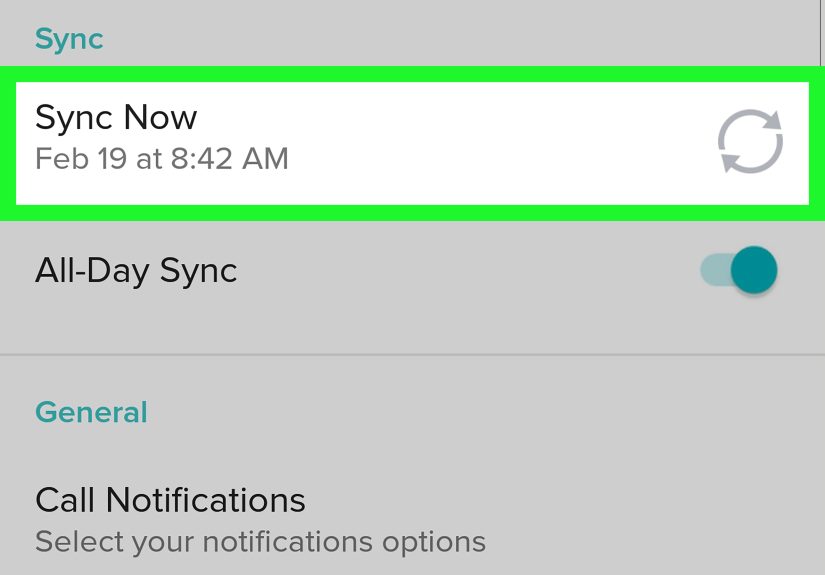
- Open the Fitbit app.
- Go to the Today tab (your dashboard screen).
- Press and hold on the screen, then pull down until you see a sync progress indicator.
- Wait for syncing to complete and check your Fitbit’s time and date.
Why this works
Fitbit devices update their clock when they successfully syncso if your device hasn’t synced recently, it may keep showing stale time.
This is especially common after a long break, after a battery drain, or after your phone’s Bluetooth was off for a while.
Example
Let’s say you traveled for a weekend, had your phone on airplane mode, and your Fitbit clock didn’t catch up. A manual sync usually forces the device to pull
the correct time information again. If that doesn’t fix it, go to Method 2 (time zone settings).
Method 2: Change the Time Zone in the Fitbit App (Most Reliable for “Off by Hours” Problems)
If your Fitbit is off by an hour or more, the culprit is usually the time zone setting inside the Fitbit app.
This happens after travel, Daylight Saving Time changes, switching phones, or when “automatic” time zone behaves… let’s call it “creatively.”
The key trick: turn off Set Automatically and pick your time zone manuallythen sync. This forces the Fitbit clock to match the time zone you chose.
Steps
- Open the Fitbit app.
- From the Today tab, tap your profile icon (or the app’s settings entry).
- Go to Fitbit settings (or app settings area), then tap Date, time & units.
- Tap Time Zone.
- Turn off Set Automatically.
- Select the correct time zone.
- Go back to the dashboard and sync your Fitbit (use Method 1’s pull-down sync).
When to use this method
- Your Fitbit is exactly 1 hour off (classic DST hiccup).
- Your Fitbit is multiple hours off after travel.
- Your phone shows the right time, but your Fitbit is stubbornly wrong.
Specific example: travel + time zones
Imagine you fly from Los Angeles to New York. Your phone updates automatically, but your Fitbit still thinks it’s on Pacific Time.
Turning off Set Automatically and manually choosing Eastern Time in the Fitbit app forces the updatethen syncing “locks it in.”
Bonus: Switching between 12-hour and 24-hour time
If your time is correct but displayed in the wrong format (like 18:30 instead of 6:30 PM), you can change the clock display style in the same settings area:
- Fitbit app → Date, time & units
- Find Clock Display Time
- Select 12-hour or 24-hour
- Sync your device
Method 3: Let It Update Automatically (Then Troubleshoot Like a Pro)
If you prefer “set it and forget it,” automatic time zone is the dream: your Fitbit updates when you travel and handles seasonal clock changeswhen everything is working.
This method focuses on turning automatic updates on (correctly), then applying a short troubleshooting ladder if the time still refuses to behave.
Part A: Turn on automatic time zone
- Open the Fitbit app → go to Date, time & units.
- Tap Time Zone.
- Turn on Set Automatically.
- On your phone, make sure time zone is set to update automatically (and location services are enabled if your phone requires it for time zone detection).
- Return to the Fitbit app and sync.
Part B: If the time is still wrong, use this troubleshooting ladder
Don’t do everything at once. Try each step, then sync again. This keeps you from doing the digital equivalent of turning the whole house off and on because a lamp flickered.
-
Log out and log back into the Fitbit app, then sync again.
Why: Sometimes your settings don’t apply correctly until your session refreshes. -
Restart your Fitbit device, then sync.
Why: A restart clears small software hiccups without wiping your data. -
Restart your phone, then sync.
Why: This can fix Bluetooth and background connection issues that prevent proper time updates. -
Update everything: phone OS updates, Fitbit app updates, and Fitbit firmware updates (if available), then sync.
Why: Outdated software can cause weird syncing and settings behavior. -
Check for “double connections”: make sure your Fitbit isn’t trying to sync to another nearby phone or tablet signed into the same account.
Why: Competing connections can interfere with syncing and settings being applied. -
Change the clock face (for watches) and sync again.
Why: Rare, but some clock faces can glitch and display time incorrectly until refreshed.
What about setting the date?
On most Fitbits, the date follows the time zone. So when you correct the time zone and sync, the date should correct itself too.
If your date is wrong but time looks right, it usually means your device hasn’t fully applied the time zone update yetsync again after a restart.
Common “Wrong Time” Scenarios (And the Fix That Matches)
Scenario 1: My Fitbit is off by a few minutes
That’s often a delayed sync. Use Method 1 (manual sync). If it keeps drifting, update the app/device and restart your Fitbit (Method 3 troubleshooting).
Scenario 2: My Fitbit is off by exactly one hour
Hello, Daylight Saving Time. Use Method 2 (turn off Set Automatically, pick your time zone manually, then sync). If you want it handled automatically next time,
turn Set Automatically back on after it’s fixed (Method 3).
Scenario 3: My Fitbit is off by several hours after travel
Go straight to Method 2. Manually set the correct time zone in the Fitbit app and sync.
Once it’s correct, you can switch back to automatic if you travel frequently (Method 3).
Scenario 4: My phone time is right, but Fitbit time won’t change
That’s when you do Method 3’s ladder: log out/in, restart Fitbit, restart phone, update app, then sync. Also make sure only one phone/tablet is trying to sync with the device.
Extra Tips for Keeping Your Fitbit Clock Accurate
- Sync regularly (daily is great). If you rarely open the app, the device has fewer chances to update.
- Avoid multiple “host” devices (two phones signed in can cause confusion).
- Keep the Fitbit app allowed to run in the background if your phone aggressively closes apps.
- After travel, open the Fitbit app once and do a manual syncyour future self will thank you when your sleep log makes sense again.
Quick Recap: The 3 Easy Methods
- Manual sync in the Fitbit app (fastest, fixes most minor time/date issues).
- Manually set your time zone in Date, time & units, then sync (best for “hours off” problems).
- Use automatic time zone (then troubleshoot: log out/in, restart devices, update, avoid double connections) to make it stay correct.
Real-World Experiences: What It’s Like Fixing Fitbit Time in the Wild (About )
If you’ve never had a Fitbit time issue, congratulationsyou are apparently living a calmer life than the rest of us.
For everyone else, the “wrong time” problem usually shows up at the exact worst moment, like when you’re trying to prove to yourself
(or a coach, or a parent, or a very competitive friend) that you totally went to bed early.
One common experience: you stop wearing your Fitbit for a few daysmaybe you forgot the charger, maybe you were sick, maybe your wrist needed a break.
You put it back on and notice the clock is off, and the date looks like it’s stuck in the past. That’s not your Fitbit becoming nostalgic.
It’s usually just not synced recently. The fastest fix is opening the Fitbit app and doing the pull-down sync.
In real life, this feels like giving your Fitbit a quick pep talk: “Hey buddy, welcome back. It’s 2025. Let’s act like it.”
Another classic: travel. You land in a new city, your phone updates instantly, and your Fitbit… does not.
The first time this happens, people often look for a “Set Time” button on the watch itselfbecause that’s what we’re trained to do from years of digital clocks.
But Fitbit time is mostly a “settings + sync” relationship, not a “scroll to the correct hour” situation.
The most reliable real-world fix is going into the Fitbit app’s time zone setting, turning off “Set Automatically,” choosing the correct time zone, and syncing.
It’s a little annoying, but it worksand it’s faster than living with a watch that insists you’re still in yesterday.
Daylight Saving Time can be even weirder. People wake up and their Fitbit is exactly one hour off, which feels like your wrist is gaslighting you.
The practical move is the same: manually set the time zone in the Fitbit app (turn off automatic), sync, and you’re done.
If you want fewer DST surprises in the future, you can switch back to automatic afterwardassuming your phone is also set to automatic time updates.
In real life, the “automatic” option is fantastic when it behaves and mildly disrespectful when it doesn’t, so don’t feel bad choosing manual control.
Then there’s the stubborn case: you did everything right, but the time won’t change. This is where the boring-but-effective troubleshooting ladder saves the day.
Logging out and logging back into the Fitbit app sounds too simple to matter, yet it often fixes settings that didn’t apply properly.
Restarting the Fitbit is similarly underratedit’s the wearable version of “turn it off and on again,” and it works more often than people want to admit.
In the real world, the best strategy is staying patient and doing one step at a time, syncing after each step.
That way, you don’t accidentally fix it and then keep fiddling until you break something else (a very human tradition).
The biggest “aha” moment most users have is realizing the Fitbit clock isn’t independent. It’s tied to your app settings and sync behavior.
Once you treat it like a synced device (instead of a standalone clock), fixing the time becomes a quick routine instead of a mystery.
And your sleep chart finally stops claiming you took a nap during your math testunless you actually did, in which case… respect.
Conclusion
Setting the time and date on a Fitbit is less about manually typing numbers and more about making sure your device syncs and your time zone settings are correct.
Start with a quick manual sync, switch to a manual time zone if the clock is off by hours, and use automatic time zone (plus a short troubleshooting ladder) if you want it to
update on its own. Once you know the patternsettings + syncyou can fix most Fitbit clock issues in just a few minutes.




 Close
Close