
Table of Contents >> Show >> Hide
- What Is an Adaptive Macro-Pad?
- Why Tiny OLED Screens As Keycaps Are So Clever
- How the Adaptive Macro-Pad Works
- Why Creators, Coders, and Makers Care
- How It Compares With a Stream Deck
- The Firmware Side: Macros, Layers, and Displays
- Design Challenges Behind OLED Keycaps
- Why This Idea Feels More Relevant Now
- Best Use Cases for an Adaptive OLED Macro-Pad
- Should You Build or Buy?
- Experience Notes: Living With an Adaptive Macro-Pad
- Conclusion
- SEO Tags
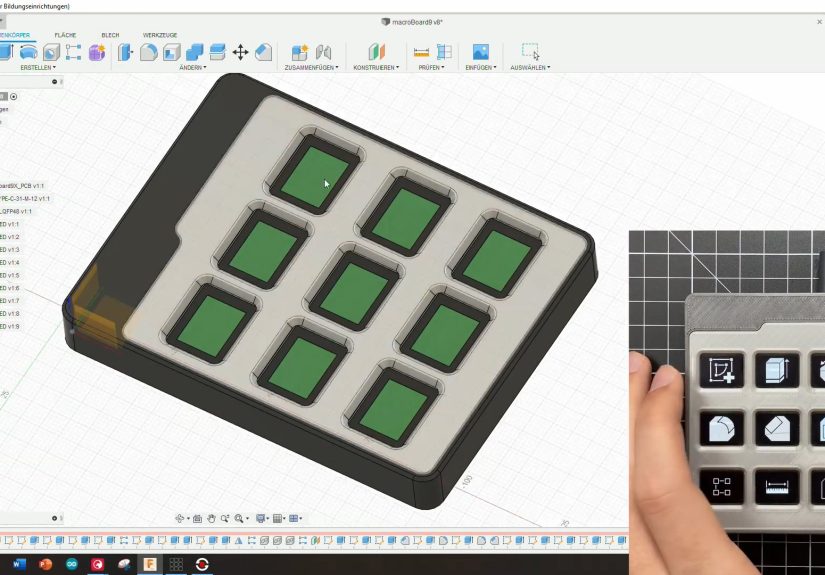
Some gadgets solve a problem so neatly that you wonder why your desk has been tolerating nonsense for this long. The adaptive macro-pad with tiny OLED screens as keycaps is one of those gadgets. At first glance, it looks like a chunky little keypad with nine oversized buttons. Then the trick reveals itself: every button is also a miniature display. Instead of remembering whether the upper-left key opens your browser, mutes your microphone, exports a file, or summons the ancient demon known as “Ctrl + Alt + Shift + Something,” the key simply tells you.
The idea is wonderfully simple: combine the satisfying press of physical keys with the visual flexibility of software. A regular macro pad can trigger shortcuts, launch apps, paste text, control media, or help with creative workflows. An adaptive macro-pad goes further by changing its labels and functions depending on what you are doing. Open a browser, and the keys can show tabs, bookmarks, or navigation controls. Switch to a CAD app, and those same keys can become view tools, export commands, or grid toggles. Move into a code editor, and suddenly the pad becomes a tiny command center for build, run, search, and debug. It is like having a keyboard that can read the room.
What Is an Adaptive Macro-Pad?
A macro-pad is a small programmable keyboard designed for shortcuts. It usually sits beside your main keyboard and gives you dedicated buttons for repetitive actions. For gamers, that might mean push-to-talk, inventory commands, or scene switching. For video editors, it might mean cut, ripple delete, export, and timeline zoom. For office users, it might mean email templates, spreadsheet formulas, meeting controls, and the blessed one-tap mute button.
An adaptive macro-pad adds context awareness. Instead of using one fixed layout all day, it can change profiles based on the active application. The OLED screens make that change visible. Without displays, layers and profiles can become a memory game, and nobody bought a macro pad because they wanted more homework. With small screens embedded in the keys, each button can show an icon, abbreviation, or symbol that matches its current job.
The project that popularized this concept among hardware tinkerers is Keybon, an adaptive macro keyboard built around nine tactile buttons. Each button contains a 0.66-inch OLED display with a 64 × 48 pixel resolution. That is not enough room for a movie trailer, obviously, but it is more than enough for clean icons, labels, arrows, app logos, tool symbols, and status indicators. The OLEDs sit above tactile switches, creating a compact interface that feels physical but behaves dynamically.
Why Tiny OLED Screens As Keycaps Are So Clever
Traditional keycaps are beautifully dumb. They sit there, look nice, and do exactly one visual job forever. That is perfect for letters, numbers, and punctuation. It is less perfect for a macro pad, where the entire point is customization. If a key can do ten different things across ten different apps, a printed plastic label becomes outdated faster than a phone charger standard.
OLED keycaps solve the labeling problem. When the macro changes, the visual label changes too. The pad becomes self-documenting. That matters because the biggest enemy of productivity tools is not lack of features; it is forgetting the features exist. A shortcut you cannot remember is not a shortcut. It is a tiny guilt machine.
OLED Displays Offer High Contrast in a Tiny Package
OLED displays are useful for small hardware interfaces because they provide strong contrast and clear visibility without needing a bulky backlight system. On a macro-pad keycap, that means a small icon can remain readable even when the device is sitting below your monitor, next to a coffee mug, under questionable lighting, and surrounded by cables that definitely multiplied overnight.
The Keybon-style approach uses small monochrome OLEDs rather than full-color LCD keys. That choice keeps the project more DIY-friendly while still delivering the most important benefit: dynamic visual labels. Full-color displays are flashier, but monochrome icons can be surprisingly elegant. A clean white symbol on a black key can look futuristic without screaming “gamer spaceship dashboard.”
Physical Keys Still Matter
Touchscreens are flexible, but they lack the tactile confidence of a real switch. A macro pad with physical buttons lets you act without staring. You can feel the key, press it deliberately, and get feedback from the switch. That matters when you are editing video, playing a game, controlling a livestream, presenting slides, or muting yourself before your dog announces a neighborhood emergency.
The magic of OLED keycaps is that they blend both worlds. You get the reliability of hardware and the adaptability of software. The button is physical. The label is digital. The result feels less like a toy and more like a small control surface with manners.
How the Adaptive Macro-Pad Works
The basic architecture is not mysterious, but it is very satisfying. Each key is built around a small switch and an OLED module. A microcontroller reads button presses, updates the displays, and communicates with the computer over USB. In standalone mode, the device can behave like a normal USB HID keyboard, sending keystrokes when buttons are pressed. That means it can trigger hotkeys without requiring every app to know the macro-pad exists.
The more interesting mode uses companion software. On the computer, an app watches which program is currently active. When the user switches from one application to another, the software sends a new layout to the macro-pad. The pad updates its OLED labels and changes what each key does. The same button that showed “Mute” in a meeting app might show “Brush” in a drawing program or “Run” in an IDE.
This is where the word “adaptive” earns its rent. The device is not merely programmable; it is situational. It responds to context. That makes it especially useful for people who live inside multiple complex programs every day.
Why Creators, Coders, and Makers Care
The adaptive macro-pad is not just a novelty for keyboard collectors, although keyboard collectors will absolutely stare at it like it is a rare mechanical beetle. Its practical value comes from reducing friction in software-heavy work.
For Video Editors
Video editing software is full of repeated actions: cut, trim, ripple delete, add marker, zoom timeline, render preview, export, switch tools, toggle snapping, and jump between panels. A normal keyboard can handle these commands, but the shortcuts often involve awkward combinations. A macro-pad can place the most common actions under one finger. An OLED macro-pad can label each action clearly and switch layouts between editing, color grading, audio cleanup, and exporting.
For Streamers and Online Presenters
The popularity of devices like the Stream Deck shows that people love visible, customizable controls. Streamers use key-based control surfaces to switch scenes, trigger sound effects, launch overlays, mute audio, control chat, and manage recording. A tiny OLED keycap macro-pad takes inspiration from the same idea but brings it into a more maker-friendly keyboard format. It is not only for streamers; anyone who presents, teaches, records tutorials, or hosts meetings can benefit from a reliable “mute,” “camera,” “share screen,” or “next slide” button.
For Programmers
Coders spend a lot of time repeating commands: build, run, test, debug, search, format, open terminal, comment lines, or jump to definitions. In one editor, the shortcut may be simple. In another, it may require finger yoga. An adaptive macro-pad can provide a consistent physical interface across different tools. The key label changes, but the workflow becomes easier to remember.
For Hardware Designers and CAD Users
In PCB design, 3D modeling, and CAD software, tool switching can interrupt concentration. An OLED macro-pad can show icons for routing, measuring, layer switching, zooming, rotating, snapping, and exporting. Since these apps often have deep command menus, putting the most-used actions on visible keys can save time and reduce mental clutter.
How It Compares With a Stream Deck
The obvious comparison is the Elgato Stream Deck, a popular control pad with customizable display keys and strong software support. Stream Deck devices are polished, easy to configure, and widely supported by plugins. They are excellent for people who want a finished product. The adaptive OLED macro-pad lives closer to the maker and keyboard-enthusiast world. It is less about buying a complete ecosystem and more about exploring what happens when mechanical input meets programmable displays.
A Stream Deck typically focuses on software integration, media control, and creator workflows. A DIY OLED keycap macro-pad focuses more on hardware experimentation, compact design, keyboard firmware, and tactile customization. Neither approach is “better” for everyone. The Stream Deck is the friendly appliance. The OLED macro-pad is the clever workshop project that shows up with a 3D-printed case and a suspiciously proud grin.
The Firmware Side: Macros, Layers, and Displays
Modern keyboard firmware has made custom input devices much easier to build. QMK, for example, supports programmable keymaps, layers, macros, OLED displays, encoders, lighting, and USB keyboard behavior. That ecosystem matters because a macro-pad is only as good as its ability to send useful commands reliably.
Macros can send sequences of keystrokes from a single press. Layers let one physical key do different things depending on the active layer. OLED support can display text, logos, layer status, or other information. For a basic macro-pad, one OLED screen might show the current layer name. For a more ambitious adaptive device, each key can have its own display. That multiplies the design challenge but also multiplies the cool factor, which is a legitimate engineering metric in the maker community.
Tools like VIA also matter because they make keyboard configuration more accessible. Instead of editing code and flashing firmware for every small change, users can remap supported keyboards through a graphical interface. For an adaptive OLED keycap device, the dream is a smooth configuration system where users can assign icons, macros, app-specific profiles, and layouts without becoming firmware archaeologists.
Design Challenges Behind OLED Keycaps
Putting screens into keys sounds simple until you try to build it. Then the project starts handing you tiny invoices from reality.
Space Is Tight
A standard mechanical keyboard layout uses a 19.05 mm key spacing. That does not leave much room for a switch, display, wiring, support structure, and a key mechanism. The OLED module needs to be visible, protected, and aligned. The switch needs to feel good. The case needs to hold everything without turning into a wobbly science fair bridge.
Memory and Performance Matter
Nine small OLED displays are not just nine cute rectangles. They require display data, communication bandwidth, refresh handling, and enough microcontroller memory to manage icons. Even low-resolution displays can add up quickly. Choosing a capable microcontroller helps avoid sluggish updates and painful compromises.
Durability Is a Real Question
Regular keycaps survive years of tapping, crumbs, late-night typing, and the occasional rage press after a software crash. A display keycap has glass, electronics, and more delicate construction. The design needs to protect the screens while keeping the press comfortable. A macro-pad usually receives less punishment than a full typing keyboard, which helps, but durability still matters.
Icon Design Is Harder Than It Looks
A 64 × 48 pixel display can show useful symbols, but it rewards simplicity. Icons need strong contrast, clear shapes, and minimal detail. A good macro icon is closer to a road sign than a painting. If the user needs to squint, the key has failed its one job and should sit quietly in the corner to think about what it has done.
Why This Idea Feels More Relevant Now
Custom keyboards have moved from niche hobby to mainstream desk culture. People now care about switches, keycaps, layouts, sound, firmware, and desk ergonomics. At the same time, workflows have become more app-heavy. A student may jump between browser tabs, note-taking apps, video calls, design tools, and code editors in one afternoon. A creator may manage editing software, recording tools, file storage, social platforms, and livestream controls. The keyboard is no longer just a typing device; it is a command surface.
An adaptive macro-pad fits that world perfectly. It gives users a small, dedicated place for frequent actions. The OLED keycaps prevent the device from becoming cryptic. The app-aware profiles keep the pad useful across different tasks. It is not just a keyboard accessory; it is a visual shortcut system.
Best Use Cases for an Adaptive OLED Macro-Pad
The best use cases are tasks with repeated commands, changing contexts, and high cognitive load. A designer can create separate profiles for Photoshop, Illustrator, and Figma. A programmer can use layouts for editing, terminal work, debugging, and version control. A streamer can separate scenes, audio controls, alerts, and chat moderation. A student can build profiles for research, writing, flashcards, and online classes.
Even everyday office work benefits. Imagine opening a spreadsheet and seeing keys for freeze panes, filter, paste values, format table, and chart. Switch to email, and the same keys become archive, reply, forward, calendar, signature, and search. Open a meeting app, and the pad becomes mute, camera, raise hand, captions, record, and leave. Suddenly the desk feels less like a command maze and more like a cockpit, minus the terrifying aviation paperwork.
Should You Build or Buy?
If you want something polished today, a commercial control pad is easier. Devices with customizable display keys already exist, and they are supported by mature software. If you enjoy making things, an adaptive OLED macro-pad is a fascinating project. It teaches enclosure design, USB HID behavior, firmware, display driving, icon design, and user-interface thinking.
The build path is especially attractive for people who want a specific layout or a small footprint. A nine-key pad is compact enough for most desks but large enough to support meaningful profiles. Add a rotary encoder, and you can handle volume, timeline scrubbing, zoom, brush size, or scrolling. Add companion software, and the device becomes smarter. Add a 3D-printed case, and you have officially earned the right to say, “I made this,” while pretending not to wait for applause.
Experience Notes: Living With an Adaptive Macro-Pad
Using an adaptive macro-pad changes how you think about shortcuts. At first, it feels like a luxury. You assign a few obvious actions: mute, screenshot, copy, paste, open browser, play music. Nice, but not life-changing. Then you start noticing tiny annoyances in your workflow. You realize you open the same folder every day. You export files with the same settings. You constantly search one website. You switch tools in your editor so often that your left hand deserves a union representative. That is when the macro-pad becomes genuinely useful.
The OLED keycaps make experimentation easier. With a normal macro-pad, changing layouts can be annoying because the physical labels no longer match. You either memorize the new setup, print stickers, or accept chaos as a lifestyle. With display keycaps, changing a key feels natural. Rename the action, update the icon, and the hardware keeps up. That encourages users to improve their workflows instead of freezing the first layout forever.
The best experience comes from building profiles around real habits, not fantasy productivity. It is tempting to create a giant command system with elegant icons for every possible action. That looks impressive for approximately one afternoon. In daily use, the most valuable keys are usually boring: mute microphone, paste plain text, open downloads, capture screenshot, start timer, launch notes, switch audio device, or insert a common phrase. The humble shortcuts win because they remove repeated friction.
Application-specific profiles are where the adaptive design shines. In a browser, the keys might show back, forward, reload, new tab, bookmark, reader mode, downloads, and password manager. In a writing app, they can become outline, heading, bold, link, comment, word count, export, and focus mode. In a code editor, they can switch to run, test, terminal, format, search, debug, Git status, and command palette. The physical pad stays the same, but the interface speaks the language of the current task.
There is also a small psychological bonus. Visible keys reduce hesitation. When a button says exactly what it does, you use it more confidently. That may sound minor, but productivity often improves through small reductions in friction. A clear button saves a second. A saved second becomes a habit. A habit becomes flow. Flow becomes finishing work before midnight, which is widely considered a premium feature.
The main caution is not to overload the device. Nine keys are powerful because they force choices. Put your most-used actions on the first layer and avoid turning every key into a nested menu unless you enjoy building tiny labyrinths. Good macro-pad design is like good desk organization: the tools you use constantly should be obvious, close, and easy to reach. Everything else can stay in software menus where it belongs.
In the end, an adaptive OLED macro-pad feels less like a gimmick and more like a glimpse of where personal input devices are heading. Keyboards do not have to be static slabs of plastic. They can be responsive, visual, personal, and context-aware. Tiny OLED screens as keycaps may look like a small upgrade, but they change the relationship between user and shortcut. The button no longer asks you to remember. It tells you what it is ready to do.
Conclusion
The adaptive macro-pad with tiny OLED screens as keycaps is a smart blend of mechanical input and dynamic visual feedback. It takes the biggest weakness of programmable shortcut padsthe need to remember what every key doesand fixes it with labels that change in real time. For creators, coders, streamers, designers, students, and hardware enthusiasts, that can mean faster work, fewer interruptions, and a desk setup that feels genuinely personal.
It is not the simplest project, and it is not the cheapest way to launch a shortcut. But it represents a delightful direction for custom input hardware: tactile, programmable, app-aware, and visually clear. In a world where software keeps getting more complex, a few smart buttons can feel surprisingly powerful. Especially when those buttons have tiny glowing faces and the good manners to introduce themselves.





 Close
Close