
Table of Contents >> Show >> Hide
- Why Is My iPhone Home Screen Wallpaper Blurry?
- Quick Fix: Turn Off the iPhone Home Screen Wallpaper Blur
- Check Whether the Blur Is Only on the Home Screen
- Use a Higher-Resolution Wallpaper
- Stop Zooming Too Far Into the Wallpaper
- Set a Separate Home Screen Wallpaper
- Check Focus Mode Settings
- Look at Dark Mode, Tinted Icons, and Visual Effects
- Turn Off Reduce Transparency or Check Accessibility Settings
- Restart Your iPhone
- Update iOS
- Delete and Recreate the Wallpaper Pair
- Best Wallpaper Tips for a Sharp iPhone Home Screen
- Common Mistakes That Make iPhone Wallpaper Look Blurry
- My Real-World Experience Fixing a Blurry iPhone Home Screen Wallpaper
- Conclusion
Your iPhone wallpaper looked crisp in Photos. It looked gorgeous on the Lock Screen. Then you swiped up to the Home Screen andboomit became a soft, foggy, slightly mysterious background that looks like your phone is trying to hide evidence. If your iPhone Home Screen wallpaper is blurry, the good news is that your phone is probably not broken. In most cases, the blur is caused by an iOS wallpaper setting, a Focus mode, a crop issue, image quality, display customization, or one of Apple’s visual effects designed to make app icons easier to read.
The even better news? You can usually fix it in less than a minute. This guide explains why your iPhone wallpaper looks blurry, how to turn off the Home Screen blur effect, how to choose a sharper wallpaper, and what to check if the blur keeps coming back like a clingy notification badge.
Why Is My iPhone Home Screen Wallpaper Blurry?
The most common reason is simple: the Blur option is turned on for your Home Screen wallpaper. Apple added this feature so app icons, widgets, and text are easier to see against busy photos. If your wallpaper has bright colors, faces, scenery, patterns, or tiny details, iOS may let you blur the Home Screen version while keeping the Lock Screen image sharp.
That can be helpful if your wallpaper is a neon cityscape, a beach sunset, or a photo of your dog surrounded by twelve equally chaotic toys. But if you chose a beautiful picture because you actually want to see it, the blur can feel like someone smeared petroleum jelly across your screen.
Other possible causes include using a low-resolution image, zooming too far into a photo, enabling certain Focus settings, using Dark Mode or tinted icons, having Reduce Transparency or motion settings turned on, or running into a temporary iOS glitch. The fix depends on which type of blur you are seeing.
Quick Fix: Turn Off the iPhone Home Screen Wallpaper Blur
If your Home Screen wallpaper is intentionally blurred by iOS, this is the first fix to try.
How to turn off Home Screen wallpaper blur from the Lock Screen
- Lock your iPhone.
- Wake the screen and unlock it with Face ID, Touch ID, or your passcode.
- Press and hold the Lock Screen until the wallpaper gallery appears.
- Tap Customize.
- Choose Home Screen.
- Look for the Blur option.
- Tap Blur to turn it off.
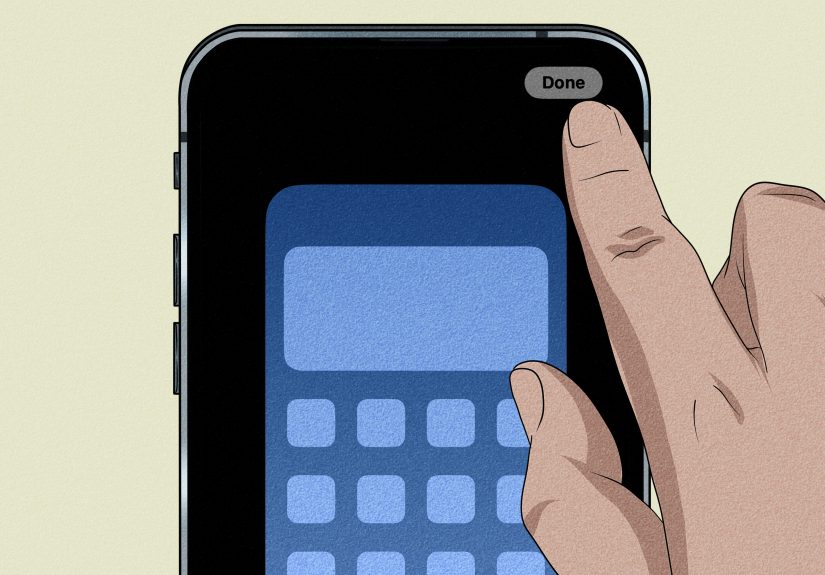
- Tap Done.
Now return to your Home Screen. If the wallpaper suddenly looks sharp again, congratulationsyou have defeated the blur monster. No tiny sword required.
How to turn off blur from Settings
- Open the Settings app.
- Tap Wallpaper.
- Find your current wallpaper pair.
- Tap Customize under the Home Screen preview.
- Turn off Blur.
- Tap Done.
This method is especially useful if you prefer changing settings from inside the Settings app instead of long-pressing the Lock Screen.
Check Whether the Blur Is Only on the Home Screen
Before changing every setting on your iPhone like a detective in a very small digital crime scene, check where the blur appears.
If only the Home Screen is blurry
The Home Screen blur setting is probably turned on. Follow the steps above and disable Blur under Home Screen customization.
If the Lock Screen is sharp but the Home Screen is blurry
This is the classic iOS wallpaper blur situation. Your iPhone is using the same photo for both screens but applying a blur effect to the Home Screen so icons stand out.
If both the Lock Screen and Home Screen look blurry
The problem may be the image itself. The photo could be too small, over-cropped, compressed, out of focus, or saved from a website or messaging app at low quality.
If the blur appears only when the screen is dimmed
Look at Focus, Always On Display, Dark Mode, or display settings. Some visual modes can make a wallpaper look softer, darker, or less detailed even if the image is technically sharp.
Use a Higher-Resolution Wallpaper
If turning off Blur does not fix the issue, the wallpaper file may be the real culprit. An iPhone display is sharp, bright, and extremely good at exposing low-quality images. A photo that looks fine in a small preview can look fuzzy when stretched across the Home Screen.
Signs your wallpaper image is too small
- It looks pixelated, not just softly blurred.
- Edges appear blocky or jagged.
- Text or details in the image look smeared.
- The photo was downloaded from a thumbnail or social media preview.
- You zoomed in heavily when setting it as wallpaper.
For the best result, use a high-resolution image from your camera roll, a trusted wallpaper app, or a full-size download. Avoid screenshots of photos, tiny web images, or pictures saved from chat apps that compress media. Your iPhone deserves better than a 300-pixel image stretched like pizza dough.
Stop Zooming Too Far Into the Wallpaper
When you set a photo as your iPhone wallpaper, iOS lets you pinch and drag the image to frame it. That is useful, but too much zoom can make even a good photo look soft. Every time you zoom in, you are asking the image to cover more screen space with fewer pixels.
How to reset the crop
- Go to Settings > Wallpaper.
- Tap Customize.
- Choose the screen you want to edit.
- Pinch inward on the image to zoom out.
- Reposition the photo so the main subject fits naturally.
- Tap Done.
If you want a face, logo, pet, car, house, mountain, or coffee cup to appear perfectly centered, consider editing the image before setting it as wallpaper. Add extra background space around the subject using a photo editing app, then use the edited version as your wallpaper. This gives iOS more room to crop without enlarging the image too much.
Set a Separate Home Screen Wallpaper
Sometimes the easiest fix is to stop using the same image for both screens. The Lock Screen can handle dramatic photos, portrait images, depth effects, and busy scenes. The Home Screen, however, has app icons, widgets, labels, badges, and folders sitting on top of the image. A photo that looks amazing on the Lock Screen may feel messy behind apps.
How to choose a separate Home Screen wallpaper
- Open Settings.
- Tap Wallpaper.
- Tap Customize under the Home Screen preview.
- Select Photo, Color, or Gradient.
- Choose a clean image or background.
- Make sure Blur is off if you want a sharp photo.
- Tap Done.
A separate Home Screen wallpaper can be a cleaner version of your Lock Screen photo. For example, use the full family photo on the Lock Screen, then use a soft gradient or cropped background color on the Home Screen. That way, your icons stay readable and your favorite photo does not look like it was photographed through soup.
Check Focus Mode Settings
Focus modes can change which Lock Screen and Home Screen pages appear when a Focus is active. If your wallpaper looks blurry only during Work, Sleep, Do Not Disturb, Driving, or another Focus, your iPhone may be switching to a different wallpaper setup.
How to check linked Focus wallpapers
- Open Settings.
- Tap Focus.
- Select the Focus mode you use often.
- Look under customization options for linked Lock Screen or Home Screen pages.
- Remove or change the linked wallpaper if needed.
You can also press and hold the Lock Screen, swipe through your wallpaper gallery, and check whether a Focus label appears under any wallpaper. If a specific Focus is tied to a blurry wallpaper, edit that wallpaper or unlink the Focus.
Look at Dark Mode, Tinted Icons, and Visual Effects
Modern iOS versions give you more control over the Home Screen’s appearance. You can use light icons, dark icons, tinted icons, larger icons, clear-style icons on supported versions, and other visual changes. These features can affect how your wallpaper appears behind apps.
Dark Mode does not usually blur the wallpaper by itself, but it can make colors look deeper or less bright. Tinted icons and transparent effects can also change the overall feel of the Home Screen. If your wallpaper looks “off” rather than truly blurry, the problem might be appearance customization, not the wallpaper file.
How to adjust Home Screen appearance
- Go to the Home Screen.
- Press and hold an empty area until the apps jiggle.
- Tap Edit.
- Tap Customize.
- Try switching between icon appearance options.
- Check whether the wallpaper looks clearer.
If you recently experimented with tinted icons and your wallpaper now looks dull, try returning to the standard icon style. Your wallpaper may not be blurry at all; it may simply be hiding behind a visual filter with main-character energy.
Turn Off Reduce Transparency or Check Accessibility Settings
Accessibility settings are designed to make the iPhone easier to see and use. However, a few display settings can change how backgrounds, transparency, contrast, and motion effects appear. If your wallpaper looks unusually flat or cloudy, check these options.
Check Reduce Transparency
- Open Settings.
- Tap Accessibility.
- Tap Display & Text Size.
- Look for Reduce Transparency.
- Toggle it off temporarily to compare the difference.
Reduce Transparency can improve readability, but it may also change how layered visual effects appear. If you prefer maximum clarity for wallpaper and interface elements, testing this setting is worth a few seconds.
Check Reduce Motion
- Open Settings.
- Tap Accessibility.
- Tap Motion.
- Review Reduce Motion.
Reduce Motion does not normally make a wallpaper blurry, but it can disable or change certain screen effects. If you are troubleshooting a wallpaper that behaves strangely after an update, this is one more place to check.
Restart Your iPhone
Yes, it is the classic tech support move. No, it is not glamorous. Yes, it still works more often than anyone wants to admit.
If your iPhone Home Screen wallpaper remains blurry after you turn off Blur, restart your device. A temporary software glitch may prevent the wallpaper preview or saved setting from updating correctly.
How to restart most modern iPhones
- Press and hold the side button and either volume button.
- Drag the power slider.
- Wait about 30 seconds.
- Press and hold the side button again until the Apple logo appears.
After the restart, check the Home Screen again. If the blur setting was stuck, this may refresh it.
Update iOS
If the wallpaper blur problem started after an update or will not go away, check for a newer iOS version. Apple regularly releases software updates that fix bugs, improve visual behavior, and adjust system features.
How to check for an iOS update
- Open Settings.
- Tap General.
- Tap Software Update.
- Install any available update.
Before updating, make sure your iPhone has enough battery, enough storage, and a recent backup. Updating will not magically turn a blurry 2008 vacation thumbnail into a masterpiece, but it can fix wallpaper bugs caused by software behavior.
Delete and Recreate the Wallpaper Pair
If nothing else works, create a new wallpaper pair from scratch. This can clear out strange saved settings, especially if the wallpaper was carried over from an older iOS version.
How to recreate your wallpaper
- Press and hold the Lock Screen.
- Swipe to the wallpaper you want to remove.
- Swipe up on it and tap the trash icon if you want to delete it.
- Tap the plus button to create a new wallpaper.
- Choose your photo again.
- Set the Lock Screen and Home Screen options carefully.
- Turn off Blur for the Home Screen.
- Tap Done.
This is the digital equivalent of saying, “Let’s start over, but with better boundaries.” It often works when a wallpaper setting seems stuck.
Best Wallpaper Tips for a Sharp iPhone Home Screen
Fixing blur is one thing. Preventing it from coming back is even better. Use these practical tips when choosing your next iPhone wallpaper.
Choose clean images
Simple backgrounds look better behind app icons. Landscapes, gradients, abstract textures, soft patterns, and photos with open space usually work well. Busy group photos and screenshots full of text usually do not.
Use vertical photos
A vertical photo fits the iPhone screen more naturally. Horizontal photos often need heavy cropping or zooming, which can reduce sharpness.
Avoid screenshots as wallpaper
Screenshots are not always ideal wallpaper files. They may include compression, interface clutter, or dimensions that do not scale well.
Keep the subject away from app-heavy areas
If your wallpaper has a face or important detail, position it away from the busiest icon rows. This reduces the temptation to blur the background for readability.
Use gradients when in doubt
Gradients are the underrated heroes of Home Screen design. They are clean, colorful, readable, and almost never look accidentally fuzzy.
Common Mistakes That Make iPhone Wallpaper Look Blurry
Here are the wallpaper habits that most often cause blurry results:
- Using a tiny image from a search result preview.
- Saving a compressed photo from a messaging app.
- Zooming too far into a picture.
- Using a busy photo behind many icons.
- Forgetting that Home Screen Blur is turned on.
- Linking a blurry wallpaper to a Focus mode.
- Assuming the Lock Screen and Home Screen use identical settings.
The biggest mistake is thinking the problem is always the photo. In many cases, the image is fine. The Home Screen blur toggle is simply doing exactly what it was designed to do: making your apps easier to read by turning your beautiful background into tasteful fog.
My Real-World Experience Fixing a Blurry iPhone Home Screen Wallpaper
The first time I ran into this problem, I blamed the photo immediately. It was a crisp image in the Photos app, a beautiful shot with dramatic lighting and just enough background detail to look fancy without trying too hard. On the Lock Screen, it looked excellent. On the Home Screen, it looked like the iPhone had suddenly developed seasonal allergies.
I opened the photo again, zoomed in, checked the edges, and convinced myself the file had somehow been compressed. Then I tried another image. Same problem. I tried a different photo. Still blurry. At that point, I briefly considered the possibility that my eyes had quit their job. Thankfully, the real culprit was much less dramatic: the Home Screen Blur option was turned on.
Once I went into the wallpaper customization screen and tapped Home Screen, the answer was sitting there in plain sight. The Blur button was enabled. One tap later, the wallpaper snapped back into focus. It was one of those fixes that makes you feel both relieved and mildly insulted. The phone was not broken. The image was not bad. iOS was simply trying to be helpfullike someone cleaning your desk by putting every important document in a mystery drawer.
Since then, I have noticed that wallpaper blur is not always a “problem.” Sometimes it actually makes the Home Screen better. If the background is too busy, app icons can become hard to read. A detailed city skyline, colorful concert photo, or close-up portrait may look stunning on the Lock Screen but chaotic behind icons. In those cases, blur can make the Home Screen feel calmer and cleaner.
But when you want the wallpaper to be the star, blur gets annoying fast. My favorite solution is to use two different versions of the same image. I keep the full, sharp photo on the Lock Screen and use a slightly simpler crop or matching gradient on the Home Screen. This gives the iPhone a polished look without sacrificing readability. It also prevents the Home Screen from looking like a junk drawer with app icons.
I have also learned to avoid low-quality images. A wallpaper downloaded from a small preview may look acceptable until it fills the entire iPhone display. Then every flaw becomes visible. If I want a sharp Home Screen, I use original photos, high-resolution downloads, or images saved directly from reliable sources. I also avoid over-zooming. Cropping too aggressively can make a good wallpaper look soft even when Blur is off.
Another practical lesson: Focus modes can make wallpaper troubleshooting confusing. If your iPhone changes wallpaper automatically for Work, Sleep, or Do Not Disturb, you might fix one wallpaper and still see blur later because another wallpaper pair is linked to a Focus. When people say, “I already turned blur off, but it came back,” Focus settings are one of the first things worth checking.
Finally, I recommend restarting the iPhone after changing wallpaper settings if the preview and actual Home Screen do not match. Usually, changes apply immediately. But every now and then, iOS behaves like it needs a cup of coffee. A restart can refresh the wallpaper display and clear minor visual glitches.
The main takeaway from experience is simple: do not panic, and do not delete your favorite photo right away. A blurry iPhone Home Screen wallpaper usually has a boring fix, which is exactly the kind of fix we love. Check the Blur toggle, review the image quality, adjust the crop, look at Focus settings, and recreate the wallpaper if needed. In most cases, your sharp wallpaper is still thereit is just hiding behind a setting that thought it was doing you a favor.
Conclusion
A blurry iPhone Home Screen wallpaper is usually caused by the built-in Home Screen Blur setting, but it can also come from low-resolution images, heavy cropping, Focus modes, appearance settings, accessibility options, or temporary iOS glitches. Start with the simplest fix: customize the Home Screen wallpaper and turn off Blur. If that does not solve it, use a higher-resolution image, reduce zoom, check Focus links, adjust visual settings, restart your iPhone, or recreate the wallpaper pair.
Your iPhone wallpaper should look the way you want it to looksharp, clean, personal, and not like it was photographed through a rainy windshield. With a few quick adjustments, you can bring your Home Screen back into focus and make your apps sit on a background that actually deserves to be seen.






 Close
Close