
Table of Contents >> Show >> Hide
- Why Boot Your Pi Over USB?
- Which Raspberry Pi Models Support USB Boot?
- What You Need Before You Start
- Method 1: Flash the USB Drive Directly
- Method 2: Clone Your Existing microSD Setup
- How Boot Order Works on Pi 4 and Pi 5
- How Older Boards Enable USB Boot
- Troubleshooting When USB Boot Refuses to Behave
- USB Flash Drive vs. External SSD
- Best Use Cases for USB Boot
- Real-World Experiences After Switching a Pi to USB Boot
- Conclusion
If your Raspberry Pi still boots from a microSD card and you have ever watched it wheeze through updates like it just climbed a mountain in flip-flops, USB boot is worth your attention. Moving your Raspberry Pi boot drive to a USB flash drive or, better yet, an external SSD can make your setup feel more dependable, roomier, and far less dramatic. For home servers, media centers, dashboards, development boxes, and always-on projects, booting over USB is one of those upgrades that feels small until you try going back.
The good news is that USB boot on Raspberry Pi is no longer some mysterious dark art performed only by people who collect terminal screenshots. On modern boards, it is a mainstream option. On older boards, it is still possible, though sometimes with an extra step. Once you know which Pi you have, what storage you are using, and how boot order works, the whole process becomes surprisingly manageable.
Why Boot Your Pi Over USB?
The biggest reason is storage quality. microSD cards are convenient and cheap, but they are not always happy living inside a Raspberry Pi that writes logs, updates packages, runs containers, hosts databases, or records media around the clock. USB storage, especially an SSD in a decent enclosure, usually gives you more capacity and a better day-to-day experience. That means fewer slowdowns, fewer “why is this taking forever?” moments, and less anxiety when your Pi is doing real work.
USB boot also makes sense if you want one drive with more breathing room. A 32GB microSD card may be fine for a light desktop build, but it starts to feel cramped fast if you are storing Docker images, media libraries, camera footage, or backup files. A USB SSD gives your Pi room to stretch without trying to squeeze a server’s lifestyle into a memory card’s wardrobe.
Which Raspberry Pi Models Support USB Boot?
This is where the plot thickens just enough to be annoying.
Pi 4, Pi 400, Pi 5, and newer flagship boards
These models support USB boot through the bootloader, and boot order can be configured in EEPROM settings. In plain English: the feature is built in, but you may need to confirm that the board is set to check USB storage in the order you want. Some early Raspberry Pi 4 boards may need a bootloader update before USB boot behaves properly.
Pi 3B+ and Zero 2 W
These boards support USB mass storage boot out of the box. That makes them pleasantly cooperative and far less likely to send you into a forum rabbit hole at midnight.
Pi 2B v1.2 and v1.3, Pi 3B, 3A+, CM3, and CM3+
These older boards can boot from USB, but first you need to enable USB host boot mode by setting a one-time programmable bit in OTP memory. That change is permanent. So yes, it works, but this is not the stage for freestyle guessing.
What You Need Before You Start
Before you boot your Pi over USB, gather the basics:
- A Raspberry Pi that supports USB boot
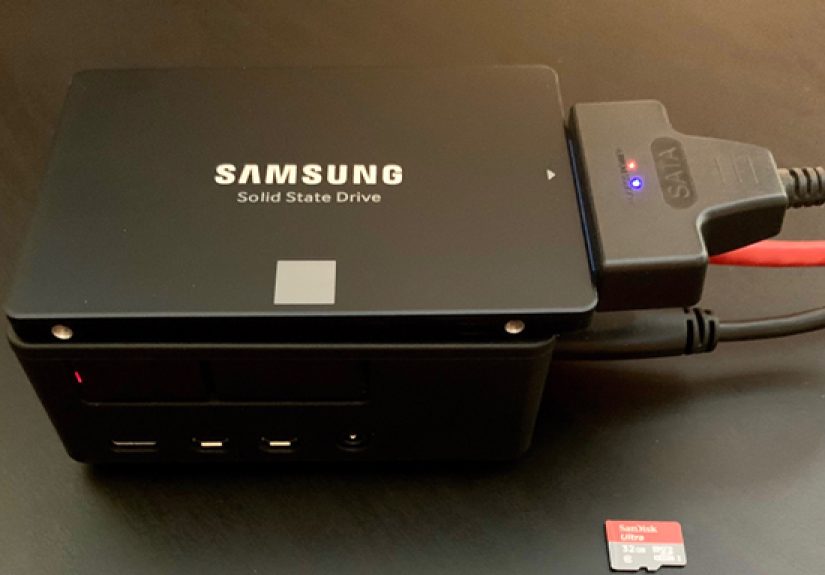
- A reliable USB drive, preferably an external SSD in a good enclosure
- A proper power supply for your Pi model
- Raspberry Pi Imager on your Mac, PC, or Linux machine
- Optionally, a temporary microSD card if you are updating the bootloader or cloning an existing install
If you are choosing between a random flash drive and an SSD, the SSD usually wins. Thumb drives can work, but quality varies wildly, and some are slow to initialize or flaky under heavier use. Also, external drives draw power, and the Pi is not a magician. If your drive is power-hungry, use a powered enclosure or powered USB hub instead of asking your Pi to become a tiny forklift.
Method 1: Flash the USB Drive Directly
The cleanest approach is also the easiest: flash Raspberry Pi OS directly to the USB drive with Raspberry Pi Imager, connect the drive to your Pi, and boot from it.
- Open Raspberry Pi Imager.
- Select your Raspberry Pi model.
- Choose the operating system you want.
- Select the USB drive as the storage target.
- Use the customization options if you want to preconfigure Wi-Fi, a username, or SSH.
- Write the image, eject the drive, attach it to the Pi, and power on.
On a Pi 4 or Pi 400 that has not already been prepared for USB boot, you may first need to use Raspberry Pi Imager’s bootloader utility image to update the bootloader and set USB boot behavior. After that, booting from a USB drive becomes much simpler. This is the route most people should take if they are starting fresh and would rather avoid moving an existing system over piece by piece.
Method 2: Clone Your Existing microSD Setup
If you already have a working Pi installation with packages, scripts, custom configs, and enough tiny tweaks that rebuilding it sounds deeply offensive, cloning is your friend.
On Raspberry Pi OS, the built-in SD Card Copier tool makes this easier than many people expect. Boot your Pi from the microSD card, attach the USB drive, open SD Card Copier, select the source card and destination drive, then start the copy. Once the copy finishes, shut down the Pi, remove the microSD card, and boot again with only the USB drive attached.
This method is especially handy for anyone who has already dialed in a home automation box, Pi-hole install, lightweight desktop, or media setup. You keep your environment without redoing the entire machine from scratch, which is nice because life is short and reconfiguring SSH keys twice is not a hobby.
How Boot Order Works on Pi 4 and Pi 5
On Raspberry Pi 4 and later, boot order is controlled by the bootloader. That means the Pi can be told whether to try SD, USB, NVMe, or network boot first. If your Pi keeps booting from the wrong device, the problem is often not the operating system image at all. It is the order in which the firmware is searching for something bootable.
Many users change this through raspi-config or with the bootloader utility images in Raspberry Pi Imager. If your Pi 5 also has NVMe storage attached, you may see combinations such as NVMe/USB boot rather than a simple “USB first” toggle. The exact menu path may vary, but the idea remains the same: confirm that the board is looking in the right place before assuming your drive is broken.
Once inside, look for the boot order settings under advanced options. If you are testing USB boot for the first time, remove the microSD card entirely so the Pi has no excuse to “accidentally” pick the old drive like a dog returning to the same couch cushion.
How Older Boards Enable USB Boot
If you are using a Pi 2B v1.2, Pi 3B, Pi 3A+, CM3, or CM3+, you may need to enable USB host boot mode by adding one line to config.txt on an SD-booted Raspberry Pi OS system:
After rebooting, you can verify the OTP bit with:
This step is permanent, so treat it like firmware surgery, not a casual weekend craft. It is documented, it is legitimate, and it works, but you do not want to do it carelessly. Also note that older models can be pickier with USB devices, so compatibility quirks are more common there than on newer boards.
Troubleshooting When USB Boot Refuses to Behave
If your Pi will not boot from USB, the usual suspects are wonderfully boring:
1. The drive is not actually bootable
Reflash it. Seriously. A surprising number of problems begin and end here.
2. The Pi is still seeing the microSD card first
Remove the card and try again.
3. The bootloader is outdated
This is especially relevant on early Pi 4 boards.
4. Power is the real villain
External hard drives and some SSD enclosures may pull more power than the Pi can happily provide. Symptoms include failed boots, random disconnects, lightning-bolt warnings, or general chaos. A powered hub or powered enclosure often fixes the problem.
5. The USB device is just fussy
Not all flash drives initialize equally well during boot. If a cheap stick is unreliable, try a different one or move up to an SSD.
USB Flash Drive vs. External SSD
Yes, both can work. No, they are not equal.
A USB flash drive is inexpensive and compact, which makes it fine for experiments, kiosks, simple dashboards, or low-write systems. But for anything more demanding, an external SSD is usually the smarter pick. SSDs tend to offer a better balance of speed, endurance, and stability. On Raspberry Pi 5, the storage story gets even more interesting because the platform handles faster storage options better than earlier generations, though NVMe may still be the premium choice when raw performance matters most.
For most people, the sweet spot is simple: if you want a budget test rig, use a decent flash drive. If you want a Pi you can trust for daily use, use an SSD.
Best Use Cases for USB Boot
USB boot shines when your Raspberry Pi is doing more than blinking LEDs and looking adorable. It is especially useful for:
- Home servers and network storage projects
- Pi-hole and always-on network services
- Media centers and retro gaming builds
- Docker or lightweight development environments
- Camera, logging, and automation projects that write data regularly
If your project lives on a desk, runs all day, or stores anything you care about, booting your Pi over USB is one of the easiest quality-of-life upgrades available.
Real-World Experiences After Switching a Pi to USB Boot
One of the most common experiences people report after moving a Raspberry Pi from microSD to USB storage is not a dramatic Hollywood transformation. It is something better: the Pi starts feeling less fragile. Tasks that used to seem mildly annoying, like updates, reboots, package installs, or copying a pile of files, feel smoother and less hesitant. The machine stops acting like every storage-heavy task is a personal insult.
In day-to-day use, the biggest change is often confidence. When a Pi boots from microSD, especially in a server-style role, many users quietly worry about card wear, corruption, or random weirdness after a power event. Once that same Pi is running from a decent USB SSD, the whole setup feels more appliance-like. You stop thinking, “I hope this survives another week of logs and container writes,” and start thinking, “Okay, this can actually live here.” That shift matters more than benchmark bragging rights.
Another real-world improvement is setup flexibility. A USB SSD makes it easier to give a Pi more storage without playing a constant cleanup game. That is a big deal for people running Home Assistant, Plex-adjacent media tools, backup scripts, Git mirrors, or local development stacks. You are not forced to ration every gigabyte like it is wartime butter. The Pi becomes more useful simply because you are no longer designing around tiny storage limits.
There are, of course, a few lessons people tend to learn the hard way. The first is that storage quality matters. A bargain-bin flash drive may boot, but “booting” and “booting well for months” are not the same sentence. The second is that power problems can impersonate software problems. A Pi with an underpowered USB drive may look broken, flaky, or haunted when the real issue is just that the drive wants more power than the board can comfortably provide. Swapping cables, using a powered hub, or changing enclosures often solves problems that initially seem far more mysterious.
There is also a practical workflow benefit. Once users try cloning a tuned microSD install over to USB, they often realize the transition is far less painful than expected. You do not need to rebuild your system from ashes like some tiny Linux phoenix. You can preserve the setup you already like, move it over, remove the microSD card, and keep going. That makes USB boot approachable even for people who are comfortable with Raspberry Pi but not excited about deep bootloader archaeology.
For Pi 5 owners, the experience tends to be even better because the platform is simply more capable with modern storage. But even on earlier supported boards, the improvement is noticeable enough that many users do not go back. Once your Pi feels faster, more stable, and less likely to get grumpy under storage load, the old microSD-only life starts to look like a noble but unnecessary struggle.
Conclusion
Booting your Pi over USB is one of the smartest practical upgrades you can make. It is not flashy, it does not come with RGB, and nobody is going to mistake it for a cinematic plot twist. But it can make your Raspberry Pi feel more reliable, more spacious, and better suited to serious workloads. For Pi 4, Pi 5, and other supported boards, the process is easier than it used to be. For older boards, it is still doable with a little extra care.
If you want a Raspberry Pi that behaves less like a hobby experiment and more like a tiny, trustworthy computer, USB boot is absolutely worth doing. Pick a reliable drive, confirm your boot order, respect the power requirements, and your Pi should be off to the races. Tiny races, sure, but still races.





 Close
Close