
Table of Contents >> Show >> Hide
- What Is Figma, Really?
- The Good: What Figma Does Exceptionally Well
- 1. Real-Time Collaboration That Actually Works
- 2. Cross-Platform, Browser-Based Freedom
- 3. Strong Design Systems and Components
- 4. Prototyping and Dev Handoff in One Place
- 5. Rapidly Growing AI Features
- 6. Competitive Pricing with a Free Tier
- 7. A Huge Ecosystem: Plugins, Widgets, and Community Files
- The Bad: Where Figma Falls Short
- Figma vs. the Competition
- Who Is Figma Best For?
- Our Verdict: The Good and Bad of Figma, Summarized
- Real-World Experiences: Living in Figma Day to Day
If you work in product, marketing, or design, you’ve almost definitely heard someone say, “Just drop it in Figma.” In a few short years, Figma has gone from “interesting browser design toy” to the default UI/UX design platform for many teams worldwide. But is Figma actually as good as the hype suggestsor are there some sharp edges hiding behind those friendly little frames?
In this in-depth Figma review, we’ll walk through what the tool does well, where it stumbles, and who it’s really for. We’ll look at Figma’s core features, collaboration model, pricing, performance, and real-world pros and cons so you can decide whether it fits your workflowor whether Sketch, Adobe XD, or another option might be a better match.
What Is Figma, Really?
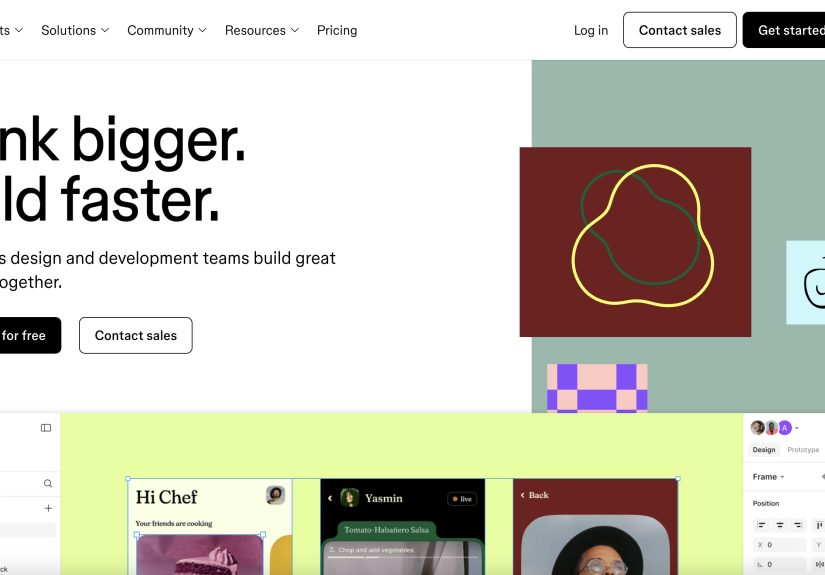
At its core, Figma is a browser-based UI/UX design tool built for digital products: websites, mobile apps, dashboards, design systems, and everything in between. Unlike older tools that run only on desktop (and usually only on Mac), Figma runs in any modern browser and also offers desktop apps for people who prefer a more “native” feel.
Figma’s main products include:
- Figma Design: The primary canvas where designers create interfaces, components, and prototypes for digital products.
- Dev Mode: A developer-focused view that exposes specs, styles, and assets in a way that’s easier to inspect and hand off to engineering.
- Figma Make & AI features: Newer tools that let you generate app prototypes and assets using natural language and AI-driven workflows.
- Plugins & widgets: Add-ons that extend Figma with charts, icon libraries, accessibility tools, content generators, and more.
Instead of emailing static files around, teams work together in the same Figma file in real time. Multiple cursors dance around the canvas, comments appear as speech bubbles, and design changes are instantly visible to anyone with access.
The Good: What Figma Does Exceptionally Well
1. Real-Time Collaboration That Actually Works
Figma’s biggest selling pointand the reason it dethroned so many legacy toolsis its collaboration model. Because it’s cloud-based, you can literally watch teammates edit frames, move components, and tweak text in real time. It’s like Google Docs for product design, but with much prettier rectangles.
This is a huge win for:
- Distributed teams who no longer need everyone on the same VPN or OS.
- Stakeholders who can comment directly on designs instead of annotating static screenshots.
- Developers who can open Dev Mode and get specs immediately, no “latest-version-final-v7.sketch” files required.
If your team spends half its day in Slack saying “Can you send me the updated file?” Figma’s collaboration alone can feel life-changing.
2. Cross-Platform, Browser-Based Freedom
Traditional design tools used to say, “Must own a Mac” in fine print. Figma doesn’t care what you’re using: Mac, Windows, Linux, a half-tired work laptopif it can open a modern browser, it can run Figma.
That flexibility means:
- Mixed Mac/Windows teams can design together without workarounds.
- Stakeholders can jump into a file from a browser without installing anything.
- You can quickly review or tweak designs from almost anywhere.
There’s also a desktop app that offers better performance and limited offline capability for people who want something that doesn’t live entirely in the browser.
3. Strong Design Systems and Components
Figma shines when you start building design systems. You can turn buttons, cards, modals, and full layouts into reusable components, then store them in shared libraries that teams can consume across multiple files. Styles let you centralize colors, typography, grid systems, and effects so that one change can propagate everywhere.
For growing product teams, this is not a nice-to-haveit’s how you avoid ten different “primary button” variations leaking into the product. Combined with variants, Auto Layout, and tokens (often managed via plugins), Figma has become a serious design system engine, not just a drawing tool.
4. Prototyping and Dev Handoff in One Place
Figma lets you connect screens with interactions, overlays, and animations to build clickable prototypes directly inside the same file. You can preview flows, share prototype links for user testing, and hand them off without exporting to another tool.
With Dev Mode and Figma’s inspect tools, developers can:
- Inspect spacing, font sizes, and colors.
- Export assets in multiple formats.
- Grab design tokens and CSS-like snippets for implementation.
That end-to-end workflowfrom ideas to prototypes to specsreduces friction and keeps everyone in the same visual source of truth.
5. Rapidly Growing AI Features
Figma has been investing heavily in AI. Figma Make, its prompt-to-app tool, lets users generate functional prototypes using natural language and visual references, while Dev Mode’s MCP server gives AI tools more structured access to design data (colors, component properties, etc.).
In practice, this looks like:
- Speeding up wireframing and exploration for product teams.
- Helping developers translate designs into code with fewer guessing games.
- Enhancing design workflows with AI-driven layout suggestions, content, and image adjustments.
It’s still early days, but if you want a design platform that’s aggressively leaning into AI, Figma is clearly trying to be in that front row.
6. Competitive Pricing with a Free Tier
Figma’s free Starter plan makes it easy for individuals and small teams to get going, with limits on files and version history. Paid plans add more projects, design system features, admin controls, and advanced permissions. Reviews generally rate Figma as moderately pricedthere are cheaper tools, but given its capabilities, most teams see the value as fair.
When you compare Figma’s per-seat pricing to the all-in costs of Sketch plus plugins/cloud or an Adobe Creative Cloud subscription, it often ends up competitive or better for collaborative product teams.
7. A Huge Ecosystem: Plugins, Widgets, and Community Files
If you can think of a design problem, there’s probably a Figma plugin for it: chart generators, icon libraries, lorem ipsum, accessibility contrast checkers, content sync tools, localization helpersyou name it.
On top of that, Figma’s Community is packed with:
- Open-source design systems and wireframe kits.
- Mobile and web app templates.
- UI kits for popular platforms and frameworks.
For busy teams, grabbing a solid community file and customizing it beats starting from a blank canvas every single time.
The Bad: Where Figma Falls Short
1. Offline Work Is Still a Weak Spot
Because Figma is natively cloud-based, it has always been a little allergic to offline work. The desktop app offers some offline capabilities, but they’re limited and can be flakyespecially if your network connection is unstable or corporate firewalls interfere with Figma’s services.
If you regularly work on the go, commute in low-signal areas, or deal with strict network environments, this might be a real pain. Other tools like Sketch or Adobe XD still have an edge if reliable offline design is non-negotiable for you.
2. Performance Can Struggle on Heavy Files
Figma is impressively fast for most standard projects, but large design systems, huge prototypes, or extremely complex pages can slow things downespecially when dozens of people are viewing the same file. This isn’t unique to Figma, but browser-based rendering plus big libraries plus live collaboration can occasionally produce lag or glitches.
Teams often mitigate this by:
- Splitting giant files into smaller, more focused ones (e.g., per platform or per feature).
- Using dedicated libraries just for tokens and base components.
- Cleaning up unused components and styles regularly.
3. Can Be Overwhelming for Non-Designers
Figma’s UI is clean, but it’s still a professional-grade design tool. For non-design stakeholders, the canvas, panels, and layers can be intimidating. Some love being able to poke around. Others open a file once, get lost, and retreat back to PowerPoint forever.
Good governance helps: create clear review pages, lock core components, and teach stakeholders how to use comment and prototype mode instead of editing live frames. Still, if you imagined Figma as a magic “everyone designs!” tool, expect a learning curve for the less visually inclined.
4. Pricing Can Add Up for Large Organizations
Figma’s individual pricing is fair, but when you roll it out across large enterpriseswith designers, developers, product managers, marketers, and execs all wanting seatsthe monthly bill can climb fast.
Many companies end up mixing seat types: Full seats for designers, Dev seats for engineers, and lighter collaboration roles for everyone else. That keeps things under control, but it requires thoughtful license management and admin oversight.
5. Cloud-First Means You Must Trust the Platform
Putting your entire product design history into one vendor’s cloud is a big trust exerciseespecially if you work with sensitive projects or regulated industries. Figma has invested heavily in security, compliance audits, and privacy protections, with SOC 2 reports and detailed security documentation to reassure enterprise customers.
Still, some organizations prefer tools that allow tighter on-prem control or self-hosting. If your legal or security team is extremely conservative, you may spend more time in security reviews before adopting Figma at scale.
Figma vs. the Competition
So how does Figma stack up against Sketch and Adobe XD in 2025?
- Versus Sketch: Sketch still offers excellent Mac-native performance and a strong plugin ecosystem, but collaboration depends heavily on third-party services, and it’s Mac-only. For cross-platform teams or remote collaboration, Figma is usually the better fit.
- Versus Adobe XD: Adobe XD integrates well with the Adobe ecosystem and has advanced prototyping, but it never reached Figma’s level of real-time collaboration and community momentum. Many teams moving to Figma cite the ecosystem and collaboration as the deciding factors.
Most recent comparisons still crown Figma as the most popular UI/UX design tool for modern product teams, particularly because of its browser-based collaboration and design system strength.
Who Is Figma Best For?
Figma is an excellent fit if you are:
- A digital product team building apps, dashboards, or websites with multiple designers and developers.
- A remote or hybrid team needing real-time collaboration, comments, and always-current files.
- A company investing in a design system and needing robust components, tokens, and shared libraries.
- A startup or small team wanting a modern tool with a generous free tier and strong community resources.
Figma might be less ideal if:
- You require rock-solid offline design and work in low-connectivity environments frequently.
- Your organization cannot adopt cloud-based tools due to regulatory or security constraints.
- You’re a pure visual or print designer working mostly on branding, packaging, or large-format artworkIllustrator, Photoshop, or other tools might still serve you better there.
Our Verdict: The Good and Bad of Figma, Summarized
Figma isn’t perfect, but it’s very, very good at what modern digital teams actually need: collaboration, speed, and a unified space for design systems and prototypes. Its browser-based approach removes old platform walls, its ecosystem keeps growing, and its AI investments suggest it’s not slowing down anytime soon.
The downsidesoffline limitations, potential performance issues on giant files, and licensing costs at scaleare real but manageable for most teams. If you design digital products with more than one person involved (and realistically, you do), Figma is absolutely worth a serious look.
Think of Figma as the open office of design tools: sometimes chaotic, often noisy, but incredibly powerful when everyone shows up and works together in the same space.
Real-World Experiences: Living in Figma Day to Day
So far, we’ve talked features and theory. But what does Figma feel like when it becomes your main design environment week after week?
Imagine a typical sprint at a product-led company. On Monday morning, the product manager drops a new user story in the backlog. Within a couple of hours, a designer has spun up a new page in the team’s Figma project, dropped in the existing design system components, and stitched together the first version of a flow. The PM and tech lead join the file, leave comments directly on the relevant frames, and brainstorm alternatives live on the canvas instead of in a slide deck.
On Tuesday, the team is running a quick usability test. Instead of exporting screens to a separate prototyping tool, the designer simply shares a Figma prototype link. Changes from the morning’s feedback are implemented by lunchtime and instantly reflected in the prototypeno re-exports or messy versioning. Developers already watching the file see the updates and adjust their own tickets.
Midweek, a front-end developer opens Dev Mode and inspects the new layout, checking spacing, typography, and color tokens. They export a handful of icons, copy the design token values into the codebase, and crosscheck responsive breakpoints against the Figma layout. That reduces the usual back-and-forth to detailed questions instead of “What font is this?” or “Is this 16 or 18 pixels?”
At the same time, a marketing stakeholder needs assets for a launch email and landing page. Instead of asking for files via email, they open the Figma file, jump to the “Marketing Exports” page, and grab pre-labeled assets that were updated alongside the core product designs. Every team is pulling from the same source, and Figma quietly becomes the visual backbone of the company’s communication.
Of course, the bad moments are part of the story too. Sometimes, half the team piles into one file during a big review, and you feel the lag kick in as the canvas struggles with complex pages. Occasionally, an internet hiccup triggers an “offline” status at the worst possible moment, or a new stakeholder accidentally drags a frame out of place during a live meeting because they don’t yet know how to use view-only mode.
You also see how Figma’s strengths can create new challenges. Because it’s so easy to spin up new pages and files, projects can turn into mazes if you don’t maintain naming conventions and hierarchies. The same component might be duplicated by an impatient teammate instead of pulled from the library, slowly eroding system consistency. Good Figma hygiene becomes just as important as good design hygiene.
On the upside, you start leaning heavily on plugins and community files. Need a quick user flow diagram? There’s a plugin. Want to stress-test your content with realistic names and addresses instead of “Lorem ipsum?” There’s a plugin for that too. Over time, your workspace feels less like a single tool and more like a flexible platform you can shape around your team’s habits.
And when Figma’s AI features enter the picture, the day-to-day texture changes again. Designers use AI to generate first-draft wireframes or content, then refine them instead of starting from a blank screen. Devs experiment with AI-powered code handoff from Dev Mode. It doesn’t replace expertise or taste, but it does shave off some of the repetitive busywork that used to clog the design process.
In short, living in Figma is a mix of small frictions and big wins. The goodcollaboration, shared context, design systems at scaleusually outweighs the bad, especially for modern digital teams. If you’re willing to invest in structure, governance, and a bit of training, Figma can quietly become one of the most important tools in your product stack.





 Close
Close