
Table of Contents >> Show >> Hide
- What “Add to Home Screen” Actually Does (And What It Doesn’t)
- Quick Checklist Before You Start
- Method 1 (Best Overall): Add a Website Shortcut Using Safari
- iOS 26 Note: Web App vs. Bookmark (What You Might See)
- Method 2: Add a Website Shortcut Using Chrome on iPhone
- Method 3: Other Browsers (Firefox and Friends)
- How to Move, Organize, Rename, or Delete the Shortcut
- Troubleshooting: When “Add to Home Screen” Is Missing
- Power Tips: Make the Shortcut Work Even Better
- Real-World Experiences: of “What It’s Like After You Add the Shortcut”
- Conclusion
Your iPhone Home Screen is basically a VIP lounge: only the apps, widgets, and “I swear I’ll use this daily” icons get in.
But what if the thing you actually use every day is… a website? Your bank portal. Your kid’s school dashboard. That one
recipe blog that somehow owns your Sunday afternoons. Good news: iPhone lets you pin a website to your Home Screen so it
behaves like an app icontap it, boom, you’re there.
In this guide, I’ll walk you through adding a website shortcut using Safari (the classic move), Chrome (the “I live
dangerously” move), and a couple of browser alternatives. Then we’ll fix the most common “Where did ‘Add to Home Screen’
go?” panic, plus share some real-world tips so your Home Screen doesn’t turn into a chaotic yard sale of icons.
What “Add to Home Screen” Actually Does (And What It Doesn’t)
When you add a website to your Home Screen, iOS creates an icon that links directly to that page. Think of it as a
“fast pass” to a websitenot a full app download. You’re not installing anything from the App Store, and you’re not
magically turning a website into a native iPhone app.
- What you get: One-tap access, an icon you can move into folders, and often a cleaner, app-like view.
- What you don’t get: Guaranteed offline access, push notifications for every site, or all the perks of a real app (unless the site is built for it).
Some websites are designed as “web apps” (often called PWAsProgressive Web Apps). Those can feel surprisingly app-like:
they may launch in a standalone window, remember your login, and look cleaner than the normal browser view. Regular sites
still work great as shortcutsjust with fewer “app-ish” extras.
Quick Checklist Before You Start
1) Choose the exact page you want
The shortcut saves the page you’re currently viewing. If you want the shortcut to open a specific dashboard (like
your account page), navigate there first. If you add the site’s homepage by accident, your future self will
wonder why you made things harder for no reason. (Future you has enough going on.)
2) Let the page fully load
If the page is half-loaded or stuck on a redirect, the shortcut might save the wrong thingor the option may not behave
as expected.
3) Know your browser goal
- Safari: The default, most consistent way to add a website shortcut on iPhone.
- Chrome: Works for adding website shortcuts on modern versions, but steps look slightly different.
Method 1 (Best Overall): Add a Website Shortcut Using Safari
If iPhone shortcuts had a “starter pack,” Safari would be in it. This method works across iOS versions and is the most
reliable way to pin a website icon.
Step-by-step: Safari “Add to Home Screen”
- Open Safari on your iPhone.
- Go to the website (and the specific page) you want to save.
-
Tap the Share button.
- Depending on your Safari layout, it may look like a square with an up arrow.
- On some layouts, you’ll tap a More or Share option from the toolbar.
- Scroll through the share options and tap Add to Home Screen.
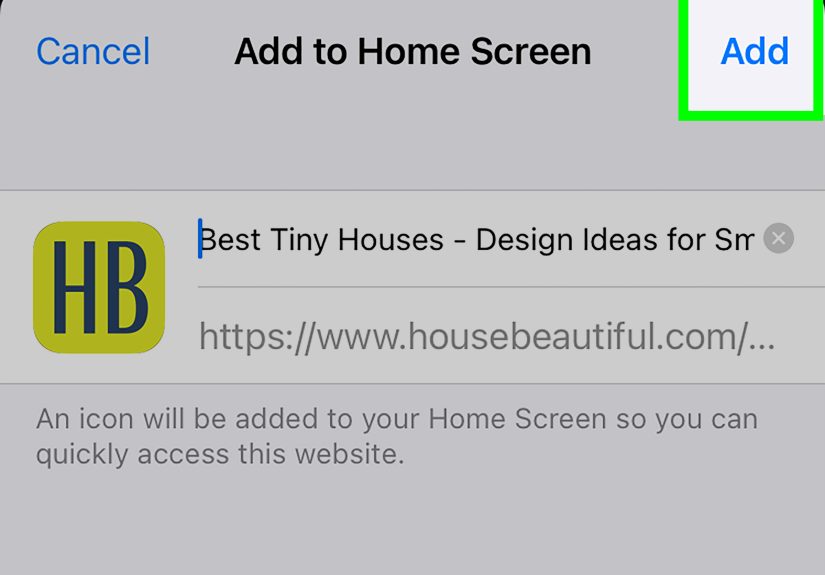
- Edit the name (optional, but recommended).
- Tap Add.
That’s it. The icon appears on your Home Screen like an app. Tap it anytime to jump straight to the site.
Pro tip: Rename it like a human, not a URL
iPhone sometimes suggests a name that’s… technically accurate but emotionally unhelpful. For example:
- “Welcome to Our Official Website – Home” (too long, sounds like a robot wrote it)
- “Account” (too vague, could be anything)
- Better: “Chase Login,” “School Portal,” “Flight Tracker,” “Work Timesheet,” “Recipe Vault”
If you don’t see “Add to Home Screen” in Safari
Don’t panic. iPhone lets you customize your Share Sheet, so the option can be hidden. Scroll to the bottom of the Share
options and look for an Edit Actions / Edit button. Add “Add to Home Screen” back into your favorites so it shows up
next time.
iOS 26 Note: Web App vs. Bookmark (What You Might See)
On newer iOS versions, you may see slightly different behavior when adding websites to your Home Screen. Some sites open
in a more “standalone” web-app style view (less browser chrome, more “app vibe”). Others open more like a traditional
bookmark shortcut.
If you see a choice or toggle that suggests opening “as a web app” versus a regular shortcut, here’s the quick rule:
- Pick “Web App” when you want an app-like experience (great for dashboards, tools, and repeat-use sites).
- Pick “Bookmark” if you just want a simple launcher and don’t care about app-like behavior.
Either way, your Home Screen icon still takes you to the site you saved. The difference is mostly in how it looks and
feels when it opens.
Method 2: Add a Website Shortcut Using Chrome on iPhone
If Chrome is your everyday browser, you don’t have to “switch to Safari just to pin a site” anymore. Chrome can create
Home Screen shortcuts toohandy if your passwords, bookmarks, and browsing life live inside Google’s ecosystem.
Step-by-step: Chrome “Add to Home Screen”
- Open Chrome on your iPhone.
- Go to the website (and exact page) you want.
- Tap the Share icon (often near the address bar/menu area).
- Tap Add to Home Screen.
- Edit the name if you want, then tap Add.
If you don’t see the option in Chrome, update Chrome in the App Store and make sure iOS is up to date. Features like this
can depend on your app version (and sometimes iOS version).
Method 3: Other Browsers (Firefox and Friends)
On iPhone, browser features can vary because iOS browsers share system components under the hood. Some third-party
browsers offer a direct “Add to Home Screen” option; others rely on Safari for this feature or present it differently.
Firefox on iPhone
Firefox can also create Home Screen shortcuts for websites (depending on your version and setup). If Firefox doesn’t show
the option clearly, the workaround is simple: open the site in Safari and add it from there.
The “Safari fallback” rule
If your current browser doesn’t offer an obvious Home Screen shortcut option, Safari almost always doesso you can copy
the URL, paste it into Safari, and add the shortcut there.
How to Move, Organize, Rename, or Delete the Shortcut
Move it like any other icon
- Press and hold the website icon on your Home Screen.
- Drag it to a new spot, or drag it to the edge of the screen to move it to another page.
Put shortcuts into a folder (highly recommended)
If you’re adding multiple site shortcutsnews, work tools, recipes, sports statsyou’ll want folders. To create one:
- Press and hold an icon until Home Screen editing begins.
- Drag one icon onto another to create a folder.
- Name the folder something helpful like “Work,” “School,” “Money Stuff,” or “My Procrastination Corner.”
Delete the shortcut (without deleting anything else)
Removing a website icon doesn’t uninstall an app (because it isn’t an app). It just removes the shortcut.
- Press and hold the website icon.
- Tap Remove Bookmark / Delete Bookmark / Remove (wording can vary).
- Confirm.
Troubleshooting: When “Add to Home Screen” Is Missing
This is the part where most guides say “Try turning it off and on again,” and then disappear into the mist.
Let’s do better.
Fix #1: Add it back to your Share Sheet
On iPhone, the Share Sheet can be customized. That means “Add to Home Screen” can be hidden like a sock that vanished in
the laundry. Scroll to the bottom of the share options and tap Edit Actions (or Edit), then enable “Add to Home Screen”
so it appears.
Fix #2: Make sure you’re in Safari (if you want the simplest path)
If a third-party browser is being stubborn, open Safari and try again. Safari is Apple’s “gold standard” for this
feature on iPhone.
Fix #3: Check Screen Time restrictions
If Screen Time restrictions are enabled (common on shared or family devices), Safari and web features can be limited.
If you’re not seeing web-related options or Safari is behaving oddly, check:
- Settings > Screen Time
- Content & Privacy Restrictions
- Allowed Apps & Features (make sure Safari isn’t disabled)
- Web Content settings (restrictions can affect browsing behavior)
If it’s a supervised phone (like a work device), the company’s device management rules can also limit options. In that
case, the fix is usually “talk to the admin,” not “tap harder.”
Fix #4: Update iOS and your browser
If your iPhone is running a very old iOS version or your browser app is outdated, the Share Sheet can act different.
Update iOS (Settings > General > Software Update) and update Safari/Chrome/Firefox through the App Store.
Fix #5: Try a different page on the same site
Occasionally, a site’s current page (especially a weird redirect, login gateway, or embedded viewer) can make sharing
options behave oddly. Try:
- Loading the homepage first, then navigating to the target page
- Refreshing the page
- Saving a simpler page from the same site, then opening that icon and navigating from there
Power Tips: Make the Shortcut Work Even Better
Tip 1: Use the Shortcuts app for a “super shortcut”
Want a custom icon, a cleaner name, or a shortcut that always opens a specific URL the same way? You can build a simple
Shortcut that opens a URL and then add that Shortcut to the Home Screen. This is especially handy for:
- Long, ugly URLs (looking at you, “portal.company.com/secure/login?session=…”)
- Creating consistent icons for multiple shortcuts
- Building a tiny “launcher” folder for work or school sites
The basic idea: create a Shortcut that opens a URL, then tap Add to Home Screen inside the Shortcuts app settings
for that shortcut. You can even use a custom image for the icon so your Home Screen looks intentional instead of accidental.
Tip 2: If the site supports a proper web app, use it
Some services run beautifully as web apps: project boards, calendars, sports stat dashboards, airline check-in pages,
and certain shopping trackers. If a site feels almost like an app after you add it, that’s the pointlean into it.
Tip 3: Think “frequency,” not “favorites”
A shortcut belongs on the Home Screen if you open the site often enough to justify one-tap access. If you visit it once
a month, a bookmark is fine. If you visit it daily, give it an icon and reclaim your time.
Real-World Experiences: of “What It’s Like After You Add the Shortcut”
Once you add a website shortcut to your iPhone Home Screen, you’ll probably have the same reaction most people do:
“Wait… why haven’t I been doing this the whole time?” It’s one of those tiny changes that doesn’t feel dramatic until
you realize how often you were doing the long way around. You know the routine: unlock phone, find Safari, open a new tab,
type a URL, get distracted by your own bookmarks, and suddenly you’re reading an article titled “Are Ducks Plotting
Something?” (They might be. But stay focused.)
The biggest “daily-life” win is speed. If you pin something practicallike a time clock site, a class portal, a package
tracking page, or a menu for your local takeout spotyou cut out multiple taps every single time. Over a week, that’s
not just convenience; that’s fewer chances to get sidetracked by notifications, random browsing, or the pull of the
“I’ll just check one thing” black hole.
Another surprisingly nice benefit is that shortcuts encourage habits. For example, people who pin a budgeting dashboard
or a credit card payment portal often check it more consistently, because it feels like an app: it’s right there, staring
at you, quietly judging your impulse purchases. Same goes for wellness and routine pageslike a workout plan, a meal prep
spreadsheet, or a symptom-tracking form. When it’s on your Home Screen, it becomes part of your “default actions,” not
something you have to remember to look up.
But it’s not all sunshine and perfectly organized folders. Real-world use has a few quirks. Some sites may log you out
more often than their app version, especially if they’re security-heavy (banks and some work portals love a good logout).
Others might not behave exactly like a native appmaybe it doesn’t support every gesture the same way, or it refreshes a
little more than you’d like. And if the website isn’t optimized for mobile, the shortcut won’t magically fix that.
Pinning a clunky desktop-style site is like putting racing stripes on a shopping cart: you can do it, but physics still exists.
The best “experience” trick is to be selective. Most people start by adding one shortcut, love it, then pin seven more
sites in a burst of productivity… and then their Home Screen looks like a browser exploded. The sweet spot is usually
3–8 shortcuts you truly use all the time, organized into a folder (Work/School/Tools) so they don’t crowd out the apps
you actually need. Done right, website shortcuts turn your Home Screen into a personal control panel instead of a chaotic
museum of forgotten icons.
Conclusion
Adding a website shortcut to your iPhone Home Screen is one of the easiest ways to save time and make your phone feel
more “yours.” Safari makes it simple: open the site, hit Share, tap “Add to Home Screen,” and you’ve got a one-tap icon.
Chrome can do it too, and the Shortcuts app gives you extra customization if you want a polished, curated setup. If the
option disappears, it’s usually a Share Sheet setting or a Screen Time restrictionnot a sign your iPhone has developed
free will.





 Close
Close