
Table of Contents >> Show >> Hide
- Can You Really Bluetooth Photos from iPhone to Android?
- The Best Method for Most People: Use Google Photos
- The Fastest One-Time Option: Share a Link Instead of “Bluetooth”
- Switching to a New Android Phone? Use a Full Transfer Tool
- If You Still Want to Try “Bluetooth,” Here’s the Reality Check
- Other Easy Ways to Move Photos from iPhone to Android
- Common Problems and How to Fix Them
- Which Method Should You Use?
- Real-World Experiences: What Actually Happens When People Try This
- Final Thoughts
- SEO Tags
Let’s start with the truth nobody wants to hear when they are standing next to two phones, one impatient friend, and 247 vacation photos: Bluetooth is usually not the best way to send photos from iPhone to Android. It sounds simple. It feels like it should work. It also feels like your toaster should understand emotional support, but here we are.
If you searched for “how to Bluetooth photos from iPhone to Android,” what you probably really want is a fast, low-drama way to move pictures from one phone to the other. That is exactly what this guide covers. We will explain why Bluetooth is not usually the built-in winner, then show the quickest methods that actually work in real life, including Google Photos, shared links, cloud apps, and full-device transfer tools for people switching phones.
This guide is written for normal humans, not robot technicians in a secret underground phone lab. Whether you are sharing 10 dog photos, 500 wedding shots, or your entire camera roll before switching to a new Android device, you will find the easiest path below.
Can You Really Bluetooth Photos from iPhone to Android?
The honest answer is: not in the smooth, built-in way most people expect.
On an iPhone, turning on Bluetooth does not usually give you a simple “Send to nearby Android phone” option for photos. Apple’s ecosystem leans on AirDrop for nearby sharing, and AirDrop is designed for Apple devices. That means if you open the Photos app on your iPhone and hit Share, your Android phone typically will not show up the way another iPhone or Mac would.
So if your plan was:
“I’ll just turn on Bluetooth on both phones, tap a photo, and magic will happen.”
…that plan is charming, optimistic, and usually wrong.
Still, do not close this tab in despair. The good news is that moving photos from iPhone to Android is still easy. You just need the right method, not the most obvious-sounding one.
The Best Method for Most People: Use Google Photos
If you want the easiest cross-platform option, Google Photos is usually the best answer. It works on iPhone and Android, it is familiar to many users, and it avoids the whole “why won’t these two phones just cooperate?” drama.
How to Transfer Photos from iPhone to Android with Google Photos
- Install Google Photos on your iPhone.
- Sign in with your Google account.
- Give the app permission to access your photos.
- Turn on backup if you want your selected photos or library uploaded.
- On the Android phone, open Google Photos using the same Google account, or receive a shared album or link from the iPhone user.
- View, download, or save the photos on the Android device.
This method is especially useful when:
- you need to move a lot of photos,
- the devices are not always next to each other,
- you want to avoid quality loss from texting, or
- you do not feel like fighting with settings at 11:48 p.m.
Why Google Photos Works So Well
Google Photos is basically the diplomatic ambassador of mixed-phone households. It does not care whether you use an iPhone, a Pixel, a Samsung Galaxy, or something else entirely. It just wants your photos to arrive safely and without a family argument.
For example, imagine you took 120 photos at a birthday party on your iPhone and want to send them to your cousin with an Android phone. Instead of selecting them one by one in Messages like a person doing community service, you can upload them to Google Photos, create a shared album or link, and let the Android user save the pictures directly.
The Fastest One-Time Option: Share a Link Instead of “Bluetooth”
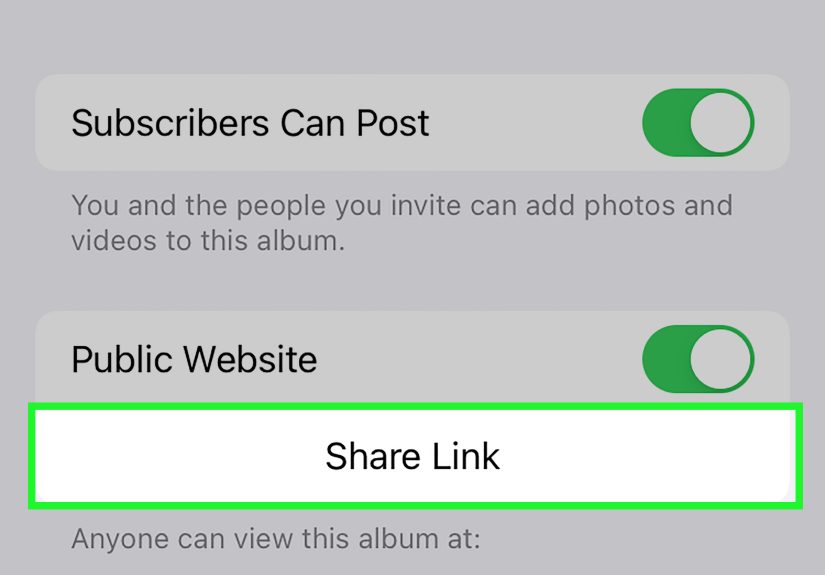
If you only need to send a few photos or one album, the quickest move is often sharing a link.
How It Works
From Google Photos on your iPhone, you can:
- select the photos,
- tap Share,
- create a link or shared album,
- send that link to the Android user through text, email, or another messaging app.
The Android user opens the link, views the photos, and saves the ones they want.
This is a fantastic method when you are:
- sending vacation highlights to friends,
- sharing school or work images,
- moving screenshots quickly, or
- trying to avoid downloading an extra app on both phones.
It is also less chaotic than trying to send dozens of full-size images through regular text messages, where quality can drop and patience can disappear.
Switching to a New Android Phone? Use a Full Transfer Tool
If your real goal is not just sharing a few pictures but moving your life from iPhone to Android, use a migration tool instead of pretending Bluetooth will carry that emotional burden alone.
Option 1: Android Setup and Switch Tools
Many Android devices now guide you through moving data from an iPhone during setup. This can include photos and other content, often using a cable or a guided transfer process.
This option is best when:
- you have a brand-new Android phone,
- you want a cleaner, more complete transfer,
- you do not want to manually rebuild your photo collection later.
Option 2: Samsung Smart Switch
If your new phone is a Samsung Galaxy device, Smart Switch is one of the best tools available. It is built specifically for moving content such as photos, videos, contacts, and more from iPhone to Samsung.
In plain English: if you are switching from iPhone to Galaxy, Smart Switch is the friend who shows up with a truck, pizza, and a plan. Bluetooth is the friend who says, “Wow, moving sounds hard.”
If You Still Want to Try “Bluetooth,” Here’s the Reality Check
Let’s use the exact search phrase honestly: how to Bluetooth photos from iPhone to Android.
Here is the practical answer:
- Turn on Bluetooth on both phones if you want, but do not expect the iPhone Photos app to detect the Android phone as a nearby photo receiver.
- If no direct send option appears, that is normal.
- Switch to a method that is actually designed for cross-platform photo sharing, such as Google Photos, a shared link, a cloud drive, or a phone migration tool.
That may sound like a plot twist, but it is the most useful answer. A quick guide should save you time, not waste it with wishful tapping.
Other Easy Ways to Move Photos from iPhone to Android
Google Photos is the star of the show, but it is not the only option.
OneDrive
If you already use Microsoft services, OneDrive is a solid cross-platform choice. Upload photos from your iPhone, then open OneDrive on your Android device and download or save what you need. It is a nice option for people who already live in the Microsoft universe and do not want yet another app organizing their digital life.
Dropbox
Dropbox is also simple. Upload the photos from iPhone, then access them on Android through the app or browser. This is especially handy for work files, shared folders, and cases where you want a clean handoff without sending giant attachments.
Computer as the Middleman
If cloud apps are not your favorite thing, you can move photos from the iPhone to a computer, then transfer them to the Android phone. It is not always the quickest method, but it can work well for large libraries or people who prefer local file control.
This method is a little less “quick guide” and a little more “weekend project,” but it is still useful for bulk transfers.
Common Problems and How to Fix Them
The Photos Are Not Showing Up on Android
First, make sure the upload from the iPhone actually finished. If you are using Google Photos, OneDrive, or Dropbox, the transfer is often only as good as your patience and internet connection. If you upload 900 photos and then immediately demand results after six seconds, the apps may respectfully disagree.
Check:
- whether the iPhone app still says it is backing up,
- whether the correct account is signed in on both phones,
- whether the Android device has internet access,
- whether the Android user received the correct album or link.
The iPhone App Doesn’t Have Permission to Access Photos
This is a common issue. If Google Photos or another cloud app cannot see your pictures, it cannot upload them. Open iPhone settings, check photo permissions, and allow access for the app you are using.
The Transfer Is Taking Forever
Large photo libraries, weak Wi-Fi, background app limits, and low storage can all slow things down. If you are doing a big transfer, keep the phone charging, connected to stable internet, and avoid aggressively closing the app every two minutes like you are trying to teach it a lesson.
The Android Phone Has the Photos, But They Are Hard to Find
Depending on the app, the images may live inside Google Photos, OneDrive, Dropbox, Downloads, or another folder. If the goal is permanent local storage on Android, the user may need to manually download or save the photos into the device gallery.
Which Method Should You Use?
Here is the quick cheat sheet:
- Just a few photos: use a Google Photos share link.
- A lot of photos: use Google Photos backup and then open them on Android.
- Switching to a new Android phone: use Android’s setup transfer tools or Samsung Smart Switch.
- You already use Microsoft: use OneDrive.
- You already use Dropbox: use Dropbox.
- You want literal Bluetooth only: prepare for disappointment and then choose a method above.
Real-World Experiences: What Actually Happens When People Try This
In real life, most people search for “how to Bluetooth photos from iPhone to Android” because they want something immediate. Usually, the moment looks like this: one person says, “Just send me the pics,” the other person confidently opens Settings, turns on Bluetooth, and then both of them stare at two expensive phones acting like strangers at a party. That is the exact moment this guide exists for.
One common experience is the post-trip photo dump. Someone takes all the good pictures on an iPhone during a weekend trip, and the friend with the Android phone wants the album afterward. The first instinct is Bluetooth because it feels direct and old-school. But once people realize there is no simple built-in iPhone-to-Android Bluetooth photo handoff, they usually switch to Google Photos. And honestly, the mood improves immediately. A shared album is easier, cleaner, and much less likely to end with someone saying, “Why did only three photos go through?”
Another very common situation is family device chaos. One parent uses an iPhone, one kid uses Android, one grandparent uses whatever phone came free with a plan five years ago, and everyone still expects holiday photos before dinner. In these mixed-device households, cloud sharing wins because it does not care about brand loyalty. People can upload from one device, open from another, and stop pretending the family group chat is a professional media server.
Then there is the new phone switch experience. This is where people often waste the most time. They think they need to manually send photos in chunks, or they worry that moving from iPhone to Android will be messy and incomplete. In reality, device-switch tools are usually far better for this job than any one-photo-at-a-time method. When someone uses Samsung Smart Switch or an Android setup transfer flow, the process feels much closer to “actual migration” and much less like “digital moving day with a shopping bag.”
There is also the work and school version of this problem. A person has receipts, screenshots, project images, whiteboard photos, or design references on an iPhone but needs them on an Android work phone. In those cases, OneDrive or Dropbox often feels more organized than casual sharing apps. The photos are easier to sort, store, and find later. That matters more than people expect. Fast is great, but fast and searchable is better.
The biggest lesson from real-world use is simple: people do not actually care whether the transfer happens over Bluetooth, Wi-Fi, cloud sync, or phone wizardry. They care that it is quick, reliable, and does not ruin the quality. Once users let go of the exact word “Bluetooth,” the whole job becomes easier. That is why the best experience usually comes from picking the method that matches the moment: shared link for speed, backup for bigger batches, migration tool for a new phone, and cloud storage for ongoing access.
So yes, the search phrase says Bluetooth. Real life says, “Use the tool that gets the photos there without a meltdown.” Real life is right.
Final Thoughts
If you came here hoping for a magical built-in Bluetooth button that beams photos from iPhone to Android in one tap, I regret to inform you that modern smartphones remain brilliant, complicated little drama queens.
But here is the good news: moving photos from iPhone to Android is still easy when you use the right method. For most people, Google Photos is the quickest and cleanest solution. For full phone switches, dedicated transfer tools are better. For people already using cloud storage, OneDrive and Dropbox are practical alternatives.
So the next time someone asks how to Bluetooth photos from iPhone to Android, you can give them the upgraded answer: “Technically, that is not usually the best route. Here is the faster one that actually works.”





 Close
Close