
Table of Contents >> Show >> Hide
- What Is Total Talk Time on an iPhone?
- How to Check Total Talk Time on an iPhone
- What Does Current Period Mean on iPhone Call Time?
- What Does Lifetime Mean on iPhone Call Time?
- How to Reset Current Period Call Time on iPhone
- Can You Check Call Duration in the Phone App?
- Why Your iPhone Talk Time May Not Match Your Carrier Bill
- How to Check Official Talk Time Through Your Carrier
- What to Do If Call Time Is Missing on Your iPhone
- Can You Delete or Edit Lifetime Call Time?
- Common Mistakes When Checking iPhone Talk Time
- Practical Uses for Checking Total Talk Time
- Quick Troubleshooting Checklist
- Real-World Experiences: What Checking iPhone Talk Time Teaches You
- Conclusion
Want to know how much time you have spent talking on your iPhone? Maybe you are tracking phone habits, checking a used iPhone before buying it, comparing your carrier bill, or simply wondering whether your phone has secretly become your part-time therapist. Good news: your iPhone includes a built-in way to check total talk time, including Current Period and Lifetime call time.
The slightly less glamorous news? Apple hides this information in the Cellular settings, not in the Phone app where most people naturally look. Classic smartphone logic: the thing about phone calls is not under “Phone,” because apparently that would be too easy.
This guide explains exactly how to check total talk time on an iPhone, what Current Period and Lifetime mean, how to reset call statistics, why your iPhone numbers may not match your carrier bill, and what to do when the counter seems missing or confusing. By the end, you will know where the numbers live, what they actually mean, and how to use them without turning your Settings app into a crime scene investigation.
What Is Total Talk Time on an iPhone?
Total talk time on an iPhone refers to the amount of time your device has recorded for phone calls. In the Cellular settings, iPhone typically shows this under a section labeled Call Time, with two numbers:
- Current Period: Call time recorded since the last time you reset statistics.
- Lifetime: The broader call time counter associated with the iPhone’s setup history.
This feature is useful because it gives you a quick snapshot of how much time has been spent on voice calls through the device. It is not meant to replace your official carrier records, but it is handy for personal tracking, troubleshooting, and checking usage patterns.
Think of it like the odometer and trip meter in a car. Lifetime is closer to the odometer, while Current Period acts more like the trip meter you can reset. Except instead of measuring miles, it measures how many minutes you have spent saying “Can you hear me now?”
How to Check Total Talk Time on an iPhone
Follow these steps to find your total call time:
Step 1: Open the Settings App
Unlock your iPhone and open the Settings app. This is the gray gear icon that quietly holds more secrets than your Notes app.
Step 2: Tap Cellular
Scroll down and tap Cellular. On some iPhones, depending on region or carrier language, this may appear as Mobile Data. In the United States, most users will see Cellular.
Step 3: Scroll Toward the Bottom
Scroll down through the Cellular screen. You may see app-by-app cellular data usage first, along with options for Cellular Data, Cellular Data Options, Personal Hotspot, Wi-Fi Assist, and System Services.
Keep scrolling. Yes, it may feel like hiking through a forest of app names. Bring snacks if necessary.
Step 4: Look for Call Time
Near the lower portion of the page, look for a section labeled Call Time. Here, you should see:
- Current Period
- Lifetime
The numbers may be shown in minutes, hours, or a combination depending on your usage. For example, you might see:
- Current Period: 4 Hours, 32 Minutes
- Lifetime: 816 Hours, 15 Minutes
That Lifetime number can be surprisingly dramatic. It may make you question your entire social history, your customer support calls, and that one relative who treats “quick question” as a full-length podcast.
What Does Current Period Mean on iPhone Call Time?
Current Period means the amount of call time recorded since the last time the iPhone’s cellular statistics were reset. It does not automatically mean “this month,” “this billing cycle,” or “today.” This is one of the most common misunderstandings.
For example, if you bought your iPhone in January and never tapped Reset Statistics, your Current Period could represent months or even years of call time. If you reset it yesterday, then Current Period only reflects call time since yesterday.
Example of Current Period
Let’s say your carrier billing cycle starts on the 1st of every month. On April 1, you go to Settings > Cellular, scroll down, and tap Reset Statistics. From that moment forward, your Current Period call time starts at zero. On April 24, you check again and see 6 hours and 20 minutes. That means you have used about 6 hours and 20 minutes of iPhone call time since April 1.
This makes Current Period useful for monthly tracking, but only if you remember to reset it manually. Your iPhone will not politely reset it for you while handing you a tiny digital calendar. You have to do the work.
What Does Lifetime Mean on iPhone Call Time?
Lifetime call time is the longer-running call counter. It is meant to show total call time accumulated over the device’s setup life. However, “lifetime” does not always mean from the moment the iPhone left the factory.
If the iPhone was erased, restored, replaced, set up from a backup, transferred from another device, or affected by carrier settings, the Lifetime number may not tell a perfect biography of the physical phone. It is best understood as a long-term call counter, not a legally certified usage certificate signed by the ghost of Steve Jobs.
Why Lifetime Call Time Matters
Lifetime talk time can be helpful when buying or selling a used iPhone. A very high Lifetime number may suggest the phone has seen heavy calling use, although it should never be the only factor you consider. Battery health, repair history, display condition, carrier lock status, storage, and overall performance matter much more.
For personal use, Lifetime call time is simply interesting. Some people check it out of curiosity. Others use it to understand long-term communication habits. If your Lifetime call time is huge, do not panic. It may only mean you are popular, patient, or very familiar with automated support menus.
How to Reset Current Period Call Time on iPhone
You cannot reset Lifetime call time from the normal Cellular screen, but you can reset the Current Period statistics.
Here is how:
- Open Settings.
- Tap Cellular.
- Scroll all the way to the bottom.
- Tap Reset Statistics.
- Confirm when prompted.
After you reset statistics, your Current Period data and call counters start over from zero. This does not erase your contacts, call history, messages, apps, photos, or carrier account information. It only resets the usage statistics shown on that Cellular page.
Best Time to Reset Statistics
The best time to reset Current Period statistics is at the beginning of your carrier billing cycle. That way, your iPhone’s Current Period roughly matches the same time window as your monthly bill.
For example, if your Verizon, AT&T, T-Mobile, or other carrier plan renews on the 10th of each month, reset your iPhone statistics on the 10th. Then, when you check your Current Period call time later, it will be easier to compare it with carrier usage.
However, remember this important detail: your iPhone counter and carrier bill may still differ. Carrier billing systems may calculate usage differently, especially for roaming, Wi-Fi calling, forwarded calls, account-level records, or delayed usage reporting.
Can You Check Call Duration in the Phone App?
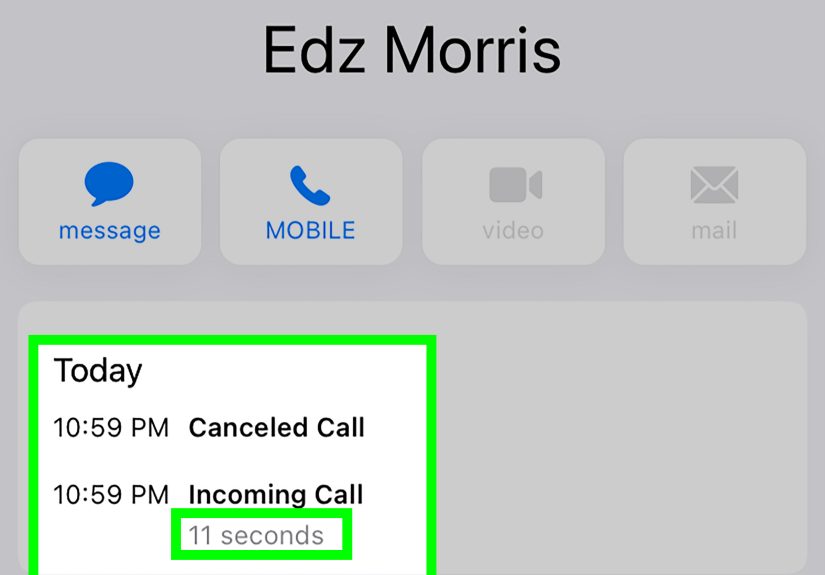
Yes, but only for individual recent calls, not total lifetime talk time. The Phone app is useful when you want to view recent incoming, outgoing, or missed calls. Depending on your iOS version and Phone app layout, you can open the Phone app, go to Recents or Calls, and tap a call or information button to view more details.
This is different from the total Call Time counter in Settings. The Phone app helps answer, “How long was that one call?” The Cellular settings help answer, “How much total call time has this iPhone recorded?”
Phone App vs. Cellular Call Time
Here is the simple difference:
- Phone app: Best for checking recent calls and individual call details.
- Settings > Cellular: Best for checking total Current Period and Lifetime talk time.
- Carrier account: Best for official billing records and older call logs.
In short, do not expect the Phone app to behave like a full accounting department. It is more like a receptionist with a short memory.
Why Your iPhone Talk Time May Not Match Your Carrier Bill
It is completely normal for iPhone call time and carrier records to differ. Your iPhone is tracking usage locally, while your carrier tracks billable network activity from its own systems. Those two views are related, but they are not identical twins.
Here are several reasons the numbers may not match:
1. Billing Cycles Are Different
Your carrier bill follows a specific monthly cycle. Your iPhone Current Period starts whenever you last tapped Reset Statistics. If you never reset it, the Current Period could cover a much longer time than your bill.
2. Carrier Records May Update Later
Some usage details, especially roaming or delayed network activity, may take time to appear in your carrier account. Your iPhone may show activity immediately, while your carrier system updates later.
3. Wi-Fi Calling Can Complicate Things
Wi-Fi Calling lets your iPhone make calls over Wi-Fi when cellular coverage is weak. Depending on your carrier and plan, those calls may appear differently in account records. The iPhone’s local counter may not line up perfectly with billing details.
4. App-Based Calls Are Different
Calls made through FaceTime Audio, WhatsApp, Messenger, Zoom, Teams, or similar apps are internet-based. They may use Wi-Fi or cellular data, but they are not the same as traditional carrier voice calls. If your goal is to track all voice conversations, your iPhone’s Call Time section is not a complete record of every app conversation.
5. Dual SIM Can Add Confusion
If your iPhone uses Dual SIM or eSIM, usage may be split across lines. Cellular data statistics can be tied to the selected cellular data number, and call records may need to be checked separately through each carrier account for the clearest picture.
How to Check Official Talk Time Through Your Carrier
If you need official usage records, your carrier account is the place to go. This matters for billing disputes, family plan monitoring, business records, reimbursement, or any situation where “my iPhone said so” is not quite official enough.
Verizon
Verizon users can check usage through the My Verizon app or website. Usage tools may show current usage, minutes, messages, data, and downloadable reports depending on account type and record availability.
T-Mobile
T-Mobile users can log in to T-Mobile.com or the T Life app to view usage details. The account tools may allow users to select Calls, Data, Messages, or other usage types, and postpaid users may be able to download call records for a period of time.
AT&T
AT&T users can usually review usage through the myAT&T app or online account. The available details depend on plan type, account permissions, billing cycle, and carrier record retention.
Metro by T-Mobile and Other Carriers
Prepaid and budget carriers may also provide usage history through their apps or websites. Some carriers require a call-detail add-on or account owner permission before detailed call records can be viewed or downloaded.
The main takeaway: use your iPhone for quick personal tracking and your carrier account for official records.
What to Do If Call Time Is Missing on Your iPhone
If you cannot find Current Period or Lifetime call time, try these fixes:
Check the Cellular Page Carefully
The Call Time section is usually near the bottom of the Cellular settings screen. Many users stop scrolling too early because the page is long and packed with app data usage. Keep going until you see Reset Statistics or the lower settings area.
Update iOS
Go to Settings > General > Software Update and check whether an iOS update is available. Apple occasionally changes menu layouts, labels, and carrier-related settings.
Check Carrier Settings
Carrier settings updates can affect cellular features. Go to Settings > General > About. If a carrier update is available, your iPhone may prompt you to install it.
Restart Your iPhone
Restarting sounds boring, but it works often enough that tech support keeps recommending it with the confidence of a magician pulling scarves from a hat.
Contact Your Carrier
If the Call Time section does not appear or your usage seems wrong, contact your wireless carrier. Some features can vary by carrier, region, account type, SIM status, or plan configuration.
Can You Delete or Edit Lifetime Call Time?
There is no normal iPhone button that lets you manually edit Lifetime call time. Apple does not provide a simple “clear lifetime calls” option in Settings.
Reset Statistics affects the Current Period counter, not the Lifetime counter. Erasing and setting up an iPhone may affect long-term counters, but wiping a device just to change a number is usually unnecessary and not recommended unless you already planned to reset the phone for another reason.
If you are selling an iPhone, focus on properly erasing your personal data instead. Sign out of Apple Account, turn off Find My if needed, erase all content and settings, and follow Apple’s device-transfer steps. The buyer will care much more about activation lock, battery health, and whether the phone works than whether you spent 900 hours talking to humans.
Common Mistakes When Checking iPhone Talk Time
Mistake 1: Thinking Current Period Means This Month
Current Period only means “since the last reset.” If you have not reset it in two years, it is a two-year period. Your iPhone is not judging you; it is just counting.
Mistake 2: Comparing It Directly to Your Bill
Your carrier bill is the official source for billed usage. The iPhone counter is useful, but it may not match perfectly due to billing rules, timing, Wi-Fi Calling, roaming, or account-level differences.
Mistake 3: Expecting App Calls to Count the Same Way
Internet-based calls through apps are not the same as carrier voice calls. If you spend ten hours on FaceTime Audio over Wi-Fi, do not expect the Cellular Call Time section to serve as your complete social life spreadsheet.
Mistake 4: Forgetting to Reset Statistics
If you want monthly tracking, set a reminder to reset statistics on the first day of your billing cycle. Otherwise, your Current Period will slowly become a historical monument.
Practical Uses for Checking Total Talk Time
Checking total talk time is not just a curiosity. It can be useful in everyday situations:
- Monitoring phone habits: See how much time you spend on traditional calls.
- Managing family usage: Help kids, teens, or older relatives understand call habits.
- Reviewing work calls: Estimate business calling time for personal records.
- Buying used iPhones: Use Lifetime call time as one small clue about device history.
- Checking plan value: Compare actual calling habits with your carrier plan.
- Troubleshooting billing questions: Use iPhone data as a reference before checking carrier records.
For most people, unlimited talk plans have made minute-counting less stressful than it was in the flip-phone era. Still, knowing where to find the number is useful. And let’s be honest: sometimes we check stats simply because they are there.
Quick Troubleshooting Checklist
If you need the fastest possible answer, use this checklist:
- Open Settings.
- Tap Cellular.
- Scroll near the bottom.
- Find Call Time.
- Read Current Period and Lifetime.
- Tap Reset Statistics only if you want to restart the Current Period counter.
- Use your carrier account for official call records.
Real-World Experiences: What Checking iPhone Talk Time Teaches You
The first time many people check total talk time on an iPhone, the reaction is usually somewhere between “Oh, that is neat” and “I have spent how many hours on the phone?” It is one of those hidden iPhone details that feels tiny until the number stares back at you like a fitness tracker for conversations.
One common experience is discovering that Current Period is much higher than expected. A person may assume it means the current month, then realize they have not reset statistics since they bought the phone. Suddenly, the number makes sense. The iPhone was not accusing them of making 300 hours of calls this month. It was simply keeping a running total from the last manual reset. That little misunderstanding causes a lot of unnecessary panic, especially for users trying to compare the number with a monthly carrier bill.
Another practical experience comes from people who use their iPhone for work. Sales reps, freelancers, real estate agents, recruiters, support staff, and small-business owners often live on phone calls. Checking Current Period after resetting it at the start of a month can provide a rough picture of how much time is going into voice communication. It is not a perfect timesheet, but it can reveal patterns. For example, if your Current Period shows 40 hours of calls by mid-month, your phone is not just a phone. It is basically a conference room with a battery percentage.
Parents may also find the feature useful, especially when helping younger users understand phone habits. Instead of turning the conversation into a dramatic courtroom scene, a parent can simply show the number and say, “Here is what the phone recorded.” It is objective, simple, and less emotionally charged than guessing. Of course, it does not include every app-based call, so it should be used as a conversation starter rather than a complete surveillance tool.
People buying used iPhones sometimes check Lifetime call time out of curiosity. A high number does not automatically mean the phone is bad. iPhones are designed to be used, and talk time is only one tiny piece of the puzzle. A device with high call time but excellent battery health, clean display, strong speakers, and no activation lock may be a better purchase than a barely used phone with suspicious repair history. Still, Lifetime call time can be one more clue when evaluating the device.
Another lesson: carrier records matter. Many users compare iPhone Call Time with Verizon, AT&T, T-Mobile, or another carrier’s usage report and wonder why the numbers do not match exactly. The reason is simple: the iPhone and the carrier are counting from different perspectives. The iPhone is local. The carrier is billing-based. One is a notebook; the other is the cashier. They may agree most of the time, but when money or official records are involved, the carrier wins.
The best personal habit is to reset statistics on the first day of your billing cycle. Add a calendar reminder called “Reset iPhone usage stats,” and your future self will be oddly proud of you. It takes less than a minute, and it makes Current Period much more useful. Without that habit, Current Period becomes a mystery soup of days, weeks, months, or years.
In the end, checking total talk time on an iPhone is simple once you know where Apple tucked it away. It is not flashy, it is not promoted, and it will not make your phone calls shorter. But it gives you a useful window into how your iPhone has been used. And sometimes, that is all you need: one small number that explains why your battery, your calendar, and your ears all seem tired.
Conclusion
Checking total talk time on an iPhone is easy once you know the correct path: Settings > Cellular > Call Time. The two key numbers are Current Period and Lifetime. Current Period shows call time since the last statistics reset, while Lifetime reflects a longer-running device or setup-based counter.
For monthly tracking, reset statistics at the start of your billing cycle. For official records, use your carrier account. For curiosity, enjoy the number, take a deep breath, and remember that every long call had a purposeeven if that purpose was waiting on hold while a robot told you your call was very important.







 Close
Close