
Table of Contents >> Show >> Hide
- Why create and edit text files from the Linux Terminal?
- Before you start: know where your file lives
- How to create a text file in Linux using Terminal
- How to edit a text file in Linux using nano
- How to edit a text file in Linux using vi or vim
- How to make quick changes without opening a full editor
- How to view and verify file contents after editing
- Protect your work: backups and permissions
- Common mistakes when creating and editing text files in Linux
- Best practical workflow for most Linux users
- Specific examples of Linux text file creation and editing
- Experience and lessons from working with Terminal text files
- Conclusion
If you are new to Linux, the Terminal can feel a little dramatic. One blinking cursor, no friendly toolbar, and suddenly you are expected to behave like a movie hacker. The good news is that creating and editing a text file in Linux is much easier than it looks. In fact, once you learn a few basic commands, the Terminal often becomes faster, cleaner, and far less annoying than clicking through a dozen windows.
This guide walks through the most practical ways to create and edit text files in Linux by using Terminal. You will learn when to use simple commands like touch, echo, and cat, when to open a full editor like nano or vi, and how to avoid the classic mistakes that turn a quick edit into a “why is my config file empty?” kind of afternoon.
Why create and edit text files from the Linux Terminal?
Text files are everywhere in Linux. Configuration files, shell scripts, notes, logs, environment files, and service definitions all rely on plain text. When you know how to work with them directly from Terminal, you can move faster whether you are managing a server, writing a Bash script, fixing an app setting, or simply making a quick note.
Terminal-based file editing is especially useful when you are connected to a remote machine over SSH, working on a server without a graphical desktop, or following technical documentation that assumes a command-line workflow. It is also one of those Linux skills that pays off forever. Learn it once, and you will use it constantly.
Before you start: know where your file lives
Before creating or editing anything, make sure you know your current directory. The Terminal always works relative to your current location unless you provide a full path.
pwd shows your current directory. ls lists files. ls -l gives a more detailed view, including permissions, owner, size, and modification time. That extra information is useful when you are wondering whether a file exists, whether you are allowed to edit it, or whether you just changed the wrong one. Linux is very helpful right up to the moment it obeys your bad decision perfectly.
How to create a text file in Linux using Terminal
1. Create an empty text file with touch
The fastest way to create an empty file is with touch. It is simple, clean, and perfect when you just need the file to exist so you can fill it later.
If the file does not exist, Linux creates it. If it already exists, touch updates its timestamp instead of replacing the contents. That makes it a safe starting point when you do not want to risk overwriting text.
2. Create a file and write one line with echo
If you want to create a file and immediately add content, echo is handy.
This command creates hello.txt and writes one line into it. The important symbol here is >. It means “write output to this file.” If the file already exists, > overwrites it. That is convenient when you mean it and tragic when you do not.
To add content without replacing what is already there, use >>.
Think of it this way: > is the bulldozer, and >> is the polite extension.
3. Create a formatted text file with printf
printf gives you more control than echo, especially when you need line breaks, tabs, or variable formatting.
This is useful for scripts, templates, or structured text files where layout matters.
4. Create a multi-line file with cat
Want to type directly into a file from Terminal without opening a full-screen editor? Use cat with output redirection.
After running the command, type your text, press Enter as needed, and finish by pressing Ctrl+D. That sends an end-of-file signal and saves what you typed.
This method is great for quick notes, but it is not ideal for long edits because there is no friendly interface, no menus, and no easy correction flow if you start making mistakes halfway through.
5. Create or append text with tee
tee is useful when you want to send output into a file and also display it in the Terminal at the same time.
The first example writes the line into the file. The second uses -a to append. This command is especially handy in scripts and admin tasks, particularly when you are piping output from another command.
6. Create a clean multi-line file with a here-document
For larger blocks of text, a here-document is one of the best Terminal techniques. It lets you write several lines into a file in one shot.
This approach is excellent for templates, shell scripts, config stubs, and repeated setup tasks. Once you start using here-documents, you will wonder why you ever tried to build multi-line files one echo at a time like a person being punished by their own shell.
How to edit a text file in Linux using nano
For beginners, nano is usually the easiest Terminal text editor. It is simple, direct, and shows shortcut hints at the bottom of the screen. No secret handshakes required.
Open or create a file with nano
If notes.txt exists, Nano opens it. If it does not, Nano creates a new buffer for that file name, and the file is written when you save it.
You can also open a system file with elevated privileges when needed:
Basic nano editing shortcuts
Once inside Nano, you can start typing immediately. Some of the most useful shortcuts are:
Save: Ctrl+O
Exit: Ctrl+X
Search: Ctrl+W
Cut line: Ctrl+K
Paste: Ctrl+U
Undo: Alt+U
Redo: Alt+E
Nano is ideal for editing configuration files, writing short scripts, and making quick corrections. It does not use editing modes, so what you type is what gets inserted. That alone makes it much friendlier than vi for many people.
How to edit a text file in Linux using vi or vim
vi and vim are powerful, fast, and deeply loved by people who have spent enough time with them to stop blinking when they hear the word “modes.” They are common on servers, and knowing the basics can save you in a pinch.
Open a file with vi
If the file exists, it opens. If not, vi starts with a new file buffer.
The two big modes in vi
Command mode is where you navigate, delete, copy, paste, and issue commands.
Insert mode is where you actually type text.
When vi opens, you start in Command mode. To begin typing, press i to enter Insert mode. To stop typing and return to Command mode, press Esc.
Essential vi commands
Enter Insert mode: i
Save: :w
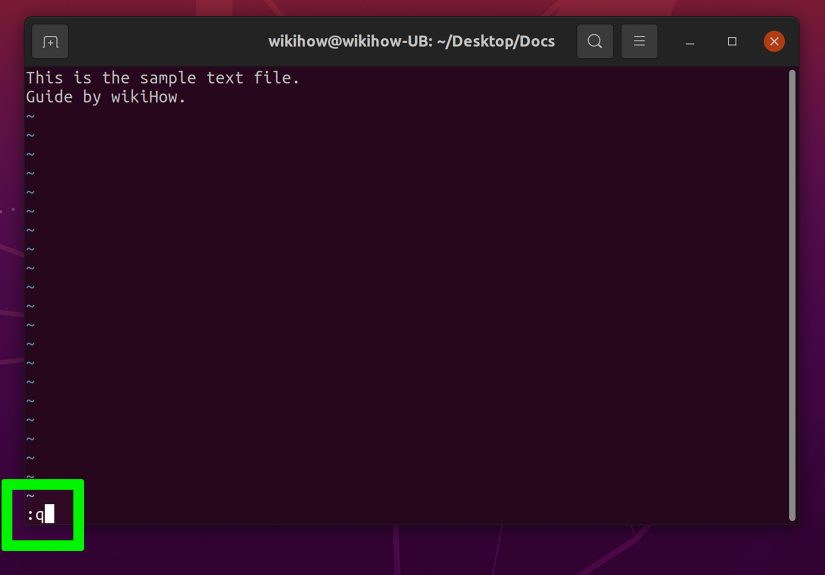
Quit: :q
Save and quit: :wq
Quit without saving: :q!
Delete line: dd
Copy line: yy
Paste: p
Search: /word
If you only remember one survival sequence, make it this: press Esc, then type :wq, then hit Enter. Congratulations, you have officially escaped the editor and may now rejoin polite society.
How to make quick changes without opening a full editor
Sometimes opening Nano or Vim is overkill. For simple replacements, command-line tools can edit faster than a full editor.
Use sed for search and replace
This replaces every instance of localhost with 127.0.0.1 in config.txt and creates a backup named config.txt.bak. That backup suffix is a smart habit when editing important files from Terminal.
sed is excellent for automation, batch updates, and scripted text editing. It is less interactive than Nano or Vim, but for repetitive edits, it is a serious time-saver.
How to view and verify file contents after editing
After creating or editing a file, check your work. This is not mistrust. This is Linux self-defense.
cat prints the entire file. less lets you scroll through it. head shows the beginning, and tail shows the end. These commands are useful when reviewing logs, config files, or long text documents.
You can also check permissions and ownership:
Protect your work: backups and permissions
One of the smartest Terminal habits is making a backup before editing an important file.
Then edit the original. If something breaks, you can recover quickly.
Permissions matter too. If a file contains private notes, secrets, or credentials, you may want to restrict access.
This usually allows only the owner to read and write the file. When you are editing files in Linux from Terminal, permissions are not just an advanced topic. They are often the difference between “works perfectly” and “permission denied,” which is Linux’s way of saying, “Nice try.”
Common mistakes when creating and editing text files in Linux
Using > when you meant >>
This is the classic mistake. > overwrites the file. >> appends to it. Double-check before pressing Enter.
Editing the wrong file path
Always confirm your working directory with pwd and verify file names with ls. Many “Linux problems” are really “wrong folder problems.”
Forgetting sudo for protected files
System files often require elevated privileges. If you cannot save a file in /etc or another protected location, you probably need sudo.
Getting stuck in vi
This happens to almost everyone once. The solution is not panic. The solution is Esc, then :q! if you want out without saving, or :wq if you want to save and exit.
Best practical workflow for most Linux users
If you want a sensible everyday workflow, keep it simple:
Use touch to create an empty file.
Use nano for quick manual editing.
Use vi or vim when you are on minimal systems or want faster advanced navigation.
Use echo, printf, cat, here-documents, or tee for scripted file creation.
Use sed for fast automated replacements.
Use cp and backup suffixes before risky changes.
That combination covers most real-world file editing tasks in Linux without turning the Terminal into an obstacle course.
Specific examples of Linux text file creation and editing
Create a to-do list
Type your tasks, save with Ctrl+O, and exit with Ctrl+X.
Create a quick Bash script
Then make it executable:
Edit a configuration value
This is fast, repeatable, and easier to automate than opening the file manually every time.
Experience and lessons from working with Terminal text files
Anyone who spends time on Linux eventually collects a few memorable lessons about text files. The first is that the Terminal rewards clarity. When you type a command like touch notes.txt or nano config.conf, there is very little mystery about what is about to happen. That directness can feel intimidating at first, but it becomes oddly comforting. You stop hunting through menus and start telling the system exactly what you want.
Another common experience is learning respect for redirection. Many people have a story about using > when they meant >>. One moment you are adding a line to a file, and the next moment you are staring at a beautifully empty document that used to contain useful information. It is a rite of passage nobody enjoys, but almost everybody remembers. After that, checking commands before hitting Enter becomes second nature.
There is also the moment when Nano feels like a superhero cape. Early on, editing from Terminal can seem awkward. Then you open a file over SSH on a remote server, make one quick change in Nano, save it, exit, and realize you just fixed a live issue without needing a graphical desktop at all. That is when command-line editing stops feeling like a nerdy side skill and starts feeling like practical power.
Then comes vi or vim. At first it feels like the editor is personally offended that you opened it. You press keys, the cursor moves in strange ways, and quitting becomes a puzzle. But once the basic mode system clicks, the editor starts making sense. Many Linux users go from “What is this nonsense?” to “Why is this so fast?” in a surprisingly short amount of time. The learning curve is real, but so is the payoff.
Real experience also teaches that backups are not optional for important files. Creating .bak copies before editing a config file may seem overly cautious right up until the day you need to roll back a bad change in thirty seconds. That habit saves time, stress, and a lot of unnecessary dramatic sighing.
One more lesson stands out: plain text is powerful. A text file can hold notes, scripts, app settings, database connection details, cron jobs, or deployment instructions. Once you understand how to create and edit those files efficiently from Terminal, Linux feels less like a mysterious operating system and more like a toolbox. A very honest toolbox, too. It usually does exactly what you ask, which is wonderful when you are careful and hilarious when you are not.
In the end, working with text files in Linux by using Terminal is not about memorizing dozens of commands. It is about learning a small set of reliable methods and using the right one at the right time. That confidence grows fast. One day you are cautiously opening nano notes.txt. A little later, you are building files with here-documents, making scripted edits with sed, and wondering why file editing ever seemed difficult in the first place.
Conclusion
Learning how to create and edit text files in Linux by using Terminal is one of the most useful skills for any Linux user. You do not need to master every editor or memorize every command on day one. Start with the basics: create files with touch, write quick content with echo or cat, edit comfortably with nano, and keep a few vi survival commands ready for the day you need them. Add sed, backups, and permissions to the mix, and you have a practical, reliable workflow that works on laptops, servers, and remote systems alike.
The Terminal is not just a place to type commands. It is one of the fastest ways to work with text in Linux. Once you get comfortable with it, creating and editing files feels less like technical labor and more like efficient problem-solving with a keyboard.







 Close
Close