
Table of Contents >> Show >> Hide
- Why Deleting a PS4 Game Is Not the Same as Deleting Save Data
- Quick Tutorial: How to Delete a Game on PS4 from the Home Screen or Library
- How to Delete Games on PS4 Through Storage Settings
- How to Delete Save Data on PS4
- How to Back Up PS4 Save Data Before You Delete Anything
- How to Reinstall Deleted Games on PS4
- Common Mistakes to Avoid When Deleting PS4 Games and Save Data
- Real-World Experiences: What Deleting Games and Save Data on PS4 Actually Feels Like
- Final Thoughts
If your PS4 is groaning under the weight of giant game installs, old saves, random clips, and that one title you swore you would finish in 2023, this guide is for you. Learning how to delete games and save data on PS4 is one of the easiest ways to free up storage, clean up your library, and make room for something you will actually play. The good news is that Sony made the process fairly simple. The better news is that you do not have to treat your console like a bomb squad robot every time you uninstall a game.
That said, there is one important catch: deleting a game and deleting save data are not the same thing. Many PS4 owners remove a game thinking they wiped everything, only to discover the save files are still there. Others do the opposite and accidentally remove progress they meant to keep. Ouch. This tutorial walks you through both jobs clearly, so you can free up PS4 storage space without deleting the wrong stuff.
Below, you will learn the difference between uninstalling a PS4 game, removing saved data, backing up your progress, and even when to avoid the big scary option called “Initialize PS4.” Think of this as the friendly, no-panic version of console housekeeping.
Why Deleting a PS4 Game Is Not the Same as Deleting Save Data
Before jumping into the quick tutorial, it helps to know how the PS4 organizes your content. The game application itself is one thing. Your saved data is another. That means when you delete a game from the home screen or storage menu, you are usually removing the installed application, not your progress.
In plain English, uninstalling a game is like throwing away the stage while keeping the script. If you reinstall the game later, your save file may still be there waiting for you. That is great when you want to come back to a single-player adventure after a break. It is not so great when you are trying to erase everything and start fresh.
Here is the basic breakdown:
- Delete game: Removes the installed game or app to free storage.
- Delete save data: Removes your progress, settings, checkpoints, and local game saves.
- Delete online storage data: Removes cloud saves if you use PlayStation Plus.
- Initialize PS4: Wipes the console much more broadly and should not be confused with a simple uninstall.
If your goal is just to make room for a new download, deleting the game is usually enough. If your goal is to completely clear old progress, hand off the console to someone else, or fix corrupted game data, you may also need to delete the save files.
Quick Tutorial: How to Delete a Game on PS4 from the Home Screen or Library
This is the fastest method, and for most people it is all they need. If you want to remove one game quickly, use the content launcher or your library.
Method 1: Delete a PS4 Game from the Home Screen
- Turn on your PS4 and go to the home screen.
- Highlight the game you want to remove.
- Press the Options button on your controller.
- Select Delete.
- Confirm your choice.
That is it. The game will be removed from the console, and you will free up some storage immediately. This method is fast, painless, and perfect when you already know what needs to go.
Method 2: Delete a PS4 Game from Library
If the game is not sitting on your main row of recently used titles, go to your Library. From there, find the installed game, press Options, and choose Delete. This is handy if your home screen is already crowded with newer games and streaming apps fighting for attention like toddlers in a toy aisle.
This delete method works well for both physical and digital games. For disc-based games, remember that the install data still lives on the console, so deleting it removes that installed data. If you want to play it again later, you can reinstall from the disc. For digital games, you can redownload them from your Library as long as you still own them on your account.
How to Delete Games on PS4 Through Storage Settings
If you want a smarter way to free up space, use the PS4 storage menu. This view is better because it helps you see which games are the biggest storage hogs. Sometimes the real villain is not the indie game you forgot about. It is the giant blockbuster sitting there like a storage-eating monster.
Steps to Delete PS4 Games from System Storage
- From the home screen, go to Settings.
- Select Storage.
- Choose System Storage or Extended Storage if you use an external drive.
- Select Applications.
- Highlight a game you want to delete.
- Press Options.
- Select Delete.
- Check one or multiple games, then confirm.
This approach is especially useful when your PS4 says there is not enough storage to install a new game or update. Instead of guessing what to remove, you can look at the application list and target the largest installs first. Big sports titles, online shooters, and open-world games can take up a shocking amount of space.
If you use an external hard drive, you can also manage games there. On PS4, applications and add-ons can live on extended storage, but saved data does not. That means uninstalling a game from extended storage still does not automatically erase your local save progress from system storage.
How to Delete Save Data on PS4
Now we are in the danger zone. Not the exciting movie kind. The “did I just erase 87 hours of progress?” kind. If you want to remove saved game data on PS4, slow down for a second and make sure you truly mean it.
Deleting save data is useful in a few situations:
- You want to start a game completely from scratch.
- You are troubleshooting corrupted game files.
- You are cleaning up old user data before selling or giving away the console.
- You no longer want certain save files stored locally.
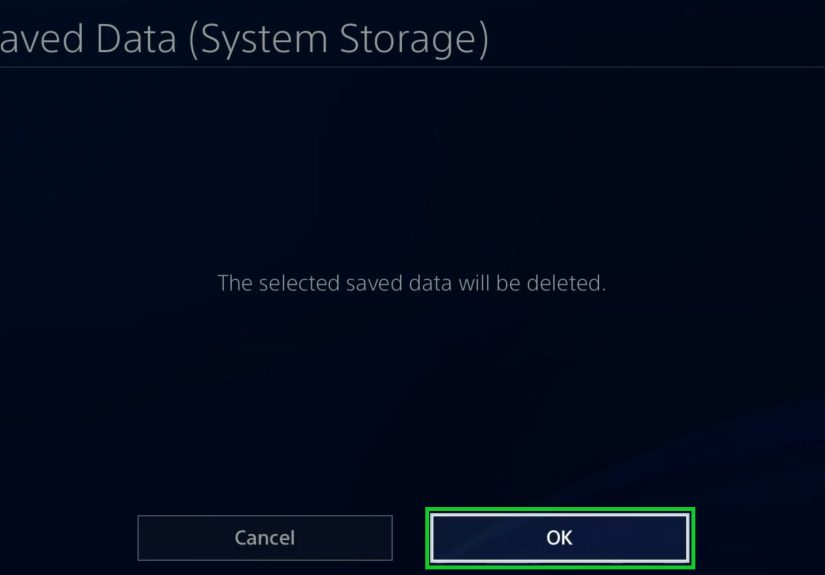
Steps to Delete Saved Data in System Storage
- Go to Settings.
- Select Application Saved Data Management.
- Choose Saved Data in System Storage.
- Select Delete.
- Choose the game.
- Select the individual save files you want to delete, or choose all of them.
- Select Delete and confirm.
This process removes the local saved data for that title. Once it is gone, your progress is gone too, unless you already copied it to USB or uploaded it to cloud storage.
What About Cloud Saves or USB Save Files?
If you use PlayStation Plus, you may also have saved data in online storage. You can manage or delete that separately. If you copied saves to a USB storage device, those files can also be managed independently. In other words, deleting a local save does not always mean every version is gone everywhere.
That is why it is smart to check where your save exists before hitting delete. A lot of players assume the console is showing every version of the file. It is not. Sometimes the save is local. Sometimes it is in the cloud. Sometimes it is both. Technology is fun right up until it becomes a scavenger hunt.
How to Back Up PS4 Save Data Before You Delete Anything
If there is even a tiny chance you might want your game progress later, back it up first. This is the safest move and honestly the most underrated part of any PS4 storage tutorial.
Option 1: Copy Save Data to a USB Drive
- Connect a USB storage device to your PS4.
- Go to Settings.
- Select Application Saved Data Management.
- Choose Saved Data in System Storage.
- Select Copy to USB Storage Device.
- Choose the game and the files you want to back up.
- Select Copy.
This is a great choice if you want full control and do not want your save history tied to a subscription. A USB backup is also useful if you are switching consoles, replacing a hard drive, or just being the rare organized gamer who plans ahead.
Option 2: Upload Save Data to Online Storage
If you have PlayStation Plus, you can upload save files to cloud storage. You can do this manually or enable automatic uploads on your primary PS4. That way, if you delete a game to free up storage, your progress still has a safety net.
The key lesson here is simple: back up first, delete second. That one habit can save you from the digital equivalent of throwing your wallet into the trash by accident.
How to Reinstall Deleted Games on PS4
Deleted a game and changed your mind? Welcome to the club. Reinstalling is easy.
For Digital Games
Go to Library, find the game under your purchased content, and select the download icon. Once the game is reinstalled, your old save may still be available if you did not delete it separately.
For Disc Games
Insert the game disc again and let the PS4 reinstall the application data. You may still need updates before playing, especially for older games that have been patched since release.
If the game was deleted because it was acting weird, reinstalling can also help fix bugs tied to damaged install files. In some cases, players delete and reinstall a game when they see corrupted data errors or repeated crashes. Just make sure your save data is protected first if you care about your progress.
Common Mistakes to Avoid When Deleting PS4 Games and Save Data
1. Assuming uninstalling a game deletes everything
Nope. Usually it removes the application, not the save file.
2. Deleting save data without a backup
This is the classic “I only meant to clean things up” mistake. One wrong click and your hundred-hour RPG file becomes a memory.
3. Using Initialize PS4 when you only meant to free space
Initialize PS4 is the nuclear option. It is for wiping the console much more completely, not for routine storage management.
4. Forgetting about cloud saves
You may delete a local file and still have a cloud version. Or you may think everything is safe in the cloud when you never uploaded it. Always check.
5. Ignoring extended storage rules
Games can be installed on extended storage, but PS4 save data remains handled differently. Do not assume moving or deleting the application also moves or deletes all the related files.
Real-World Experiences: What Deleting Games and Save Data on PS4 Actually Feels Like
Here is the part nobody tells you in the short version of a PS4 tutorial: deleting games on PS4 is technically easy, but emotionally it can feel weirdly dramatic. One minute you are calmly making room for a new download. The next minute you are staring at a list of installed titles like a museum curator deciding which exhibits survive the renovation.
A very common experience goes like this: your PS4 says there is not enough free space for a new game or update. You roll your eyes, open storage, and suddenly realize three games you have not touched in months are still sitting there like freeloading roommates. You delete one. Nothing happens to your heart. You delete the second. Still fine. Then you hover over a favorite game you “might come back to someday,” and now it is a philosophical problem. The storage menu has become therapy.
Another common scenario is the panic over save files. A lot of players worry that deleting a game means losing everything. That fear is understandable, especially if you have ever spent weeks on a difficult game, built a custom franchise in a sports title, or made progress in a massive RPG. The reassuring part is that on PS4, uninstalling a game usually leaves your save data alone. That is why many people feel relieved after reinstalling a deleted title and finding their progress still waiting. It is one of the few nice surprises in modern technology.
Of course, the opposite experience also happens. Someone decides to “clean everything up,” goes into saved data management, taps a little too confidently, and deletes more than intended. That is when the mood changes from spring cleaning to tragic opera. It is also why backup habits matter so much. A two-minute USB copy or cloud upload can turn a potential disaster into a minor inconvenience.
There is also a practical side that long-time PS4 owners know well: deleting old games can make the console feel more manageable. When storage is nearly full, every new install feels like a negotiation. Every update feels like paperwork. Once you clear out games you truly do not need, the system feels lighter, more organized, and less annoying to use. It is not magic, but it is close enough for a Wednesday night.
Players who use external storage often have a slightly different experience. They get more breathing room, but they also have to remember what lives where. A game might be on extended storage while its save lives in system storage. That setup works fine, but it can confuse people the first time they start deleting things. The best habit is to think of the game and the save as separate pieces. Once that idea clicks, the whole system makes more sense.
In real life, the best PS4 storage strategy is not deleting everything in a frenzy. It is keeping a few habits: remove games you are clearly done with, back up saves you care about, and treat full-console reset options like emergency tools, not everyday cleanup buttons. Do that, and deleting games and save data on PS4 goes from stressful to routine. Maybe not fun exactly, but at least no longer terrifying.
Final Thoughts
If you were looking for the fastest answer to how to delete games and save data on PS4, here it is: delete games from the home screen, Library, or Storage menu when you need space, and delete saves separately through Application Saved Data Management only when you truly want to remove progress. Back up first if the save matters. Reinstall later if you change your mind. And unless you are preparing the console for resale or solving a major system issue, keep your hands away from Initialize PS4.
Once you understand the difference between installed game data and saved game data, PS4 storage management becomes much less confusing. You stop guessing, start cleaning smarter, and avoid turning a quick uninstall into an accidental memory wipe. Your console gets more space, your library gets tidier, and your future self avoids unnecessary heartbreak. That is a pretty good trade.






 Close
Close