
Table of Contents >> Show >> Hide
- Why an iPhone Alarm Stops Making Sound
- 1. Turn Up the Alarm Volume the Right Way
- 2. Make Sure the Alarm Sound Is Not Set to “None”
- 3. Turn Off Attention Aware Features
- 4. Review Your Alarm Setup, Including Sleep Schedule
- 5. Restart Your iPhone
- 6. Update iOS
- 7. Check for Speaker Problems, Sound Routing, or Physical Blockage
- Extra Tips to Make Sure Your Alarm Actually Wakes You Up
- When to Contact Apple or Get Your iPhone Checked
- Conclusion
- Real-World Experiences: What People Usually Learn the Hard Way
- SEO Tags
You set the alarm. You went to sleep feeling responsible. Mature. Maybe even unstoppable. Then morning arrived, your iPhone stayed suspiciously polite, and suddenly you were speed-running your entire routine like it was an Olympic event.
If your iPhone alarm is not making sound, you are not aloneand no, you are not imagining things. In many cases, the problem comes down to a small setting that got changed, a sleep schedule conflict, an alarm tone set to None, or a weird volume issue hiding in plain sight. The good news is that you usually do not need a new phone, a dramatic life reset, or a backup rooster. You just need a smart checklist.
This guide walks you through seven quick fixes for an iPhone alarm not making sound, plus extra real-world tips to help make sure tomorrow morning goes a lot better than today’s. Whether your alarm is too quiet, vibrating only, or acting like it is going off while the room stays silent, these steps can help you get your wake-up routine back on track.
Why an iPhone Alarm Stops Making Sound
Before jumping into the fixes, it helps to understand the usual suspects. Most alarm sound problems on iPhone come from one of these issues:
- The Ringtone and Alerts volume is too low.
- The alarm’s sound is set to None, which means you may only get vibration or almost no noticeable alert.
- Attention Aware settings are reducing the volume of alerts.
- Your Sleep Schedule or Wake Up alarm settings do not match your regular alarm setup.
- A temporary software glitch needs a restart or update.
- Your iPhone speaker is dirty, blocked, or not behaving normally.
- You have multiple alarms, duplicate schedules, or one tiny setting quietly sabotaging the whole plan.
Now let’s fix it.
1. Turn Up the Alarm Volume the Right Way
This is the first thing to check because it trips up a lot of people. On iPhone, alarm loudness is tied to the Ringtone and Alerts volumenot just whatever media volume you last used for TikTok, Spotify, or a dramatic late-night YouTube spiral.
How to check it
- Open Settings.
- Tap Sounds & Haptics.
- Under Ringtone and Alerts, drag the slider to the right.
Then test your alarm again. Do not assume “it looks high enough.” Move it high enough to make your future self slightly annoyed. That is usually the sweet spot.
A smart bonus move
Look for Change with Buttons. If it is turned on, you may accidentally lower your alarm volume with the side buttons during the day without realizing it. If you want a more stable setup, turn that option off so your alarm volume stays where you set it.
This fix is especially helpful if your iPhone alarm is too quiet rather than completely silent.
2. Make Sure the Alarm Sound Is Not Set to “None”
This sounds almost too obvious, which is exactly why it is sneaky. You may have created an alarm long ago, changed the sound once, tapped something by accident, or edited it half-awake and turned it into the world’s least helpful alarm.
How to check the alarm tone
- Open the Clock app.
- Tap Alarm.
- Tap Edit, then select the alarm.
- Tap Sound.
- Choose an actual soundnot None.
While you are there, pick something bold. If your current alarm sounds like a sleepy wind chime apologizing for existing, swap it out. A louder, sharper tone can make a huge difference.
Choose a sound you cannot ignore
Try a tone that starts quickly and cuts through background noise. If you sleep with a fan, white noise machine, or air conditioner humming away, a gentle alarm may be no match. Pair the sound with vibration if you want extra backup.
If your iPhone alarm only vibrates and makes no sound, this is one of the most likely fixes.
3. Turn Off Attention Aware Features
If you use an iPhone with Face ID, this setting deserves a very close look. Attention Aware Features can lower the volume of some alerts when your iPhone thinks you are looking at it. In theory, that sounds clever. In real life, it can sometimes feel like your phone is trying to be considerate at exactly the wrong moment.
How to turn it off
- Open Settings.
- Tap Face ID & Passcode.
- Scroll down to Attention Aware Features.
- Toggle it off.
If your alarm screen appears but the sound is lower than expectedor missing enough to ruin your morningthis setting is worth testing. Turn it off for a few days and see whether your alarm behaves normally again.
This is one of the fastest and most talked-about fixes because it addresses a setting many users never think to check.
4. Review Your Alarm Setup, Including Sleep Schedule
Sometimes the problem is not the speaker or the volume. Sometimes the issue is the alarm itself. Maybe it is set for the wrong time. Maybe it repeats on weekdays only. Maybe you set a regular Clock alarm, but your actual wake-up plan is tied to Sleep Schedule in the Health app. Maybe there are multiple alarms fighting for control like tiny digital roommates.
Check the basics
- Make sure the time is correct.
- Double-check AM and PM.
- Confirm the correct days are selected under Repeat.
- Delete old alarms you no longer use.
- Create one fresh test alarm from scratch.
Do not forget Sleep Schedule
If you use Apple’s sleep features, your Wake Up alarm may be controlled through the Health app or the sleep section of Clock. That means your usual alarm habits and your sleep routine may not always line up the way you think.
Open your sleep settings and confirm:
- Your Wake Up alarm is enabled.
- The sound is selected.
- The schedule is set for the right days.
- You did not accidentally turn off the next wake-up alarm.
This is a big one for people who say, “My regular alarm works, but my sleep alarm does not,” or the exact reverse.
5. Restart Your iPhone
Yes, the classic “turn it off and back on again” fix has survived for a reason. A simple restart can clear temporary glitches affecting sound, alarms, or system processes. It is not glamorous, but neither is oversleeping.
How to do it
Power your iPhone off normally, wait about 30 seconds, then turn it back on. If the phone is frozen or acting weird, you can force restart it instead.
After the phone restarts, set a test alarm for one or two minutes ahead. Do not skip the test. Trust, but verify.
Why this works
Temporary software hiccups can affect sound output, Clock behavior, or system settings. A restart gives the device a clean slate without changing your data or forcing you into a dramatic troubleshooting marathon.
6. Update iOS
If your iPhone alarm stopped making sound after an updateor suspiciously around the same time as other weird behaviorit is worth checking whether another iOS update is available. Software updates often include bug fixes, stability improvements, and patches for issues that only show up after millions of people do the exact same thing with their phones at 6:30 in the morning.
How to update
- Open Settings.
- Tap General.
- Tap Software Update.
- Install any available update.
Before you update, connect your iPhone to power and Wi-Fi if possible. After updating, create a test alarm and confirm the sound is working.
Good habit: test after major updates
Whenever your phone gets a major iOS update, test your alarm that same day. It takes two minutes and can save you from an accidental morning disaster later.
7. Check for Speaker Problems, Sound Routing, or Physical Blockage
If everything in your settings looks correct and your alarm still is not making sound, the issue may be broader than the Clock app. Your iPhone speaker might be blocked, dirty, or struggling with general audio output.
What to check
- Remove any bulky case or screen protector that covers the speaker area.
- Look for lint, dust, or grime in the speaker opening.
- Clean it gently with a soft, dry brush.
- Play music or a ringtone to see whether the speaker sounds normal.
If other sounds are weak, muffled, or distorted, your alarm problem may be part of a larger audio issue.
What about Bluetooth?
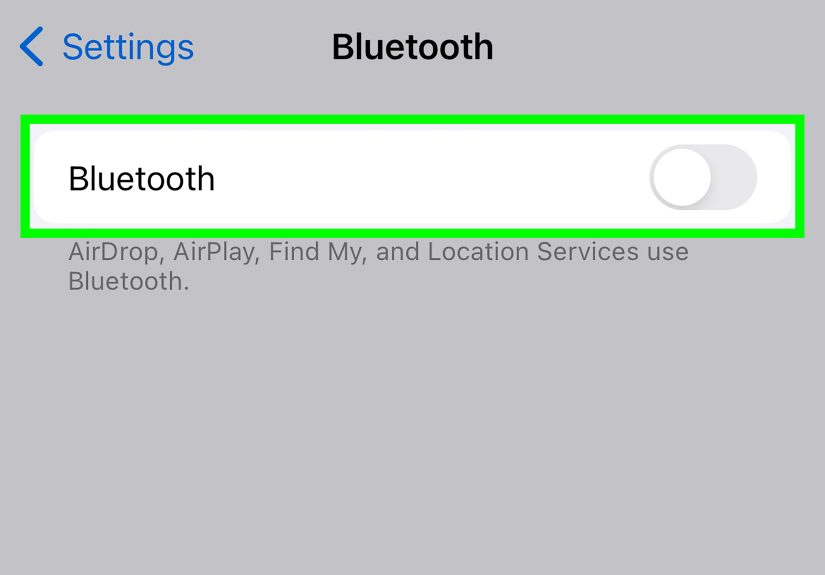
If you use wireless earbuds, a speaker, or car audio often, disconnect Bluetooth temporarily and test again. Even if your alarm should still behave properly, troubleshooting is easier when the phone is using only its built-in speaker.
If normal audio is still broken after cleaning, restarting, and updating, you may be dealing with hardware trouble. At that point, professional support is a smart next step.
Extra Tips to Make Sure Your Alarm Actually Wakes You Up
Fixing the silence problem is step one. Building a reliable wake-up setup is step two.
Use more than one alarm
Set one main alarm and one backup alarm a few minutes later. Give them different tones so your sleepy brain does not treat them like background decoration.
Do a real test at bedtime
Set an alarm for two minutes ahead before you sleep. If it rings loudly, great. If not, better to find out at 10:14 p.m. than 8:47 a.m.
Do not rely on one ultra-old alarm entry forever
If one specific alarm keeps acting weird, delete it and create a brand-new one. Sometimes a fresh alarm works better than endlessly editing an ancient setup that has survived three phones, five cases, and one questionable phase where you thought 5:00 a.m. would turn you into a productivity legend.
Keep your phone where you can hear it
A phone buried under pillows, blankets, or a mountain of laundry is not exactly helping the cause. Place it nearby on a hard surface where the sound can project clearly.
When to Contact Apple or Get Your iPhone Checked
If you have:
- raised the alarm volume,
- picked a real alarm sound,
- turned off Attention Aware,
- reviewed Sleep Schedule,
- restarted the phone,
- updated iOS, and
- tested the speaker,
but the iPhone alarm still makes no sound, it is time to stop blaming yourself. There may be a deeper system bug or hardware issue involved. If your phone also has trouble with calls, ringtones, videos, or speakerphone audio, that is an even stronger clue that the problem is bigger than the alarm app.
At that point, backing up your device and contacting Apple Support or visiting a repair professional makes sense.
Conclusion
An iPhone alarm not making sound is one of those problems that feels small until it absolutely wrecks your morning. Thankfully, the fix is often simple. Start with the basics: raise the Ringtone and Alerts volume, make sure the alarm sound is not set to None, and check Attention Aware Features. Then review your Sleep Schedule, restart the phone, update iOS, and make sure your speaker is clean and working properly.
In other words, your iPhone alarm usually does not fail because it hates you personally. It is more likely a setting, a software hiccup, or a quiet little option hiding in the menu like it pays rent there. Work through the seven quick fixes above, test your alarm before bed, and give tomorrow morning a much better chance.
Real-World Experiences: What People Usually Learn the Hard Way
One of the most common experiences with an iPhone alarm that is not making sound goes like this: everything worked perfectly for months, then one random morning the alarm screen appeared, the phone looked awake, and yet the room stayed silent. That usually sends people straight into detective mode. Was the phone on silent? Was the battery low? Did they somehow sleep through it? In many cases, the answer turns out to be much less dramatic. The volume slider had been lowered days earlier, or the alarm sound had quietly been changed to something too soft to matter.
Another very real scenario happens with people who use Sleep Schedule during the week and regular alarms on weekends. It sounds organized in theory, but in practice it creates two separate systems to remember. Someone checks the Clock app, sees their usual alarms, feels confident, and goes to sleepwithout realizing the actual wake-up alarm for the next morning is controlled elsewhere. The result is confusion, frustration, and a strong temptation to blame the universe.
Then there is the “I swear I did not touch anything” experience. Honestly, that one is believable. Phones change after updates, settings shift during troubleshooting, and some features are easy to enable without fully understanding how they affect alerts. A person might turn on a feature for convenience, privacy, or accessibility and never connect it to alarm volume later. That is why the best troubleshooting is systematic, not emotional. Start simple, test each change, and avoid changing ten things at once.
There are also users who discover the issue only after a major life moment: an early flight, a first day at a new job, an important exam, or a school drop-off that cannot be missed. Those situations are stressful, but they teach an important lesson: your alarm setup deserves a test just like any other important tool. People test their Wi-Fi before a meeting, their car before a trip, and their charger before traveling. Testing an alarm should be treated the same way.
And finally, a lot of people learn that “loud enough” is not actually loud enough. A tone that sounds fine during the day can disappear at night under a fan, air conditioner, rain sounds, or pure exhausted sleep. The fix is not just technicalit is practical. Pick a stronger tone, use vibration, place the phone on a solid surface, and set a backup alarm if the morning matters. It is not overkill. It is strategy.
If there is one takeaway from all these experiences, it is this: when your iPhone alarm is not making sound, do not panic and do not assume the phone is doomed. Most of the time, the solution is hiding in settings, not in your wallet. A few careful checks today can save you a whole lot of chaos tomorrow morning.





 Close
Close