
Table of Contents >> Show >> Hide
- What “Hold” Means on iPhone (and Why It’s Not the Same as Mute)
- The Fastest Method: Use the Hidden Hold Button (It’s Hiding Under Mute)
- Method 2: Put Someone on Hold Automatically by Calling Another Person
- Method 3: Use Call Waiting to Hold & Accept a Second Incoming Call
- Method 4: Putting FaceTime Audio Calls “On Hold”
- Bonus: Let Your iPhone Wait on Hold for You (Hold Assist)
- Troubleshooting: “Why Can’t I Put Calls on Hold?”
- Real-World Examples: Which Hold Method Should You Use?
- Mini FAQ: iPhone Call on Hold Questions People Google at 2 AM
- Conclusion: Hold Like a Pro (Without Turning It into a Circus)
- Extra: Real-Life “Hold” Experiences (So You Don’t Learn the Hard Way)
You’re mid-call. Your dog starts barking at a suspicious leaf. Your coworker pings you with “quick question” (the two most dangerous words in business).
Or your bank’s automated system says, “Please hold,” and then serenades you with hold music that sounds like a MIDI keyboard fell down the stairs.
Whatever the chaos: yes, your iPhone can put calls on holdquickly, quietly, and without accidentally hanging up like it’s 2009 and you’re panic-mashing buttons.
This guide shows the fastest ways to place an iPhone call on hold, how to juggle a second call, and even how to let your iPhone “wait on hold” for you.
What “Hold” Means on iPhone (and Why It’s Not the Same as Mute)
On an iPhone, mute means they can’t hear youbut you can still hear them. Great for coughs, snacks, and dramatic eye-rolls.
Hold means the call is paused in a more formal way. The other person typically hears silence or carrier hold tones, and you’ll see an on-screen indicator
that the call is on hold. It’s the polite “one sec” button that doesn’t require you to narrate your entire life.
The Fastest Method: Use the Hidden Hold Button (It’s Hiding Under Mute)
Step-by-step: Put a live call on hold (the “long-press Mute” trick)
- Start a call (Phone app or answer an incoming call).
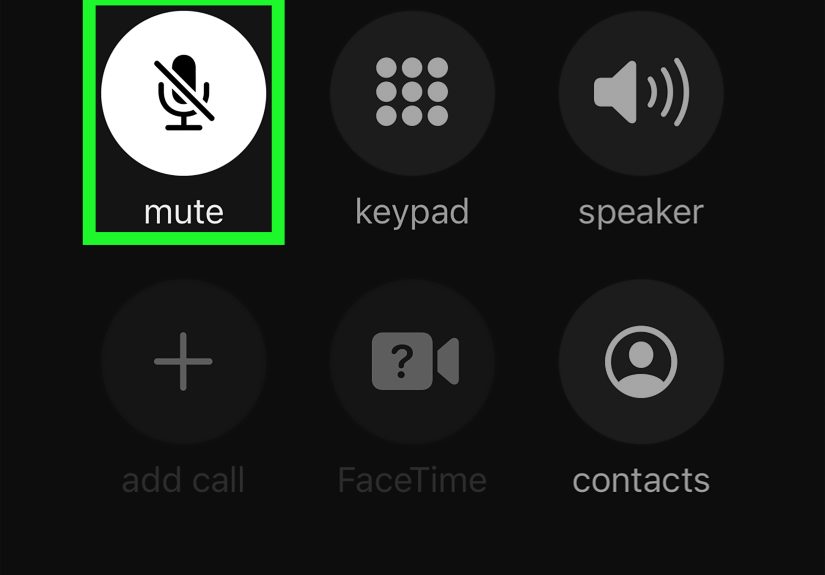
- On the in-call screen, find the Mute button.
- Touch and hold the Mute button for a moment.
- Watch it switch to Hold (you may see a “HOLD” label or a pause-style icon).
- To resume, tap the hold/pause indicator again.
Why this matters: many people assume iPhone “doesn’t have hold” because there isn’t a big friendly HOLD button staring at you. Apple basically tucked it behind a long-press,
like a secret menu item. (The good kind of secret. Not the “surprise subscription fee” kind.)
Quick sanity check
- If you only tap Mute, you’re mutednot on hold.
- If you press and hold Mute, the call goes on hold.
- If you don’t see any hold indication after long-pressing, jump to the troubleshooting section below.
Method 2: Put Someone on Hold Automatically by Calling Another Person
Need to check with someone else while keeping your current caller around? The iPhone can place the first call on hold automatically when you start a second call.
This is the “I’ll be right back” moveminus the awkward elevator music impression.
Step-by-step: Add a second call (first call goes on hold)
- While on a call, tap Add Call.
- Dial a number or select a contact.
- Your original call is automatically placed on hold while the new call connects.
- When both calls are active, you’ll typically see options like Swap and Merge.
Swap vs. Merge (a two-second explanation)
- Swap toggles between callersone active, the other on hold.
- Merge combines them into a conference call (only do this if everyone should hear everyonesurprises are for birthday parties, not phone calls).
Pro tip: If you’re calling a business and you need an account number, you can put the call on hold, open your password manager, grab the info, and return without turning the call into a scavenger hunt.
Method 3: Use Call Waiting to Hold & Accept a Second Incoming Call
If you’re already talking and another call comes in, iPhone gives you a few choices. The most useful is usually:
Hold & Acceptwhich puts your current call on hold while you answer the new one.
When a second call comes in, you can usually pick one:
- Hold & Accept: puts current call on hold and answers the new call.
- End & Accept: ends the current call and answers the new one.
- Decline/Ignore: sends the new call away (voicemail, missed call, or carrier behavior).
How to switch between the two calls
- Tap Swap to jump back and forth.
- Tap Merge if you want a 3-way call.
- End the active call to return to the held call.
Make sure Call Waiting is turned on
On many iPhones, you can check it here:
Settings > Phone (or on newer iOS layouts, Settings > Apps > Phone) > Call Waiting > toggle ON.
Availability can depend on your carrier and cellular network type.
Method 4: Putting FaceTime Audio Calls “On Hold”
FaceTime audio uses a similar call interface on iPhone, and in many cases the same “long-press Mute” hold behavior works.
If it doesn’t on your device or iOS version, the reliable fallback is the two-call method:
start another call (or answer another incoming call) and use Hold & Accept/Swap.
Best practices for FaceTime audio hold situations
- If you’re holding someone to take another call, tell them first. “One secsecond call” beats mysterious silence.
- Don’t assume the other person hears “hold music.” They may hear nothing and wonder if you vanished into the void.
Bonus: Let Your iPhone Wait on Hold for You (Hold Assist)
Now for the plot twist: sometimes you’re the one stuck on hold (hello, customer support). On newer iOS versions,
Hold Assist can monitor the call for you and notify you when a live agent comes backso you can stop listening to that looping saxophone riff.
How Hold Assist generally works
- If your iPhone detects you’ve been placed on hold, it may prompt you to enable Hold Assist.
- You can also activate it manually during the call using the More (three-dot) menu, then Hold Assist.
- When a human returns, your iPhone alerts you to rejoin the call.
Important notes: feature availability can vary by region, language, device model, and carrier features. Also, if your phone is on Silent/Focus/Do Not Disturb,
make sure you’ll still notice the alertotherwise Hold Assist is basically a very helpful assistant whispering into a pillow.
Troubleshooting: “Why Can’t I Put Calls on Hold?”
1) You’re tapping Mute instead of long-pressing it
This is the #1 issue. If the call doesn’t show a “HOLD” indicator, press and hold Mute a bit longer. Think “press-and-hold,” not “tap-and-pray.”
2) Your carrier/network features may behave differently
Call waiting and multi-call features can depend on your carrier and network type. If Call Waiting is off, incoming calls may go straight to voicemail.
Turn it on in Settings, and if your carrier requires activation, check your account settings or carrier support.
3) Your call type matters
- Cellular call: supports hold, call waiting, swap/merge (most common).
- Wi-Fi calling: usually behaves like cellular, but carrier settings can still apply.
- VoIP apps (Teams, WhatsApp, Zoom): hold controls are inside the app, not iOS’s Phone interface.
4) You can’t find the call screen after switching apps
If you leave the Phone app during a call, iPhone shows an “in-call” indicator at the top of the screen (often a green bar or a call status area).
Tap it to get back to the call controls.
5) Locking the screen ends calls (yes, that setting exists)
If pressing the Side button ends your call, look for an accessibility setting that prevents locking from ending a call:
Settings > Accessibility > Touch, then enable the option that prevents lock from ending calls (wording can vary by iOS version).
This won’t “hold” the call, but it prevents an accidental hang-up while you’re trying to be productive.
Real-World Examples: Which Hold Method Should You Use?
Scenario A: “I need 10 seconds to check something”
Use the long-press Mute hold. It’s quick, tidy, and you’re back before anyone wonders if you’ve been abducted by telemarketers.
Scenario B: “I need to call someone else to verify info”
Use Add Call. Your first caller goes on hold automatically, and you can Swap between calls as needed.
Scenario C: “A second call comes in and I can’t ignore it”
Use Hold & Accept, then Swap back when ready. If it turns into a group conversation, Merge
but only if you’re sure both people should meet each other.
Scenario D: “Customer service put me on hold (again)”
If available, turn on Hold Assist. Let your phone listen for the agent while you do literally anything elselike stare at a wall in silence, which is still more fun than hold music.
Mini FAQ: iPhone Call on Hold Questions People Google at 2 AM
Can the other person tell I put them on hold?
Often yes. They may hear silence, tones, or carrier hold behavior. It’s not stealth modeso if you’re holding them for more than a few seconds, it’s polite to say so.
Does holding a call cost extra minutes?
It’s still an active call session, so it generally counts like normal talk time on cellular plans (carrier rules apply).
Why does my iPhone show “Swap” and “Merge” sometimes but not always?
Those options appear when you have more than one call in play. One call = no swapping. Two calls = you’re officially a call juggler.
Is there a dedicated Hold button?
Usually it’s the hidden long-press on Mute. If your iOS version or carrier UI shows a separate Hold control, greatbut the long-press method is the most common “where did Apple hide it this time?” solution.
Conclusion: Hold Like a Pro (Without Turning It into a Circus)
Putting a call on hold on iPhone is surprisingly easy once you know the secret handshake:
press and hold Mute. From there, you’ve got optionsAdd Call for quick check-ins, Hold & Accept for incoming calls,
and (on newer iOS) Hold Assist when you’re stuck in customer support purgatory.
If something doesn’t work, it’s usually one of three culprits: not long-pressing Mute, Call Waiting being off, or carrier/network quirks.
Fix those, and you’ll be holding calls like you’ve got your own tiny phone switchboardminus the headset and 1990s sitcom soundtrack.
500-word experience add-on
Extra: Real-Life “Hold” Experiences (So You Don’t Learn the Hard Way)
Let’s talk about the real reason you’re here: you don’t want to sound like you just dropped your phone into a bowl of cereal when you needed five seconds to do something normal.
Hold is the difference between “professional” and “accidental performance art.”
The “Hold vs. Mute” moment everyone has once
At some point, nearly everyone mutes instead of holding. You think you’ve politely paused the conversation, then you hear the other person keep talking…
and you realize you’ve just turned yourself into a silent, unresponsive NPC. Meanwhile, the other person is thinking, “Hello? Are you there?”
The long-press Mute trick prevents that awkwardness because it’s a clearer state: you’re on hold, not just mysteriously quiet.
Customer service hold music: a shared human experience
If you’ve ever called your airline, your internet provider, or a bank, you’ve heard it: the loop of hold music that makes you question your life choices.
This is where Hold Assist (if available on your iPhone) becomes a sanity saver. Instead of clutching your phone like it’s a life-support machine,
you can set it down, answer a text, refill your water, orif you’re feeling wildstand up and stretch. When the agent returns, your iPhone alerts you.
The first time you use it successfully, you’ll feel like you discovered a cheat code for adulthood.
Two-call juggling: the “Swap” button is your best friend
Here’s a common scenario: you’re on the phone with your partner asking what size filter the air purifier needs, and your hardware store calls back.
You tap Hold & Accept, get the answer, then tap Swap to return. It feels smoothuntil you accidentally hit Merge
and introduce your partner to the hardware store employee. Now everyone is confused, and someone is apologizing even though nobody knows why.
Etiquette that saves relationships (and group chats)
- Announce the hold: “One sec, I’m going to put you on hold.” It takes two seconds and prevents ten seconds of “Hello??”
- Keep holds short: If it’s going to be longer than a minute, offer to call back. People are surprisingly supportive of “I’ll call you right back.”
- Don’t “surprise merge”: Always warn both parties before you merge calls. Nobody likes being dropped into a phone conference uninvited.
- Check your silent settings: If you’re relying on Hold Assist, make sure you’ll actually hear the alert. Silent mode + stepping away can equal missed agent.
My favorite “hold” use: the quick-note rescue
One underrated use of hold is when someone starts firing off details: confirmation numbers, addresses, weirdly long reference codes.
Put them on hold for five seconds, open Notes, create a clean space to capture the info, then return. You’ll sound calmer, you’ll make fewer mistakes,
and you won’t end the call thinking, “Wait, was it B as in Bob… or D as in… Bob?”
Bottom line: once you master hold, your iPhone stops being a panic device and starts acting like a tool. A fun tool. A tool that occasionally still makes you talk to robots,
but at least you’re doing it on your terms.







 Close
Close