
Table of Contents >> Show >> Hide
- First, Pick the Right Reset (Because Not All Resets Are Created Equal)
- The Big Warning (Said Nicely, But Still a Warning)
- How to Reset an Alcatel Phone: 11 Steps
- After-Reset Checklist (So You Don’t Immediately Regret Everything)
- Troubleshooting: When the Reset Doesn’t Go as Planned
- Real-World Reset Experiences ( of “What People Actually Run Into”)
- Conclusion
If your Alcatel phone is lagging, freezing, or acting like it woke up and chose chaos, a reset can be the digital equivalent of turning it off and on again… but with more commitment. The trick is choosing the right kind of reset for the problem you’re trying to solvebecause “reset” can mean anything from a quick reboot to a full factory wipe that sends your photos to the great cloud in the sky (hopefully backed up first).
This guide walks you through 11 clear steps to reset an Alcatel phone safelywhether you’re using an Alcatel Android smartphone (like the Alcatel 1/3/7 series) or an Alcatel flip phone (like the GO FLIP / SMARTFLIP family). You’ll also get practical tips for avoiding the most common post-reset “oops” moments, like being locked out by Factory Reset Protection.
First, Pick the Right Reset (Because Not All Resets Are Created Equal)
Soft reset (restart)
A soft reset is just a restart. It’s the best first move for minor issuesrandom glitches, an app that won’t behave, or a phone that’s moving at the speed of a sleepy sloth.
Factory reset (erase all data / master reset)
A factory reset wipes your phone and returns it to the out-of-the-box state. It’s useful when:
- You’re selling or giving the phone away.
- The phone is crashing, freezing, or stuck in a loop and other fixes failed.
- You forgot the screen lock and can’t get in (you may need Recovery Mode).
- You want to remove stubborn software issues or start fresh.
Reset settings (network/app preferences)
Some Alcatel Android phones let you reset only certain settings (like Wi-Fi, Bluetooth, and mobile data) without deleting your photos and apps. If your main issue is “my Wi-Fi hates me,” this is a great middle ground.
The Big Warning (Said Nicely, But Still a Warning)
A factory reset removes local data: apps, accounts, photos stored on the device, messages (unless synced), and settings. If you don’t back up first, that data is gone. Also, if your phone has a Google account on it, a reset can trigger Factory Reset Protection (FRP), meaning you’ll need to sign in with the same Google account after the reset.
How to Reset an Alcatel Phone: 11 Steps
-
Confirm what you’re trying to fix.
Before you go full “nuclear option,” spend 30 seconds naming the problem: freezing? forgotten PIN? selling the phone? If it’s just a glitchy app or slow performance after an update, try a restart first. If the phone is locked, unresponsive, or you’re preparing it for a new owner, a factory reset may be the right move.
-
Do a quick soft reset (restart) first.
For most everyday weirdness, a restart is surprisingly effective. Press and hold the Power button, then tap Restart (or Power off, then turn it back on). If the screen is frozen, try holding the Power button longer (some models require 10+ seconds) to force a reboot.
If your Alcatel is back to normal after this, congratulationsyou fixed it without deleting your life.
-
Back up what you can’t replace.
If you’re heading toward a factory reset, back up first. On most Alcatel Android phones, you can back up to your Google account:
- Photos/videos: Make sure Google Photos (or your preferred cloud service) is syncing.
- Contacts: Confirm they’re saved to Google (not just “Device”).
- Messages: If your carrier supports message backup/sync, enable itor export what matters.
- Files: Copy Downloads/documents to Google Drive or a computer (people forget the Downloads folder a lot).
- 2FA codes: If you use an authenticator app, transfer it properly before wiping the phone.
Tip: If your phone is barely usable, even a quick “drag everything important to Google Drive” is better than nothing.
-
Remove accounts and screen locks if you still have access.
If you can unlock the phone, do yourself a favor: remove your Google account before the reset. This helps prevent FRP surprises during setup (especially if you’re selling the phone). Also remove any screen lock (PIN/pattern/password) if you’re handing the phone to someone else.
Bonus: If you recently changed your Google password, consider waiting before resettingGoogle security can sometimes require extra verification time.
-
Charge the battery and set yourself up for success.
A factory reset takes time, and a dying battery mid-reset is not a fun hobby. Aim for a solid charge (think “not living dangerously”). If possible, connect to Wi-Fi because setup after the reset often requires a network connection to sign back in and restore backups.
-
Factory reset from Settings (Alcatel Android smartphones).
If your Alcatel is an Android smartphone and you can access Settings, this is the cleanest method:
- Open Settings.
- Tap System (sometimes System > Advanced).
- Tap Reset options (or Reset).
- Select Erase all data (factory reset).
- Tap Reset phone or Erase everything.
- Enter your PIN/pattern/password if prompted.
If your menus look different, search Settings for “reset” and you’ll usually land in the right place.
-
Factory reset from Settings (Alcatel GO FLIP / SMARTFLIP flip phones).
Many Alcatel flip phones use a simpler menu system (often KaiOS). The wording varies by carrier, but commonly you’ll see something like:
- Open Settings.
- Go to Phone Settings or Device.
- Select Reset or Reset Phone.
- Choose Factory data reset, then confirm.
Some versions let you reset the phone only, the SD card only, or both. Choose carefullyyour SD card might contain photos you want to keep.
-
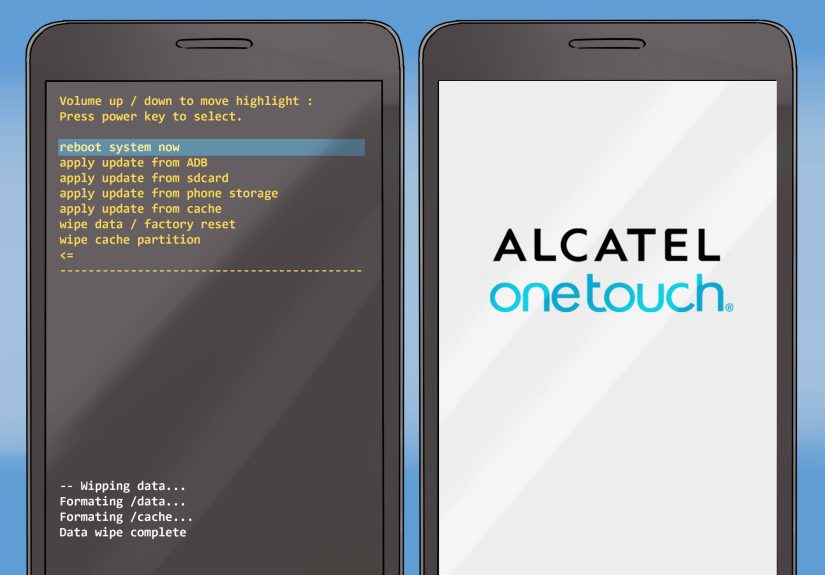
Hard reset with buttons (Recovery Mode) if you can’t get into Settings.
If your Alcatel Android phone is locked, frozen, or stuck, you may need a hardware-button reset (often called a “hard reset”). The exact button combo varies by model, but a common Alcatel approach is:
- Power the phone off.
- Press and hold Power + Volume Up (sometimes Power + Volume Down).
- Release when you see the logo or Recovery screen.
- Use the volume buttons to highlight Wipe data/factory reset.
- Press Power to select.
- Confirm (usually “Yes”).
- Select Reboot system now.
If you see an Android robot with “No command,” try holding Power and tapping Volume Up onceRecovery menus love being dramatic.
-
Alternate hardware reset for Alcatel flip phones (when menus won’t load).
For some Alcatel flip phones, carriers document an alternate reset method using hardware keys. A common pattern is powering off and holding a combination like End/Power (Hang Up) + Volume Up until a recovery screen appears, then selecting a wipe or factory reset option using volume keys and confirming with the power/end key.
Because button combos vary by model and carrier branding, if the first combo doesn’t work, try the other (Volume Up vs Volume Down), and keep the phone fully powered off before starting.
-
Remote reset (erase) if your Alcatel is lost or you can’t reach it.
If your phone is lost, stolen, or somewhere you’d rather not visit again, you may be able to remotely erase it using Google’s device-finding tools (often known as Find My Device / Find Hub). This is primarily about protecting your data.
- Sign in to the device-finding service on another device.
- Select your Alcatel phone.
- Choose the option to Erase / Factory reset the device.
Important: A remote erase can still trigger FRP. If the phone turns up later, you’ll likely need the previously used Google account to complete setup.
-
Set up after the reset (and verify the reset actually “took”).
After the phone reboots, follow the on-screen setup:
- Connect to Wi-Fi or mobile data.
- Sign in with your Google account (or the previous account, if FRP is active).
- Restore from backup if prompted.
- Install updates (a freshly reset phone often has a backlog).
To confirm the reset worked, check that your old accounts are gone, your home screen is back to default, and the phone behaves normally. If you reset to fix performance, give it a little time after setupAndroid can be busy restoring apps and syncing in the background.
After-Reset Checklist (So You Don’t Immediately Regret Everything)
- Check your backups: Confirm photos, contacts, and files are actually restored.
- Re-enable security: Set a fresh PIN/password and turn on biometric unlock if available.
- Update apps: Outdated apps can cause instability that feels like “the reset didn’t work.”
- Watch your storage: If your phone was slow because storage was full, keep some free space after restoring.
Troubleshooting: When the Reset Doesn’t Go as Planned
The phone won’t enter Recovery Mode
Try again with the phone fully powered off. Switch the button combo (Volume Up vs Volume Down). Hold the buttons a few seconds longer. Some devices are picky about timinglike a toddler at bedtime.
The phone is stuck on the logo or boot loop
If it’s looping, re-enter Recovery Mode and try the factory reset again. If it still fails, the issue may be deeper (storage corruption, hardware trouble), and you may need carrier or manufacturer support.
You’re asked for the old Google account after reset (FRP)
This is a security feature, not a punishment. Use the Google account that was previously on the device. If you don’t have it, account recovery through Google is the legitimate routeavoid sketchy “bypass” tools that can compromise your data and device security.
You only wanted to fix Wi-Fi or Bluetooth
Next time, try resetting network settings first (on many Android Alcatel models): search Settings for “Reset options,” then look for “Reset Wi-Fi, mobile & Bluetooth.” It’s a smaller hammerand your thumbs will thank you during setup.
Real-World Reset Experiences ( of “What People Actually Run Into”)
Resetting an Alcatel phone sounds straightforwarduntil real life adds side quests. One of the most common experiences is the “I thought my photos were backed up” moment. People often assume everything is automatically synced, then discover that a chunk of pictures lived only on the device (or in a local folder that never uploaded). The practical lesson: before you factory reset, open your photo app and confirm that syncing is on, and that recent photos actually appear in your cloud library. If you’re using an SD card, check whether your camera saved images theresometimes the SD card becomes the accidental hero of the story.
Another classic: the surprise appearance of Factory Reset Protection. The phone resets fine, boots up clean, and then politely demands the last Google account that was signed in. People hit this most often when they reset a phone they’re selling, or when they’re locked out and use Recovery Mode. It feels like the phone is being stubborn, but it’s doing exactly what it’s designed to do: prevent someone from wiping a stolen device and using it. The “experience-based” takeaway is simpleif you can still access the phone, remove your Google account before you reset it, or at least make sure you know the login details. This single step saves the most headaches.
Then there’s the “reset fixed it… kind of” experience. A factory reset can absolutely improve performance, especially if the phone has accumulated months of clutter, background apps, and storage bloat. But right after setup, the phone may still feel slow because it’s restoring apps, re-downloading updates, and syncing accounts. People sometimes conclude the reset failed, when really the phone is just busy rebuilding its digital house. A good rule is to give it an hour or two on Wi-Fi (and ideally plugged in) before judging the results.
Flip phone owners run into a different set of quirks. Menu names differ across carriers, and “Factory data reset” might be tucked under a sub-menu that doesn’t scream “I’m important!” Some people also expect a flip phone reset to behave like a smartphone resetbut the backup and restore story is usually simpler (and sometimes more limited). The best approach is to write down key numbers or confirm contacts are saved to the SIM or an account, then reset. If a flip phone is acting weird after a reset, it can be something as mundane as a carrier provisioning issuemeaning the phone may need to re-sync with the network once it’s back online.
Finally, a surprisingly common experience is the “I reset to fix one problem and discovered the real problem.” For example, someone resets because calls keep dropping, but the issue continuesbecause the culprit was a damaged SIM card, poor coverage in a specific area, or a hardware antenna issue. A reset is a powerful tool, but it can’t repair a failing battery or fix a tower that’s having a bad day. The reset experience teaches a useful mindset: treat factory reset as a strong troubleshooting step, not a magic spell. When it works, it’s glorious. When it doesn’t, you’ve at least ruled out software and can move on to the next most likely cause with confidence.
Conclusion
Resetting an Alcatel phone doesn’t have to be stressful. Start with a soft reset, back up what matters, and only then move to a factory reset through Settingsor Recovery Mode if you’re locked out. If you’re resetting to sell the phone, remove accounts first to avoid FRP headaches for the next owner. And after the reset, give the device time to restore and update before you decide whether the reset solved your problem.





 Close
Close