
Table of Contents >> Show >> Hide
- First, a 30-Second Reality Check: When Does Last.fm Count a Scrobble?
- How Scrobbling Breaks (So You Can Fix It Faster)
- Fix #1: Last.fm Not Scrobbling from Spotify
- Step 1: Confirm Spotify Scrobbling Is Connected (the Right Way)
- Step 2: Do a Clean Reconnect (the Fix That Feels Too Easy)
- Step 3: Check Spotify Private Session (a.k.a. “I Chose Stealth Mode”)
- Step 4: Beware of “Double Scrobbling” (and Other Self-Inflicted Wounds)
- Step 5: Handle the “Scrobbles Are Late” Problem
- Step 6: Spotify Connect Edge Cases (Speakers, TVs, Consoles, and “Why Is Audio Like This?”)
- Fix #2: Last.fm Not Scrobbling from Sonos
- Fix #3: “Last.fm Isn’t Scrobbling” on Other Apps and Devices
- Advanced Troubleshooting Checklist (When You’ve “Tried Everything”)
- Conclusion
- Extra: of Scrobbling “War Stories” (Relatable Experiences, Minus the Trauma)
Few things in modern life are as oddly personal as your Last.fm scrobble history. It’s your musical diary: the late-night comfort albums,
the “I swear this is ironic” guilty pleasures, and that one artist you played 74 times in a week because feelings happened.
So when scrobbling stopsespecially from Spotify, Sonos, or a random device you forgot existedit feels like your diary got eaten by the dog.
This guide walks you through the real-world fixes that actually work (not the “turn your soul off and on again” advice).
We’ll troubleshoot Spotify scrobbling first (because that’s where most heartbreak lives), explain the current state of Sonos scrobbling,
and then cover other common setupsApple Music scrobblers, desktop players, smart speakers, and multi-device chaos.
First, a 30-Second Reality Check: When Does Last.fm Count a Scrobble?
Before we blame the universe, make sure the track qualifies. Last.fm’s scrobble guidance is simple:
a track must be longer than 30 seconds, and it should be scrobbled only after you’ve listened to at least half of it,
or 4 minuteswhichever happens first. So if you’re skipping around like a caffeinated DJ, you may be “listening” without earning scrobbles.
How Scrobbling Breaks (So You Can Fix It Faster)
Most scrobbling issues boil down to one of these:
- Authorization broke (Spotify ↔ Last.fm connection got stale).
- Playback is “private” (Private Session, privacy toggles, or account restrictions).
- Wrong scrobbler for the job (you’re using a device scrobbler that can’t see the playback route).
- Delay/backlog limits (scrobbles show up late, or only a limited backlog is sent).
- Account mismatch (you connected the wrong Spotify accountyes, it happens a lot).
Fix #1: Last.fm Not Scrobbling from Spotify
Step 1: Confirm Spotify Scrobbling Is Connected (the Right Way)
The most reliable method today is connecting Spotify directly inside Last.fm’s settings (not relying on a phone-only scrobbler).
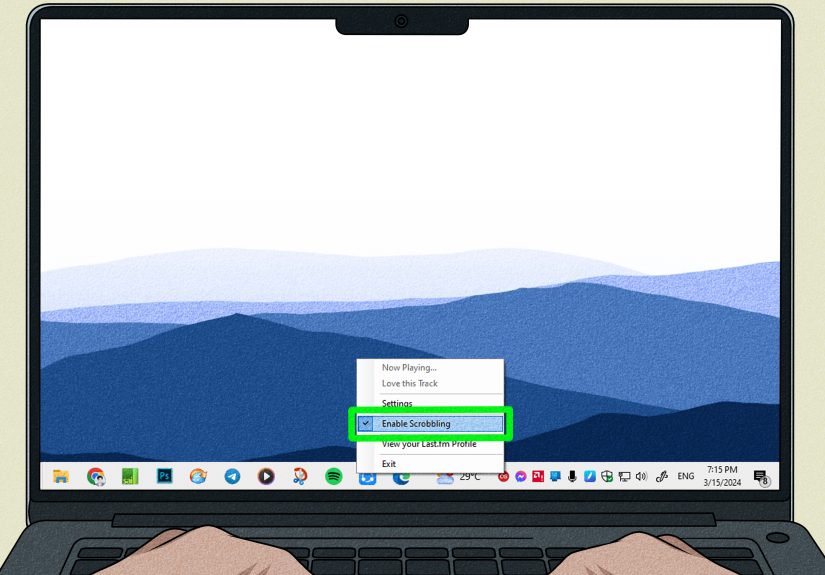
In your Last.fm account: go to Settings → Applications and connect Spotify Scrobbling.
Why it matters: when Spotify is connected at the account level, scrobbling can work across devicesphone, desktop, web playerwithout
your phone needing to “witness” every song like a tiny music notary. Last.fm itself describes this as scrobbling from any Spotify app on any device.
Step 2: Do a Clean Reconnect (the Fix That Feels Too Easy)
If you were scrobbling fine yesterday and today it’s a silent tragedy, a clean reconnect fixes a surprising percentage of cases:
- In Last.fm: disconnect Spotify in Settings → Applications.
- In Spotify: remove Last.fm’s access from your connected apps list.
- Then reconnect from Last.fm again.
Spotify’s support docs explain how to remove access to third-party apps from your Spotify Apps page.
This “double reset” helps when the token is invalid on one side but not the otherlike two friends who both think they already apologized.
Step 3: Check Spotify Private Session (a.k.a. “I Chose Stealth Mode”)
Spotify’s Private Session pauses your listening activity. If you’ve turned it on, Last.fm may stop receiving what you play.
Spotify describes Private Session as a way to pause Listening Activity.
Quick test: turn Private Session off, play two tracks past the scrobble threshold, and refresh your Last.fm profile after a few minutes.
If scrobbles return, congratulations: the bug was actually a feature.
Step 4: Beware of “Double Scrobbling” (and Other Self-Inflicted Wounds)
One of the most common “fixes” that breaks things later is running multiple scrobblers at once:
Spotify connected in Last.fm and a phone scrobbling app and a desktop scrobbler. Best case: duplicates. Worst case: conflicts.
Rule of thumb:
- If you mainly use Spotify: use Last.fm’s Spotify connection as the single source of truth.
- If you mainly use local files or non-Spotify players: use a dedicated scrobbler for that platform, and keep Spotify scrobbling separate.
Step 5: Handle the “Scrobbles Are Late” Problem
Sometimes scrobbling isn’t brokenit’s just procrastinating. A few reasons:
- Network hiccups: your device played music, but the service couldn’t report it immediately.
- Backlog behavior: some setups queue scrobbles and submit them later.
- Limits: some integrations only submit a limited backlog; if you listened to a huge amount while disconnected, older plays can get dropped.
In some community discussions, people note backlog behavior where only a limited number of recent tracks may be sent once the connection resumes
(often described around “the last 50” in certain scenarios). Treat this as a practical warning: if scrobbling stops, fix it sooner rather than after a 12-hour listening marathon.
Step 6: Spotify Connect Edge Cases (Speakers, TVs, Consoles, and “Why Is Audio Like This?”)
Spotify Connect can route audio to Sonos, smart speakers, game consoles, TVs, and devices that don’t behave like a normal “Spotify app.”
If scrobbling fails only when you cast/control playback in a specific way:
- Start playback from a main Spotify client (phone or desktop), then connect to the device.
- Try switching output back to phone for one track, then back to the speaker.
- If you’re using multiple controllers (Spotify app + device app), pick one and stick with it for testing.
Fix #2: Last.fm Not Scrobbling from Sonos
The Important Update: Sonos and Last.fm Direct Integration
If you’re expecting Sonos to scrobble directly to Last.fm the way it used to: here’s the catch.
Sonos community posts indicate that Last.fm is no longer available on Sonos as a music service and that it was discontinued (referenced as “June last year” in a January 2026 discussion).
Translation: if your old mental model is “Sonos → Last.fm,” it may not work anymore because that built-in pathway isn’t there.
But you still have options depending on what you’re actually playing through Sonos.
Option A: If You’re Playing Spotify on Sonos
The best approach is usually to let Spotify scrobble via Last.fm’s Spotify connection (the account-level method).
Because Spotify knows what you’re playingeven if Sonos is the speakerLast.fm can often log it as long as the Spotify connection is healthy.
If it fails specifically with Sonos output, use the Spotify Connect edge-case steps above and do a clean reconnect.
Option B: If You’re Playing Local Music, Plex, or a Music Server Through Sonos
If Sonos is basically your “speaker endpoint” for a library hosted elsewhere, you’ll want a scrobbler that lives where the playback metadata is reliable:
- Plex: scrobble from Plex’s playback tracking (via scrobbling tools/plugins that support Last.fm).
- Self-hosted music servers: some modern music managers and assistants support Last.fm scrobbling directly.
- DIY route: there are community-built tools/scripts designed to scrobble what Sonos is currently playing (best for tinkerers who don’t flinch at the word “Python”).
Option C: If You Want Sonos Scrobbling “No Matter What”
Then your setup becomes less “Sonos feature” and more “choose a scrobbling source that can observe playback.”
In practice, that means:
- Use account-level scrobbling when available (Spotify-connected scrobbling).
- Use a server-side scrobbler for local libraries.
- Use a dedicated “now playing” watcher if you’re committed to tracking everything going through Sonos.
Fix #3: “Last.fm Isn’t Scrobbling” on Other Apps and Devices
Apple Music (iPhone, iPad, Mac)
Apple Music usually needs a third-party scrobbler because scrobbling isn’t universally built in. Common gotchas:
- Background restrictions: iOS/macOS scrobblers may need to stay running or have background permissions.
- Now Playing access: some apps rely on system playback info; if permissions change, scrobbling stops.
- Radio vs library playback: depending on the scrobbler, some sources may behave differently.
If Apple Music scrobbling is flaky, test with three tracks in a row (played past the threshold), with your scrobbler open, and confirm the “now playing” is detected.
YouTube Music
YouTube Music doesn’t consistently offer native Last.fm scrobbling, and users commonly rely on third-party solutions or browser-based scrobblers.
If you’re using a browser scrobbler, focus on:
- Extension permissions (site access, incognito permissions if you use private windows)
- Ad blockers or privacy extensions that block tracking calls
- Multiple tabs playing media (yes, even “paused” tabs can confuse observers)
Desktop Players (MusicBee, VLC, Foobar, etc.)
Desktop scrobbling failures are usually one of:
- The plugin logged out or lost authorization
- The player updated and the scrobbling plugin didn’t
- Tracks are being skipped before the scrobble threshold
If your player shows “Now Playing” but doesn’t submit the scrobble, let the track run past the threshold and finish once, then check again.
Remember: scrobbles can be sent after the threshold, often when the track ends.
Advanced Troubleshooting Checklist (When You’ve “Tried Everything”)
1) Verify You’re Logged Into the Right Accounts
It’s more common than anyone wants to admit: you have two Spotify accounts (old email, new email, “family plan identity crisis”),
and you connected the wrong one to Last.fm. If your scrobbles suddenly look like a stranger’s taste in musicor nothing appears at allrecheck the connected account.
2) Reset the Token the Clean Way
If reconnecting once didn’t work, do it properly:
- Disconnect in Last.fm
- Remove app access in Spotify (Apps page)
- Wait 60 seconds (seriously)
- Reconnect from Last.fm Applications
The short wait can help when systems are caching session state and pretending they’re fine.
3) Test With a Controlled Experiment (Science, But Make It Musical)
Pick three tracks:
- A normal 3–4 minute song
- A longer track (6–10 minutes)
- Something you can stand hearing twice
Play them fully (or at least past the threshold), on one device, with one scrobbling method, and no private session.
If that works, your issue is likely route-specific (casting, Sonos, smart speaker, etc.) or multi-scrobbler conflict.
4) Don’t Confuse “Now Playing” With “Scrobbled”
“Now Playing” is an update; a scrobble is the permanent log entry. It’s possible to see now playing but never hit the threshold,
or never send the final scrobble request due to a disconnect.
5) Accept the One Hard Truth: Some Setups Can’t Scrobble Natively
If a device doesn’t expose track metadata (or doesn’t allow third-party observation), it can’t be scrobbled without an intermediary.
That’s not you failingthat’s the device being emotionally unavailable.
Conclusion
Most Last.fm scrobbling problems have boring causes and satisfying fixes: reconnect Spotify properly, turn off Private Session,
avoid running multiple scrobblers, and test your playback route (especially with Spotify Connect and smart speakers).
Sonos is the special case: direct Last.fm integration isn’t what it used to be, so the solution is choosing the right scrobble sourceSpotify account-level scrobbling,
server-based scrobbling for libraries, or a dedicated “now playing” watcher if you’re committed.
Once you get scrobbling stable again, do yourself a favor: check your Last.fm profile after a device change, a Wi-Fi reset, or a big app update.
Your future self will thank youprobably while staring at a gorgeous yearly chart and whispering, “Yes… this is who I am.”
Extra: of Scrobbling “War Stories” (Relatable Experiences, Minus the Trauma)
Here are a few ultra-common scenarios people run intotold like tiny sitcom episodesso you can recognize your own situation faster.
1) The “Why Did My Music Diary Stop Yesterday?” Mystery
Everything worked for months, then one day your profile freezes in time like a cursed artifact. You refresh, you log out, you refresh again (as if
the refresh button is a slot machine that sometimes pays out scrobbles). This is usually an authorization token going stale.
The funny part? The fix often feels too small for the problem: disconnect in Last.fm, remove app access in Spotify, reconnect, done.
The emotional arc is dramatic; the technical arc is a paperclip.
2) The Private Session “Accidental Witness Protection Program”
You turn on Private Session because you’re about to listen to something deeply personalmaybe a breakup playlist, maybe children’s songs,
maybe a podcast about why your houseplants hate you. Then you forget to turn it off for three days. Later, you notice your Last.fm charts look suspiciously calm,
like you suddenly stopped enjoying music and started meditating in silence. Once Private Session is off, scrobbles return, but the missing days?
Those might not come back automatically depending on your backlog and setup. It’s the digital equivalent of forgetting to hit “save.”
3) The Sonos “It Plays Everywhere… Except My Profile” Confusion
Sonos feels like magic: music in every room, perfectly synchronized, like you live inside a music video. But scrobbling can get weird because
the speaker isn’t always the source of the metadata anymore. You might be controlling Spotify from your phone while the audio is routed elsewhere,
or using a controller that doesn’t behave like a normal client. The best workaround is often to scrobble from the Spotify account connection (not the speaker),
and if you’re doing local playback, scrobble from the server/app that actually knows what track is playing. Sonos can still be the star of the showjust not the
one writing the setlist into Last.fm.
4) The Double-Scrobble “My Stats Are Lying to Me” Episode
You install a mobile scrobbler “just in case” while also having Spotify connected in Last.fm. For a while, it’s fineuntil it isn’t.
Suddenly every track appears twice, your top artist rockets to the moon, and your weekly report looks like you spent 14 hours listening to the same song
(which, to be fair, is sometimes true, but not that true). The fix is picking one method per source: let Spotify scrobble Spotify, and let your mobile/desktop
scrobbler handle everything else. Your charts will stop gaslighting you.
5) The “New Phone, New Problems” Speedrun
You upgrade your phone. You reinstall apps. You sign into everything. You feel accomplished. Then scrobbling disappears because background permissions changed,
battery optimization got aggressive, or your scrobbling app needs one tiny toggle you forgot existed. The best move is a controlled test:
play three tracks, confirm “now playing,” confirm the scrobble lands, then reintroduce complexity (casting, speakers, multiple devices) one step at a time.
It’s boring, but it’s effectivelike flossing, except it improves your music stats instead of your dentist’s mood.






 Close
Close