
Table of Contents >> Show >> Hide
- Quick sanity check: Which “Magic Keyboard” are we talking about?
- Before you start: What you need (and what people forget)
- Method A (recommended): Pair the Magic Keyboard to Mac using a cable
- Method B: Pair without a cable (Bluetooth-only pairing)
- Touch ID setup: What works, what doesn’t, and why it matters
- How to confirm you’re truly paired (not just temporarily working)
- Troubleshooting: When Magic Keyboard won’t connect to your Mac
- 1) Power-cycle the keyboard (the tech version of “did you try turning it off and on?”)
- 2) Use the cable pairing method even if you “already tried Bluetooth”
- 3) Forget the device and re-pair (a fresh start without emotional baggage)
- 4) Check for interference (Bluetooth is friendly, but not fearless)
- 5) Restart Bluetooth (simple toggle first)
- 6) Restart the Mac (because macOS sometimes needs a nap)
- 7) Advanced: Reset Bluetooth settings (only if you’re comfortable)
- Pro tips for smoother day-to-day use
- FAQ: Quick answers to common Magic Keyboard pairing questions
- Real-world experiences : What pairing actually looks like in everyday life
- 1) The brand-new Mac setup: “It paired instantly… am I done?”
- 2) The older Mac + newer keyboard combo: “It connects, but Touch ID is missing”
- 3) The office environment: “It worked yesterday. Today it’s a ghost.”
- 4) The “works only when plugged in” scare: “Did I buy a wired keyboard by accident?”
- 5) The multi-device household: “Why can’t this keyboard be like my headphones?”
- Conclusion
Pairing an Apple Magic Keyboard to a Mac is usually a “blink-and-it’s-done” situationuntil it’s not. One minute you’re ready to type,
the next you’re aggressively clicking Bluetooth like it owes you money. This guide walks you through the fastest setup method,
the cable-free option, Touch ID considerations, and the troubleshooting moves that fix most “why won’t you connect?!” moments.
Quick sanity check: Which “Magic Keyboard” are we talking about?
Apple has used “Magic Keyboard” for two different products:
-
Magic Keyboard for Mac (Bluetooth keyboard) the standalone keyboard that pairs via Bluetooth and charges via
USB-C or Lightning (older models) or uses AA batteries (very old models). - Magic Keyboard for iPad (keyboard case with trackpad) connects through the iPad’s Smart Connector and doesn’t pair to a Mac like a Bluetooth keyboard.
This article focuses on the Magic Keyboard for Mac. (If you’ve got the iPad case, you’re not doing anything wrongyour Mac just isn’t the intended dance partner.)
Before you start: What you need (and what people forget)
1) Confirm the keyboard has power
- USB-C or Lightning models: Charge it for 10–15 minutes if it’s been in a drawer since your last haircut.
- AA battery models: Replace the batteries if the power light is dim or inconsistent.
- Power switch: You should see green when it’s on.
2) Know your cable options (because “it didn’t come with one” is common)
Depending on your model, pairing is easiest when you connect the keyboard to the Mac using a cable first:
- USB-C Magic Keyboard: USB-C to USB-C cable (or USB-C to USB-A with an adapter).
- Lightning Magic Keyboard: USB-C to Lightning or USB-A to Lightning (again, adapter if needed).
3) Make sure Bluetooth is on (yes, even if you “think it is”)
On your Mac, go to Apple menu → System Settings → Bluetooth and confirm Bluetooth is toggled On.
If Bluetooth is off, your keyboard will be doing its best impression of a lone karaoke singerready, but unheard.
Method A (recommended): Pair the Magic Keyboard to Mac using a cable
This is the fastest and most reliable method. It also fixes a surprising number of stubborn pairing problems.
-
Connect the keyboard to your Mac with a cable.
Plug the cable into the keyboard’s charging port (USB-C or Lightning), then into your Mac (or a hub that actually works). -
Turn the keyboard on.
Slide the switch so green is visible. -
Wait a few seconds.
The keyboard should pair automatically while connected. This is the “Apple magic” part that usually behaves. -
Confirm it’s paired.
Open System Settings → Bluetooth. You should see the keyboard listed as connected, often with a battery level. -
Unplug the cable and type wirelessly.
If it keeps working after unplugging, congratsyou’re paired. Go write your novel, your homework, or your strongly-worded email about printer ink prices.
Example: Pairing a USB-C Magic Keyboard to a MacBook
You have a MacBook Air and the newer USB-C Magic Keyboard. You plug it in using USB-C to USB-C, flip the power switch on,
and within seconds it appears in Bluetooth settings. Unplug it, keep typing, and feel briefly unstoppable.
Method B: Pair without a cable (Bluetooth-only pairing)
If you can’t connect a cable (or you’re using an older model), you can pair manually through Bluetooth settings.
- Turn on the Magic Keyboard (green visible).
-
On your Mac, go to System Settings → Bluetooth.
Wait a moment for the keyboard to appear under “Nearby Devices” or similar. - Click Connect.
-
If macOS prompts for a passcode, type the passcode on the Magic Keyboard, then press Return.
(Yes, it’s a little like proving you can already type… on the keyboard you’re trying to pair.)
Touch ID setup: What works, what doesn’t, and why it matters
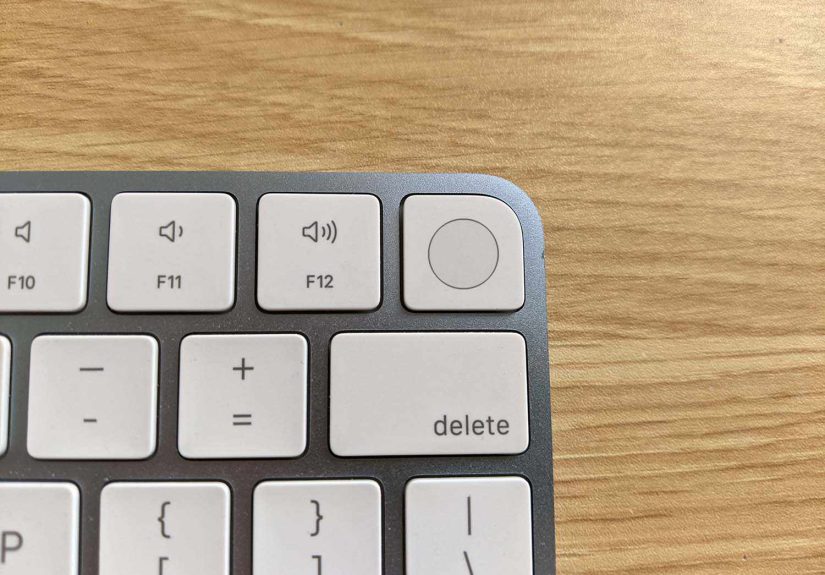
Some Magic Keyboard models include Touch ID. The keyboard can often connect to many Macs as a normal keyboard,
but Touch ID functionality has stricter requirements than typing letters and firing off emojis.
What to expect
- Typing works broadly once paired (Bluetooth is Bluetooth).
-
Touch ID requires specific Mac hardware and macOS versions, which vary by keyboard generation.
For example, Apple lists the USB-C Magic Keyboard with Touch ID as requiring a Mac with Apple silicon
and macOS 15.1 or later.
How to add fingerprints (when supported)
- Open System Settings.
- Go to Touch ID & Password (or the Touch ID section in your macOS version).
- Click Add Fingerprint and follow prompts.
Pro tip: If Touch ID isn’t showing up, don’t immediately assume your keyboard is broken. It’s usually a compatibility requirement,
not a hardware failure. (Apple: “It’s not you… it’s your Intel Mac.”)
How to confirm you’re truly paired (not just temporarily working)
Here’s how to tell the difference between “paired” and “it worked for 12 seconds and then vanished like a magician’s assistant.”
- Bluetooth list: In System Settings → Bluetooth, the keyboard should show as connected.
- Battery reporting: Many models show battery level once properly paired.
- Works after unplugging: If you used the cable method, unplugging should not break typing.
- Wakes the Mac: Pressing a key should wake your Mac from sleep (within a second or two).
Troubleshooting: When Magic Keyboard won’t connect to your Mac
If pairing fails, this section is your practical checklist. Start at the top and stop when your keyboard starts behaving.
1) Power-cycle the keyboard (the tech version of “did you try turning it off and on?”)
- Turn the keyboard off (no green showing).
- Wait 10 seconds.
- Turn it on again (green visible).
- Try connecting again in Bluetooth settings.
2) Use the cable pairing method even if you “already tried Bluetooth”
This is the most common fix because it forces a clean handshake between the keyboard and macOS.
If you have a cable that fits, use iteven briefly.
3) Forget the device and re-pair (a fresh start without emotional baggage)
- Go to System Settings → Bluetooth.
- Find the keyboard in the device list.
- Click the info button (or device options) and choose Forget This Device.
- Restart your Mac.
- Pair again using Method A (cable) if possible.
4) Check for interference (Bluetooth is friendly, but not fearless)
Bluetooth can act flaky if you’re in a crowded wireless environment. Common culprits:
- USB 3 hubs with poor shielding
- Lots of nearby Bluetooth devices (headphones, speakers, game controllers)
- Wi-Fi congestion (especially on 2.4 GHz)
- Metal desks, docking stations, or “mystery” office gadgets
Quick experiment: move the keyboard closer to the Mac, unplug unnecessary USB devices, and try again.
5) Restart Bluetooth (simple toggle first)
- Open System Settings → Bluetooth.
- Toggle Bluetooth Off, wait 5 seconds, then toggle it On.
- Try connecting again.
6) Restart the Mac (because macOS sometimes needs a nap)
A reboot clears temporary Bluetooth weirdness and restarts the background services that handle pairing.
If your Magic Keyboard is your only input device and it’s not working, use the built-in trackpad on a laptop,
or plug in a USB mouse temporarily.
7) Advanced: Reset Bluetooth settings (only if you’re comfortable)
If you’ve tried everything and Bluetooth is still acting haunted, advanced troubleshooting can helplike removing and rebuilding Bluetooth preference files.
This is not usually necessary, but it can resolve corrupted Bluetooth configuration data.
- If you do this, keep notes and proceed carefully. In many cases, it’s easier (and safer) to try a macOS update and re-pair using a cable first.
Pro tips for smoother day-to-day use
Tip 1: Pair once with a cable, then live wirelessly
Even if you prefer wireless life, a brief cable pairing helps establish a stable relationship.
Think of it as a formal introduction: “Hi, I’m your keyboard. I live here now.”
Tip 2: Don’t expect multi-device switching like a modern “multi-point” keyboard
The Magic Keyboard typically pairs to one device at a time in a simple way. If you want to switch it between Macs often,
you’ll usually need to forget/reconnect, or keep it dedicated to one machine.
Tip 3: Customize keyboard behavior in macOS
Once connected, go to System Settings → Keyboard to adjust:
- Key repeat rate
- Delay until repeat
- Keyboard shortcuts (Mission Control, Spotlight, screenshots, etc.)
- Input sources (helpful if you type in multiple languages)
Tip 4: If your Mac uses FileVault, test the login screen
Some users discover their keyboard works in macOS but is unreliable at the login screen. If that happens,
pair via cable again and ensure the connection is stable. You want the keyboard available when you’re
entering a passwordnot only after you’re already in.
FAQ: Quick answers to common Magic Keyboard pairing questions
Does a Magic Keyboard automatically pair with a Mac?
Usually, yesespecially when you connect it with a cable. Manual pairing is still available through Bluetooth settings if needed.
Why does it work when plugged in but not wirelessly?
That usually points to a Bluetooth pairing issue (not a typing issue). Use “Forget This Device,” restart the Mac, and re-pair via cable.
Also confirm the keyboard has enough battery charge for wireless operation.
Can I use Magic Keyboard with Windows too?
Yes, the keyboard can pair over Bluetooth and most keys work. Some keys behave differently (Command vs. Windows key),
and Touch ID won’t work on Windows. If you’re switching frequently, keep in mind you may have to re-pair.
Real-world experiences : What pairing actually looks like in everyday life
Instructions are great, but real life is where the weird stuff happenslike when Bluetooth works perfectly at home and collapses
the second you bring your Mac to a café. Below are some “day in the life” scenarios that reflect what people commonly run into
when pairing a Magic Keyboard to a Mac, plus what usually fixes it.
1) The brand-new Mac setup: “It paired instantly… am I done?”
This is the dream scenario. You unbox a new iMac or Mac mini, flip the keyboard switch, and it connects before you can even
finish saying, “Wait, where’s the power button on this thing?” For many people, the Magic Keyboard is already “ready to meet” the Mac.
The most helpful move here is simply confirming you’re truly paired: open Bluetooth settings, check that the keyboard appears as connected,
and note the battery level. That last part matters because if the battery is low from shipping or storage, the keyboard can behave
inconsistently after the initial connection. If you see a low battery warning, charge it nowfuture you will be grateful.
2) The older Mac + newer keyboard combo: “It connects, but Touch ID is missing”
A common surprise: someone upgrades their keyboard first. They buy a Magic Keyboard with Touch ID, connect it to an older Mac,
and the keys work beautifully… but Touch ID isn’t available in System Settings. That moment can feel like ordering a deluxe pizza
and receiving the deluxe box. In most cases, the keyboard isn’t broken; it’s a compatibility requirement. If you’re using a Mac
that doesn’t meet the hardware or macOS requirements for Touch ID, the keyboard still functions as a normal keyboard, just without
fingerprint unlock. The practical takeaway: decide whether you want Touch ID badly enough to upgrade the Mac (or keep the keyboard
and accept that you’re still typing passwords like it’s 2012).
3) The office environment: “It worked yesterday. Today it’s a ghost.”
Offices are Bluetooth obstacle courses: crowded Wi-Fi, dozens of nearby devices, docking stations, and sometimes a questionable USB hub
that looks like it was purchased during a midnight online-shopping spree. In these environments, pairing problems often show up as lag,
missed keystrokes, or random disconnects. The fix is usually boringbut effective: move closer to the Mac, remove interference (especially
flaky hubs), toggle Bluetooth off/on, and re-pair via cable. If the cable pairing method stabilizes everything, it’s a strong hint that
the issue was the wireless environment, not your keyboard. Bonus tip: some people see improvements when they switch Wi-Fi from 2.4 GHz
to 5 GHz, since 2.4 GHz is the same neighborhood Bluetooth hangs out in.
4) The “works only when plugged in” scare: “Did I buy a wired keyboard by accident?”
This is one of the most frustrating experiences because it feels like the keyboard is teasing you. Plugged in: perfect. Unplugged: silence.
Most of the time, the solution is a clean re-pair. Forget the device in Bluetooth settings, restart the Mac, connect the keyboard by cable,
and let it pair automatically. People often skip the restart and wonder why nothing changes. Restarting helps because it resets the Bluetooth
services and clears whatever temporary confusion was happening. Also check the battery: if it’s extremely low, it may type while charging but
refuse wireless operation until it has enough juice to sustain a stable Bluetooth connection.
5) The multi-device household: “Why can’t this keyboard be like my headphones?”
Many households have a MacBook, an iMac, an iPad, and at least one person who will absolutely grab the “nice keyboard” and wander away with it.
The Magic Keyboard isn’t built like a multi-point Bluetooth keyboard that switches devices with a dedicated button. So the experience can feel
clunky: you may need to forget and re-add the keyboard when changing computers, or at least reconnect through Bluetooth settings. The smoothest
setup in real life is often assigning the Magic Keyboard to one primary Mac and using a different keyboard (or the built-in laptop keyboard)
for the other machine. Not glamorous, but very peaceful.
Conclusion
Pairing a Magic Keyboard to a Mac is usually simple: connect by cable, turn it on, confirm Bluetooth, unplug, and you’re off to the races.
When it goes sideways, the fixes are predictable: power-cycle, forget and re-pair, reduce interference, restart Bluetooth, andwhen in doubt
use the cable method to force a clean connection. If you have a Touch ID model, remember that typing and Touch ID don’t share the same compatibility rules,
so check your macOS version and Mac hardware before assuming something’s broken.





 Close
Close