
Table of Contents >> Show >> Hide
- Quick Jump
- What This Error Actually Means
- Before You Start (2-Minute Sanity Check)
- The 14 Fixes (Start at #1 and work down)
- 1) Confirm the Correct Output Device Is Selected
- 2) Check Physical Connections (Yes, We’re Doing It)
- 3) Run the Built-In Windows Audio Troubleshooter
- 4) Restart Windows Audio Services
- 5) Look for Disabled or Hidden Audio Devices in Device Manager
- 6) “Scan for Hardware Changes” (Wake Windows Up)
- 7) Update Your Audio Driver (Prefer the PC Manufacturer First)
- 8) Roll Back the Audio Driver (If the Problem Started After an Update)
- 9) Uninstall the Audio Driver and Reboot (Let Windows Rebuild It)
- 10) Install the Generic “High Definition Audio Device” Driver
- 11) Fix HDMI / Display Audio (Intel Display Audio, NVIDIA/AMD Audio)
- 12) Disable Audio Enhancements (They’re Not Always “Enhancing”)
- 13) Update Windows (Including Optional Updates)
- 14) Repair Windows System Files (SFC + DISM) or Use OEM Diagnostics
- Real-World Experiences: What Usually Causes This (and What Actually Works)
- Scenario 1: “It Worked Yesterday. I Updated Windows. Now I Live in Silence.”
- Scenario 2: “My Monitor Has Speakers. Windows Thinks That’s My Whole Personality Now.”
- Scenario 3: “I Have Realtek Audio… Except Today I Don’t.”
- Scenario 4: “Audio Services Stopped Running and Nobody Told Me”
- Scenario 5: “Nothing Worked… Until SFC/DISM”
- The Takeaway (a.k.a. the shortest honest advice)
- Conclusion
Your PC is awake, your coffee is hot, your playlist is queued… and Windows hits you with:
“No Audio Output Device Is Installed.” Cool. So now you’re basically running a very expensive
silent movie theater.
The good news: this error is usually fixable without summoning a wizard (or buying a new motherboard).
It often comes down to a driver hiccup, a disabled device, a stubborn service, or Windows choosing chaos after an update.
Below are 14 practical fixesfrom quick checks to “okay, now we mean business.”
What This Error Actually Means
“No Audio Output Device Is Installed” doesn’t always mean your sound card evaporated into the ether.
It usually means Windows can’t see a usable output device (speakers, headphones, HDMI audio, USB headset),
or it sees one but won’t talk to it because the driver is missing, corrupted, mismatched, or disabled.
Translation: your audio hardware may be perfectly fine; Windows just isn’t introducing itself properly.
Before You Start (2-Minute Sanity Check)
- Restart once. Yes, it’s cliché. It’s also effective when a service or driver stack is stuck.
- Unplug and replug any USB headset/dongle and try a different USB port.
- If you use HDMI/DisplayPort to a monitor/TV: confirm the display isn’t muted and the volume is up.
-
Try a different output device (cheap earbuds, Bluetooth speaker, USB headset). This helps you separate
“Windows issue” from “hardware issue.”
The 14 Fixes (Start at #1 and work down)
1) Confirm the Correct Output Device Is Selected
Sometimes your PC is outputting sound… just not to the thing you’re listening on. Windows can quietly switch
output after updates, docking/undocking, Bluetooth pairing, or plugging in a controller that thinks it’s a headset.
- Go to Settings → System → Sound.
- Under Output, pick the device you actually want (Speakers/Headphones/HDMI/USB).
- If you see multiple options, test each quickly.
Pro tip: Open the Volume mixer and make sure your app isn’t muted separately.
2) Check Physical Connections (Yes, We’re Doing It)
This is the IT equivalent of “did you try turning it on?”annoying until it’s right.
Loose plugs, half-seated 3.5mm jacks, and adapters that look connected but aren’t… are all surprisingly common.
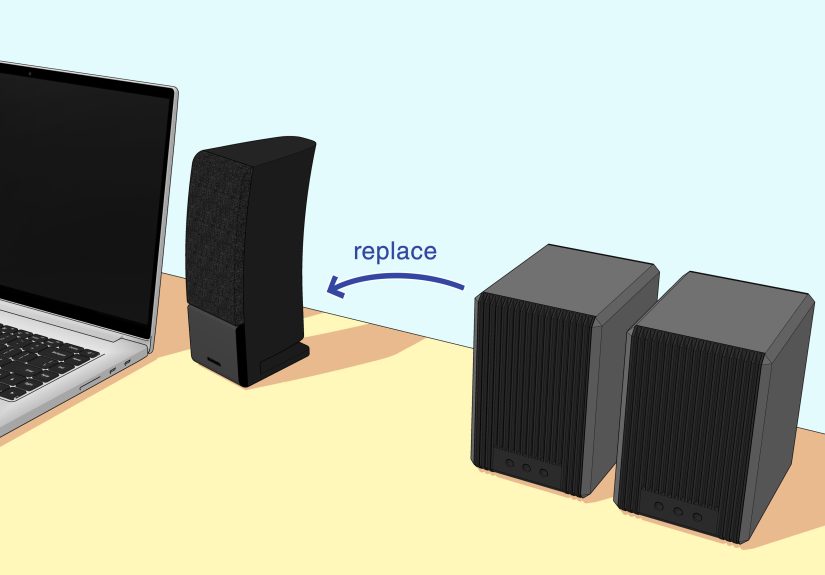
- Reseat speaker/headphone cables firmly.
- If your PC has multiple audio jacks, verify you’re using the correct one.
- For external speakers, confirm the speaker power and volume knob are on.
3) Run the Built-In Windows Audio Troubleshooter
It won’t fix everything, but it’s fast and sometimes nails the obvious stuff: muted settings, wrong device,
or a service that stopped running.
- Go to Settings → System → Troubleshoot → Other troubleshooters.
- Find Playing Audio and click Run.
- Apply recommended changes and retest.
4) Restart Windows Audio Services
If the audio engine is asleep at the wheel, restarting services can bring it backespecially after driver changes.
- Press Win + R, type services.msc, press Enter.
- Find Windows Audio and Windows Audio Endpoint Builder.
- Right-click each → Restart. Set Startup type to Automatic if needed.
5) Look for Disabled or Hidden Audio Devices in Device Manager
Windows can disable a device after a driver failure, or hide it when it thinks it’s “not present.”
Bringing it back is sometimes as simple as enabling it.
- Right-click Start → Device Manager.
- Click View → Show hidden devices.
-
Expand:
- Sound, video and game controllers
- Audio inputs and outputs
- System devices (important for “High Definition Audio Controller”)
- If you see a device with a down arrow, right-click → Enable device.
6) “Scan for Hardware Changes” (Wake Windows Up)
If your audio device disappeared, forcing Windows to rescan can re-detect it.
- Open Device Manager.
- Click Action → Scan for hardware changes.
- Recheck Sound settings for an output device.
7) Update Your Audio Driver (Prefer the PC Manufacturer First)
For laptops and branded desktops (Dell/HP/Lenovo), the most stable driver is often the one the manufacturer
ships for your exact modelespecially when special audio features are involved.
- Use your manufacturer’s support app/page to fetch the latest audio driver.
- Install it, restart, then retest audio output.
Why this works: OEM drivers may include the right codec package, control panels, and dependencies that
Windows Update doesn’t always deliver.
8) Roll Back the Audio Driver (If the Problem Started After an Update)
If audio broke right after a Windows update or driver update, rolling back can be the fastest “undo.”
- Open Device Manager → Sound, video and game controllers.
- Right-click your audio device → Properties.
- Go to the Driver tab → click Roll Back Driver (if available).
- Restart and test.
9) Uninstall the Audio Driver and Reboot (Let Windows Rebuild It)
When drivers get corrupted, reinstalling cleanly often restores your missing audio output device.
- Device Manager → Sound, video and game controllers.
- Right-click the audio device → Uninstall device.
- If you see Delete the driver software for this device, check it (when appropriate).
- Restart the PC and let Windows reinstall a fresh driver layer.
If Windows installs a basic driver and you still have issues, follow up with your OEM driver package.
10) Install the Generic “High Definition Audio Device” Driver
If your Realtek/Conexant/Intel SST stack is misbehaving, switching temporarily to Microsoft’s generic audio driver
can bring sound backat least enough to stop the silence.
- Device Manager → right-click your audio device → Update driver.
- Select Browse my computer for drivers → Let me pick from a list.
- Choose High Definition Audio Device (generic) and install.
- Restart and test.
Note: You may lose fancy audio effects temporarily. That’s okayfirst we resurrect sound; then we make it pretty.
11) Fix HDMI / Display Audio (Intel Display Audio, NVIDIA/AMD Audio)
If you’re using a monitor/TV for soundor your system installed a display audio driver updateyour speaker icon may show
the dreaded X because Windows got confused about which “audio path” matters.
-
In Device Manager, check Sound, video and game controllers for:
- Intel Display Audio
- NVIDIA High Definition Audio
- AMD High Definition Audio
- Try updating these driversor uninstalling and restarting if they’re the ones that broke audio.
- Then set your intended output in Settings → System → Sound.
Real-world example: A Windows update may prioritize HDMI audio even when you want motherboard speakers.
Fixing the display-audio driver and reselecting speakers often restores your normal output.
12) Disable Audio Enhancements (They’re Not Always “Enhancing”)
Enhancements, spatial audio, and vendor effects can sometimes clash with certain drivers or apps.
If Windows detects output but nothing plays (or the device vanishes), turning off enhancements is a smart test.
- Settings → System → Sound → select your output device.
- Find Enhance audio or Audio enhancements and turn it Off.
- Also check Spatial sound (set to Off for testing).
13) Update Windows (Including Optional Updates)
Sometimes audio breaks because of a Windows bug… and gets fixed because Microsoft patches it later.
Also, Optional updates can include driver and reliability fixes that don’t install automatically.
- Go to Settings → Windows Update.
- Install available updates and reboot.
- Check Optional updates (if available) for driver-related items.
If the issue started after a specific update, you may also want to look up known-issue notes for that update and apply the recommended workaround.
14) Repair Windows System Files (SFC + DISM) or Use OEM Diagnostics
When Windows components are corruptedespecially after a bad update, power loss, or “I swear I didn’t do anything”
momentaudio devices can disappear because dependencies fail behind the scenes.
Option A: Run SFC and DISM (built-in Windows repair tools)
- Open Command Prompt as Administrator.
- Run: sfc /scannow
- Then run: DISM /Online /Cleanup-Image /RestoreHealth
- Restart and test audio again.
Option B: Run Manufacturer Diagnostics (Especially on Laptops)
If you suspect hardware, use the OEM’s diagnostic tools (e.g., built-in startup diagnostics or support assistants).
This can confirm whether the speakers/audio hardware pass tests even if Windows is acting dramatic.
If all else fails: Consider an in-place repair install or get help from your OEM/IT adminespecially on managed work PCs
where policies can block driver installs.
Real-World Experiences: What Usually Causes This (and What Actually Works)
You don’t need to be a full-time PC mechanic to notice patterns. When people run into the
“No Audio Output Device Is Installed” error, it’s rarely randomit’s usually triggered by one of a few
repeat offenders. Here are the most common “how did we get here?” stories and what tends to fix them.
Scenario 1: “It Worked Yesterday. I Updated Windows. Now I Live in Silence.”
This is the classic. A Windows update lands, reboots happen, and suddenly the speaker icon has an X like it’s mad at you.
In these cases, Windows may have swapped audio drivers (or replaced an OEM driver with a generic one),
and the audio device either disappears or shows up with a warning symbol.
What works most often: roll back the driver (Fix #8) or uninstall/reinstall the driver (Fix #9),
then install the OEM driver package (Fix #7). If there’s a known Windows audio bug in that update wave,
installing the next cumulative update can also be the magic wand (Fix #13).
Scenario 2: “My Monitor Has Speakers. Windows Thinks That’s My Whole Personality Now.”
HDMI/DisplayPort audio is convenientuntil Windows decides your monitor is the default output even though you’re wearing headphones
plugged into the PC. Or worse: a display audio driver update goes sideways and Windows can’t find any output.
What works: Make sure the correct output device is selected (Fix #1), then address the display-audio driver layer (Fix #11).
If your GPU driver package installed multiple audio endpoints, cleaning up and reinstalling can restore sanity.
Scenario 3: “I Have Realtek Audio… Except Today I Don’t.”
Realtek-based systems are everywhere. Sometimes, after an update, the Realtek device vanishes and only “digital audio” or “no devices”
remain. You’ll often still see High Definition Audio Controller under System devices, but the friendly speaker endpoint isIP
is missing.
What works: Show hidden devices (Fix #5), scan for hardware changes (Fix #6), and reinstall audio drivers (Fix #9).
A surprisingly effective fallback is installing the generic “High Definition Audio Device” driver (Fix #10) just to get audio back,
then returning to the OEM package once stable.
Scenario 4: “Audio Services Stopped Running and Nobody Told Me”
It’s not glamorous, but it happens. Windows Audio can fail to start correctly after crashes, hibernation weirdness,
or aggressive “cleanup” tools. The hardware is fine; the software orchestra just forgot to show up.
What works: restart the services (Fix #4) and re-run the audio troubleshooter (Fix #3).
If this keeps recurring, a Windows update and driver refresh often reduces repeat episodes (Fix #13 and Fix #7).
Scenario 5: “Nothing Worked… Until SFC/DISM”
This is the “deep Windows plumbing” category. If key system components are corrupted, drivers can install but fail to bind properly,
or device discovery can act broken. It’s less common than a driver mismatch, but it’s real.
What works: SFC and DISM (Fix #14). It’s not instant gratificationDISM can take a while and look stuckbut it can restore
Windows components that audio depends on. If the machine is OEM-branded, pairing this with OEM diagnostics helps confirm
whether you’re chasing software or hardware.
The Takeaway (a.k.a. the shortest honest advice)
If you want the fastest path, do this order: output selection → troubleshooter → services → Device Manager enable/scan → driver reinstall → OEM driver → updates → SFC/DISM.
That sequence solves the overwhelming majority of “No audio output device is installed” cases without turning your afternoon into a saga.
Conclusion
The “No Audio Output Device Is Installed” error looks scary, but it’s usually Windows being forgetfulnot your PC being doomed.
In most cases, the fix is a clean driver recovery, re-enabling a hidden device, restarting audio services, or undoing a bad update.
Work from the simplest checks to the deeper repairs, and you’ll typically get your sound back without replacing hardware.





 Close
Close