
Table of Contents >> Show >> Hide
- What Does Braille On A Tablet Computer Actually Mean?
- How Braille Works With Tablets
- iPad, Android, And Windows Tablets: A Practical Comparison
- Why Braille Still Matters In A Voice-First World
- Common Uses For Braille On A Tablet Computer
- The Hardware: Refreshable Braille Displays And New Tactile Devices
- What Makes An App Braille-Friendly?
- Best Practices For Setting Up Braille On A Tablet
- Challenges That Still Need Work
- The Future Of Braille On Tablet Computers
- Experiences With Braille On A Tablet Computer
- Conclusion
Once upon a time, the phrase “Braille on a tablet computer” sounded like something from a futuristic science fair booth: half magic trick, half engineering dare. After all, tablets are famously smooth sheets of glass, and Braille is famously tactile. How do you put raised dots on a device that feels like a tiny windowpane? The answer is surprisingly practical, wonderfully clever, and still evolving fast.
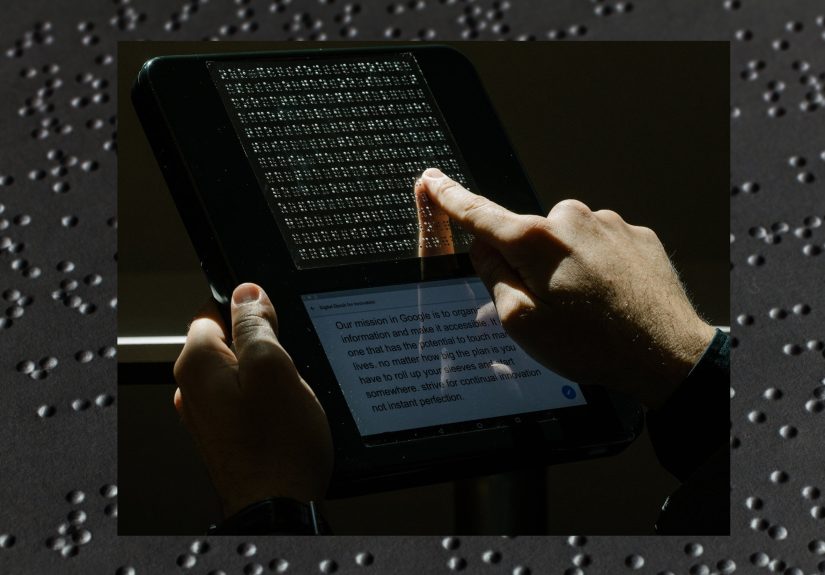
Today, Braille on a tablet computer usually means one of two things. First, a blind or low-vision user can connect a refreshable Braille display to a tablet and read what appears on the screen through moving Braille pins. Second, some tablets let users type Braille directly on the touchscreen using screen-reader features, turning the glass surface into a virtual Braille keyboard. In both cases, the tablet becomes more than a media device. It becomes a classroom, notebook, book reader, email station, coding tool, and sometimes a pocket-sized command center.
That matters because Braille is not simply “another way to read.” For many users, it supports spelling, grammar, privacy, math, music, programming, editing, and deep literacy. Speech output is excellent for many tasks, but nobody wants their tablet cheerfully reading a bank password, private medical message, or half-written poem out loud in a waiting room. Braille gives information back to the fingertips, quietly and precisely. No headphones required, no awkward elevator announcements, and no robotic voice mispronouncing your cousin’s name for the fifth time.
What Does Braille On A Tablet Computer Actually Mean?
Braille on a tablet computer is not one single feature. It is a small ecosystem of hardware, software, accessibility settings, and user habits working together. The main player is the screen reader, such as VoiceOver on iPad, TalkBack on Android tablets, or Narrator on Windows tablets. A screen reader interprets what is on the screen and sends that information either to speech, to a Braille display, or to both.
A refreshable Braille display is a device with tiny pins that rise and fall to form Braille characters. When connected by Bluetooth or USB, it shows text, buttons, headings, alerts, menus, and other interface elements as Braille. Many displays also include a Perkins-style Braille keyboard, cursor-routing buttons, navigation keys, and command shortcuts. The tablet provides the apps and operating system; the display provides the tactile output and input.
On modern tablets, Braille can also appear as a typing method. For example, iPad users can use Braille Screen Input with VoiceOver to type Braille directly on the touchscreen. Instead of hunting for a visual keyboard, the user places fingers on the screen as if using a six-dot or eight-dot Braille keyboard. The tablet translates the Braille input into text. It feels a bit like the glass finally learned manners.
How Braille Works With Tablets
1. The Screen Reader Reads The Interface
The screen reader is the translator between visual design and accessible interaction. It identifies the focused item: a button, link, heading, text field, notification, or app icon. Then it sends that information to speech and, when configured, to a Braille display. If the app is built well, the display can show meaningful labels such as “Send button,” “Search field,” or “Chapter 3 heading.” If the app is built badly, it may show something deeply unhelpful like “Button, button, unlabeled button,” which is the accessibility equivalent of a mystery casserole.
2. The Braille Display Presents Text Through Pins
Most portable refreshable Braille displays have 14, 20, 32, or 40 cells, while larger and more specialized devices may have more. Each cell forms a Braille character. The user reads the line, then presses panning keys to move forward or backward through the text. Cursor-routing buttons can jump directly to a character, word, or control, which is especially useful for editing.
3. The User Controls The Tablet From The Display
A good Braille setup is not just output. It is control. Users can move between items, activate buttons, open apps, type text, edit documents, navigate web pages, and review notifications from the Braille display itself. This reduces the need to tap around the glass screen. For students, professionals, and heavy readers, that can turn a tablet from “usable” into “actually pleasant.”
iPad, Android, And Windows Tablets: A Practical Comparison
iPad And VoiceOver
The iPad has long been a strong option for Braille users because VoiceOver is built deeply into iPadOS. Users can pair supported Bluetooth Braille displays, choose contracted or uncontracted Braille, adjust Braille tables, type from the display, and navigate apps through Braille commands. Apple’s Braille Screen Input also allows direct Braille typing on the touchscreen without a physical Braille keyboard.
Apple has also pushed further with Braille Access, a feature designed to turn iPad and other Apple devices into a more complete Braille note-taking environment. It supports actions such as opening apps, working with Braille Ready Format files, taking notes, and using Braille for math-related tasks. For many users, that means the iPad can act less like a general-purpose tablet with a few accessibility extras and more like a serious Braille productivity device.
Android Tablets And TalkBack
Android has made meaningful progress with built-in Braille display support through TalkBack. Modern Android accessibility support no longer depends on the separate BrailleBack app in the same way older setups did. Users can connect a refreshable Braille display through Bluetooth or USB, read screen content, navigate interface elements, and enter text using Braille commands.
The Android advantage is choice. There are many tablets at different prices and sizes. The challenge is consistency. Accessibility quality can vary by manufacturer, Android version, app design, and keyboard support. A well-updated Android tablet with current TalkBack support can be very capable, but buyers should verify Braille display compatibility before purchasing. In accessibility, “probably works” is not a purchasing strategy; it is how you accidentally become your own tech-support department.
Windows Tablets And Narrator
Windows tablets and 2-in-1 computers can also support Braille through Narrator. Users can install the Braille package in Windows accessibility settings and configure supported displays. Windows is especially relevant for people who need desktop software, Microsoft Office workflows, workplace systems, or specialized education tools that are still strongest on traditional computers.
The biggest benefit of a Windows tablet is flexibility. It can act like a tablet, laptop, and desktop workstation depending on the keyboard, display, and docking setup. The tradeoff is that configuration can feel more technical than on iPad, especially when switching between screen readers or Braille drivers. For power users, that flexibility is worth it. For beginners, setup support from a teacher of students with visual impairments, assistive technology trainer, or experienced Braille user can save a lot of frustration.
Why Braille Still Matters In A Voice-First World
Text-to-speech is fast, convenient, and often brilliant. But it does not replace Braille. Listening and reading are not identical experiences. Braille allows users to inspect spelling, punctuation, capitalization, indentation, symbols, math notation, code syntax, and formatting in a way speech can blur. A screen reader may say “there,” but Braille lets the user know whether it is “there,” “their,” or “they’re.” English teachers everywhere just felt a tiny breeze of relief.
Braille also supports privacy. A student can read a test question silently. An employee can review confidential notes in a meeting. A traveler can check a boarding pass or message without broadcasting it. For deafblind users, Braille may be essential rather than optional because speech output is not enough.
In education, Braille on tablets can make digital learning more equal. Students can download assignments, read accessible books, take notes, submit homework, and communicate with teachers using one portable device. When paired with accessible apps and digital textbooks, Braille access can reduce the delay between a printed classroom handout and a usable version. That delay used to be measured in days or weeks. The goal now is closer to “same time as everyone else.”
Common Uses For Braille On A Tablet Computer
Reading Books And Articles
One of the most satisfying uses is reading. A tablet connected to a Braille display can open ebooks, web articles, emails, PDFs when properly accessible, and library materials. Services such as the National Library Service’s BARD Mobile app allow eligible users to access Braille books and magazines and read them with compatible refreshable Braille displays. This makes a tablet feel like a library shelf that does not require reinforced flooring.
Taking Notes In Class Or Meetings
Braille displays with input keys make tablets useful for note-taking. Students can write lecture notes, create outlines, mark assignments, and review study guides. Professionals can draft meeting notes, manage calendars, and write follow-up emails. The advantage is portability: a tablet and Braille display can fit in a backpack, and some compact displays fit in a small bag.
Editing Documents
Editing is where Braille shines. Speech can read a paragraph quickly, but Braille lets the user check exact characters. This matters for resumes, essays, legal documents, spreadsheet labels, web content, and code. Cursor routing allows precise movement to a typo or symbol. For anyone who has ever tried to edit a long sentence by listening to it six times, tactile precision feels like finding the lightswitch.
Learning Math, Science, And Coding
Braille on tablets is also valuable for STEM education. Nemeth Braille and other technical codes help represent mathematical expressions. While not every app handles math perfectly, the direction is encouraging. More devices and platforms are recognizing that accessibility is not just about reading plain paragraphs. It must include equations, charts, tables, diagrams, and interactive learning.
The Hardware: Refreshable Braille Displays And New Tactile Devices
A refreshable Braille display is often the key accessory. Popular models vary in size, number of cells, keyboard layout, battery life, and connection options. A 14-cell display may be excellent for mobile use and quick navigation, while a 40-cell display is more comfortable for long reading and editing. Some displays can connect to multiple devices, allowing a user to switch between a tablet, phone, and computer.
There are also more ambitious tactile devices emerging. The APH Monarch, for example, is a multiline Braille and tactile graphics device designed to show Braille and tactile graphics on the same surface. It is not a standard consumer tablet, but it points toward a future where tactile access includes charts, maps, diagrams, and spatial informationnot only one line of text at a time.
Cost remains a serious issue. Refreshable Braille displays are powerful, but they can be expensive. Programs through schools, rehabilitation agencies, libraries, employers, and accessibility initiatives can make them more reachable. The good news is that mainstream tablet accessibility has improved, so a user may not always need a dedicated Braille notetaker for every task. The less-good news is that assistive technology pricing can still make your wallet look nervously at the exit.
What Makes An App Braille-Friendly?
Braille support is only as good as the app and website underneath it. A tablet can have excellent accessibility features, but if an app has unlabeled controls, confusing focus order, inaccessible PDFs, or buttons that only make sense visually, the Braille display will inherit that chaos.
Developers should follow accessibility standards such as the Web Content Accessibility Guidelines. That means using real text instead of text trapped inside images, labeling buttons and form fields, providing text alternatives for images, creating logical heading structures, supporting keyboard navigation, and avoiding custom controls that ignore assistive technology. The goal is simple: if information is important visually, it should also be available programmatically so screen readers and Braille displays can present it.
For publishers, this means accessible ebooks and documents. Proper headings, alt text, tagged PDFs, readable tables, and clean semantic structure make Braille output better. Braille users should not have to solve a puzzle just to find Chapter 4, submit a form, or discover that the “mysterious unlabeled button” was actually the checkout button all along.
Best Practices For Setting Up Braille On A Tablet
Choose The Right Tablet Ecosystem
Before buying, consider the user’s daily tasks. If the priority is schoolwork, reading, email, and a polished mobile accessibility experience, an iPad may be a strong fit. If budget flexibility and device variety matter, Android may be appealing. If full desktop applications are required, a Windows tablet or 2-in-1 may be the better choice.
Check Braille Display Compatibility
Not every display works equally well with every tablet. Check official compatibility lists, operating system requirements, and connection methods. Bluetooth is convenient, but USB can be more stable for some workflows. Also consider whether the display supports multiple paired devices, onboard note-taking, file storage, or a QWERTY keyboard.
Learn The Commands Gradually
Braille tablet commands can feel like learning a tiny piano where every chord opens a menu. Start with the basics: move forward, move backward, activate, go home, open the app switcher, enter text, delete text, and pan Braille. Once those become comfortable, add editing, web navigation, rotor or quick menu controls, and app-specific shortcuts.
Test Real-Life Tasks
Do not test accessibility only by opening the settings screen and declaring victory. Try actual tasks: send an email, read a textbook chapter, fill out a form, join a video meeting, edit a document, download a file, and search a website. Real-world testing reveals the little problems that spec sheets politely forget to mention.
Challenges That Still Need Work
Braille on tablet computers has improved dramatically, but it is not perfect. The first challenge is cost. Tablets are mainstream devices, but refreshable Braille displays remain specialized hardware. The second challenge is app accessibility. A well-designed app can be smooth and efficient; a poorly designed one can turn a five-minute task into a digital obstacle course.
Another challenge is tactile graphics. Most Braille displays show one line of text, which is excellent for reading but limited for charts, maps, geometry, and layout-heavy material. Multiline tactile displays are promising, but price and availability still limit widespread use. Battery life, Bluetooth reliability, software updates, and inconsistent document accessibility can also affect the experience.
Training matters too. A tablet with Braille support is not automatically useful if the user, teacher, parent, employer, or IT department does not know how to configure it. Accessibility is not a magic button. It is a practice. The best outcomes happen when hardware, software, training, and accessible content arrive together instead of wandering in separately like guests at a badly organized party.
The Future Of Braille On Tablet Computers
The future looks more tactile, more portable, and more integrated. Apple’s Braille Access, Android’s built-in Braille display support, Windows Narrator improvements, and new multiline devices all suggest the same direction: Braille is moving deeper into mainstream computing. It is no longer an afterthought attached to a device. It is becoming part of how devices are designed.
Artificial intelligence may also help, especially when describing images, summarizing inaccessible layouts, identifying document structure, and converting visual information into usable text. However, AI should support Braille access, not replace it. A generated description of a chart is helpful, but a student learning geometry or data analysis may still need tactile structure, exact labels, and direct exploration.
The most exciting possibility is choice. Some users prefer speech most of the time and Braille for editing. Others use Braille as their primary reading method. Some need large print, audio, Braille, and magnification depending on the task. A good tablet should not force one path. It should offer flexible access and let the user decide what works.
Experiences With Braille On A Tablet Computer
Using Braille on a tablet computer can feel surprisingly personal. The first experience many users describe is the moment when the tablet stops being a flat, silent piece of glass and becomes something responsive. Pairing a Braille display, hearing the connection tone, and feeling the first line of text rise under the fingers can be a small but powerful moment. The screen is still smooth, but the information is no longer locked behind sight.
For a student, the experience might begin in a classroom. The teacher posts an assignment online. Other students open it on their laptops or tablets. The Braille user opens the same file, connects a display, and reads the instructions in Braille. If the document is accessible, the student can move through headings, review questions, type answers, and submit the work without waiting for a separate version. That independence is not just convenient. It changes the rhythm of participation. The student is not catching up; the student is working alongside everyone else.
In a workplace, Braille on a tablet can make meetings calmer and more private. Imagine sitting in a conference room with a tablet on the table and a compact Braille display nearby. Calendar notes, agenda items, names, and action points can be reviewed silently. When an email arrives, the user can decide whether to read it without having a screen reader announce the message to the entire room. This is especially useful in legal, medical, education, finance, and management settings where confidentiality matters.
For reading, the experience is slower than speech for some users but deeper in a different way. Speech is excellent for scanning news or listening while walking. Braille is better when the exact language matters. Reading a novel in Braille on a tablet-connected display can bring back the texture of punctuation, paragraph rhythm, and spelling. Reading a recipe becomes easier when measurements can be checked carefully. Reading a poem becomes less about hearing a synthetic voice perform it and more about touching the line breaks yourself.
There are also funny, ordinary moments. Bluetooth may refuse to cooperate until restarted, because technology enjoys reminding humans who is boss. A tablet update may move a setting into a new menu, creating a miniature scavenger hunt. A display may show an unlabeled button in an app, and the user must decide whether to tap it bravely or treat it like a suspicious mushroom. These annoyances are real, but they are part of the same everyday technology experience everyone hasonly with higher stakes when accessibility is involved.
The best experiences usually happen when the setup is customized. A beginner may prefer speech and Braille together, using speech for orientation and Braille for confirmation. An advanced user may turn speech down or off and navigate almost entirely from the display. A student may choose contracted Braille for reading speed but switch to uncontracted Braille when learning spelling. A coder may rely heavily on character-by-character review. A musician may need exact notation support. The tablet becomes useful because it can adapt.
Parents and teachers often notice another benefit: confidence. When a child can type a message, label a file, read a book, or explore an app through Braille, the technology reinforces literacy instead of bypassing it. The goal is not to make Braille look old-fashioned or high-tech. The goal is to make information available. Sometimes that means a centuries-old tactile code working hand in hand with a modern touchscreen. Honestly, that partnership is cooler than most app updates.
For new users, the learning curve can be bumpy, but the payoff is real. Start with one or two daily tasks: reading messages, writing notes, or navigating a favorite app. Add commands slowly. Keep a short cheat sheet of Braille display shortcuts. Update apps carefully. Test documents before a class or meeting when possible. Most importantly, treat Braille on a tablet as a skill, not a gadget trick. The more it is used, the more natural it becomes.
Conclusion
Braille on a tablet computer is one of the best examples of modern accessibility done right: old wisdom meeting new hardware, fingertips meeting pixels, and independence meeting portability. Tablets cannot physically raise Braille dots from their glass screens yet in the mainstream market, but with refreshable Braille displays, Braille Screen Input, built-in screen readers, and emerging tactile devices, they can deliver powerful Braille access today.
The most important lesson is that Braille remains essential. It supports literacy, privacy, precision, education, employment, and equal participation. Whether someone is reading a novel, solving a math problem, checking an email, editing a document, or navigating a website, Braille gives digital information a tactile doorway. And when technology opens more doors, everyone benefitseven if the door occasionally needs a Bluetooth reset.






 Close
Close