
Table of Contents >> Show >> Hide
- First, a quick (useful) distinction: “alerts” vs. “reminders”
- Way #1: Add alerts to an event (and stack two alerts when it matters)
- Way #2: Set default alert times (so every new event doesn’t start at “None”)
- Way #3: Use “smart” alertsTime to Leave, location details, and reminders inside Calendar
- Quick troubleshooting checklist (because life happens)
- 500+ Words of Real-World Experience: What actually works (and why)
- Conclusion
Your iPhone Calendar is basically a tiny personal assistant that lives in your pocket and occasionally screams,
“HEY. YOU SAID YOU’D BE THERE.” The problem? Most people never teach it how to scream properlyso it either
stays weirdly quiet or starts yelling at 3:00 a.m. about a dentist appointment that isn’t for two weeks.
Let’s fix that. Below are three simple, real-world ways to set reminders and alerts in the iPhone Calendar app so
you actually show up on timewithout turning your phone into a nonstop notification slot machine.
First, a quick (useful) distinction: “alerts” vs. “reminders”
On iPhone, you’ll typically deal with two kinds of “don’t let me forget” tools:
-
Calendar event alerts tied to a specific event with a date/time (or all-day). Great for meetings,
flights, appointments, birthdays, and anything that happens on a schedule. -
Reminders (tasks) perfect for “do the thing” items: submit the form, call the mechanic, buy cake,
stop pretending you’ll remember to cancel the free trial.
The fun part: modern iOS lets you view and even create scheduled reminders directly inside the Calendar app, so you
can keep “events” and “tasks” in one place without doing mental gymnastics.
Way #1: Add alerts to an event (and stack two alerts when it matters)
This is the classic, reliable method: create (or edit) an event and assign one or two alerts. Think of it as your
“early warning system” plus your “get in the car right now” alarm.
How to add an alert when creating a Calendar event
- Open Calendar and tap the + (Add) button.
- Enter your event title, location (optional but powerful), and start/end time.
- Tap Alert (it may say “None” if you haven’t set one yet).
- Pick when you want the first alert (e.g., “1 hour before,” “At time of event,” “1 day before”).
- If available, add a Second Alert (or tap an option like “Add Alert” again) and choose a second time.
- Tap Add or Done to save.
Real-life example: the “important appointment” alert stack
Let’s say you have a dentist appointment on Wednesday at 2:00 PM. A smart setup might be:
- Alert #1: 1 day before (so you don’t schedule something else over it)
- Alert #2: 1 hour before (so you can stop whatever you’re doing and become a functional adult)
If it’s something truly mission-criticallike a passport appointmentswap that second alert to “30 minutes before”
or “At time of event” depending on how chaotic your life is.
Pro tips that save you from “why didn’t my alert fire?”
- Put the correct start time. Sounds obvious, but “approximately 3-ish” is not a time your iPhone can honor.
-
All-day events behave differently. All-day alerts often trigger at a default morning time (commonly 9:00 AM).
If you want a different time (like 6:00 PM the night before), consider making it a timed event instead of all-day. -
Two alerts aren’t always visible everywhere. Depending on the calendar account type (iCloud vs. work Exchange)
or your company device policies, you may see only one alert option. If a second alert option doesn’t appear,
try saving the event first and editing it again.
Way #2: Set default alert times (so every new event doesn’t start at “None”)
If you’re tired of manually choosing an alert every single time you create an event, set your Default Alert Times.
This makes iPhone Calendar behave like a responsible assistant by defaultnot the “I assumed you didn’t care” intern.
Set default alert times on iPhone
- Open Settings.
- Tap Apps > Calendar. (On some iOS versions, it may be Settings > Calendar.)
- Tap Default Alert Times.
- Choose defaults for:
- Events (timed events)
- All-Day Events
- Birthdays
A “set it and forget it” default that works for most people
- Events: 15 minutes before (enough time to wrap up and move)
- All-Day Events: On day of event (morning), or 1 day before for deadlines
- Birthdays: On day of event (unless you’re the type who buys gifts earlyteach me your ways)
Make sure Calendar notifications are actually allowed
Default alert times won’t help if notifications are blocked. So do this once and your future self will thank you:
- Go to Settings > Notifications > Calendar.
- Turn on Allow Notifications.
-
Choose where alerts appear (Lock Screen, Notification Center, banners) and whether you want sounds and badges.
If you miss alerts easily, enable sounds and banners. -
If available, check Customize Notifications so you can toggle invites, upcoming events, and changes
the way you prefer.
Bonus: you can silence one calendar without silencing your whole life
If you subscribe to a noisy calendar (sports schedules, public holidays, your kid’s school updates, etc.), you can
often disable notifications for that specific calendar while keeping alerts for your main calendar. In the Calendar app,
tap Calendars, then the info icon (i) next to a calendar, and look for a notifications toggle.
That way your phone doesn’t buzz every time “National Wooden Spoon Day” rolls around.
Way #3: Use “smart” alertsTime to Leave, location details, and reminders inside Calendar
This is the level-up move: instead of only reminding you when something starts, your iPhone can also remind you
when you need to leaveand it can keep task reminders visible right alongside events.
Option A: Turn on Time to Leave (a.k.a. “traffic is real, and it’s coming for you”)
Time to Leave alerts are designed for events with a location. Add an address, and your iPhone can notify you when it’s
time to head out so you arrive on schedule.
- Go to Settings > Apps > Calendar.
- Tap Default Alert Times.
- Turn Time to Leave on.
-
When creating an event, add a Location (an actual address works best), then choose a “Time to Leave”
style alert if it appears in your alert options.
If Time to Leave doesn’t work: it usually needs Location Services enabled (and a specific system setting
that allows location-based alerts). Check Settings > Privacy & Security >
Location Services > System Services, then make sure the relevant alerts/automation
toggle is enabled.
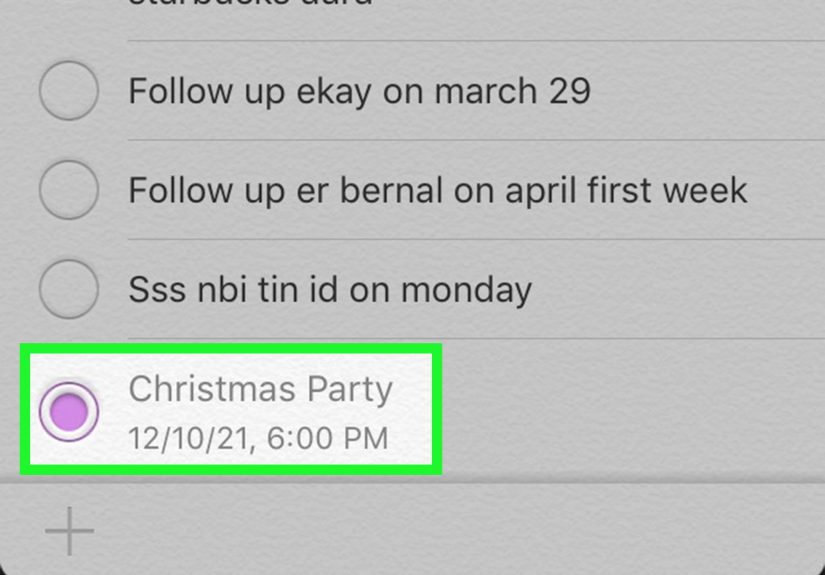
Option B: Create reminders right inside Calendar (perfect for deadlines and “do this today” tasks)
Sometimes you don’t need an “event.” You need a task that shows up on the day/time you chooselike “Pay rent,” “Send invoice,”
or “Call the vet back because they definitely won’t call you.”
- Open the Calendar app.
- Tap + (Add).
- Choose Reminder.
- Give it a title, then set a Date and optional Time.
- Add notes, priority, or other details if you want.
- Save it. It can appear on your calendar view as a scheduled reminder.
Option C: Use Siri for fast scheduling (then let defaults handle the alerts)
Siri is best when you keep it simple: create the event quickly, then edit details if you want finer control.
If your default alert times are set, Siri-created events often inherit those defaults automatically.
Examples you can say:
- “Hey Siri, schedule a meeting with Alex tomorrow at 10 AM.”
- “Hey Siri, add ‘Parent-teacher conference’ on Friday at 3:30 PM.”
- “Hey Siri, schedule lunch next Tuesday at noon.”
After Siri creates the event, open it in Calendar and adjust the alert (or add a second alert) if it’s an important one.
Think of Siri as your speedy assistantnot your detail-obsessed executive scheduler.
Quick troubleshooting checklist (because life happens)
If you’ve set alerts but they’re not showing up, it’s usually one of these:
- Notifications are off for Calendar in Settings.
- Focus mode (Do Not Disturb, Work, Sleep) is silencing alerts.
- Device is muted or notification sounds are turned down.
- Wrong calendar or account (some work accounts restrict alert behavior).
- No location services (especially for Time to Leave alerts).
Fix the plumbing once, and your Calendar alerts will go back to doing their job: keeping you on time, not stressed,
and only mildly annoyed.
500+ Words of Real-World Experience: What actually works (and why)
In real life, people don’t miss events because they “forgot what a calendar is.” They miss events because the reminder
timing didn’t match the moment their brain needed it. The trick isn’t “turn on alerts.” The trick is choosing alerts
that map to your habitsyour commute, your work rhythm, your tendency to read notifications and immediately get distracted
by a picture of a dog wearing sunglasses.
For example, a single “15 minutes before” alert is great for meetings that happen at your desk. But it’s terrible for
anything that involves motiondoctor appointments, flights, dinner reservations, school pickup. That’s where the
two-alert method becomes the most practical setup: the first alert is a planning nudge (“Tomorrow is real”),
and the second alert is an action trigger (“Stand up. Move. Become a person who arrives on time”).
A common pattern is:
- Alert 1 (Planning): 1 day before (or 2 days before for big stuff)
- Alert 2 (Action): 30–60 minutes before (depending on travel and prep)
That combination works because it covers both failure modes: you either forgot the event existed, or you remembered
but underestimated the time it takes to get ready. The second alert is basically a shield against optimism.
Another surprisingly effective habit: use all-day events only when the time truly doesn’t matter.
All-day events are fantastic for birthdays, holidays, and “sometime today” items. But for deadlines, all-day can backfire
because the alert might come at a default morning time that’s easy to ignore. People who struggle with this often switch
to one of two approaches: (1) make the deadline a timed event (like 4:30 PM), or (2) use a scheduled reminder that pops
up when they actually need to act. The goal is the same: put the notification where it can’t be politely ignored.
Time to Leave alerts can be life-changing for anyone who regularly underestimates traffic, walking time, parking, or the
“I will definitely find my keys immediately” fantasy. The most consistent success comes from adding a precise location
to the event (not just “Downtown”), and ensuring location-based system services are enabled so the phone is allowed to
nudge you. Users who rely on this feature tend to build events like mini itineraries: location, notes (“park in the back
lot”), and a buffer. It’s not overkillit’s friction reduction.
Finally, the “Calendar + Reminders” combo is what makes the whole system feel adult. Use Calendar for “where/when,”
and use reminders for “do this.” People who adopt this split usually report less mental load because they stop trying
to force tasks into event slots. Instead of a fake event called “SEND EMAIL,” they create a reminder due at 11:00 AM,
and they let it appear alongside their day’s schedule. It’s clearer, cleaner, and you stop treating your calendar like
a sticky-note wall with commitment issues.
The bottom line: the best setup is the one that matches your day. If you’re mostly desk-bound, defaults might be enough.
If you’re moving around, stack alerts and use Time to Leave. If tasks are the issue, schedule reminders inside Calendar
so they stop hiding in a separate app like shy little to-dos.
Conclusion
Setting reminders and alerts on iPhone Calendar isn’t complicatedyou just need the right approach for the right situation:
- Way #1: Add event alerts (and use two alerts for anything important).
- Way #2: Set default alert times and enable Calendar notifications so alerts actually show up.
- Way #3: Use smarter tools like Time to Leave, scheduled reminders inside Calendar, and Siri for fast entry.
Do those three, and your Calendar stops being decorative. It becomes the friend who texts you, “Leave now,” but without
judging you for still being in sweatpants.




 Close
Close