
Table of Contents >> Show >> Hide
- Why Audio Drivers Matter on Windows XP
- Before You Install Anything
- Method 1: Install Audio Drivers Through Device Manager
- Method 2: Use the Found New Hardware or Add Hardware Wizard
- Method 3: Run the Official Audio Driver Package Manually
- What to Do If the Driver Still Will Not Install
- Which Method Should You Use First?
- Real-World Experiences With Installing Audio Drivers on Windows XP
- Final Thoughts
- SEO Tags
Installing audio drivers on Windows XP can feel a bit like opening a time capsule and finding out the instructions are missing, the CD is scratched, and the speakers are giving you the silent treatment. Still, it is absolutely doable. If your old desktop or laptop says No Audio Device, shows a yellow question mark next to Multimedia Audio Controller, or acts like music never existed, the problem is usually a missing, corrupted, or incorrect driver.
The good news is that there are three reliable ways to get sound working again. You can install the driver through Device Manager, use the Add Hardware or Found New Hardware wizard, or run the official audio package from your computer or motherboard maker. The trick is picking the right method for the situation and not downloading mystery files from random driver websites that look like they were built during the dial-up era.
In this guide, you will learn how to install audio drivers on Windows XP step by step, when each method works best, and what to do if XP keeps pretending your sound card is imaginary.
Why Audio Drivers Matter on Windows XP
An audio driver is the software that lets Windows XP communicate with your sound hardware. Without it, your operating system cannot properly talk to your sound card, onboard audio chip, headphones, speakers, or microphone. That is why you may see symptoms like muted system sounds, missing playback devices, or grayed-out audio settings in Control Panel.
This issue often appears after reinstalling Windows XP, replacing a motherboard, restoring a factory image, or rolling back from a newer operating system. It can also happen when the wrong driver gets installed or when XP recognizes the hardware only as a generic multimedia device. In plain English, the computer knows something is plugged in, but it does not know how to use it.
Before you begin, make sure you know your PC model or motherboard model. On older systems, the best source for a working driver is usually the original computer manufacturer, such as Dell, HP, Lenovo, ASUS, or the motherboard vendor. That matters because Windows XP hardware support was far more device-specific than on modern versions of Windows.
Before You Install Anything
Check what XP already sees
Click Start, right-click My Computer, choose Properties, open the Hardware tab, and click Device Manager. Expand Sound, video and game controllers. Also check Other devices for entries like Multimedia Audio Controller or PCI Device with a yellow mark.
Know whether your system uses HD Audio or older AC’97 audio
Many late-era XP systems use High Definition Audio, while older machines often use AC’97 audio. This matters because some XP systems need the proper bus or chipset support installed before the audio driver will cooperate. If the audio package refuses to install, the problem may not be the sound driver itself. It may be a missing chipset component or a missing HD Audio support layer.
Install chipset drivers first when possible
This step gets skipped a lot, and then people wonder why the audio setup throws a tantrum. On many OEM systems, especially older Dell, HP, and Lenovo machines, installing the chipset driver before the audio driver helps Windows XP correctly identify onboard devices. If you recently reinstalled XP from scratch, start there if the audio package keeps failing.
Method 1: Install Audio Drivers Through Device Manager
This is the easiest method when Windows XP can already detect the audio hardware, even if the driver is wrong, outdated, or missing. It is especially useful when you see a yellow exclamation point next to a sound device.
How to do it
- Open Device Manager.
- Find the audio device under Sound, video and game controllers or Other devices.
- Right-click the device and choose Update Driver.
- When the Hardware Update Wizard appears, choose whether Windows should search automatically or whether you want to specify the location yourself.
- If you already downloaded the correct driver, choose the option to install from a specific location and browse to the folder that contains the extracted driver files.
- Finish the wizard and restart the computer if prompted.
When this method works best
Use Device Manager if the driver files are already on the computer, on a CD, or in a folder you downloaded from the manufacturer. It is also great when the sound device appears in Device Manager but refuses to work properly.
Pro tip
If XP says the best driver is already installed but you still have no sound, uninstall the device from Device Manager, restart the computer, and let Windows detect it again. That simple remove-and-redetect trick fixes more XP audio glitches than many people expect. Old operating systems can be dramatic, and sometimes they just need a fresh introduction.
Method 2: Use the Found New Hardware or Add Hardware Wizard
This method is helpful when Windows XP sees new sound hardware after a reinstall or hardware change, but it does not know what to do next. It is also useful if Device Manager does not give you a smooth install path.
Option A: Found New Hardware Wizard
If XP detects the sound device during startup, it may launch the Found New Hardware Wizard. When that happens:
- Insert the driver CD if you have one, or place the downloaded driver folder somewhere easy to find.
- Choose the option that lets you install from a specific location.
- Point the wizard to the folder containing the driver files.
- Continue through the prompts and restart if needed.
Option B: Add Hardware Wizard
If the wizard does not pop up automatically, you can open it manually:
- Go to Control Panel.
- Open Add Hardware.
- Let XP search for new hardware, or choose to add a new device manually.
- Select the sound device or point the wizard to the manufacturer’s driver files.
When this method works best
This is a smart option when you have older original media, extracted INF driver files, or a system that keeps recognizing the audio hardware as “new” every time it boots. It is not the fastest route, but it can rescue machines that refuse the normal update-driver process.
Common mistake to avoid
Do not point the wizard at the ZIP file itself. Extract the driver package first. Windows XP wants actual driver files, not a compressed archive sitting there like a sealed lunchbox.
Method 3: Run the Official Audio Driver Package Manually
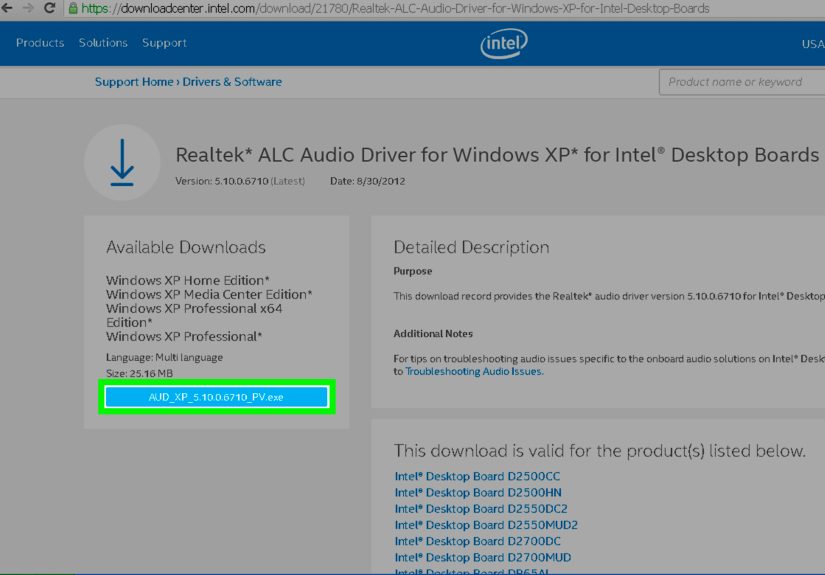
This is often the most reliable way to install audio drivers on Windows XP, especially on brand-name computers. Instead of letting XP hunt around and guess, you download the exact driver package from the manufacturer and run the installer yourself.
How to do it
- Go to the support page for your exact PC model or motherboard.
- Download the Windows XP audio driver that matches your hardware.
- If available, also download and install the chipset driver first.
- Double-click the audio package or extract it to a folder.
- Run Setup.exe if the package includes an installer.
- Follow the on-screen instructions and restart the PC.
Why this method is often best
Manufacturer packages are usually designed for the exact codec and motherboard layout in your system. That means fewer guesswork moments, fewer wizard detours, and a better chance of getting working speakers, microphone input, and volume controls all at once.
Examples of common driver brands on XP systems
- Realtek
- SoundMAX / ADI
- Conexant
- IDT / Sigmatel
- VIA audio
If you have a Dell, HP, Lenovo, or ASUS system, use that brand’s support page first. Even if the audio chip itself is made by Realtek or Conexant, the computer maker may package the driver in a system-specific installer that works better than a generic one.
What to Do If the Driver Still Will Not Install
1. Install the chipset package first
On many XP systems, especially after a clean reinstall, the sound device is not fully recognized until the chipset driver is installed. If the audio setup says the device cannot be found, go back and install chipset software first, then try again.
2. Check for Microsoft UAA support on HD Audio systems
Some Windows XP High Definition Audio setups rely on Microsoft’s Universal Audio Architecture support. If your system uses HD Audio and the driver fails with bus-related errors, the machine may need that support layer before the main audio driver will install correctly. This issue appears more often on later XP-era laptops and desktops than on very early XP machines.
3. Make sure Windows Audio service is running
Sometimes the driver installs successfully, but the sound still does not work because the audio service is stopped. Open Run, type services.msc, and check that Windows Audio is enabled and running.
4. Verify speakers and playback settings
Yes, this sounds obvious, but XP troubleshooting has humbled many smart people. Open Sounds and Audio Devices in Control Panel and confirm that the correct playback device appears. Also check cables, external speakers, and volume settings.
5. Avoid generic driver websites
Downloading random “all-in-one” XP driver packs from unknown sites is risky. You may end up with the wrong driver, bundled junk software, or a machine that becomes even less cooperative. Use official support sources whenever possible.
Which Method Should You Use First?
If you want the short answer, here it is:
- Use Device Manager if XP already sees the sound hardware.
- Use the Hardware Wizard if the device is being detected as new or you need to point XP to loose driver files.
- Use the official manufacturer package if you know your PC model and want the most dependable fix.
For most users, the best order is simple: install chipset drivers first, then run the official audio package, and use Device Manager only if XP needs a little extra nudging. Think of Device Manager as the screwdriver, the wizard as the backup plan, and the manufacturer installer as the cleanest repair job.
Real-World Experiences With Installing Audio Drivers on Windows XP
One of the most common experiences people have with Windows XP audio drivers happens right after reinstalling the operating system. Everything looks fine at first. The desktop appears, the icons are back, and the machine feels almost new again. Then you click a music file or try a startup sound and get absolutely nothing. In many cases, the volume icon is missing, the Sounds and Audio Devices panel says No Audio Device, and the user starts wondering whether the speakers died during lunch. Usually, the hardware is fine. XP just needs the correct driver in the correct order.
Another common experience involves older laptops from brands like Dell, HP, and Lenovo. Users often download what looks like the right audio package, run the installer, and get an error saying the device cannot be found. That feels maddening because the machine obviously has built-in speakers. The missing piece is often the chipset driver or, on some systems, the HD Audio support layer. Once those are installed first, the same audio setup file suddenly behaves like a perfect gentleman and completes without complaint.
Many people also remember the yellow question mark mystery in Device Manager. Instead of a clear sound device name, XP may show Multimedia Audio Controller under Other devices. That generic label does not tell you much, but it is actually a useful clue. It means Windows sees the hardware but does not have the proper driver. In real-life fixes, users often solve this by extracting the official package, going back into Device Manager, and manually pointing XP to the folder. It is not glamorous, but it works.
Then there is the classic “I found a driver online and now things are worse” story. This happens when someone downloads a generic driver bundle from an unofficial site because it promises a one-click solution. After installation, the machine may still have no audio, or it may gain a new hobby like random error messages. Experienced XP users usually learn the same lesson: the safest path is the manufacturer support page, even if it takes longer to locate the exact model.
There are also happy endings, which XP veterans cherish like rare collectibles. A lot of people report that once the correct driver is installed, everything comes back at once: speaker output, headphone detection, system sounds, and volume controls. It feels surprisingly satisfying, especially on an old machine being restored for retro gaming, legacy software, or workshop use. Getting sound back on Windows XP is not just a technical fix. It is the moment the computer stops feeling broken and starts feeling alive again.
Final Thoughts
If you are trying to install audio drivers on Windows XP, the job is usually less about brute force and more about choosing the right path. Device Manager works well when the hardware is already visible. The Add Hardware or Found New Hardware wizard helps when XP needs a manual push. The official manufacturer installer is often the most dependable method, especially when paired with the proper chipset software.
The biggest keys are patience, exact model matching, and avoiding shady downloads. Windows XP may be old, but it still responds well to careful troubleshooting. Once the correct driver is in place, your speakers should wake up, your volume controls should return, and your computer can stop acting like silence is a feature.






 Close
Close