
Table of Contents >> Show >> Hide
- The Quick Answer
- Why DualSense Doesn’t Just “Work” on PS4
- Option 1: Use DualSense on PS4 with PS Remote Play (Best Official Workaround)
- Option 2: Use a PS5 Controller on PS4 with a Bluetooth/USB Adapter (Common Unofficial Method)
- What Works (and What Doesn’t) When You Use DualSense for PS4 Gaming
- Common Confusion: DualSense on PS4 Console vs DualSense for PS4 Games
- FAQ: Your Most-Googled Questions
- Troubleshooting: When Things Get Weird (Because They Will)
- So… Should You Use a PS5 Controller on PS4?
- Conclusion
- Real-World Experiences: What It’s Like Using DualSense for PS4 Play
- SEO Tags
You’ve got a PS4 that still runs like a champ. You’ve got a shiny PS5 DualSense controller that feels like it was designed by
NASA and a team of ergonomics wizards. Naturally, you want them to meet, shake hands, and become best friends.
Unfortunately, the PS4 is a little… socially selective.
So, can a PS5 controller work on PS4? The honest answer is: not directly. The helpful answer is:
yes, kind ofif you use the right workaround. Let’s break it down in plain English, with real-world tips,
a little humor, and zero tech-snob energy.
The Quick Answer
No, the PS5 DualSense controller does not natively connect to a PS4 console for normal gameplay.
You typically can’t just pair it via Bluetooth and start playing like you would with a DualShock 4.
Yes, you can still use a DualSense for PS4 gaming in two common ways:
- Official method: Use PS Remote Play (stream your PS4 to a phone/tablet/PC and use the DualSense there).
- Unofficial method: Use a third-party controller adapter (USB dongle/converter) that translates inputs.
Why DualSense Doesn’t Just “Work” on PS4
The PS4 was built around the DualShock 4. The DualSense is a newer controller with different firmware behavior, features, and
how it identifies itself to systems. In practical terms, the PS4 doesn’t see the DualSense as a “native PS4 controller,” so it
won’t treat it like one.
Think of it like showing up to a “black tie” event in a tuxedo… from the future… with extra buttons… and the ability to
simulate the sensation of drawing a bow. The bouncer (PS4) is impressed, but it still checks the guest list.
Option 1: Use DualSense on PS4 with PS Remote Play (Best Official Workaround)
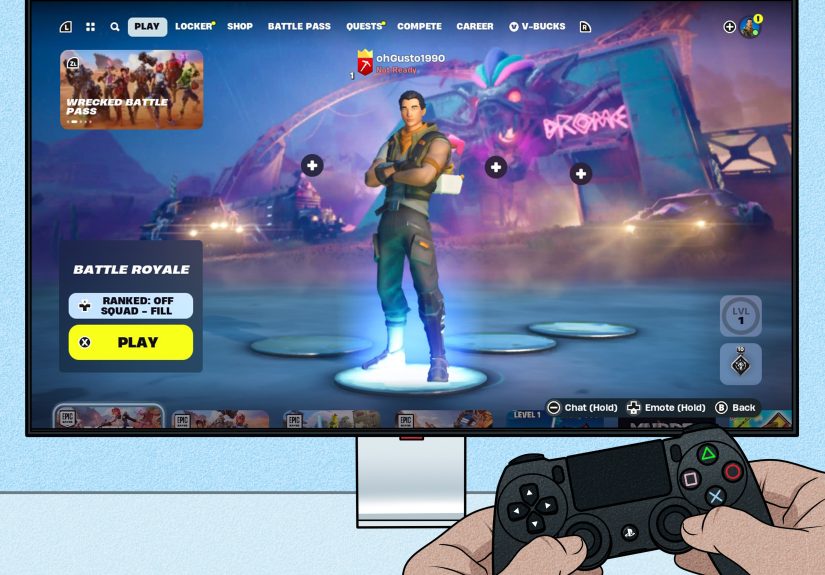
If you want the most “legit” method, Remote Play is it. Instead of connecting the DualSense to your PS4, you connect it to
a compatible device (phone, tablet, PC, Mac), then stream your PS4’s gameplay to that device using the PS Remote Play app.
Your button presses travel through the app to the console.
What You Need
- Your PS4 powered on or in Rest Mode with Remote Play enabled
- A stable home network (wired is best for the console)
- A compatible device: iPhone/iPad, Android phone/tablet, Windows PC, or Mac
- PS Remote Play app installed and signed in to the same PSN account
- Your DualSense controller connected to that device (USB or Bluetooth, depending on device)
How It Works (In Human Terms)
Remote Play turns your PS4 into a “game streaming server.” Your device becomes the screen (and the controller bridge).
This means you can play PS4 games with a DualSense even if the PS4 itself refuses the direct relationship.
Setup Steps (Typical Flow)
- Enable Remote Play on PS4: Go to Settings and enable Remote Play (wording varies slightly by system software version).
- Connect the PS4 to the internet: A wired Ethernet connection is strongly recommended for smoother streaming.
- Install and open PS Remote Play on your phone/tablet/PC/Mac and sign into PSN.
- Pair the DualSense to your device:
- Put DualSense in pairing mode (commonly: hold PS + Create until the light bar flashes).
- Find it in your device’s Bluetooth menu, or connect via USB cable.
- Start Remote Play and select your PS4 when prompted.
Best Games for Remote Play (And the Ones That Get Salty)
Remote Play is usually great for:
- Turn-based games and RPGs (Persona-style pacing)
- Indies and platformers
- Casual sports and party games
- Grinding sessions (leveling, crafting, daily quests)
It can be less ideal for:
- Competitive shooters where every millisecond matters
- High-level fighting games
- Anything where “input delay” makes you feel like you’re steering a boat with a spoon
Lag-Proofing Tips (As Much As Reality Allows)
- Use Ethernet for the PS4 whenever possible.
- Sit close to your Wi-Fi router (or use a strong 5 GHz connection if available).
- Lower streaming resolution in the Remote Play settings if stutters happen.
- Close other bandwidth hogs (big downloads, 4K streaming, cloud backups).
- Prefer USB controller connection to your device if Bluetooth feels unstable.
Option 2: Use a PS5 Controller on PS4 with a Bluetooth/USB Adapter (Common Unofficial Method)
If Remote Play feels like “a lot” and you just want to sit on the couch and play on the TV like a normal person,
a controller adapter may be the route you see recommended.
What an Adapter Actually Does
These adapters plug into the PS4’s USB port and act as a translator. Your DualSense connects to the adapter (often via Bluetooth),
and the adapter tells the PS4, “Hello, I am totally a compatible controller,” while quietly doing the interpretive dance of
converting inputs behind the scenes.
Important Reality Check: Features May Be Limited
Even with a great adapter, you should expect “PS4-style” controller behavior, not full DualSense magic.
In many cases, you’ll get:
- Basic buttons, sticks, and standard triggers
- Standard rumble (sometimes)
- Touchpad support (sometimes, depending on adapter/firmware)
But you typically won’t get:
- Adaptive triggers behaving like PS5 games
- Advanced haptics the way DualSense was designed for PS5 titles
- Full-feature audio/mic behavior through the controller in every setup
Adapter Shopping Tips (Without Turning This Into an Infomercial)
- Check firmware update support: adapters often rely on firmware updates to keep working after console updates.
- Read compatibility notes: some adapters support DualSense better than others, and features vary.
- Expect occasional quirks: mapping oddities, touchpad weirdness, or intermittent connection issues can happen.
- Be cautious with online competitive play: some games and communities dislike adapters; always follow game rules.
What Works (and What Doesn’t) When You Use DualSense for PS4 Gaming
Usually Works
- Movement and camera with the analog sticks
- Face buttons, D-pad, bumpers, triggers (as standard inputs)
- Start/Options-style menu functions (depending on adapter mapping or Remote Play UI)
Sometimes Works (Depends on Method)
- Touchpad: often works via adapters that explicitly support it; Remote Play generally handles it well through supported devices
- Rumble: may be basic rumble, not “next-gen haptics”
- Motion controls: may work inconsistently depending on the adapter and game
Usually Not the Full Experience
- Adaptive triggers (the PS5 “resistance” feel) are generally not replicated as intended on PS4 gameplay
- DualSense haptic showcase moments (the subtle, directional vibration effects) aren’t a PS4 feature set
Common Confusion: DualSense on PS4 Console vs DualSense for PS4 Games
Here’s the twist that causes about 47% of internet arguments:
- DualSense on a PS4 console: not supported directly.
- DualSense on a PS5 while playing PS4 games: yesbecause the PS5 supports the DualSense and can run many PS4 games.
In other words, the DualSense loves PS4 games. It just prefers to play them on a PS5.
FAQ: Your Most-Googled Questions
Can I connect a DualSense to PS4 via Bluetooth?
Not in the normal “pair and play” way. The PS4 doesn’t offer native DualSense compatibility.
Can I connect a PS5 controller to PS4 with a USB cable?
A USB connection may charge the controller, but it typically won’t behave like a native PS4 controller for gameplay without
Remote Play or an adapter in the mix.
Is Remote Play actually worth it?
For a lot of players, yesespecially if your Wi-Fi is strong and you’re playing games that don’t require ultra-low latency.
It’s also the most “official” way to make a DualSense part of your PS4 routine.
Will Sony ever add official DualSense support to PS4?
There’s no clear sign that PS4 will get official DualSense console support. Sony’s energy has largely moved to PS5-era
hardware and services, where the DualSense is already the star of the show.
Troubleshooting: When Things Get Weird (Because They Will)
“My DualSense won’t pair to my phone/PC for Remote Play.”
- Make sure the controller is in pairing mode (light bar flashing).
- Forget/remove the controller from Bluetooth devices if it’s already saved somewhere else.
- Try USB connection first to confirm the controller is functioning and charged.
“Remote Play connects, but gameplay feels laggy.”
- Switch the PS4 to Ethernet if possible.
- Reduce Remote Play resolution/frame rate settings.
- Move closer to the router or reduce other network usage.
“My adapter setup is inconsistent.”
- Check if the adapter needs a firmware update (many do, especially after console updates).
- Try a different USB port on the PS4.
- Test wired vs wireless connection to the adapter to isolate Bluetooth interference.
So… Should You Use a PS5 Controller on PS4?
Here’s the practical recommendation:
- If you want official + reliable: use Remote Play, and optimize your network.
- If you want couch gaming on the TV: consider a reputable adapter, but accept that features may be limited.
- If you’re ultra-competitive online: a real DualShock 4 is still the simplest “zero variables” choice for PS4 hardware.
Conclusion
The PS5 DualSense doesn’t natively work on a PS4 consolebut you’re not stuck. Remote Play is the clean, official workaround,
while adapters can offer a more traditional TV-and-couch experience with some trade-offs. Pick the method that fits your
patience level, your internet quality, and how allergic you are to setup screens.
And if anyone tells you this should be “easy in 2025,” just nod politely. Then remind them that printers still exist.
Real-World Experiences: What It’s Like Using DualSense for PS4 Play
Let’s talk about how this actually feels in real lifebecause the internet loves a clean “yes/no,” while your living room
is more of a “yes, but why is it blinking?” environment.
Scenario 1: The Couch Co-Op Scramble. A pretty common moment: a friend comes over, your DualShock 4 is low on battery,
and the only fully charged controller in sight is the DualSense. You try pairing it to the PS4 anyway (optimism is a beautiful thing),
and the PS4 responds by doing absolutely nothing helpful. If you have Remote Play ready on a tablet, though, you can sometimes
salvage the night: stream the PS4 to the tablet, connect the DualSense to the tablet, and suddenly you’re playing again.
The trade-off is that the “main screen” might now be the tablet, not the TVso your co-op energy becomes “two people huddled
like detectives over a glowing rectangle.” Weirdly fun. Not ideal for bragging rights.
Scenario 2: Late-Night Grinding Sessions. Remote Play shines when you’re doing calmer gameplaythink leveling up,
gathering materials, or knocking out daily objectives. With decent Wi-Fi, it can feel surprisingly smooth, and the DualSense
is comfortable enough that your hands don’t file a formal complaint after 45 minutes. This is also where you notice the big truth:
PS4 games don’t magically gain DualSense superpowers. The controller still feels great, but the “wow” features are mostly tied to PS5 games.
It’s like driving a luxury car through a school zone: comfy, yesthrilling, not exactly.
Scenario 3: The “Adapter Adventure.” If you go the adapter route, the experience often starts with hope,
continues with firmware updates, and ends with reliefassuming you picked a well-supported adapter.
Once it’s working, the feeling is closer to “normal PS4 gaming,” especially on the TV. But you may notice small quirks:
a touchpad that works but feels different, rumble that’s more basic, or a button mapping that needs a quick mental adjustment.
Most players adapt fast, but the first hour can feel like you’re speaking English with a mild accent.
Scenario 4: Competitive Games and the Latency Test. This is where you learn what you personally tolerate.
For some people, Remote Play latency is a non-issue; for others, it feels like their character is receiving instructions
via carrier pigeon. If you mostly play competitive shooters, fighting games, or anything requiring perfect timing,
you’ll likely prefer a direct DualShock 4 connection on PS4 hardware. If you’re more casualor your network is excellentRemote Play can still be fine.
The biggest takeaway from real setups: the DualSense can absolutely be part of PS4 gaming,
but it’s usually a “workaround relationship,” not a native pairing. When you accept thatand choose the method that fits your habits
it stops being frustrating and starts being genuinely useful.





 Close
Close