
Table of Contents >> Show >> Hide
- What Is a Yahoo Mail Signature?
- Before You Start: Prepare Your Signature Text
- How to Add a Signature to Yahoo Mail: 14 Steps
- Step 1: Open Yahoo Mail in Your Browser
- Step 2: Click the Settings Icon
- Step 3: Choose More Settings
- Step 4: Select Writing Email
- Step 5: Find the Signature Section
- Step 6: Turn On the Signature Toggle
- Step 7: Enter Your Signature Text
- Step 8: Format the Signature Carefully
- Step 9: Add a Useful Link If Needed
- Step 10: Save or Let Yahoo Auto-Save
- Step 11: Compose a Test Email
- Step 12: Review the Signature on Desktop and Mobile
- Step 13: Set Up or Edit Your Yahoo Mail Mobile Signature
- Step 14: Update Your Signature Regularly
- What Should You Include in a Yahoo Mail Signature?
- Yahoo Mail Signature Best Practices
- Common Yahoo Mail Signature Problems and Fixes
- Examples of Good Yahoo Mail Signatures
- Extra Experience-Based Tips for Adding a Signature to Yahoo Mail
- Conclusion
- SEO Tags
A good email signature is like a tiny digital handshake. It says who you are, how people can reach you, and, if you do it well, it makes your message look polished instead of “sent from the bottom of a sock drawer.” Whether you use Yahoo Mail for work, school, side projects, customer replies, or staying in touch with family, adding a signature can save time and make every outgoing email feel more complete.
This guide explains how to add a signature to Yahoo Mail in 14 clear steps. You will learn how to create a Yahoo Mail signature on desktop, how to adjust it on mobile, what to include, what to avoid, and how to fix common signature problems. The process is simple, but the details matter. A signature that is too long, too flashy, or packed with too many links can look cluttered. A clean signature, however, can quietly do a lot of work for you.
What Is a Yahoo Mail Signature?
A Yahoo Mail signature is a block of text automatically added to the end of outgoing messages. It can include your name, job title, company, phone number, website, social profile, disclaimer, or a short friendly sign-off. Instead of typing the same contact details every time, Yahoo Mail places the signature at the bottom of each email once the feature is turned on.
Think of it as your email’s closing scene. The message does the talking, and the signature rolls the credits. For personal emails, a simple name and phone number may be enough. For professional emails, you may want to include your role, company, website, and one useful link. The goal is not to build a billboard under every email. The goal is to make it easy for recipients to recognize you and respond.
Before You Start: Prepare Your Signature Text
Before opening your Yahoo Mail settings, write your signature in a separate note or document. This gives you room to edit without accidentally sending yourself into a formatting maze. A strong Yahoo Mail signature is usually short, readable, and useful. Four to six lines is a good target for most people.
Simple Personal Signature Example
Best regards,
Emily Carter
[email protected]
555-123-4567
Professional Signature Example
Jordan Lee
Marketing Consultant
Bright Oak Studio
[email protected] | 555-222-9011
brightoakstudio.com
If you are using Yahoo Mail for business, keep your signature aligned with your brand. Use your real name, a clear title, and one or two contact options. Avoid stuffing the signature with every social network you have touched since 2011. Your email signature is not a junk drawer; it is a shortcut.
How to Add a Signature to Yahoo Mail: 14 Steps
The steps below focus first on Yahoo Mail in a desktop browser, then cover mobile settings and testing. Yahoo occasionally changes labels or layout details, so your screen may look slightly different, but the general path remains familiar: open settings, find writing options, turn on the signature, enter your text, and test it.
-
Step 1: Open Yahoo Mail in Your Browser
Go to Yahoo Mail and sign in with the account where you want to add the signature. If you manage more than one Yahoo account, double-check that you are in the correct inbox. Adding a polished business signature to your personal “coupon hunting” account may create a fun but confusing Monday.
-
Step 2: Click the Settings Icon
Look for the gear-shaped Settings icon, usually near the top-right corner of the Yahoo Mail interface. This opens a quick settings panel. The signature option is usually not in the small quick panel itself, so do not worry if you do not see it immediately.
-
Step 3: Choose More Settings
In the settings panel, select More Settings. This opens the full settings area where Yahoo Mail stores deeper customization options, including writing preferences, mailbox behavior, filters, and signature controls.
-
Step 4: Select Writing Email
In the left-side menu, click Writing email. This section controls how your messages behave when you compose them. It is also where Yahoo Mail lets you enable, disable, or edit your email signature.
-
Step 5: Find the Signature Section
Scroll through the Writing email settings until you see the signature area. If you have more than one Yahoo Mail address or connected sending address, Yahoo may show signature controls for each address separately. This is useful because your work signature and personal signature probably should not be twins wearing different hats.
-
Step 6: Turn On the Signature Toggle
Use the toggle button to enable the signature for the email address you want. If the toggle is off, Yahoo Mail will not automatically add the signature to new messages. Once it is on, a text box should appear or become active.
-
Step 7: Enter Your Signature Text
Paste or type your prepared signature into the signature box. Start with the essentials: name, title, company, phone number, and website if relevant. If you are creating a personal signature, your name and one contact method may be enough.
-
Step 8: Format the Signature Carefully
If Yahoo Mail gives you formatting options, use them lightly. Bold your name if you want it to stand out. Keep font choices simple. Avoid neon colors, oversized text, and inspirational quotes so long they need their own table of contents. Clean formatting improves readability and helps your signature look professional across devices.
-
Step 9: Add a Useful Link If Needed
You can include a website, portfolio, booking page, LinkedIn profile, or company page. Choose one primary link if possible. Too many links may distract the reader and can make the signature look spammy. For a business signature, a website or appointment link is usually more useful than five social icons competing for attention.
-
Step 10: Save or Let Yahoo Auto-Save
Yahoo Mail settings may save automatically as you type, depending on the current interface. If you see a save button, click it. If there is no save button, exit the settings area and open a new message to confirm that your signature appears.
-
Step 11: Compose a Test Email
Click Compose and check the bottom of the new message. Your signature should appear automatically. Send a test email to yourself or another inbox you control. Testing is important because a signature can look perfect in the editor but behave differently once delivered.
-
Step 12: Review the Signature on Desktop and Mobile
Open the test message on a phone, tablet, and desktop if possible. Make sure the line breaks look normal, links work, and the signature does not dominate the message. A good email signature should support your email, not walk into the room with a marching band.
-
Step 13: Set Up or Edit Your Yahoo Mail Mobile Signature
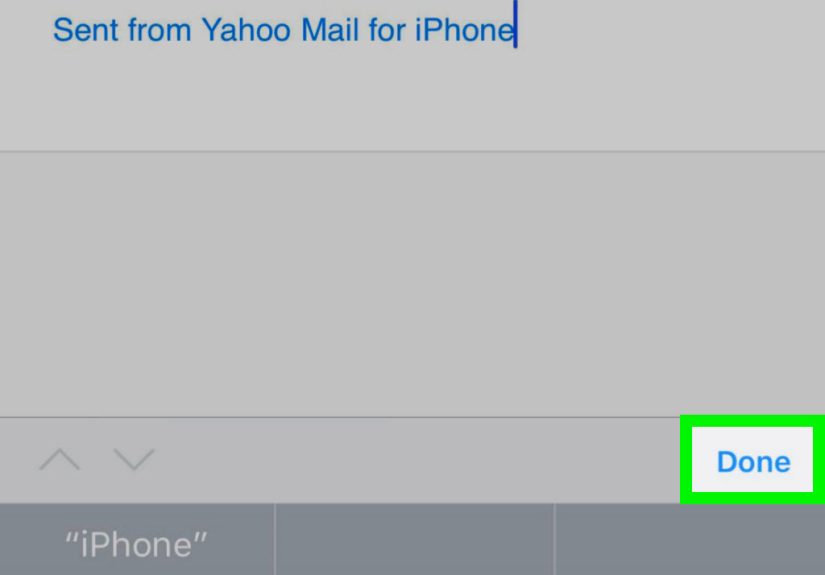
To manage your signature in the Yahoo Mail app, open the app, tap your profile or menu icon, go to Settings, and look for Signature or Signatures. Turn the signature on, enter your text, and go back to save. Labels may vary slightly between iPhone and Android, but the setting is usually under general mail settings.
-
Step 14: Update Your Signature Regularly
Review your Yahoo Mail signature every few months. Remove outdated job titles, old phone numbers, expired promotions, broken links, and seasonal messages that accidentally survived into July. A fresh signature keeps your email communication accurate and trustworthy.
What Should You Include in a Yahoo Mail Signature?
The best Yahoo Mail signature depends on how you use email. A student, freelancer, small business owner, customer service representative, and casual user all need different things. Still, most strong signatures share the same basic structure.
Essential Elements
For most users, include your full name, role or short description, company or organization if relevant, and one reliable contact method. If you want people to visit your website, include the URL. If you want replies only, skip the extra details. The signature should make the next step obvious.
Optional Elements
You may add a logo, social media link, appointment booking link, legal disclaimer, or short call to action. Use these only when they serve a clear purpose. A realtor might link to current listings. A designer might link to a portfolio. A consultant might link to a scheduling page. A personal user probably does not need a disclaimer that reads like a submarine manual.
Yahoo Mail Signature Best Practices
A signature should be readable, mobile-friendly, and quick to understand. Keep it text-based when possible because text loads faster and is easier to copy. If you use images, make sure the signature still makes sense when images do not load. Many email clients block images by default, and some recipients may use accessibility tools that rely on readable text.
Keep It Short
Long signatures can bury the actual message. Aim for a compact block. If your signature is longer than the email you sent, it may be time to trim it. Your recipient asked for the report, not the extended director’s cut of your contact details.
Use Professional Formatting
Stick with simple fonts, readable sizes, and modest colors. Black, dark gray, navy, or one brand accent color usually works well. Avoid rainbow formatting unless your brand is literally a rainbow formatting company.
Make Links Clear
If you include a link, make the destination obvious. Use your business website, portfolio, or LinkedIn profile. Avoid shortened links in professional signatures because they can look suspicious. Clear links build trust.
Think About Compliance for Business Email
If you send commercial or marketing messages, your email may need to follow rules such as including accurate sender information, a physical mailing address, and an unsubscribe option in appropriate contexts. A regular one-to-one Yahoo Mail signature is not a full email compliance system, but business users should understand the difference between personal correspondence and commercial email campaigns.
Common Yahoo Mail Signature Problems and Fixes
The Signature Does Not Appear
First, return to Settings, then More Settings, then Writing email, and confirm that the signature toggle is turned on for the correct sending address. Next, open a brand-new message rather than replying to an old draft. Some drafts may not refresh settings immediately.
The Signature Looks Messy
If spacing or fonts look strange, paste the signature as plain text and format it again inside Yahoo Mail. Copying from word processors or web pages can bring hidden formatting along for the ride. Hidden formatting is the glitter of digital writing: once it gets in, it shows up everywhere.
The Mobile Signature Is Different
Desktop and mobile signatures may be controlled separately. If your Yahoo Mail app still shows a default mobile signature or an outdated version, open the app settings and edit the mobile signature directly. Send another test email from your phone after changing it.
Links Do Not Work
Check that each link begins with the correct web address format and has no extra spaces. Send a test email and click the link from the received message, not just from the compose window. If the link is broken, replace it with a clean, full URL.
Examples of Good Yahoo Mail Signatures
Freelancer Signature
Maya Brooks
Freelance Copywriter
Website: mayabrookswrites.com
Book a project call: mayabrookswrites.com/contact
Small Business Signature
Daniel Nguyen
Owner, Green Porch Landscaping
555-818-4490 | greenporchlandscaping.com
Serving residential clients in Austin, TX
Student Signature
Avery Johnson
Communications Student, State University
[email protected]
LinkedIn: linkedin.com/in/averyjohnson
Simple Personal Signature
Thanks,
Robert Miller
555-600-1122
Extra Experience-Based Tips for Adding a Signature to Yahoo Mail
After helping many people clean up email signatures, one pattern becomes obvious: most signature problems come from trying to make the signature do too much. A signature is not a resume, brochure, motivational poster, legal department, and holiday card all squeezed into six inches of inbox space. It works best when it gives the reader exactly what they need and then politely gets out of the way.
One practical experience is to design your Yahoo Mail signature around the kind of reply you want. If you want a client to call you, make the phone number easy to spot. If you want someone to book a meeting, include one booking link with plain wording. If you want a hiring manager to view your work, link to a portfolio instead of three social profiles. The more choices you give people, the less likely they are to choose the one that matters.
Another useful tip is to create separate versions for different purposes. Your professional Yahoo Mail signature may include your job title, company, and website. Your personal signature may only need your name. If you use Yahoo Mail for a side business, make a signature that sounds credible without pretending to be a giant corporation. “Founder, Pine Street Candle Co.” is clear. “Global Executive Visionary of Aromatic Lifestyle Solutions” may cause the reader to stare into the distance and question modern civilization.
Testing is also more important than people expect. Always send a message to yourself after creating or editing a Yahoo Mail signature. Open it in a browser and on your phone. Look for awkward line breaks, oversized images, links that wrap badly, or text that becomes tiny on mobile. A signature that looks elegant on a laptop can turn into a skyscraper on a phone if it uses wide images or too many columns.
For business users, keep a small calendar reminder to review your signature quarterly. This is especially helpful if your job title, office location, phone extension, seasonal promotion, or website changes. Outdated signatures quietly damage trust. If your signature says “Now booking for 2023,” recipients may wonder whether your inbox is being maintained by a time traveler.
Be careful with images. A logo or headshot can look polished, but image-heavy signatures sometimes load slowly, appear as attachments, or disappear when images are blocked. If you use an image, keep the essential information in text too. That way, even if the image does not display, the recipient still sees your name and contact details.
Finally, remember that tone matters. A friendly sign-off can make your email feel warm, but avoid quotes or jokes that may not fit every recipient. What feels funny to a close friend may feel odd to a client, teacher, or support agent. When in doubt, choose clarity. A simple, accurate, readable Yahoo Mail signature will beat a flashy one almost every time.
Conclusion
Adding a signature to Yahoo Mail is a small setup task with a surprisingly big payoff. Once enabled, your signature can automatically add consistency, credibility, and convenience to every message you send. The key is to keep it useful: include your name, relevant contact information, and one clear next step if needed. Avoid clutter, test your signature on desktop and mobile, and update it whenever your details change.
Whether you are sending a job application, replying to a customer, contacting a teacher, or simply making your emails look less bare, a Yahoo Mail signature helps you close every message with confidence. It is quick to create, easy to edit, and much better than typing your phone number for the 400th time while wondering why technology has betrayed you.
SEO Tags
Note: Yahoo Mail menus and labe:ls may change slightly by account type, browser, app version, or device. If a setting name looks different, search within Yahoo Mail settings for “Signature” or “Writing email.”






 Close
Close