
Table of Contents >> Show >> Hide
- What Does “Boot From a CD, DVD, or BD Disc” Actually Mean?
- Before You Start: Check Your Hardware and Disc
- Step 1: Enter BIOS or UEFI Firmware Settings
- Step 2: Change the Boot Order to Try the Optical Drive First
- Step 3: Use a One-Time Boot Menu (Often Easier)
- Step 4: Watch for the “Press Any Key to Boot from CD or DVD” Prompt
- UEFI, Secure Boot, and Legacy Mode: Why They Matter
- Troubleshooting: Why Your PC Still Won’t Boot From the Disc
- Special Notes for Blu-ray (BD) Discs
- Real-World Experiences and Practical Tips
If you’ve ever tried to repair Windows, install Linux, or run a rescue tool, you’ve probably seen the advice: “Just boot from the CD or DVD.” Sounds simple… until your computer completely ignores the disc and sprints back into Windows like nothing happened.
Don’t worry. Booting from a CD, DVD, or Blu-ray (BD) disc is not magic, and you don’t need to be a BIOS wizard to do it. In this guide, we’ll walk through what a bootable disc is, how to change the boot order in BIOS or UEFI, how to use one-time boot menus, and what to do when your PC stubbornly refuses to boot from optical media.
What Does “Boot From a CD, DVD, or BD Disc” Actually Mean?
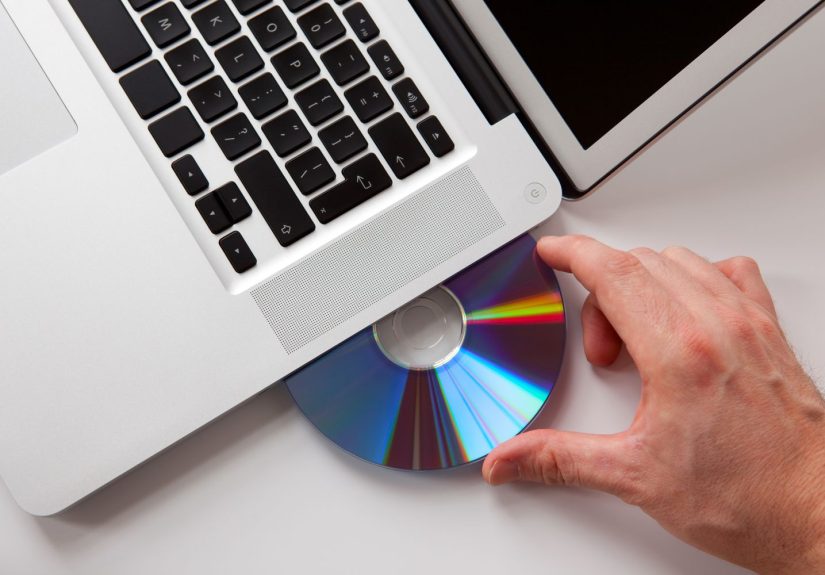
When you power on your computer, the firmware (BIOS or UEFI) decides which device to start from first: usually your internal hard drive or SSD. Booting from a CD, DVD, or BD disc just means telling the firmware, “Hey, start from this optical drive instead of the internal disk.”
A bootable disc is a CD, DVD, or Blu-ray that contains special boot code plus an operating system or utility. Instead of loading Windows from your SSD, your computer loads whatever is on that discmaybe a Windows installer, a Linux live environment, or a backup/recovery tool.
Typical reasons you might want to boot from optical media include:
- Installing or reinstalling an operating system (Windows, Linux, etc.).
- Running hardware diagnostics or memory tests from a bootable utility disc.
- Using rescue/repair tools to fix boot problems, recover files, or remove stubborn malware.
- Testing a new OS without touching your existing installation (for example, a Linux live DVD).
The core process is almost always the same:
- Have a working, bootable disc.
- Tell the firmware to try the optical drive first.
- Restart and press a key when prompted to “Press any key to boot from CD or DVD.”
Before You Start: Check Your Hardware and Disc
Before blaming BIOS, UEFI, or your computer’s entire family line, double-check a few basics.
1. Confirm You Actually Have an Optical Drive
Many modern laptops don’t include a CD/DVD/BD drive at all. Look for:
- A tray or slot on the side/front labeled CD/DVD, DVD-RW, BD-ROM, etc.
- In Windows, open Device Manager > DVD/CD-ROM drives to see if any optical device is listed.
If you don’t have an internal drive, you can use an external USB optical drive. Most modern UEFI systems can boot from external DVD/BD drives just like from USB flash drives.
2. Make Sure the Disc Is Bootable
Not every disc is bootable. A music CD or a disc you burned by dragging files into Windows Explorer is not going to boot your PC. Typically, bootable discs come from:
- Official Windows install media or OEM recovery media.
- Linux ISO images burned properly as “disc images,” not just copied as files.
- Backup and recovery tools that explicitly say they create bootable media.
If you downloaded an ISO file, you must burn it as a disc image using disc-burning software (not just drag-and-drop).
3. Inspect the Disc and Drive
Even bootable discs won’t work if they’re scratched like a cat toy. Check for:
- Scratches or dirt on the undersideclean gently with a soft cloth, wiping straight from center to edge.
- Correct disc typesome older drives can’t read DVD-R DL or BD discs.
If possible, test the disc in another computer. If it boots there, your disc is good and the problem is likely your boot order or firmware settings.
Step 1: Enter BIOS or UEFI Firmware Settings
To boot from CD, DVD, or BD, you usually need to either change the boot order or use a one-time boot menu. Both are accessed from the firmwareBIOS on older systems, UEFI on newer ones.
Common Keys to Enter BIOS/UEFI
When you power on the PC, a small message often flashes at the bottom of the screen: Press F2 to enter Setup or Press DEL to enter BIOS. Typical keys include:
- Delete or F2 on many desktops and custom builds.
- F1, F2, F10, F12, or Esc on many brand-name PCs (HP, Dell, Lenovo, etc.).
Turn your computer completely off. Then:
- Turn it on and immediately start tapping the appropriate key (F2, F10, Delete, etc.).
- If nothing happens, reboot and try a different keyyour manufacturer’s support site usually lists the exact one.
Accessing Firmware from Inside Windows (UEFI Only)
On Windows 10 and 11 systems with UEFI, you can also go through Advanced Startup:
- Click Start > Settings > System > Recovery.
- Under Advanced startup, click Restart now.
- Choose Troubleshoot > Advanced options > UEFI Firmware Settings > Restart.
Your system will reboot directly into the UEFI configuration screen.
Step 2: Change the Boot Order to Try the Optical Drive First
Once you’re in BIOS or UEFI, look for a tab or section labeled Boot, Boot Options, or Boot Order. The interface varies by manufacturer, but the idea is the same: you’ll see a list of devices in the order the system will try to boot from.
Typical Boot Order List
- Windows Boot Manager or Internal HDD/SSD
- CD/DVD/BD ROM Drive
- USB Drive
- Network Boot (PXE)
Your goal is to move the CD/DVD/BD ROM entry to the top, at least temporarily.
Changing Boot Order in Legacy BIOS
In classic text-based BIOS screens:
- Use the arrow keys to move to the Boot tab.
- Select the Boot Device Priority or similar option.
- Highlight CD/DVD/BD ROM.
- Use the on-screen instructions (often +/- or F5/F6) to move it to the top of the list.
- Press F10 to save and exit, then confirm.
Changing Boot Order in UEFI
UEFI interfaces are often mouse-friendly and graphical. Steps typically look like this:
- Open the Boot or Boot Configuration section.
- Look for Boot Option #1, #2, etc.
- Set Boot Option #1 to your optical drive, which might appear as:
- CD/DVD/CD-RW Drive
- UEFI: HL-DT-ST DVDRAM…
- Or similar, depending on your drive model.
- Save changes (often via Save & Exit or by pressing F10).
On some systems, you may need to add a boot option for the optical drive, especially when Secure Boot is enabled or the firmware only lists certain devices. In that case, refer to your PC or motherboard manual.
Step 3: Use a One-Time Boot Menu (Often Easier)
If you don’t want to permanently change the boot order, most modern PCs offer a one-time boot menu. This is a quick list that appears before your OS loads and lets you pick a device just for this one boot.
Common One-Time Boot Menu Keys
- F12 on many Dell and Lenovo systems.
- Esc or F9 on many HP systems.
- F8 or F11 on some others.
To use it:
- Turn off your PC.
- Insert the bootable CD, DVD, or BD disc.
- Turn the PC on and immediately start tapping the boot menu key (F12, F9, Esc, etc.).
- When the menu appears, select CD/DVD/BD ROM or the exact name of your optical drive.
- Press Enter to boot from that disc.
For many users, this is the safest method because your normal boot order remains unchanged once you reboot again.
Step 4: Watch for the “Press Any Key to Boot from CD or DVD” Prompt
Even with the boot order set correctly, many Windows installation and recovery discs display a brief message during startup:
“Press any key to boot from CD or DVD…”
If you miss that prompt, the system skips the disc and boots from the hard drive as usual. So after you restart:
- Keep an eye on the screen right after the PC starts.
- As soon as you see the message, press any key on the keyboard (Space, Enter, etc.).
If you don’t see the message at all, you might be dealing with a non-bootable disc or a boot order problem.
UEFI, Secure Boot, and Legacy Mode: Why They Matter
Newer PCs use UEFI firmware instead of classic BIOS and often have Secure Boot enabled. While this adds security, it can sometimes block older bootable discs that don’t support Secure Boot or UEFI properly.
When a Disc Won’t Boot on a UEFI System
If your disc is older (for example, an old Windows installer or a legacy tool), you may need to:
- Enable CSM (Compatibility Support Module) or Legacy Boot in UEFI.
- Temporarily disable Secure Boot in the UEFI settings.
- Use the one-time boot menu and choose a non-UEFI entry for the optical drive if shown.
Always revert any changes (like disabling Secure Boot) after you’re done, especially if you rely on features that require it.
Troubleshooting: Why Your PC Still Won’t Boot From the Disc
If the computer stubbornly refuses to boot from CD/DVD/BD even after you’ve set the boot order, run through this checklist:
1. Double-Check Boot Order and Boot Menu
- Is the optical drive really listed first?
- Are there multiple optical entries (for example, UEFI vs. Legacy) and you picked the wrong one?
- Did you save changes before exiting the BIOS/UEFI screen?
2. Test the Disc in Another System
If a second computer boots from the disc immediately, the disc is fine and your issue is firmware or hardware on the original system.
3. Try Another Optical Drive
Internal drives do failespecially if they’re older or have seen a lot of use. If you have access to an external USB DVD or BD drive, plug it in and see if the PC can boot from it using the boot menu.
4. Recreate the Bootable Disc
If you burned the disc yourself:
- Re-download the ISO file from the official source.
- Burn it again at a slower speed, using “burn image” or “write ISO” mode in your burning software.
- Use high-quality media (cheap blanks do fail more often).
5. Consider Alternatives: Booting From USB
Optical drives are slowly going the way of floppy disks. Many tools that used to ship as CD/DVD images now recommend bootable USB drives instead. If your system struggles with booting from disc but boots from USB just fine, it may be more practical to:
- Create a bootable USB version of your installer or recovery tool.
- Use the same boot order/boot menu techniques, but choose the USB drive instead of an optical drive.
Special Notes for Blu-ray (BD) Discs
Booting from a Blu-ray disc is conceptually the same as from a CD or DVDbut with a few extra “ifs” attached:
- Your optical drive must explicitly support BD-ROM/BD-R.
- Your firmware must recognize that BD drive as a bootable device.
- The Blu-ray must be authored as a proper bootable disc (not simply storing files).
In practice, bootable Blu-ray discs are less common than bootable DVDs or USB drives, mainly because USB is cheaper, faster, and more convenient. But if you do have a BD-based recovery or install disc, the same boot order and boot menu rules apply.
Real-World Experiences and Practical Tips
On paper, booting from a CD, DVD, or BD disc is a neat three-step process: change boot order, insert disc, restart. In real life, it often looks more like: change boot order, miss the key prompt, restart, get the wrong key, restart again, shout at the screen, then finally get it right. Here are some experiences and lessons that make the process smoother.
1. The “Blink and You Miss It” Prompt
The biggest complaint people have is that the “Press any key to boot from CD or DVD…” prompt flashes for about a second. If you’re looking at your phone or sipping coffee, it’s gone. A simple trick is to keep a finger resting on the Spacebar or Enter key and tap repeatedly as soon as you see the manufacturer logo on screen. It might feel a bit over-eager, but it dramatically increases your chances of catching the prompt.
2. Remember That Keyboards Can Be Sneaky
On some desktops that use wireless keyboards, the system doesn’t fully recognize the keyboard until later in the boot process. That means your F2 or F12 presses may be ignored at first. If you’re having trouble entering BIOS or boot menus:
- Try a wired USB keyboard temporarily.
- Plug the keyboard into a rear USB port on the motherboard instead of a front-panel hub.
This alone has saved plenty of people who thought their BIOS was “broken.”
3. Don’t Be Afraid of BIOS/UEFIBut Be Deliberate
It’s normal to feel nervous poking around firmware menus. The good news is that most changes you’ll need for booting from a disc are reversible: adjusting boot order, enabling the optical drive, or toggling a boot option. If you’re worried you might forget what you changed, snap a quick photo of the settings with your phone before making adjustments. That way, you can always put them back.
4. Legacy Tools vs. Modern Security
Many older bootable discs were designed before UEFI and Secure Boot became standard. If your brand-new Windows 11 laptop refuses to boot from a decade-old rescue disc, it’s not being rudeit’s being cautious. Temporarily disabling Secure Boot or turning on Legacy/CSM mode can get you around that for trusted tools, but remember to turn secure features back on when you’re done. Treat it like unlocking your front door for a guest: fine temporarily, not great as a permanent lifestyle choice.
5. Optical Discs Are Great… Until They Aren’t
Optical media has some nice properties: it’s read-only, doesn’t change, and is relatively cheap. That also means a bootable DVD you burned eight years ago may still function perfectlyif it hasn’t been scratched to oblivion. However, optical drives themselves wear out. If your discs spin up but never boot, yet the same discs work on another PC, your drive may simply be aging out.
At that point, don’t force it. A small external USB DVD drive is inexpensive and can extend the life of your disc-based tools without you cracking open your tower to replace hardware.
6. Have a Backup Plan
Even if your main goal is to understand how to boot from a CD, DVD, or BD disc, it’s smart to also know how to:
- Create a bootable USB drive with the same tools or installers.
- Access recovery environments built into Windows (like Reset this PC or Advanced Startup).
- Keep a copy of critical utilities in multiple formats (disc and USB).
That way, if your optical drive decides to retire early or a disc gets damaged, you’re not stuck. Redundancy might not be glamorous, but it’s the reason experienced technicians rarely panic when a single tool failsthey just move to the next option.
7. Practice Before You Need It
The best time to learn how to boot from a CD, DVD, or BD disc is before your system is on fire metaphorically. Take an evening, grab a known-good bootable disc, and walk through the steps of changing the boot order or using the boot menu. Once you’ve done it a couple of times, it stops feeling mysterious, and when something actually breaks, you’re ready.
In short: booting from a disc is a reliable, old-school technique that’s still useful today. With a little practiceand a bit of patience while you tap those function keysyou’ll have no trouble starting your PC from a CD, DVD, or BD whenever the situation calls for it.
sources:





 Close
Close