
Table of Contents >> Show >> Hide
- Why Proper Charging Matters for the DualSense
- The Main Ways To Charge a PS5 DualSense Controller
- How Long Does It Take To Charge a DualSense Controller?
- How To Tell if the Controller Is Charging
- Best Charging Habits for Everyday Use
- What To Do if Your PS5 Controller Won’t Charge
- Can You Play While Charging the DualSense?
- Is the Official Charging Station Worth It?
- Common Mistakes To Avoid
- Real-World Experiences With Charging the PS5 DualSense Controller
- Final Thoughts
Nothing ruins a perfect gaming night faster than a PS5 controller that gives up right before the final boss, the game-winning penalty kick, or that one suspiciously long cutscene you were definitely not planning to sit through with a blinking low-battery warning. The good news is that charging a PS5 DualSense controller is simple once you know the best methods, the common mistakes, and the settings that quietly decide whether your controller wakes up refreshed or remains as dead as your social life during a new game launch.
In this guide, you’ll learn exactly how to charge the PS5 DualSense controller, how long it typically takes, whether you can use a wall charger, how charging in Rest Mode works, what the orange light means, and what to do if your controller refuses to cooperate. We’ll also cover practical charging habits that can make your controller more reliable over time, because nobody wants to play “guess which cable works” every weekend.
Why Proper Charging Matters for the DualSense
The DualSense is not just another gamepad. It packs haptic feedback, adaptive triggers, a built-in battery, a speaker, a microphone, and enough tech to make older controllers look like they came from the fossil record. All of that extra hardware means battery management matters more than it did with older PlayStation controllers.
Charging the controller the right way helps with convenience, performance, and fewer connection headaches. It also keeps you from scrambling for a cable when your battery drops at the exact moment your friends are waiting in the lobby and judging you in complete silence.
The Main Ways To Charge a PS5 DualSense Controller
1. Charge It With the PS5 Console and USB-C Cable
This is the most common and most straightforward method. Sony designed the DualSense to charge through its USB-C port, and the easiest setup is to connect the controller directly to the PS5 with a USB cable.
Here’s how to do it:
- Turn on your PS5 or place it in Rest Mode with USB power enabled.
- Plug the USB end of the cable into the PS5.
- Plug the USB-C end into the controller.
- Wait for the controller to begin charging.
If everything is working correctly, the controller’s light bar will pulse orange while charging. On the PS5 screen, you’ll also see the battery icon animate with a lightning symbol. Once fully charged, the icon stops animating and shows a full battery.
This method is ideal because it uses the console and cable setup Sony expects most players to use. It is also the easiest method for new owners since the included cable is meant for both charging and pairing.
2. Charge It in PS5 Rest Mode
One of the most useful features of the PS5 is that the console can keep powering USB ports while in Rest Mode. That means you can stop playing, plug in the controller, and let it recharge while the console sleeps like a very expensive futuristic loaf of bread.
To charge the DualSense in Rest Mode:
- Go to Settings.
- Select System.
- Choose Power Saving.
- Open Features Available in Rest Mode.
- Set Supply Power to USB Ports to 3 Hours or Always.
If this setting is turned off, your controller may remain plugged in without actually charging. That is the kind of tiny menu setting that turns a peaceful evening into a detective story.
For many players, Rest Mode charging is the most convenient option because it keeps cables out of the way during play and lets the controller recharge between sessions.
3. Use a DualSense Charging Station
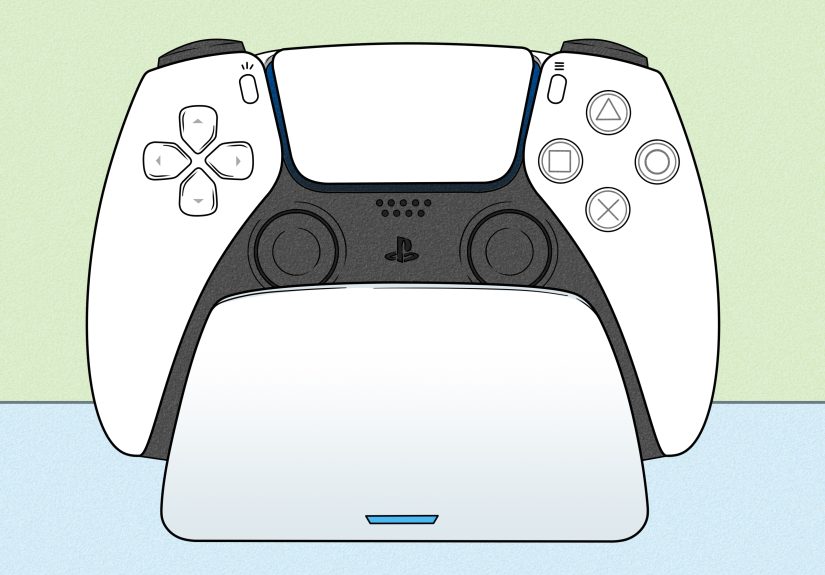
If you want the cleanest setup, a DualSense charging station is the premium option. Sony’s official DualSense Charging Station lets you dock up to two controllers at once without plugging them directly into the PS5. The controllers click into place and charge through the station’s built-in connectors.
This method is especially handy if:
- you own two controllers,
- you play couch co-op,
- you hate cable clutter, or
- you simply enjoy pretending your setup belongs in a glossy tech ad.
A charging station also frees up your PS5’s USB ports, which is useful if you already have other accessories connected. In many real-world setups, a full recharge takes around three hours, which is roughly in line with wired charging.
4. Use a USB-Compliant Wall Charger
Yes, you can charge a PS5 DualSense controller with a wall charger, as long as the charger is compliant with USB standards. This can be helpful if your console is off, your entertainment center is already full of wires, or you want to charge the controller somewhere else entirely.
That said, this is where people get a little too adventurous. Not every cable and charger combination works equally well. Sony notes that not all USB chargers will successfully charge the DualSense, so if the controller does not respond, the charger may simply be incompatible.
For best results, use a quality cable and a reputable charger. If something seems flaky, inconsistent, or weirdly loose, do not keep gambling on it like it’s a loot box.
How Long Does It Take To Charge a DualSense Controller?
Charging time depends on the battery level, the charging method, and whether the controller is being used while connected. In general, a near-empty DualSense controller usually takes about three hours to fully recharge under normal conditions.
If you are playing while charging, expect it to take longer. The controller is using power and receiving power at the same time, so it is less like filling a bucket and more like filling a bucket with a small hole in the bottom.
How To Tell if the Controller Is Charging
The DualSense gives you a couple of clear signs that charging is in progress.
Visual charging signs
- The light bar pulses orange.
- The PS5 displays an animated battery icon with a lightning symbol.
- When fully charged, the animation stops and the controller light turns off.
If you do not see the orange pulsing light or the battery icon animation, check the cable, the port, and the PS5 USB power settings.
Best Charging Habits for Everyday Use
Knowing how to charge the PS5 DualSense controller is one thing. Doing it in a way that feels effortless is another. Good charging habits save time and reduce those annoying “why is it dead again?” moments.
Charge after each longer session
If you just played for several hours, plug the controller in right away or dock it on the charging station. This makes your next session easier and avoids starting a game with one eye on the battery icon.
Keep one reliable cable nearby
Do not trust random mystery cables from a drawer full of electronic archaeology. Keep one known-good USB-C cable dedicated to the DualSense, especially if you ever need to pair, troubleshoot, or update the controller.
Use Rest Mode wisely
If you like charging overnight or between sessions, Rest Mode is your friend. Just make sure USB power is enabled. Otherwise, your controller will spend the night plugged in and accomplishing absolutely nothing, which is honestly relatable but still unhelpful.
Consider a second controller
If you game often, a second DualSense can make life easier. One controller charges while the other is in use. It is not the cheapest solution, but it is the smoothest one for long gaming sessions or shared households.
What To Do if Your PS5 Controller Won’t Charge
Sometimes the problem is not the controller. It is the cable, the port, the charger, the Rest Mode settings, or a cable that only charges but does not transfer data. Before assuming the controller is doomed, work through these fixes.
Try a different cable
Some USB-C cables are power-only, and some are charge-and-data cables. Sony specifically notes that charge-only cables cannot be used in some situations. If the controller is not responding properly, switch to the original cable or another trusted charge-and-sync cable.
Try a different USB port
If one port is unreliable, test another one. A different front or rear USB port on the PS5 may solve the problem immediately. This is also a smart way to figure out whether the issue is the cable or the port.
Check the controller’s USB-C port
Dust, lint, and debris can interfere with the connection. Inspect the controller port carefully and clean it gently if needed. No dramatic tools required. This is a tiny port, not a home renovation project.
Use a different charger
If charging through the PS5 does not work, test a USB-compliant wall charger or a charging station. If the controller charges somewhere else, the console port or settings may be the issue.
Update the controller firmware
Controller firmware updates can improve stability and fix bugs. If the controller can connect while plugged in, check for updates through the PS5 settings.
Check whether it charges but won’t hold a charge
If the controller works only while plugged in, the battery itself may be the problem. That is different from a charging failure and may require repair or replacement.
Can You Play While Charging the DualSense?
Yes. You can absolutely play while the controller is plugged in and charging. This is useful during long sessions or when the battery runs low and you do not want to stop. A longer cable helps a lot here, especially if your couch is located at the traditional gamer distance of “farther than Sony imagined.”
Wired charging during gameplay is practical, but it is not always the most comfortable setup. If you dislike cable drag or limited movement, a charging station plus a backup controller is usually the better long-term solution.
Is the Official Charging Station Worth It?
For casual players, the included cable is usually enough. For frequent players, households with two controllers, or anyone who values a tidy setup, the official charging station is genuinely convenient.
Its biggest benefits are simple:
- it charges two controllers at once,
- it does not use the PS5’s USB ports,
- it keeps controllers stored neatly, and
- it makes charging feel automatic instead of like another task.
That last point matters more than people think. The easier charging becomes, the more likely you are to keep your controller topped up.
Common Mistakes To Avoid
Ignoring Rest Mode settings
If USB power is off in Rest Mode, your controller may not charge at all.
Using a bad cable
A weak, damaged, or charge-only cable can cause charging and syncing problems.
Waiting until the battery is nearly dead every time
It is much easier to charge casually after sessions than to constantly rescue the controller at one percent battery.
Assuming every wall charger works the same way
USB-compliant chargers can work, but not every charger or cable combo will behave well with the DualSense.
Real-World Experiences With Charging the PS5 DualSense Controller
In everyday use, charging the DualSense tends to fall into one of three categories. First, there are the organized players who plug the controller in after every session or drop it onto a charging dock like they are parking a luxury car. These people almost never have problems, and frankly, they deserve the peace they have created for themselves.
Second, there are the “I’ll charge it later” players. They finish gaming, set the controller on the coffee table, and promise themselves they will plug it in after grabbing a snack, answering a text, or checking one thing online. Two hours later, the controller is still sitting there untouched, and tomorrow’s session begins with a frantic cable hunt. If this sounds familiar, welcome to the club. Membership is free, but the battery anxiety is not.
Third, there are the couch-distance realists. These players know the controller will die mid-session eventually, so they keep a long USB-C cable nearby and accept that sometimes gaming looks less “next-gen lifestyle ad” and more “small command center built around survival.” This approach works surprisingly well. It is not glamorous, but it gets you through boss fights, ranked matches, and cutscenes that somehow last longer than short films.
One of the most common experiences PS5 owners report is confusion over Rest Mode charging. A lot of people assume that plugging the controller into the console automatically means it will charge while the PS5 sleeps. Then they come back later, pick up the controller, and discover the battery is still low. Usually, the fix is simple: check the USB power settings in Rest Mode. It is one of those small setup steps that feels boring until it saves you from repeated frustration.
Another real-world lesson is that not all USB-C cables are equally useful. Some cables are excellent. Some are merely okay. And some seem to have been manufactured by tiny chaos goblins whose only mission is to make electronics behave inconsistently. A cable may charge one device fine but fail to sync the controller correctly or deliver an unreliable connection. Keeping one dependable cable for the DualSense can save a ridiculous amount of time.
Players who buy the official charging station often describe the experience less as a major technological upgrade and more as a lifestyle improvement. You finish playing, place the controller on the dock, and you are done. No cable plugging. No leaning around the entertainment stand. No wondering whether the connection is secure. It is a small convenience, but repeated small conveniences are how a gaming setup starts to feel polished.
There is also the co-op factor. In homes with siblings, roommates, partners, or kids, controller charging becomes less about one device and more about traffic control. A charging station helps because it creates a predictable place for controllers to live when they are not in use. That sounds minor until one person leaves a controller uncharged in another room and everyone else discovers the problem five minutes before game night.
Ultimately, the best charging method is the one you will actually use consistently. For some people, that is the included USB-C cable. For others, it is Rest Mode charging. For serious players, it is a charging station and a backup controller. The DualSense is easy enough to charge, but convenience is what turns “easy enough” into “never have to think about it again.” And that is the real dream.
Final Thoughts
If you want the simplest answer to how to charge the PS5 DualSense controller, here it is: use the included USB-C cable with the PS5, enable USB power in Rest Mode, and watch for the orange pulsing light. If you want the most convenient long-term answer, add a charging station or keep a second controller ready to rotate in.
The DualSense is one of the PS5’s best features, but it is only magical when it actually has battery life. Build a simple charging habit now, and future-you will spend less time troubleshooting and more time playing.





 Close
Close