
Table of Contents >> Show >> Hide
- Can You Connect AirPods Directly to Xbox?
- Why Xbox and AirPods Do Not Pair Natively
- Method 1: Connect AirPods to Xbox Using the Xbox App
- Method 2: Connect AirPods to a Bluetooth TV or Monitor
- Method 3: Use a Bluetooth Adapter or Transmitter
- Which Method Is Best?
- Common Problems and How to Fix Them
- FAQ: Pair Bluetooth Headphones to Xbox
- Real-World Experiences: What Using AirPods With Xbox Actually Feels Like
- Final Thoughts
- SEO Tags
If you have ever stared at your Xbox while holding your AirPods and thought, “Why can I connect these to a toothbrush, a phone, and probably a toaster, but not my console?” you are not alone. The good news is that using AirPods with Xbox is absolutely possible. The bad news is that it is not a simple, magical, one-tap Bluetooth pairing. Xbox consoles do not work with regular Bluetooth headphones the way a phone, tablet, or laptop does.
Still, do not throw your earbuds dramatically across the room just yet. There are several smart workarounds that let you hear Xbox game audio through AirPods and, in some cases, even chat with friends. In this guide, you will learn exactly how to connect AirPods to Xbox, which method works best for your setup, what limitations to expect, and how to fix the most annoying issues without turning your gaming night into a tech support marathon.
Can You Connect AirPods Directly to Xbox?
Here is the straight answer: no, not directly in the usual Bluetooth sense. You cannot open the Bluetooth menu on an Xbox Series X, Xbox Series S, or Xbox One, put your AirPods in pairing mode, and connect them like you would on an iPhone. Xbox uses its own wireless ecosystem for most accessories, which is why standard Bluetooth earbuds like AirPods are not natively supported on the console itself.
That sounds annoying because, frankly, it is. But it does not mean AirPods are useless for Xbox gaming. It simply means you need to use one of three real-world methods:
1. Use the Xbox app and Remote Play
This is one of the most popular ways to hear Xbox audio through AirPods. Your phone becomes the middleman, and your AirPods connect to the phone instead of the console.
2. Connect AirPods to a Bluetooth-enabled TV or monitor
If your display supports Bluetooth audio output, this can be a clean and easy method for solo gaming.
3. Use a Bluetooth transmitter or adapter
A compatible transmitter connected to your controller or TV can route Xbox audio to your AirPods without needing to stream through your phone.
Why Xbox and AirPods Do Not Pair Natively
Before jumping into the steps, it helps to understand why this is even a thing. Many gamers assume that because Xbox controllers have Bluetooth support, the console must also support Bluetooth headphones. That would be wonderfully logical. Sadly, gaming hardware does not always run on logic.
Xbox controllers can use Bluetooth in certain situations, especially when paired with PCs, phones, and tablets. But that does not mean the Xbox console is designed to accept generic Bluetooth audio devices like AirPods. Microsoft has long favored its own wireless standards and officially supported accessories, including Xbox-compatible headsets and devices that connect through a wired jack, USB dongle, or the Xbox Wireless protocol.
So when people search for “pair Bluetooth headphones to Xbox,” what they really need is not a hidden menu. They need a workaround that gets the same end result: Xbox sound in their ears without a cable draped across the couch like a sleepy snake.
Method 1: Connect AirPods to Xbox Using the Xbox App
If you want to use AirPods with Xbox without buying extra hardware, this is usually the best starting point. The idea is simple: you enable Remote Play on the console, run the Xbox mobile app on your phone, and connect your AirPods to the phone. Your Xbox audio is then streamed to the mobile device and into your earbuds.
How to set it up
Step 1: Prepare your Xbox for Remote Play.
On your Xbox, go to Settings, then find the remote features area. Make sure remote play is enabled and let the console run any setup checks it needs.
Step 2: Pair your AirPods with your phone.
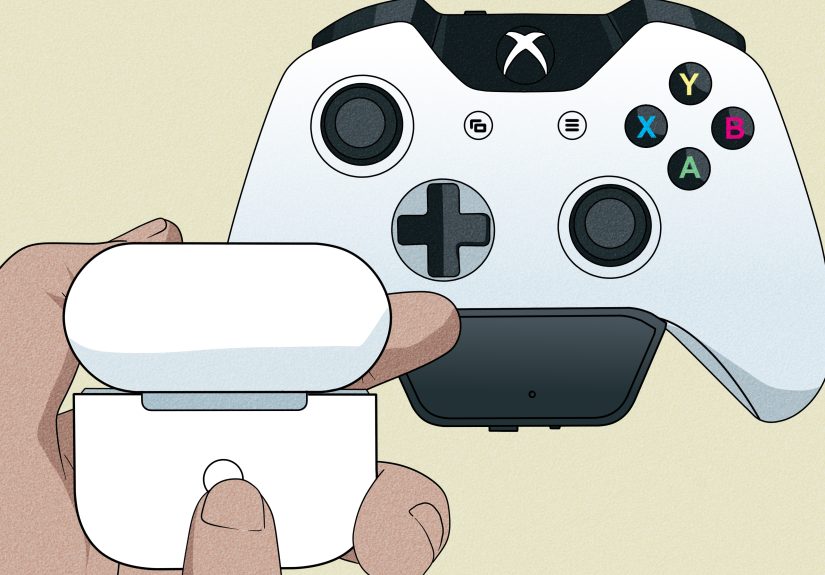
Turn Bluetooth on your iPhone or Android phone. Put your AirPods in pairing mode and connect them as you normally would. For most AirPods models, that means placing them in the case, opening the lid, and using the setup control on the case until the light flashes white.
Step 3: Open the Xbox app.
Sign in with the same Microsoft account you use on your console. Find the console connection or remote play feature in the app.
Step 4: Start Remote Play.
Once your phone connects to the Xbox, the app will stream your console session. Audio from the Xbox should now come through your AirPods.
Pros of this method
It does not require buying an adapter. It works well if you already keep your phone nearby. It is also handy for party chat and remote access, especially if you are already comfortable using the Xbox mobile app.
Cons of this method
Your phone has to stay involved the whole time. Some users notice a little latency depending on network quality. It can also feel like overkill if you just want to play on the TV sitting right in front of you.
Best for: players who want a free method and do not mind using their phone during gaming sessions.
Method 2: Connect AirPods to a Bluetooth TV or Monitor
This is the easiest method if your TV or monitor supports Bluetooth audio output. Instead of asking the Xbox to talk to your AirPods, you let the display handle the pairing. The Xbox sends audio to the TV through HDMI, and the TV then sends that sound to your AirPods.
How to do it
Step 1: Open your TV or monitor settings.
Look for a Bluetooth, Sound, Audio Output, or Accessories menu. Every brand buries it in a slightly different location because apparently treasure hunting builds character.
Step 2: Put your AirPods in pairing mode.
Open the AirPods case and activate pairing mode according to your model.
Step 3: Select the AirPods from the display’s Bluetooth menu.
Once connected, route TV audio to the earbuds.
Step 4: Start your Xbox game.
Because the Xbox audio goes through HDMI to the display, you should now hear game sound in your AirPods.
Why people like this method
It keeps your phone free. It is simple. It feels more direct than Remote Play. It is often excellent for watching movies, streaming apps, and quieter solo gaming sessions.
What to watch out for
The biggest catch is that this method is usually audio only. Your AirPods microphone may not work for Xbox party chat when connected through a TV. Some displays also introduce noticeable audio delay, especially cheaper models with weaker Bluetooth performance.
Best for: single-player gaming, Netflix marathons, and people whose TV already supports Bluetooth headphones.
Method 3: Use a Bluetooth Adapter or Transmitter
If you want a more dedicated setup, a Bluetooth transmitter can bridge the gap between Xbox and AirPods. These devices typically connect to the Xbox controller’s 3.5mm port or to the TV’s audio output. Some are made specifically for Xbox controllers, while others are general-purpose TV transmitters.
How this method works
The transmitter receives audio from the controller or TV, then broadcasts that audio over Bluetooth to your AirPods. In other words, it acts like a translator between two devices that stubbornly refuse to speak the same language.
How to set it up with a controller adapter
Step 1: Attach the adapter.
Plug the Bluetooth adapter into your Xbox controller’s 3.5mm jack or accessory port, depending on the model.
Step 2: Turn on pairing mode on the adapter.
Most adapters have a pairing button or LED indicator.
Step 3: Put your AirPods into pairing mode.
Open the case and activate pairing mode.
Step 4: Wait for the connection to complete.
Once paired, Xbox audio should route through the adapter into your AirPods.
How to set it up with a TV transmitter
If your TV does not have built-in Bluetooth, you can use a dedicated Bluetooth TV transmitter. Connect it to the TV’s audio output, pair your AirPods, and send Xbox sound through the display as usual.
Advantages of using an adapter
You get a more direct setup than Remote Play. You do not have to keep the Xbox app open on your phone. Some adapters are compact, affordable, and surprisingly effective.
Disadvantages of using an adapter
Audio quality and latency vary by adapter. Microphone support is inconsistent. Cheap transmitters can create hiss, lag, pairing frustration, or the urge to start negotiating with inanimate objects.
Best for: gamers who want a hardware-based solution and plan to use AirPods with Xbox regularly.
Which Method Is Best?
The best method depends on how you actually use your Xbox.
Choose the Xbox app if:
You want a free solution, already use your phone while gaming, and do not mind a setup that depends on Remote Play.
Choose TV Bluetooth if:
Your display supports Bluetooth audio and you mainly want game sound or movie audio without buying extra gear.
Choose a Bluetooth adapter if:
You want the most console-like experience possible with AirPods and are willing to spend a little money to make it happen.
Choose a proper Xbox headset if:
You game online a lot, care about low latency, and want reliable chat without workarounds. Sometimes the best solution is admitting the workaround has become a lifestyle.
Common Problems and How to Fix Them
AirPods will not enter pairing mode
Make sure the AirPods are charged. Put both earbuds in the case, open the lid, and use the correct pairing control for your model. If they still refuse to cooperate, disconnect them from your phone or other nearby devices first.
AirPods keep reconnecting to your iPhone
This is classic AirPods behavior. They love familiar Apple devices. Temporarily disconnect Bluetooth on your phone, forget the AirPods from nearby devices, or keep the phone farther away during pairing.
There is audio lag
Bluetooth audio can introduce delay, especially through TVs, mobile streaming, or low-quality adapters. If timing matters for competitive shooters, rhythm games, or anything involving fast cues, a wired headset or Xbox-specific wireless headset will usually feel better.
You hear game audio but cannot use voice chat
This is common when using TV Bluetooth or some transmitters. If party chat is important, the Xbox app method may help, or you may need an adapter with microphone support. In many cases, AirPods work better for listening than for full console chat integration.
Only one AirPod works
Place both earbuds back in the case, let them charge for a moment, then reconnect. You can also unpair and re-pair them. This issue is often with the earbuds, not the Xbox setup itself.
FAQ: Pair Bluetooth Headphones to Xbox
Can I connect AirPods to Xbox Series X or Series S directly?
No. There is no standard Bluetooth headphone pairing option built into the console for AirPods.
Can I connect AirPods to Xbox One?
Not directly through standard Bluetooth pairing. You will need one of the same workarounds: the Xbox app, a Bluetooth-enabled TV, or a compatible adapter.
Can I use any Bluetooth headphones with Xbox?
Not natively. AirPods, Galaxy Buds, and most Bluetooth earbuds need a workaround. Xbox-compatible wireless headsets are a different category because they are designed for the console’s ecosystem.
Does the Xbox controller’s Bluetooth help pair AirPods?
No. The controller’s Bluetooth support does not mean the console supports Bluetooth audio accessories in the way a smartphone does.
Is a Bluetooth adapter worth it?
If you really want to use AirPods on Xbox often, yes. It is one of the most practical long-term workarounds. Just choose a reputable adapter and keep your expectations realistic about microphone support and latency.
Real-World Experiences: What Using AirPods With Xbox Actually Feels Like
The first time most people try this, they expect it to work like connecting AirPods to a phone. Open case, tap device, done. Then reality walks in wearing steel-toe boots. You search the Xbox settings, find no obvious Bluetooth headphone option, and immediately wonder whether the internet has been lying to you. It has not been lying exactly, but it has definitely been leaving out the part where “easy” really means “easy once you know the workaround.”
A common experience starts with the Xbox app. You connect your AirPods to your phone, launch Remote Play, and suddenly hear your game through the earbuds. That first successful moment feels weirdly triumphant, like you personally defeated technology in single combat. The sound works, the game loads, and you think, “Great, problem solved.” Then you realize your phone now has to stay involved the whole time. For some players, that is perfectly fine. For others, it feels like inviting a third wheel onto the couch.
The TV Bluetooth method has its own personality. When it works, it is wonderfully clean. No extra dongles, no streaming through a phone, no clutter. You pair the AirPods to the television and just play. This setup feels especially nice late at night when everyone else in the house is asleep and you do not want the opening explosion of an action game to shake the walls. The downside is that some people notice a small delay between what they see and what they hear. In a slow-paced adventure game, that is no big deal. In a competitive match, it can feel like your ears showed up a quarter-second late.
Bluetooth adapters create a different kind of experience: the “I refuse to be defeated by a console” experience. For tinkerers, this method is satisfying. You plug the adapter into the controller, pair the AirPods, and suddenly the whole setup feels closer to the wireless solution you wanted all along. The trouble is that not every adapter behaves the same way. One gamer gets smooth audio and a happy evening. Another gets random disconnects and spends twenty minutes holding tiny buttons while muttering words not suitable for a family website.
Another very real experience is discovering that listening and talking are not always the same thing. Plenty of users can get game audio through AirPods but run into hiccups with voice chat. That matters a lot if your favorite hobby is yelling “behind you!” at teammates who never seem to hear it in time. If you mostly play solo games, this may not matter at all. If you live in party chat, it matters immediately.
In the end, the overall experience of using AirPods with Xbox is less about one perfect method and more about matching the workaround to your habits. Casual players often love the convenience. Competitive players often decide a proper Xbox headset is less headache. And nearly everyone goes through the same emotional arc: optimism, confusion, minor annoyance, accidental success, and then the quiet satisfaction of hearing the game through the earbuds they already own.
Final Thoughts
So, can you connect AirPods to Xbox? Yes, but not in the direct Bluetooth way most people expect. If you want a free fix, use the Xbox mobile app with Remote Play. If your TV supports Bluetooth, that can be the easiest no-fuss option for solo listening. If you want a more dedicated setup, a Bluetooth adapter or transmitter is often the most practical long-term solution.
The trick is not asking, “Can Xbox pair with AirPods?” The better question is, “Which workaround fits the way I play?” Once you answer that, the setup gets much easier. And if all else fails, remember this: technology is just adulthood’s version of a boss fight, except the reward is hearing the game without waking up the whole house.






 Close
Close