
Table of Contents >> Show >> Hide
- What Is a HEIC File?
- HEIC vs. JPG: Why Convert?
- Before You Start: Install HEIF Support on Windows
- Method 1: Convert HEIC to JPG with the Windows Photos App
- Method 2: Convert HEIC to JPG with Microsoft Paint
- Method 3: Convert HEIC to JPG in Bulk with a Converter
- Which Method Should You Choose?
- How to Stop iPhone Photos from Saving as HEIC
- Common Problems When Converting HEIC to JPG on Windows
- Practical Examples
- Tips for Better HEIC to JPG Conversion
- My Experience Converting HEIC to JPG on Windows
- Conclusion
If you have ever transferred photos from an iPhone to a Windows PC and suddenly met a folder full of mysterious .HEIC files, congratulations: you have discovered one of modern technology’s favorite little pranks. The photo is there. The memory is there. Your computer, however, may stare at it like it has just been handed a menu written in ancient runes.
The good news is that converting HEIC to JPG on Windows is not difficult. You do not need to be a developer, a photographer, or the family member who “knows computers” and is therefore unpaid tech support forever. In most cases, you can convert HEIC images using built-in Windows apps, a free offline converter, or a browser-based tool.
This guide explains three simple methods to convert HEIC files to JPG on Windows, when to use each one, and how to avoid the problem in the future. Whether you have one photo, 30 vacation pictures, or 1,000 images from your iPhone that somehow multiplied like digital rabbits, you will find a practical solution below.
What Is a HEIC File?
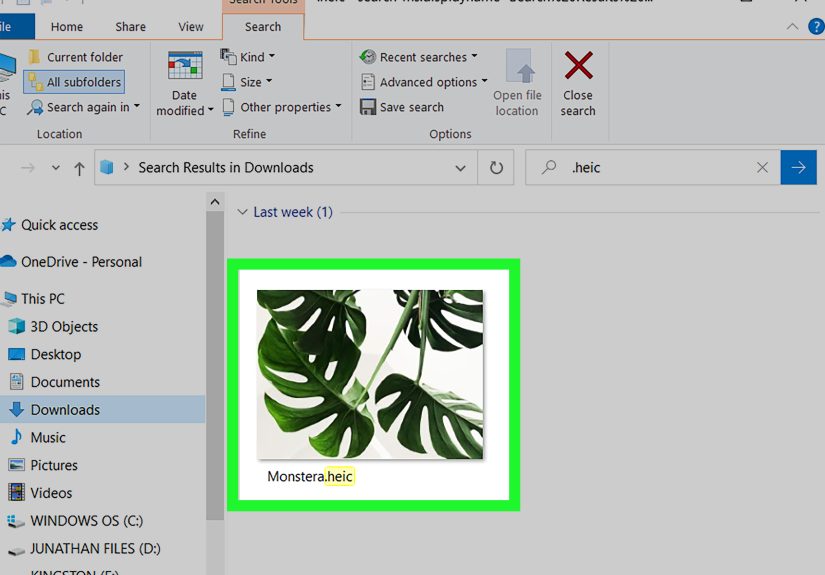
HEIC stands for High Efficiency Image Container. It is Apple’s common file format for photos saved using the HEIF standard. Since iOS 11, many iPhones and iPads have used HEIC because it can store high-quality photos at smaller file sizes than traditional JPEG images.
That smaller file size is great for saving storage on your iPhone. It means more room for photos, videos, apps, screenshots, memes, and the 47 nearly identical pictures of your lunch that you definitely meant to delete later.
However, HEIC is not as universally compatible as JPG. Many websites, older apps, printers, forms, document upload portals, and Windows programs still prefer or require JPG. That is why converting HEIC to JPG is often necessary when sharing photos, uploading images, editing files, or organizing a photo library on a Windows computer.
HEIC vs. JPG: Why Convert?
HEIC is efficient, modern, and storage-friendly. JPG is older, widely supported, and accepted almost everywhere. Think of HEIC as the sleek electric car of image formats and JPG as the reliable pickup truck that every garage knows how to fix.
Main Reasons to Convert HEIC to JPG
- Better compatibility: JPG works with nearly every website, app, email service, printer, and editing program.
- Easier sharing: Friends, clients, coworkers, and online platforms are less likely to have trouble opening JPG files.
- Simpler editing: Many basic photo editors support JPG without extra extensions.
- Required uploads: Job applications, school portals, government forms, and e-commerce platforms often request JPG or PNG files.
- Windows convenience: JPG files usually show thumbnails, previews, and file details without extra setup.
The trade-off is that JPG uses lossy compression. That means some image data may be discarded during conversion, especially if you choose a lower quality setting. For everyday use, social media, websites, documents, and email, the difference is usually hard to notice. For professional photo editing, keep the original HEIC file as a backup.
Before You Start: Install HEIF Support on Windows
On many Windows 10 and Windows 11 PCs, HEIC files may not open correctly unless HEIF support is installed. Microsoft provides a HEIF Image Extensions app through the Microsoft Store that allows Windows to read and write files using the High Efficiency Image File format.
If you double-click a HEIC image and Windows cannot open it, do this first:
- Open the Microsoft Store.
- Search for HEIF Image Extensions.
- Install the extension.
- Try opening your HEIC photo again in the Photos app.
Some HEIC files may also require HEVC-related support, depending on how the image was encoded. If Windows still refuses to cooperate, do not panic. Windows is not judging your photography. It simply needs the right codec support or a converter that can handle HEIC files directly.
Method 1: Convert HEIC to JPG with the Windows Photos App
The easiest way to convert a single HEIC file to JPG on Windows is to use the built-in Photos app. This method is best when you only need to convert one or a few images and you do not want to install extra software beyond the necessary image extension.
Best For
- One or two HEIC files
- Quick conversions
- Users who prefer built-in Windows tools
- Simple sharing by email, upload, or message
Steps to Convert HEIC to JPG in Photos
- Find the HEIC file on your Windows PC.
- Double-click the image to open it in the Photos app.
- If it does not open, install the HEIF Image Extensions from the Microsoft Store and try again.
- Click the three-dot menu or the available Save as option.
- Choose JPEG or JPG as the file type.
- Select a folder and save the new JPG version.
After saving, you should have two files: the original HEIC and the new JPG. Keep the HEIC if you want the original version. Use the JPG for uploads, printing, editing, or sending to someone whose device acts offended by HEIC files.
Pros of Using Photos
- No complicated setup
- Works well for casual users
- Uses familiar Windows tools
- Good for quick single-photo conversion
Cons of Using Photos
- Not ideal for large batches
- May require HEIF or HEVC support first
- Menu names can vary slightly depending on your Windows version
Method 2: Convert HEIC to JPG with Microsoft Paint
Microsoft Paint has been around so long that it deserves its own tiny museum exhibit. But do not underestimate it. Paint can still be useful for quick image format conversion, including saving an opened HEIC image as a JPG.
This method is similar to using Photos, but it gives you a little more control if you also want to crop, resize, mark up, or make basic edits before saving.
Best For
- Quick edits before conversion
- Resizing images for websites or forms
- Saving a HEIC photo as JPEG after opening
- Users who like simple desktop tools
Steps to Convert HEIC to JPG in Paint
- Right-click the HEIC file.
- Select Open with, then choose Paint.
- If the file does not open, install HEIF support from the Microsoft Store.
- Once the photo opens, click File.
- Select Save as.
- Choose JPEG picture.
- Name the file and save it in your preferred folder.
Paint is especially handy when a website asks for a JPG under a specific file size. You can resize the image, crop unnecessary areas, then save it as a JPEG. It is not a professional photo editor, but for basic conversion, it does the job without wearing a fancy hat.
Pros of Using Paint
- Built into Windows
- Allows simple editing before saving
- Great for resizing and cropping
- Easy to understand
Cons of Using Paint
- Not efficient for hundreds of files
- May remove or alter some metadata
- Requires HEIC support to open the original file
Method 3: Convert HEIC to JPG in Bulk with a Converter
If you have a folder full of HEIC photos, converting them one at a time through Photos or Paint will become boring faster than watching a progress bar at 2%. For batch conversion, use a dedicated HEIC converter.
There are two main types: offline converters and online converters. Offline tools process files on your PC, which is better for privacy and large batches. Online tools work in your browser and are convenient when you need a quick conversion without installing software.
Option A: Use an Offline HEIC Converter
Offline converters such as iMazing Converter or CopyTrans HEIC are popular because they can convert multiple HEIC files to JPG without uploading your photos to the internet. This is a smart choice for personal photos, client images, work files, family albums, or anything you would rather not send to a cloud service.
General Steps for Offline Batch Conversion
- Download a reputable HEIC converter for Windows.
- Install and open the app.
- Drag and drop your HEIC files or a folder of HEIC images into the converter.
- Select JPG or JPEG as the output format.
- Choose quality and resolution settings if available.
- Select an output folder.
- Click Convert.
Some tools preserve EXIF metadata, such as date taken and location information, while others may not. If photo dates matter to you, check the converter settings before running a large batch. Nothing ruins an organized photo archive like finding out your 2019 beach trip now appears to have happened yesterday at 3:12 p.m.
Pros of Offline Conversion
- Better for privacy
- Good for large folders
- Often supports drag-and-drop conversion
- Can work without an internet connection
- May preserve image metadata
Cons of Offline Conversion
- Requires software installation
- Some tools have limits for free use
- You should download only from reputable sources
Option B: Use an Online HEIC to JPG Converter
Online converters are useful when you need speed and convenience. You upload a HEIC file, choose JPG as the output, convert it, and download the finished image. Many browser-based converters support HEIC, JPG, PNG, WebP, and other image formats.
General Steps for Online Conversion
- Open a trusted HEIC to JPG converter in your browser.
- Upload the HEIC file from your Windows PC.
- Select JPG as the output format.
- Adjust quality or size settings if needed.
- Start the conversion.
- Download the converted JPG file.
Online conversion is convenient, but use good judgment. Avoid uploading sensitive photos, private documents, client images, IDs, medical files, or anything confidential. Even when a service has a clear deletion policy, offline conversion is usually the safer choice for personal or professional privacy.
Pros of Online Conversion
- No installation required
- Works from almost any browser
- Fast for one or two files
- Useful on shared or temporary computers
Cons of Online Conversion
- Requires internet access
- Not ideal for sensitive photos
- May have file size or daily conversion limits
- Large uploads can be slow
Which Method Should You Choose?
The best method depends on how many files you have and how private they are.
Choose Photos If:
- You only need to convert one image.
- You want the simplest built-in option.
- You already have HEIC support installed.
Choose Paint If:
- You want to resize, crop, or lightly edit before saving.
- You are preparing an image for a form, profile, or website.
- You prefer manual control over the final file.
Choose a Converter If:
- You have many HEIC files.
- You need batch conversion.
- You want to preserve metadata.
- You want faster workflow for iPhone photo libraries.
For most people, the winning combination is simple: use Photos or Paint for occasional conversions, and use a dedicated offline converter when you have a large folder of iPhone photos.
How to Stop iPhone Photos from Saving as HEIC
If you would rather avoid HEIC files in the future, you can change your iPhone camera settings. Apple allows supported iPhones and iPads to capture photos in a more compatible format.
Change iPhone Photos from HEIC to JPG
- Open Settings on your iPhone.
- Tap Camera.
- Tap Formats.
- Select Most Compatible.
After this change, new photos should be saved in a more widely compatible format. Existing HEIC photos will not automatically change, so you still need to convert older files if you want JPG versions.
Should You Switch Away from HEIC?
If you mostly live inside the Apple ecosystem, HEIC is efficient and convenient. If you frequently move images to Windows, upload photos to websites, work with older software, or send files to many different people, JPG may save time. The best choice depends on your workflow.
Common Problems When Converting HEIC to JPG on Windows
Problem: Windows Cannot Open the HEIC File
Install HEIF Image Extensions from the Microsoft Store. If the file still will not open, try a dedicated HEIC converter that includes its own support for the format.
Problem: JPG File Quality Looks Lower
JPG uses lossy compression, so some quality loss can happen. When using a converter, choose a high-quality setting, usually around 90% or higher, for better results.
Problem: File Size Is Still Too Large
Resize the image before saving, reduce JPEG quality slightly, or use Paint to crop unnecessary parts. For websites, a smaller image dimension often matters more than aggressive compression.
Problem: Photo Dates Changed After Conversion
Use a converter that preserves EXIF metadata. Always test with a few files before converting an entire photo archive.
Problem: Online Converter Is Too Slow
Large HEIC files and slow upload speeds can make browser conversion frustrating. Use an offline batch converter for big jobs.
Practical Examples
Example 1: Uploading a Profile Photo
You transfer a selfie from your iPhone to your Windows laptop, but the website only accepts JPG or PNG. Open the HEIC file in Photos, choose Save as, select JPG, and upload the new file. Crisis avoided. Your profile picture lives to smile another day.
Example 2: Sending Photos to a Client
You have 80 product photos from an iPhone shoot. Instead of converting each image manually, use an offline batch converter. Select the entire folder, choose JPG, keep quality high, and save everything into a clearly named folder such as “Product Photos JPG.”
Example 3: Preparing Images for a Blog
You want to use iPhone photos in a WordPress article. Convert HEIC files to JPG, resize them for web use, compress them responsibly, and rename files with descriptive keywords. For example, instead of “IMG_4021.jpg,” use “homemade-sourdough-bread.jpg.” Search engines appreciate clarity, and so do humans.
Tips for Better HEIC to JPG Conversion
- Keep originals: Save the original HEIC files in case you need maximum quality later.
- Use clear folders: Store converted files in a separate folder to avoid confusion.
- Check image quality: Open a few converted photos before deleting or moving anything.
- Avoid unknown converters: Use reputable tools, especially for private images.
- Batch carefully: Test settings on five images before converting hundreds.
- Rename for purpose: Use descriptive file names for websites, documents, and archives.
My Experience Converting HEIC to JPG on Windows
The first time many Windows users run into HEIC files, it usually happens at the worst possible moment. Maybe you are filling out an online form that needs a JPG. Maybe you are uploading product photos to a website. Maybe a family member sent you iPhone pictures and asked, “Can you just print these?” That tiny word “just” is where computer adventures begin.
In real-world use, the Photos app is the fastest solution for a small number of files. It feels natural because you open the photo, save a copy, and move on. For everyday tasks like sending one image through email or uploading a profile photo, this is usually enough. The only hiccup is that Windows must be able to read the HEIC file first. Once HEIF support is installed, the process becomes much smoother.
Paint is surprisingly useful when the photo needs small adjustments. For example, some forms require a JPG under a certain size. Opening the image in Paint, resizing it to a smaller width, and saving it as a JPEG can solve the problem quickly. It is not glamorous, but neither is a screwdriver, and everyone still needs one.
For large batches, offline converters are the real time-savers. Converting 200 vacation photos one by one is not a workflow; it is a punishment. A dedicated converter lets you drag in a folder, choose JPG, set quality, and let the computer do the repetitive work. This is especially helpful for photographers, bloggers, real estate agents, online sellers, teachers, and anyone who regularly receives iPhone photos on a Windows PC.
One lesson worth learning early is to create separate folders. Keep the original HEIC files in one folder and save converted JPG files in another. A simple folder structure like “Original HEIC” and “Converted JPG” can prevent confusion later. Without that organization, you may end up asking the classic question: “Which one did I already convert?” followed by clicking 30 files and questioning your life choices.
Another practical experience is that metadata matters. If you are organizing family photos by date, choose a converter that preserves EXIF information. Some conversions may change file modified dates even when the photo was taken years earlier. That might not matter for a one-time upload, but it matters a lot when building a clean photo archive.
Online converters are convenient, but they are best for non-sensitive images. If the photo is just a picture of a chair you are selling online, fine. If it contains private family moments, documents, location details, or client work, use an offline tool. Convenience is great, but privacy is better.
The best long-term habit is to adjust your iPhone settings if you know you will always need JPG. Choosing “Most Compatible” can prevent future HEIC surprises. However, HEIC is still useful because it saves space, so not everyone should turn it off. A good approach is to keep HEIC if storage matters and convert only when needed.
In short, converting HEIC to JPG on Windows is mostly about choosing the right tool for the size of the job. One file? Use Photos. Need a quick edit? Use Paint. Hundreds of images? Use a trusted batch converter. Once you know the options, HEIC stops being mysterious and becomes just another file format with a slightly dramatic personality.
Conclusion
Learning how to convert HEIC to JPG on Windows is a practical skill for anyone who uses iPhone photos on a PC. HEIC files are efficient and high-quality, but JPG files remain easier to open, share, upload, print, and edit across different platforms.
For quick conversions, the Windows Photos app is the simplest method. For basic editing before saving, Microsoft Paint is a reliable choice. For large batches, an offline HEIC converter is usually the smartest and fastest option. Online converters can also help, but they are best reserved for non-sensitive images and small jobs.
Once you understand these three methods, HEIC files become much less annoying. They are no longer strange iPhone artifacts hiding in your folders. They are simply photos waiting to become JPGs and go out into the world like normal, socially compatible image files.
Note: This article was written using current, real-world information about Windows HEIC support, Apple photo formats, Microsoft image tools, and reputable HEIC-to-JPG conversion workflows.






 Close
Close