
Table of Contents >> Show >> Hide
- What Happens When You Convert HTML to Word?
- Best Method: Open the HTML File Directly in Microsoft Word
- Method 2: Copy and Paste from a Browser into Word
- Method 3: Save the Web Page First, Then Open It in Word
- Method 4: Use Google Docs as a Middle Step
- Method 5: Use LibreOffice or OpenOffice
- Method 6: Use Pandoc for Clean, Repeatable HTML to DOCX Conversion
- Method 7: Convert HTML to PDF First, Then Word
- Method 8: Use an Online HTML to DOCX Converter
- How to Keep Formatting Clean During Conversion
- Common Problems and Quick Fixes
- Which HTML to Word Method Should You Choose?
- Real-World Experience: What Actually Works Best
- Conclusion
Converting HTML to a Word document sounds like one of those tiny computer tasks that should take ten secondsand then somehow eats your afternoon, your coffee, and your will to rename files correctly. The good news: turning an HTML file or web page into a Word document is usually simple once you choose the right method for your situation.
Whether you are saving a web article for editing, moving website content into a client report, converting an email template into a printable document, or turning exported CMS content into a polished .docx file, this guide explains how to convert HTML to Word Doc on Windows and Mac without turning your formatting into confetti.
The main keyword here is convert HTML to Word Doc, but we will also cover related ideas such as HTML to DOCX conversion, save web page as Word document, open HTML in Microsoft Word, and convert HTML file to DOCX on Mac. In plain English: you will learn practical methods, when to use each one, and how to avoid common formatting disasters.
What Happens When You Convert HTML to Word?
HTML is designed for browsers. Word documents are designed for pages. That difference matters. A browser thinks in sections, links, CSS styles, responsive layouts, and screen widths. Microsoft Word thinks in margins, fonts, headers, page breaks, tables, and print-friendly structure. When you convert HTML to Word, the software tries to translate web structure into document structure.
Simple HTML usually converts beautifully. Headings, paragraphs, bold text, italics, bullet lists, links, and basic tables often transfer with little trouble. Complicated web pages are more dramatic. Multi-column layouts, JavaScript-generated content, embedded videos, sticky menus, pop-ups, forms, and advanced CSS effects may not survive the trip. Word is powerful, but it is not a web browser wearing a tie.
Best Method: Open the HTML File Directly in Microsoft Word
The fastest way to convert HTML to a Word Doc on Windows or Mac is to open the HTML file directly in Microsoft Word, then save it as a .docx file. Microsoft Word supports both .html and .htm files, and .docx is the recommended modern Word format for most users.
How to Convert HTML to Word Doc on Windows
- Save the HTML file to your computer. Make sure the file ends in .html or .htm.
- Open Microsoft Word.
- Select File > Open > Browse.
- Find your HTML file. If you do not see it, change the file type filter to show all files.
- Open the file in Word.
- Review the formatting, images, links, headings, and tables.
- Select File > Save As.
- Choose Word Document (*.docx).
- Click Save.
You can also right-click the HTML file, choose Open with, and select Microsoft Word. This works well when you already know the file is clean and simple. If the file has many images or external style sheets, opening it from inside Word gives you more control.
How to Convert HTML to Word Doc on Mac
- Save the HTML file somewhere easy to find, such as your Desktop or Downloads folder.
- Open Microsoft Word for Mac.
- Go to File > Open.
- Select the HTML file and open it.
- Check the layout, especially images, tables, links, and spacing.
- Go to File > Save As.
- Select Word Document (.docx) as the format.
- Name the file and click Save.
This method is ideal for local HTML files, exported web pages, documentation pages, email templates, and simple website content. It is also the best first option because it avoids uploading private content to a third-party tool.
Method 2: Copy and Paste from a Browser into Word
Sometimes you do not have a neat HTML file. You just have a web page open in Chrome, Edge, Firefox, or Safari. In that case, the simplest method is copy and paste.
Steps for Windows and Mac
- Open the web page in your browser.
- Select the content you want to convert.
- Press Ctrl + C on Windows or Command + C on Mac.
- Open Microsoft Word.
- Press Ctrl + V on Windows or Command + V on Mac.
- Use Word’s paste options to keep source formatting, merge formatting, or paste text only.
- Save the file as .docx.
This method is great for quick jobs. For example, if you need to turn a blog post draft into a Word document for an editor, copy and paste may be all you need. However, it can bring along unwanted formatting, hidden tables, strange spacing, or enormous images. Web pages love dragging their furniture into Word without asking.
For cleaner results, try Paste Special or choose Merge Formatting. If the page is a formatting jungle, paste as plain text first, then rebuild headings and lists in Word.
Method 3: Save the Web Page First, Then Open It in Word
If you want more control than copy and paste, save the web page as an HTML file first. This is useful when you need the full page content, not just a selected section.
On Windows
- Open the page in Chrome, Edge, or Firefox.
- Press Ctrl + S.
- Choose Webpage, Complete if you want images and supporting files.
- Save the page.
- Open the saved .html file in Word.
- Save it as a .docx file.
On Mac
- Open the page in Safari, Chrome, or Firefox.
- Press Command + S or use File > Save Page As.
- Save the page as HTML or a complete web page if your browser offers that option.
- Open the saved HTML file in Word for Mac.
- Save the result as .docx.
One important tip: when you save a complete web page, your computer may create both an HTML file and a folder containing images, CSS, and other assets. Keep them together until after conversion. If you move only the HTML file, Word may not find the images. This is the digital equivalent of bringing the recipe but forgetting the ingredients.
Method 4: Use Google Docs as a Middle Step
Google Docs can be helpful when you want a cloud-based workflow. The general idea is to bring the content into Google Docs, clean it up, then download it as a Microsoft Word document.
Best Google Docs Workflow
- Open the HTML page in your browser.
- Copy the content you want.
- Open a blank Google Docs document.
- Paste the content.
- Adjust headings, spacing, links, and images.
- Go to File > Download > Microsoft Word (.docx).
This method is especially useful for collaboration. If multiple people need to review the converted HTML content before it becomes a Word document, Google Docs gives everyone a place to comment, edit, and argue politely about commas.
The downside is privacy and formatting. Do not upload sensitive HTML content unless your organization allows it. Also, complex layouts may change during the browser-to-Google-Docs-to-Word journey. The more stops your formatting makes, the more souvenirs it may lose.
Method 5: Use LibreOffice or OpenOffice
If you do not have Microsoft Word, free office suites such as LibreOffice Writer and Apache OpenOffice Writer can open HTML files and save documents in Word-compatible formats. This is a practical option for students, small businesses, freelancers, and anyone who enjoys software that does not ask for a monthly subscription.
How to Convert HTML to Word Using LibreOffice Writer
- Install and open LibreOffice Writer.
- Go to File > Open.
- Select your HTML file.
- Review the imported content.
- Go to File > Save As.
- Choose Word 2007–365 (.docx) or another Word-compatible format.
- Save the file.
LibreOffice is often better for clean text, simple tables, headings, and basic images than for complicated web designs. If your HTML came from a blog editor, documentation tool, or content management system, it may work very well. If it came from a modern landing page with animations, layered sections, and scripts, expect cleanup.
Method 6: Use Pandoc for Clean, Repeatable HTML to DOCX Conversion
For developers, technical writers, researchers, and documentation teams, Pandoc is one of the most reliable tools for converting HTML to DOCX. It is a command-line document converter that supports many input and output formats, including HTML and Word DOCX.
Basic Pandoc Command
That one line can convert a local HTML file into a Word document. Pandoc is especially useful when you need repeatable conversions. For example, a documentation team might export HTML from a static site generator, then run a script to create Word versions for clients or internal reviewers.
Pandoc is not the friendliest option for beginners, but it is powerful. You can use templates, reference DOCX files, metadata, table of contents settings, and custom styling. If Microsoft Word is a polished office desk, Pandoc is a workshop full of tools. It may look intimidating, but it gets things done.
Method 7: Convert HTML to PDF First, Then Word
Another route is to convert the HTML page to PDF, then convert the PDF to Word. This can be useful when preserving the visual appearance is more important than preserving clean editable structure.
When This Method Makes Sense
- You need the document to look like the original web page.
- The page has a complex visual layout.
- You only need light editing after conversion.
- You want a print-friendly version before creating the Word file.
On Windows and Mac, most browsers can print a web page to PDF. After that, Microsoft Word can open many PDF files and convert them into editable Word documents. Adobe Acrobat can also create PDFs from web pages and export PDFs to Word, depending on the tools and subscription available.
The trade-off is editability. A PDF-to-Word conversion may create awkward text boxes, broken lines, or strange spacing. This method is best when layout matters more than perfect editing comfort.
Method 8: Use an Online HTML to DOCX Converter
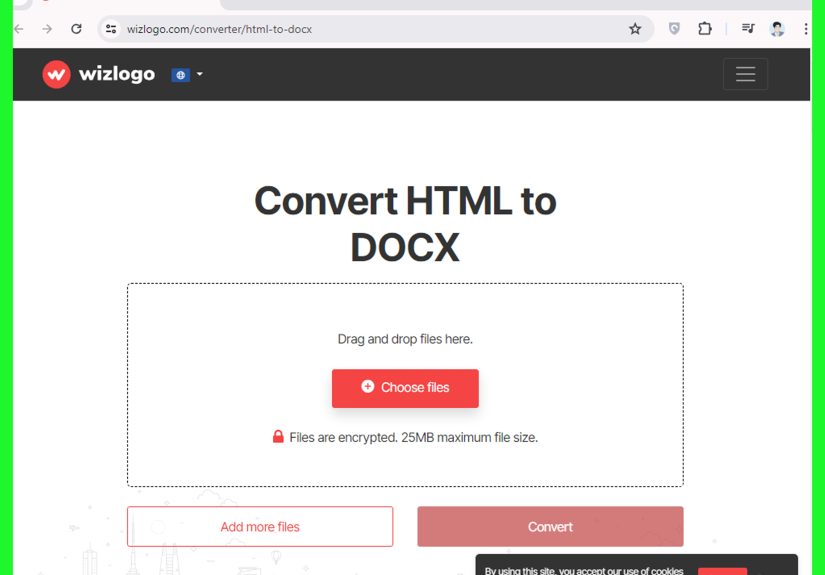
Online converters can be convenient when you need a quick HTML to DOCX conversion and do not want to install software. Many tools let you upload an HTML file, choose DOCX as the output, and download the converted document.
However, use online converters carefully. Do not upload private contracts, unpublished articles, medical information, financial documents, passwords, client data, or confidential business pages. For public or low-risk content, online tools can save time. For anything sensitive, use Word, LibreOffice, or an offline tool instead.
How to Keep Formatting Clean During Conversion
The biggest challenge when converting HTML to Word Doc is not the conversion itself. It is making the finished document look professional. Here are practical ways to get better results:
Use Simple HTML When Possible
Clean HTML converts better than messy HTML. Use proper headings such as h1, h2, and h3. Use real paragraphs instead of endless line breaks. Use standard lists instead of fake bullet symbols. Word understands structure better than decoration.
Keep CSS Basic
Inline styles and simple CSS may transfer, but advanced CSS often does not. Grid layouts, flexbox behavior, animations, fixed elements, and responsive tricks are built for browsers, not Word pages. If your goal is a clean DOCX file, simplify before converting.
Check Images Before Saving
Images are a common trouble spot. If your HTML references images from a website, Word may not embed them properly. Download images locally or insert them manually after conversion. Also compress large images so the final Word document does not become a 200 MB monster wearing a document icon.
Review Tables Carefully
Basic tables usually convert well. Complex tables with nested rows, fixed widths, merged cells, or heavy styling can become messy. After conversion, click inside each table and check alignment, borders, column width, and page breaks.
Use Word Styles After Conversion
Once your HTML content is in Word, apply Word styles such as Heading 1, Heading 2, Normal, Quote, and List Paragraph. This makes the document easier to edit, improves accessibility, and helps Word generate a table of contents if needed.
Common Problems and Quick Fixes
Problem: Images Are Missing
Fix: Keep the HTML file and its asset folder together. If images are hosted online, download and insert them manually. For important documents, do not rely on external image links.
Problem: Formatting Looks Strange
Fix: Try pasting as plain text and rebuilding styles in Word. For web pages with heavy CSS, this can be faster than fighting imported formatting.
Problem: Links Do Not Work
Fix: Right-click links in Word and choose Edit Hyperlink. Make sure URLs are complete and start with https:// when needed.
Problem: The File Opens as Code
Fix: Make sure the file extension is .html or .htm, not .txt. Open it with Word, not a plain text editor.
Problem: The Word File Is Too Large
Fix: Compress images, remove unnecessary scripts or copied layout elements, and delete hidden junk content. Word documents should not feel like they are preparing for a bodybuilding competition.
Which HTML to Word Method Should You Choose?
Use Microsoft Word if you want the easiest and most direct method. Use copy and paste if the content is short and simple. Use Google Docs if you need collaboration. Use LibreOffice if you want a free desktop option. Use Pandoc if you need automation or repeatable conversions. Use PDF first if visual layout matters most. Use online converters only when the content is not sensitive.
For most people, the best answer is simple: open the HTML file in Word, inspect it, clean it, and save it as DOCX. That workflow is fast, private, and easy to explain to coworkers without needing a dramatic whiteboard session.
Real-World Experience: What Actually Works Best
After working with HTML-to-Word conversions in real publishing and content workflows, one lesson stands out: the “best” method depends on where the HTML came from. HTML exported from a clean CMS editor usually behaves nicely. HTML copied from a modern website with ads, menus, scripts, tracking snippets, and responsive design can behave like a suitcase packed by a raccoon.
For blog content, the cleanest workflow is often to copy the article body onlynot the header, sidebar, footer, author box, newsletter popup, or “you may also like” section. Paste it into Word using merge formatting, then apply Word styles. This produces a more professional document than trying to preserve every pixel of the web page.
For client reports, I prefer opening the HTML file directly in Word when the HTML is local and self-contained. It keeps headings, basic formatting, and links reasonably well. After saving as DOCX, I immediately check three things: images, tables, and spacing. Those are the usual suspects. If they look good, the rest of the document is usually fine.
For technical documentation, Pandoc is the grown-up choice. It is not glamorous, but it is consistent. If a team needs to convert dozens or hundreds of HTML files into Word documents, clicking through menus is not a workflowit is a punishment. Pandoc allows batch conversion and can use a reference DOCX file so the output follows a preferred style.
For Mac users without Word, LibreOffice is often more dependable than trying to force everything through Pages. Pages is excellent for many writing tasks, but Word compatibility is not always perfect when documents become complex. If the final file must be a Word document for editors, clients, teachers, or legal review, test the exported DOCX in Microsoft Word before sending it.
For web pages with complicated design, the PDF-first method can be a lifesaver. It captures the visual layout better than a direct HTML-to-DOCX conversion. However, the resulting Word file may be harder to edit. I use this approach when someone cares about appearance more than structure, such as saving a landing page mockup or preserving a page for review.
The biggest mistake is assuming conversion means perfection. It does not. Conversion means translation, and every translation needs proofreading. Before you publish, submit, or send the Word file, scan the full document from top to bottom. Check headings, page breaks, bullets, image placement, table width, fonts, and links. A five-minute review can save you from sending a document where one table has decided to live halfway off the page.
Another practical tip: always keep the original HTML file. Save a separate DOCX copy instead of overwriting anything. If the conversion goes sideways, you can restart with another method. Version names help too. Use file names like article-original.html, article-converted.docx, and article-final-edited.docx. Future you will be grateful, and future you deserves nice things.
In everyday use, converting HTML to Word Doc on Windows and Mac is less about finding a magical button and more about choosing the cleanest path. Start simple, protect private content, clean up formatting after conversion, and save in modern DOCX format whenever possible. Do that, and your HTML content can become a polished Word document without causing a small office-wide weather event.
Conclusion
Learning how to convert HTML to Word Doc on Windows and Mac gives you more control over web content, reports, documentation, drafts, and saved pages. The easiest method is to open the HTML file in Microsoft Word and save it as DOCX. For quick content, copy and paste works. For free desktop conversion, LibreOffice is useful. For automation, Pandoc is excellent. For visual preservation, convert to PDF first and then to Word.
The key is to match the method to the job. Simple content deserves a simple workflow. Complex layouts need cleanup. Sensitive files should stay offline. And every converted document deserves one final review before it goes out into the world wearing a professional filename and pretending it was born as a Word document all along.
Note: This article is based on current practical workflows and widely used documentation from major software ecosystems, including Microsoft Word, Apple Pages, Google Docs, LibreOffice, Apache OpenOffice, Adobe Acrobat, Pandoc, and common online document conversion tools.







 Close
Close