
Table of Contents >> Show >> Hide
- What Is TikTok Dark Mode?
- Why Use Dark Mode on TikTok?
- How to Enable Dark Mode on TikTok on iPhone
- How to Enable Dark Mode on TikTok on iPad
- How to Make TikTok Match Your iPhone or iPad Dark Mode
- How to Turn On Dark Mode in iPhone or iPad Settings
- How to Schedule Dark Mode Automatically
- What Changes When You Turn on TikTok Dark Mode?
- What to Do If TikTok Dark Mode Is Missing
- Dark Mode vs. Night Shift: What Is the Difference?
- Does TikTok Dark Mode Save Battery on iPhone?
- Best Settings for Comfortable TikTok Scrolling at Night
- Common Mistakes When Turning On TikTok Dark Mode
- Frequently Asked Questions
- Real-World Experience: Using TikTok Dark Mode on iPhone and iPad
- Conclusion
Dark Mode on TikTok is one of those tiny settings that can make your phone feel dramatically more pleasant, especially when you are scrolling through videos at night, checking comments in bed, or pretending you are “only opening TikTok for five minutes.” We both know how that story ends. One quick video becomes a raccoon cooking noodles, a dermatologist explaining sunscreen, and a dog who somehow owns better pajamas than you.
The good news: turning on TikTok Dark Mode on an iPhone or iPad is simple. You can enable it directly inside the TikTok app, or you can set TikTok to follow your iPhone or iPad system appearance. That means TikTok can automatically switch between light and dark themes when your device does. Smooth, tidy, and far less blinding than opening a bright white settings screen at 1:17 a.m.
This guide explains exactly how to enable Dark Mode on TikTok for iPhone and iPad, how to match TikTok with your device settings, how to schedule Dark Mode automatically, and what to do if the Display option is missing. We will also cover practical tips, common mistakes, and real-world experiences from using TikTok Dark Mode every day.
What Is TikTok Dark Mode?
TikTok Dark Mode changes the app’s interface from a light background to a darker color scheme. Instead of bright white menus, settings pages, comment areas, and profile screens, you get a darker layout that feels softer in low-light environments. It does not turn your videos black and white, hide creators’ content, or make your For You Page suddenly more responsible. Sadly, Dark Mode cannot stop you from watching “just one more” video.
On iPhone and iPad, TikTok gives users two main choices. You can manually choose Dark Mode inside TikTok, or you can let TikTok follow your device appearance. The second option is especially useful if you already use Apple’s system-wide Dark Mode. When your iPhone or iPad switches to Dark Mode, TikTok follows along. When your device switches back to Light Mode, TikTok does the same.
Why Use Dark Mode on TikTok?
Dark Mode is popular because it feels easier on the eyes in dim rooms. If you often browse TikTok at night, in bed, on a plane, or in a dark living room while someone else watches TV, a darker interface can reduce the “flashlight to the face” effect. It makes comments, menus, search pages, and profile screens feel less harsh.
Dark Mode may also help some users conserve battery life on iPhones with OLED displays, especially when screen brightness is high. However, the savings are usually not magical. If your screen brightness is moderate, battery improvement may be small. If your brightness is turned way up, dark themes can make a bigger difference on OLED screens because darker pixels generally require less power than bright ones.
Another benefit is consistency. Many iPhone and iPad users already run iOS or iPadOS in Dark Mode. When TikTok also uses a dark appearance, the app feels more naturally connected to the rest of the device. Instead of jumping from a dark home screen to a bright app interface, everything looks calmer and more unified.
How to Enable Dark Mode on TikTok on iPhone
The fastest way to turn on TikTok Dark Mode is through the app’s own settings. These steps work for most current versions of TikTok on iPhone.
Step-by-Step Instructions
- Open the TikTok app on your iPhone.
- Tap Profile in the bottom-right corner.
- Tap the Menu button at the top-right corner. It usually looks like three horizontal lines.
- Select Settings and privacy.
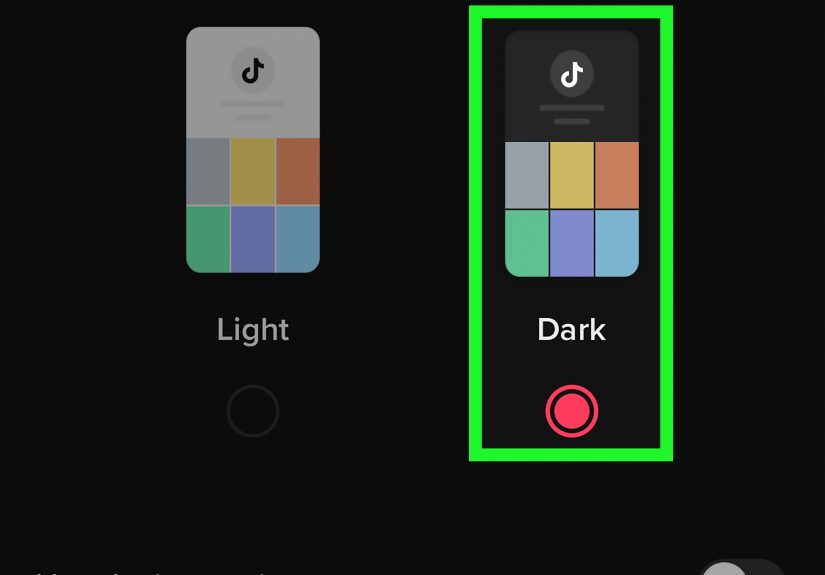
- Tap Display.
- Choose Dark to enable Dark Mode.
Once you select Dark, TikTok should immediately switch to a darker interface. You do not usually need to restart the app. If the screen does not change right away, close TikTok and reopen it. Sometimes apps need a tiny nudge, like a sleepy cat being asked to move off your keyboard.
How to Enable Dark Mode on TikTok on iPad
The process on iPad is very similar to iPhone. TikTok’s layout may look slightly different depending on your iPad model, screen orientation, and app version, but the core path remains the same.
Step-by-Step Instructions for iPad
- Open TikTok on your iPad.
- Tap Profile.
- Tap the Menu icon near the top-right area.
- Go to Settings and privacy.
- Tap Display.
- Select Dark.
After you choose Dark, the TikTok interface should switch to a darker theme. If you use your iPad in landscape mode, some buttons may appear in slightly different places, but the labels should be familiar. Look for Profile, Menu, Settings and privacy, and Display.
How to Make TikTok Match Your iPhone or iPad Dark Mode
If you want TikTok to automatically follow your iPhone or iPad appearance, use the device-matching option. This is the best choice for people who like Light Mode during the day and Dark Mode at night.
Turn On Device Matching in TikTok
- Open TikTok.
- Tap Profile.
- Tap the Menu button.
- Choose Settings and privacy.
- Tap Display.
- Turn on Use device settings or a similarly worded option.
When this option is enabled, TikTok follows your iPhone or iPad system theme. If your device is in Dark Mode, TikTok appears dark. If your device is in Light Mode, TikTok appears light. This is useful because you do not have to change the TikTok setting every time your eyes vote for “less brightness, please.”
How to Turn On Dark Mode in iPhone or iPad Settings
If you want TikTok to follow your system appearance, you need to know how to turn on Dark Mode for your iPhone or iPad. Apple gives you two simple options: enable Dark Mode from Settings or switch it from Control Center.
Method 1: Use Settings
- Open the Settings app.
- Tap Display & Brightness.
- Under Appearance, select Dark.
This turns on Dark Mode across your iPhone or iPad. Apps that support system appearance matching, including TikTok when the matching option is enabled, can follow this setting.
Method 2: Use Control Center
- Open Control Center.
- Touch and hold the Brightness slider.
- Tap Dark Mode to turn it on or off.
This method is excellent when you want a quick switch. Maybe you are outside in bright sunlight and prefer Light Mode. Later, you are on the couch at night and want Dark Mode. Control Center makes the change fast.
How to Schedule Dark Mode Automatically
You can also set your iPhone or iPad to switch between Light Mode and Dark Mode automatically. This is a great setup if you want TikTok to feel bright and crisp during the day, then softer at night.
Set an Automatic Schedule
- Open Settings.
- Tap Display & Brightness.
- Turn on Automatic.
- Tap Options.
- Choose Sunset to Sunrise or set a Custom Schedule.
If TikTok is set to use device settings, it should follow this schedule. For example, your iPhone can switch to Dark Mode at sunset, and TikTok can switch with it. It feels like your phone finally understands that nighttime scrolling should not come with interrogation-room lighting.
What Changes When You Turn on TikTok Dark Mode?
TikTok Dark Mode mainly affects the app interface. This includes areas such as settings, profile pages, search screens, inbox sections, menus, and comment backgrounds. Video content itself does not become darker just because you enable Dark Mode. A bright beach video will still be a bright beach video. A neon dance clip will still look like it was filmed inside a laser-powered fruit smoothie.
This distinction matters because some users expect Dark Mode to dim everything. It does not. If videos feel too bright, adjust your iPhone or iPad brightness, use Night Shift, reduce white point, or lower screen exposure in Accessibility settings. Dark Mode improves the app theme, but display comfort depends on your whole device setup.
What to Do If TikTok Dark Mode Is Missing
If you cannot find the Display option in TikTok, do not panic. Your phone is not broken, and TikTok has not personally betrayed you. Try these troubleshooting steps.
1. Update TikTok
Open the App Store, search for TikTok, and check whether an update is available. App features and settings can change between versions, so updating is the first thing to try.
2. Update iOS or iPadOS
Go to Settings > General > Software Update. If an update is available, install it when convenient. Newer app versions often work better with newer system versions.
3. Restart TikTok
Close the TikTok app completely, then open it again. This can refresh menus and settings that did not load properly.
4. Restart Your Device
A device restart can fix small software glitches. It is the classic tech-support move because, annoyingly, it often works.
5. Reinstall TikTok
If the option still does not appear, delete TikTok and reinstall it from the App Store. Make sure you know your login method before removing the app, especially if you use a phone number, email, Apple ID, or another linked account.
6. Check for Layout Differences
TikTok occasionally changes menu labels and layout details. If you do not see “Display,” browse nearby settings related to appearance, accessibility, or app preferences. The setting may be located in a slightly different spot depending on your app version or region.
Dark Mode vs. Night Shift: What Is the Difference?
Dark Mode and Night Shift are related to screen comfort, but they are not the same thing. Dark Mode changes the visual theme from light backgrounds to darker backgrounds. Night Shift changes the color temperature of the display, making it warmer by reducing cooler blue tones in the evening.
For late-night TikTok use, you can use both. Dark Mode makes TikTok’s interface darker, while Night Shift makes the entire display warmer. Add lower brightness, and you have a much more comfortable setup for nighttime browsing. Your eyes may not send you a thank-you card, but they will probably complain less.
Does TikTok Dark Mode Save Battery on iPhone?
It can, but the answer depends on your iPhone model and brightness level. iPhones with OLED displays can benefit more from dark interfaces because dark pixels typically use less power than bright ones. However, battery savings may be modest during normal indoor use, especially if your brightness is already low or automatic brightness is enabled.
If you use TikTok outdoors with high brightness, Dark Mode may help more. But if your main goal is battery life, combine Dark Mode with practical habits: lower screen brightness, enable Low Power Mode when needed, close unnecessary background activity, and avoid max brightness unless you truly need it.
Best Settings for Comfortable TikTok Scrolling at Night
For the most comfortable TikTok experience on iPhone or iPad, Dark Mode is only part of the recipe. Try this combination:
- Enable TikTok Dark Mode.
- Turn on Use device settings in TikTok.
- Set iPhone or iPad Dark Mode to Automatic.
- Lower screen brightness from Control Center.
- Use Night Shift in the evening.
- Consider Reduce White Point if the screen still feels too bright.
- Take breaks, because your thumb is not training for the Olympics.
This setup gives you a smoother experience across the whole device. TikTok looks darker, your display feels warmer, and the brightness is easier to control.
Common Mistakes When Turning On TikTok Dark Mode
Expecting Videos to Become Darker
Dark Mode changes TikTok’s interface, not the actual brightness of every video. If videos are too bright, lower your screen brightness or use iOS display settings.
Forgetting to Turn On Device Matching
If your iPhone is in Dark Mode but TikTok stays light, check TikTok’s Display settings. You may need to enable Use device settings.
Looking in iPhone Settings Only
System Dark Mode is controlled by Apple settings, but TikTok also has its own Display menu. For full control, check both places.
Using an Outdated App Version
If the Dark Mode setting is missing or not working correctly, update TikTok from the App Store.
Frequently Asked Questions
Can I turn on Dark Mode for TikTok only?
Yes. Open TikTok, go to Profile, tap Menu, choose Settings and privacy, tap Display, and select Dark. This changes TikTok without requiring your entire iPhone or iPad to use Dark Mode.
Can TikTok switch automatically with my iPhone?
Yes. In TikTok’s Display settings, enable Use device settings. Then TikTok should follow your iPhone or iPad appearance.
Why is TikTok still bright after I turn on Dark Mode?
Dark Mode changes the app interface, but videos may still be bright. Lower your device brightness or use Night Shift if the screen feels intense.
Is TikTok Dark Mode available on iPad?
Yes, TikTok Dark Mode is available on iPad through the app’s Display settings, although the layout may vary slightly depending on screen size and app version.
Does Dark Mode reduce eye strain?
Dark Mode may feel more comfortable in low-light environments because it reduces bright interface areas. However, comfort varies by person. Brightness, contrast, viewing distance, room lighting, and screen time all matter.
Real-World Experience: Using TikTok Dark Mode on iPhone and iPad
In everyday use, TikTok Dark Mode feels most helpful in three situations: late-night scrolling, low-light rooms, and long comment-reading sessions. The For You Page is already video-focused, so the biggest difference appears when you open comments, search for content, browse profiles, check notifications, or move through settings. Those screens can feel noticeably calmer with a darker background.
On an iPhone, the change feels immediate because the screen is close to your face. If you are lying in bed and open TikTok in Light Mode, the white interface can feel like a tiny billboard aimed directly at your retinas. Switch to Dark Mode, and the experience becomes softer. Comments are easier to scan, profile pages feel less glaring, and the app blends better with the rest of the phone if your iPhone is already using Dark Mode.
On an iPad, the benefit can be even more obvious because the screen is larger. A bright settings page on an iPad can light up a room like you are about to perform dental surgery. Dark Mode makes TikTok feel more relaxed, especially when watching videos on the couch, using the iPad beside a lamp, or browsing before sleep. The larger display also makes comment sections more comfortable to read in Dark Mode because the darker background reduces the sense of visual clutter.
The best experience comes from combining TikTok’s Dark Mode with Apple’s automatic appearance schedule. Set your iPhone or iPad to switch to Dark Mode at sunset, then enable Use device settings in TikTok. After that, you do not have to think about it. During the day, the app can stay bright and clear. At night, it becomes darker automatically. It is one of those small quality-of-life settings that quietly improves the way the app feels.
There are still limits. Dark Mode does not make every video less bright. If someone posts a clip filmed in direct sunlight, your screen will still show direct sunlight. If a creator uses white captions, neon effects, or bright filters, those elements remain bright. For the best nighttime setup, lower your brightness manually, turn on Night Shift, and consider Reduce White Point if your screen still feels too intense.
From a practical standpoint, TikTok Dark Mode is worth enabling if you use the app often. It is easy to turn on, easy to reverse, and flexible enough to match your device settings. Whether you are casually watching recipes, learning iPhone tricks, following creators, or accidentally becoming emotionally invested in a three-part story about someone’s missing suitcase, Dark Mode makes the interface feel less harsh and more polished.
Conclusion
Learning how to enable Dark Mode on TikTok for iPhone and iPad is simple, but it can make a big difference in daily comfort. You can turn it on directly in TikTok by going to Profile, opening the Menu, selecting Settings and privacy, tapping Display, and choosing Dark. You can also enable Use device settings so TikTok follows your iPhone or iPad system appearance automatically.
For the best experience, pair TikTok Dark Mode with iOS or iPadOS Dark Mode, automatic scheduling, lower brightness, and Night Shift. This gives you a smoother, softer viewing setup, especially at night. Dark Mode will not magically shorten your screen time or protect you from a suspiciously accurate algorithm, but it will make the app easier to look at when the lights are low.
Note: Menu names and locations may vary slightly depending on your TikTok version, iOS or iPadOS version, region, and app rollout. If you do not see the Display option, update TikTok and your device software, then check again.




 Close
Close