
Table of Contents >> Show >> Hide
- Why Live Streams Can Be Hard to Find on YouTube
- How to Find Live Streams on YouTube Desktop
- How to Find Live Streams on YouTube Mobile
- Best Ways to Find Live Streams Faster
- Common Problems When Looking for YouTube Live Streams
- Desktop vs. Mobile: Which Is Better for Finding YouTube Live Streams?
- Final Thoughts
- Extra Experiences: What It’s Really Like Finding Live Streams on YouTube
- SEO Tags
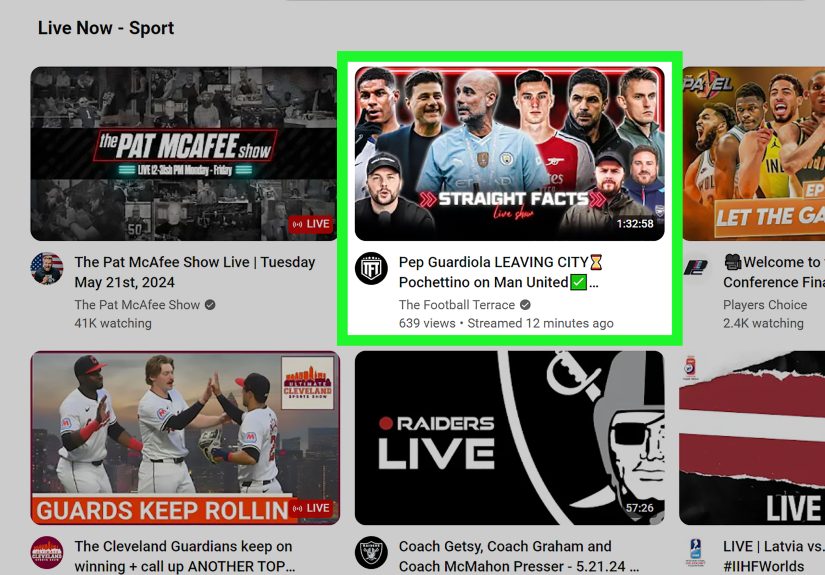
If regular YouTube feels like a giant buffet, YouTube Live feels like the sizzling station where something is actually happening right now. The problem is that live streams are not always sitting there waving a giant neon sign. Sometimes they appear in Search. Sometimes they hide in a creator’s channel tabs. Sometimes they pop up in the mobile Live feed like a surprise party you were technically invited to, but forgot about.
That is why knowing how to find live streams on YouTube matters. Whether you are hunting for breaking news, a game stream, a concert, a product launch, a tutorial, or a creator Q&A, the process is a little different on desktop and mobile. Once you understand where YouTube surfaces live content, it gets much easier to stop wandering around the app like a lost mall shopper.
In this guide, you will learn how to find YouTube live streams on desktop, Android, and iPhone, plus smart tricks that help you discover streams faster. You will also learn why two people can type the same thing into YouTube and still get slightly different results. Spoiler: the algorithm is always in the room.
Why Live Streams Can Be Hard to Find on YouTube
YouTube is built to recommend what it thinks you want, not always what is happening this second. That means live content competes with regular videos, Shorts, replays, clips, and whatever rabbit hole you accidentally trained the platform to think you love. If you watched one sink-repair video in 2024, congratulations, the algorithm may still believe you are emotionally invested in plumbing.
Live streams can also appear in different places depending on the device you are using. On mobile, you may discover them through the Explore area, a creator’s channel, Search filters, or the vertical live feed. On desktop, discovery leans more heavily on Search, channel pages, recommendations, and subscription activity.
Another wrinkle is that YouTube personalizes a lot of what you see. Your watch history, search history, location, and past engagement all influence what shows up first. So if a friend says, “Just search it,” and your results look totally different, nobody is wrong. YouTube is simply being YouTube.
How to Find Live Streams on YouTube Desktop
1. Use the Search Bar Like You Mean It
The fastest way to find a live stream on desktop is to search for a specific creator, event, topic, or keyword and add a live-focused phrase. Instead of searching something broad like NBA, search NBA live, SpaceX launch live, lofi hip hop live, or creator name live stream. Adding the word live, livestream, stream, now, or the event name often helps surface current broadcasts more quickly.
This matters because YouTube Search prioritizes relevance, engagement, and quality. If your query is vague, YouTube has more room to guess. And when YouTube guesses, it sometimes brings you a three-year-old highlight reel instead of the thing happening right now. Helpful? Occasionally. Annoying? Absolutely.
2. Click Filter After You Search
After you enter your search, use YouTube’s Filter option to narrow results. On desktop, filters can help cut down the clutter so you do not have to sort through playlists, channels, and unrelated uploads. Depending on the interface YouTube is showing you, filters may emphasize result type and other sorting choices. In practical terms, this is where you trim the fat and get closer to active live content.
If the first search still looks messy, refine your terms. For example:
- Bad: cooking
- Better: cooking live
- Best: cooking live class now
3. Open the Creator’s Channel and Check the Live Tab
If you know who is streaming, go directly to the creator’s channel. Many channels have tabs such as Videos, Shorts, and Live. The Live tab is one of the easiest ways to find a creator’s current stream, upcoming scheduled streams, and past live replays all in one place.
This is especially useful for gaming channels, news channels, music channels, and educators who stream on a schedule. Instead of gambling in Search, you go straight to the source. It is the digital equivalent of asking the host where the party is instead of circling the block.
4. Check Your Subscriptions Feed
If you already subscribe to channels that stream often, your Subscriptions feed is one of the most reliable places to catch new live content. It shows the newest uploads and activity from channels you follow, which can include streams that are live now or about to begin.
This works best if your subscriptions are reasonably curated. If you follow 600 channels and half of them upload daily, your Subscriptions feed may look less like a helpful dashboard and more like Times Square after too much coffee.
5. Look for Scheduled Streams and Premieres
Not every live stream is already running when you search for it. Many creators schedule streams in advance, which means you may find an upcoming watch page before the stream actually starts. If you see an upcoming live event, set a reminder so YouTube can notify you when it begins. This is ideal for sports commentary, product reveals, political events, creator Q&As, and launch coverage.
How to Find Live Streams on YouTube Mobile
1. Search in the YouTube App
On mobile, start with the Search icon and enter the topic, creator name, or event you want. Just like on desktop, add the word live if you want current results. The YouTube app also supports search filters, which are especially useful because mobile results can feel crowded fast.
On iPhone and iPad, you typically search first and then tap Filter. On Android, you search and then tap the menu option for Filters. Either way, your goal is the same: reduce noise and surface the most relevant stream or stream-related result.
2. Use Search Filters to Narrow Results
Mobile filters help you refine by things like upload date, type, duration, view count, and subtitles, depending on the device. For live discovery, these filters do not magically do all the work for you, but they help you eliminate a lot of dead ends. If you are looking for something happening today, recent and live-oriented keywords together usually work better than a broad search alone.
For example, if you want a breaking event stream, search the event name plus live, then apply filters and scan for the most current watch pages. This is much faster than poking random thumbnails and hoping one of them is actually live instead of recorded during the Obama administration.
3. Explore the Live Destination on Mobile
On the YouTube mobile app, the Explore area can surface categories, and in many cases that includes Live. This is useful when you do not know exactly what channel you want, but you know you want live content in general. Think of it as browsing the live neighborhood instead of searching for one house number.
This method is especially handy for discovering live gaming, sports commentary, news, music sessions, and pop-culture events you were not specifically searching for but suddenly care about very deeply.
4. Use the Vertical Live Feed
One of the most interesting ways to find live streams on mobile is YouTube’s vertical live feed. This feature lets you swipe through vertical live streams inside the app, which feels a bit like Shorts, except people are talking to an audience in real time instead of filming a fridge restock with cinematic lighting.
The vertical live feed is mobile-app focused and is not available on tablets. It also does not show scheduled live streams or Premieres, so it is better for discovering streams that are already happening right now. If you want spontaneous live content, this is one of the easiest places to browse.
5. Visit a Creator’s Channel on Mobile
Just like on desktop, opening a creator’s channel on mobile can be a shortcut to the good stuff. If the channel has a Live tab, tap it. You can often find current broadcasts, upcoming streams, and old replays there. For creators who stream often, this is much cleaner than relying on your Home feed to behave.
6. Turn On Notifications for Channels You Care About
If there are creators you never want to miss, subscribe and turn on notifications. This is the easiest long-term solution. Instead of repeatedly searching for a channel’s livestream like a detective on a caffeine binge, let YouTube tell you when the stream is happening.
Best Ways to Find Live Streams Faster
Use Specific Search Phrases
Specific searches almost always beat broad ones. Search phrases like news live, concert live now, creator name live, or event name official stream give YouTube a much clearer signal.
Search by Hashtag
YouTube also supports hashtags. If an event, campaign, or creator consistently uses a hashtag, searching that hashtag can help you discover related videos and streams. This works especially well for conferences, launches, fandom events, esports tournaments, and creator communities.
Check Charts and Trending Areas
If you want popular or fast-moving content, YouTube Charts and trending-related discovery surfaces can help. These are useful when you care less about one creator and more about what is getting attention right now. Live content around major events often gets pulled into these discovery areas.
Adjust for Personalization
If your Home page keeps recommending the same familiar stuff, remember that YouTube personalizes search results and recommendations based on what you watch and search for. Sometimes that is helpful. Sometimes it means the platform keeps showing you yesterday’s comfort content while today’s live event is happening elsewhere.
If discovery feels stale, try more precise search terms, search from a cleaner history context, or search while signed out on desktop to compare results. You may find fresher or less personalized options that way.
Pay Attention to Location
Your YouTube location setting can affect what surfaces in recommendations, charts, and news-related areas. If you are trying to find a local live event or region-specific coverage, checking your location settings can make a difference. It is a small tweak, but sometimes small tweaks are exactly what stop YouTube from acting like the internet only lives in one country.
Common Problems When Looking for YouTube Live Streams
You Keep Finding Replays Instead of Live Videos
This usually happens when your search term is too general. Add live, now, a date, or the exact event name. Also check the channel’s Live tab for the active watch page.
The Live Tab Is Missing on a Channel
Not every channel has a Live tab. YouTube shows tabs based on the types of content a creator publishes. If the creator does not stream or has little live content, the tab may not appear.
Mobile Search Feels Different From Desktop
That is normal. YouTube’s layouts, filters, and discovery paths differ by device. Mobile offers tools like the vertical live feed and Explore-based discovery that do not work the same way on desktop.
YouTube Keeps Showing You the Wrong Kind of Content
This is usually personalization at work. Your search history, watch history, and previous engagement can all influence what rises to the top. Sharper keywords often help more than endlessly scrolling and silently resenting the algorithm.
Desktop vs. Mobile: Which Is Better for Finding YouTube Live Streams?
Desktop is better when you want control. Search is easier to scan, channel pages are simpler to browse, and it is more comfortable for comparing multiple options quickly.
Mobile is better for spontaneous discovery. The app is excellent for catching streams on the fly, checking notifications, exploring Live surfaces, and swiping through vertical live content when you are bored, curious, or pretending to pay attention somewhere else.
In other words, desktop is the organized adult with folders. Mobile is the friend who says, “I found something interesting,” and somehow is right.
Final Thoughts
If you want to find live streams on YouTube quickly, the winning formula is simple: use specific search terms, apply filters, check the creator’s channel, and use mobile-only discovery tools when you are on your phone. Do not rely on the Home page alone. It is entertaining, sure, but it is also the place most likely to send you into a completely different genre because you once watched one oddly satisfying cake-decorating clip.
The best method depends on how you watch. If you follow specific creators, go to their channel and Live tab first. If you are hunting for something happening right now, use targeted search phrases and filters. If you want to browse what is live without knowing exactly what you want, mobile Explore and the vertical live feed are your best friends.
Once you know where live content hides, YouTube gets a lot easier to navigate. And that means less random wandering, fewer accidental replays, and a much better chance of landing where the action is actually happening.
Extra Experiences: What It’s Really Like Finding Live Streams on YouTube
In real life, finding live streams on YouTube usually starts with urgency. You hear that a launch is happening, a creator is answering fan questions, a game tournament is underway, or some big news story is breaking. You open YouTube expecting a giant flashing banner that says, “Here! This is the live thing!” Instead, you get a mix of clips, reactions, replays, old interviews, Shorts, and one strangely confident thumbnail from 2019. That is the moment when understanding YouTube discovery stops being a nice skill and becomes a survival tool.
On desktop, the experience is usually calmer. You can type, scan, compare, open multiple tabs, and move between a creator’s homepage and their Live tab without feeling boxed in. It feels more strategic. You are not just watching YouTube; you are investigating it. This is especially helpful when you are trying to find the official stream for a sporting event, a keynote, or a live class, because there may be many channels talking about the event while only one is actually broadcasting it.
Mobile feels different. Faster, messier, more instinctive. It is where live discovery can feel surprisingly fun, especially when you are not looking for one exact stream. You tap into Search, browse a few results, jump into a channel page, maybe swipe through the vertical live feed, and suddenly you are watching a street musician in Seoul, a coding session in Texas, and a gaming stream hosted by someone with way too much energy for midnight. Mobile is less like a filing cabinet and more like opening a door into whatever is happening right now.
There is also a weirdly human side to YouTube Live discovery. You start off looking for one thing and end up staying because of personality. Maybe the stream quality is not perfect. Maybe the lighting is tragic. Maybe the creator’s microphone sounds like it was borrowed from a cereal box. But the live feeling makes it work. You are not watching a polished upload. You are watching a moment. That difference matters.
Another common experience is learning that “live” does not always mean easy to find. A stream can be active, but if the title is vague, the thumbnail is weak, or the channel is small, it might not surface quickly unless you search with the exact right words. That can be frustrating, but it also explains why channel pages, notifications, and precise search phrases matter so much. Sometimes the best live stream is not the biggest one. It is just the one you were finally clever enough to locate.
Over time, most people build habits. Some use subscriptions and alerts. Some search hashtags. Some go straight to the Live tab on favorite channels. Some browse vertically on mobile when they want surprise over precision. Once those habits click, finding live streams on YouTube becomes less random and much more intentional. And honestly, that is when the platform gets a lot more fun.




 Close
Close