
Table of Contents >> Show >> Hide
- Can You Still See Who Liked or Retweeted Your Tweet?
- Method 1: Open the Tweet and Check Post Engagements
- Method 2: Use the Notifications Tab
- Why You May Not See Every Person Who Liked or Retweeted Your Tweet
- Likes vs. Reposts vs. Quote Posts: What Is the Difference?
- How to Use Engagement Information Smartly
- Privacy and Etiquette: Do Not Make It Weird
- Quick Troubleshooting Checklist
- My Experience: What Actually Works Best When Checking Tweet Engagement
- Conclusion
Wondering who liked or retweeted your Tweet? First, tiny translation note from the social media dictionary: Twitter is now X, Tweets are officially called posts, and retweets are now called reposts. But because many people still search for “Tweet,” “retweet,” and “who liked my tweet,” we will use both old and new terms where helpful. The good news is that finding engagement on your own post is still pretty simple. The less good news? X has changed privacy rules, menus, and labels enough times to make even seasoned users squint at their screens like they are reading ancient runes.
This guide explains the two easiest ways to find who liked or retweeted your Tweet: checking the post’s engagement details and using your Notifications tab. You will also learn what you can and cannot see, why some names may be missing, and how privacy settings affect likes and reposts. Whether you are tracking a funny one-liner, a brand announcement, a giveaway, or that one post you wrote at 1:13 a.m. with suspicious confidence, these steps will help you understand who interacted with your content.
Can You Still See Who Liked or Retweeted Your Tweet?
Yes, in most cases, you can see who liked or reposted your own post on X. The key phrase is your own post. X made Likes private for users in 2024, which means you generally cannot browse another person’s Likes tab or see a full list of people who liked someone else’s post. However, the author of a post can still see engagement information for their own content, including who liked it and who reposted it.
Think of it like a guestbook at your own party. You can see who came to your house, complimented the snacks, and shared the address with friends. But you cannot walk across town and inspect everyone else’s guestbooks. Honestly, society may be better this way.
Method 1: Open the Tweet and Check Post Engagements
The fastest way to find who liked or retweeted your Tweet is to open the post itself and check its engagement details. This works best when you know exactly which Tweet you want to inspect. You can do it from your profile, timeline, search results, bookmarks, or a direct link to the post.
How to Check Likes and Reposts on Desktop
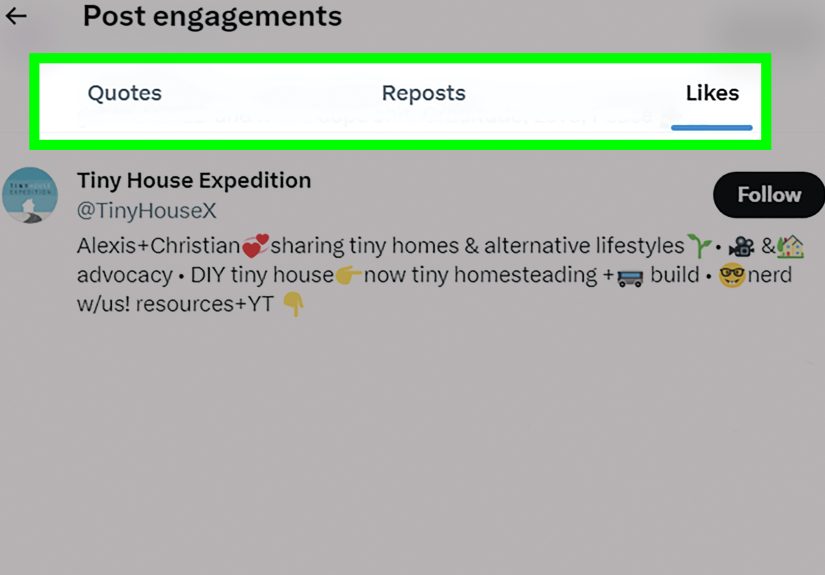
On desktop, go to X.com and sign in to your account. Open your profile or navigate to the post you want to check. Click the post so it opens on its own detail page. Near the engagement numbers, look for options such as Likes, Reposts, Quotes, or a menu option like View post engagements. The wording may vary depending on the current X interface, your account type, and whether you are using the web app or a mobile device.
If the post shows a number next to the heart icon, that number represents likes. Click or tap the like count if it is available. X should show a list of accounts that liked your post. If the post shows a repost count, click or tap the repost area or open the engagement menu to view who reposted it. Quote posts are often separated because a quote repost includes someone else’s comment attached to your original post.
How to Check Likes and Reposts on iPhone or Android
The mobile process is similar. Open the X app, tap your profile image or profile tab, and find the post you want to review. Tap the post to open the full detail view. From there, check the engagement counts under the post. Tap the likes count to see who liked it, or tap the repost count to see who reposted it. If you do not see the list immediately, tap the three-dot menu and look for an option related to engagements.
Mobile layouts change frequently, so do not panic if the button is not exactly where yesterday’s YouTube tutorial said it would be. X has a habit of rearranging furniture while everyone is still sitting in the room. The main goal is simple: open the post detail page, then look for the engagement count or the post engagement menu.
What You May See in the Engagement View
The engagement view may show several categories. Likes are people who tapped the heart icon. Reposts are people who shared your post directly to their followers without adding a comment. Quote posts are reposts with added commentary. Replies are public responses to the post. You may also see views, which estimate how many times your post has been viewed by logged-in users.
Likes and reposts are useful for different reasons. Likes show appreciation, agreement, amusement, or sometimes “I read this and have no words, but here is a heart.” Reposts are more powerful for reach because they push your post into another user’s audience. Quote posts can be even more revealing because they show how people are framing your content, whether they are praising it, debating it, or adding a joke that gets more likes than your original post. Painful? Occasionally. Useful? Absolutely.
Method 2: Use the Notifications Tab
The second easy way to find who liked or retweeted your Tweet is through your Notifications tab. This is especially useful when the engagement happened recently. Instead of hunting for one post and opening its details, you can review the stream of account activity connected to your posts.
How to Find Likes and Reposts in Notifications
Open X and go to Notifications. The All tab usually shows a mix of activity, including likes, reposts, replies, mentions, and new followers. Scroll through the list and look for notifications that say someone liked your post or reposted your post. Tap a notification to jump directly to the related post or account.
This method is perfect when you remember seeing a notification but forgot who it was from. Maybe someone with a big following reposted your announcement, or maybe a friend liked your post and you want to send a quick thank-you. Notifications keep those breadcrumbs in one place, at least until the list gets crowded by everything else happening on your account.
Use Notification Filters Carefully
X offers notification filters such as quality filters and advanced filters. These can reduce spam, duplicate content, automated-looking activity, or notifications from accounts you may not want to see. That is helpful if your notifications are a digital jungle. However, filters can also make it harder to notice every like or repost, especially if your post gets a sudden burst of attention.
If you are trying to audit engagement closely, check your notification settings. Make sure filters are not hiding activity you actually want to review. For creators, journalists, small business owners, and community managers, this small settings check can save a lot of confusion. Sometimes the engagement is not missing; it is just hiding behind a very enthusiastic filter.
Why You May Not See Every Person Who Liked or Retweeted Your Tweet
Even when you follow the steps correctly, the list of names may not always match the number displayed on the post. This does not automatically mean something is broken. There are several reasons why you may see a count but not every account behind it.
1. Likes Are More Private Than They Used to Be
Since X made Likes private, users can still see their own liked posts, and authors can see who liked their own posts. But you generally cannot inspect the likes on someone else’s post the way users could in older versions of Twitter. This is one of the biggest reasons many people search for this topic: they remember the old system and wonder where everything went.
2. Protected Accounts Limit Visibility
Protected accounts, often called private accounts, have stricter visibility rules. If someone protects their posts, only approved followers can see their content. Protected posts are not publicly searchable in the same way public posts are, and followers cannot freely repost protected posts. If privacy settings are involved, engagement visibility may be limited.
3. Deleted, Suspended, or Blocked Accounts Can Affect Counts
If an account liked or reposted your post and later deleted the action, deleted the account, became suspended, or got blocked, the visible details may change. Counts and lists can also lag behind each other for a short time. Social platforms are giant machines, and sometimes one gear updates before another. It is annoying, but not mysterious enough to require a detective board with red string.
4. Third-Party Apps May Display Reposts Differently
X’s official repost system is what normally appears in repost counts and repost lists. Some third-party tools or older workflows may treat sharing differently. If an app creates a new post that links to yours instead of using the official repost function, it may not appear as a normal repost. For accurate checking, use X’s official app or website whenever possible.
Likes vs. Reposts vs. Quote Posts: What Is the Difference?
A like is a light interaction. It says, “I noticed this,” “I enjoyed this,” or “I support this.” A repost is stronger because it redistributes your content to another person’s followers. A quote post adds a layer of commentary, meaning the user is not just sharing your content but also adding their own opinion, reaction, or context.
For personal users, this difference is mostly curiosity. For creators and brands, it matters a lot. A post with 500 likes but only 2 reposts may have pleased your existing audience without traveling very far. A post with 50 likes and 100 reposts may be spreading quickly, especially if the reposters have active followers. A quote post may start a new conversation around your original message, which can be wonderful, chaotic, or both.
How to Use Engagement Information Smartly
Finding who liked or retweeted your Tweet is not just about satisfying curiosity. It can help you understand your audience. If the same people keep liking your posts, they may be loyal followers. If accounts in your industry repost you, your content may be reaching the right professional circle. If a post gets many quote posts, people may find it conversation-worthy, controversial, funny, or useful.
Pay attention to patterns. Do educational posts get more reposts? Do personal stories get more likes? Do questions get more replies? Does posting in the morning work better than posting late at night when your brain says “genius” but your audience says “asleep”? These observations can guide better posting habits without turning your account into a spreadsheet dungeon.
Example: A Small Business Post
Imagine you run a local bakery and post a photo of a new cinnamon roll. The post gets 80 likes, 12 reposts, and 4 quote posts. When you check who reposted it, you notice two local food bloggers shared it. That is valuable. You might reply with thanks, follow them, or invite them to try the product. Engagement details turn a simple post into a relationship-building opportunity.
Example: A Creator Post
Suppose you are a gaming creator and post a quick tip. It receives fewer likes than usual but many reposts. That suggests people found the tip shareable. The post may not be emotionally exciting, but it is useful. Next time, you could turn that format into a thread, short video, or pinned post. Not every successful Tweet screams. Some quietly do their job while wearing sensible shoes.
Privacy and Etiquette: Do Not Make It Weird
Just because you can see who liked or reposted your post does not mean every interaction requires a dramatic response. A simple thank-you is fine when someone shares your work. A follow-back may be appropriate if the account is relevant. But avoid calling people out for liking, unliking, reposting, or deleting a repost. Social media is already awkward enough without turning a heart icon into a courtroom exhibit.
For brands, be extra careful. Do not publicly pressure users who engage with your posts. Do not screenshot private-looking activity for content. Do not assume a like means full endorsement. People like posts for many reasons: support, bookmarking, irony, agreement, curiosity, or because their thumb slipped while holding coffee. Context matters.
Quick Troubleshooting Checklist
If you cannot find who liked or reposted your Tweet, try these steps. First, make sure you are checking your own post, not someone else’s. Second, open the post detail page instead of relying only on the timeline preview. Third, tap the engagement numbers or use the three-dot menu to find post engagements. Fourth, check your Notifications tab for recent activity. Fifth, review your notification filters if activity seems missing. Sixth, update the X app or try the desktop website if the mobile app looks different.
Also remember that X’s interface changes. A feature may move from a visible count to a menu, from a label to an icon, or from one tab to another. The function usually remains, but the path may shift. When in doubt, open the post, look for the engagement area, and check the menu.
My Experience: What Actually Works Best When Checking Tweet Engagement
In real-world use, the easiest method depends on what you are trying to learn. If you only want to know who interacted with one specific Tweet, opening the post and checking the engagement details is the cleanest route. It keeps everything connected to that one piece of content. You are not scrolling through a chaotic notification feed full of likes, mentions, follows, reposts, and the occasional random account with a profile picture that looks like it was created by a blender.
For a post that is actively gaining attention, however, Notifications can feel faster. You can watch engagement arrive in near real time and quickly spot important accounts. This is useful when a post starts moving beyond your normal audience. For example, if you publish a tip, announcement, meme, or opinion and suddenly receive reposts from larger accounts, Notifications may show the momentum before you even open the full engagement list.
The best habit is to use both methods together. Start with Notifications to catch fresh activity. Then open the post detail page to review the full picture. This gives you two views: the live activity stream and the organized engagement list. For creators, marketers, writers, and small business owners, that combination is much better than obsessively refreshing one number and wondering whether the algorithm has blessed you or simply gone to lunch.
Another useful experience-based tip: do not treat all likes equally. A like from a regular supporter is great because it shows loyalty. A like from a potential client, editor, journalist, recruiter, or industry peer may deserve a closer look. You do not need to message everyone like an overexcited door-to-door salesperson, but you can notice patterns. If the same kind of audience keeps engaging, your content is attracting a particular group. That is valuable feedback.
Reposts deserve even more attention. When someone reposts your Tweet, they are lending you audience access. That can expand reach quickly, especially if the person has followers who trust them. If a relevant account reposts your post, consider replying with a short thank-you or adding value in the replies. Keep it natural. “Thanks for sharing” is fine. A five-paragraph emotional acceptance speech is probably too much unless you have just won the Nobel Prize for Posting.
Quote posts are the most interesting and sometimes the most unpredictable. A quote post can boost your visibility, but it can also change the meaning of your original post. Someone might add praise, criticism, humor, or extra context. If your post gets quote reposted, read the quote before responding. A friendly quote may be a conversation starter. A critical quote may be a chance to clarify. A sarcastic quote may be best left alone, because not every internet campfire needs more gasoline.
Finally, avoid checking engagement too often. It is helpful to understand who liked or retweeted your Tweet, but constant checking can make posting feel stressful. A healthy workflow is to review engagement after a reasonable window: maybe after the first hour, later the same day, and once more after twenty-four hours. That gives you enough information to learn from the post without turning your day into a hostage situation run by a heart icon.
Conclusion
Finding who liked or retweeted your Tweet is still possible for your own posts, even though X has made Likes more private across the platform. The two easiest methods are simple: open the post and check its engagement details, or use the Notifications tab to review recent activity. The post detail method is best for a focused look at one Tweet, while Notifications are ideal for tracking fresh likes, reposts, and replies as they happen.
Just remember the limits. You cannot freely inspect everyone else’s liked posts the way users once could. Protected accounts, deleted interactions, blocked users, app delays, and interface changes may affect what you see. For the most accurate results, use the official X app or website, open the specific post, and check the engagement menu. Then use what you learn wisely: thank helpful reposters, notice audience patterns, and improve your future posts without letting the numbers boss you around.





 Close
Close