
Table of Contents >> Show >> Hide
- Step 1: Confirm What’s Actually Happening
- Step 2: Do the Quick Wins (5 Minutes or Less)
- Step 3: Fix It in Windows (Settings That Actually Matter)
- Step 4: Fix It on macOS (Yes, Macs Have This Setting Too)
- Step 5: If It’s a Gaming Mouse, Check the Manufacturer App (and Firmware)
- Step 6: Wireless Mice and the Hidden Villain: USB 3.0 Interference
- Step 7: Clean the Mouse (Because Dust Loves Drama)
- Step 8: The Hard TruthIt Might Be a Worn-Out Microswitch
- Step 9: Temporary Workarounds (When You Need the Mouse to Behave Today)
- Preventing Future Double-Clicks (Mouse Longevity Tips)
- Quick Troubleshooting Checklist
- Extra: Real-World Scenarios and Lessons Learned (500+ Words)
- Scenario 1: “It only double-clicks when I’m working fast”
- Scenario 2: “It started randomly after I plugged in a new external drive”
- Scenario 3: “It double-clicks everywhere, even on another computer”
- Scenario 4: “My gaming mouse is brand-new… and it double-clicks”
- Scenario 5: “It only happens in one app (or one game)”
- Conclusion
Your mouse is doing that thing where you click once and it responds like an over-caffeinated intern: “Yes! And also YES again!” If a single click is registering as a double-click, you’re not aloneand you’re not doomed to a lifetime of accidentally opening files, closing tabs, and launching apps you didn’t even know existed.
The good news: many double-click problems are fixable with a few settings tweaks, a little cleanup, or a quick wireless adjustment. The other news: sometimes it’s a worn-out switch inside the mouse. Still fixablejust in a “replace or repair” kind of way. Let’s walk through the smartest troubleshooting path, from easiest to most likely.
Step 1: Confirm What’s Actually Happening
A. Rule out “single-click opens items” (the sneaky setting)
Some Windows setups can be configured so a single click opens files/folders (which can feel like your mouse is “double-clicking” from day one). If your mouse has behaved this way since you first plugged it in, check that setting firstespecially if you notice items opening instantly in File Explorer.
B. Run a quick double-click test
Before you change anything, verify the symptom. Use a mouse test tool (search “double click test”), click 20–50 times at a normal pace, and watch for any “double click” detections. If it flags doubles while you’re confidently clicking once, you’ve got a real issue (usually bounce or interference).
C. Try the mouse on a second device
If the same mouse double-clicks on another computer (or even a different user profile), it’s probably the mouse itself. If it behaves perfectly elsewhere, the issue is likely software, settings, drivers, or wireless interference on the original machine.
Step 2: Do the Quick Wins (5 Minutes or Less)
1) Unplug, wait, and reconnect (yes, really)
For wired mice, unplug and reconnect directly to the computer (not a hub). For wireless mice, remove the dongle, wait 10 seconds, and plug it back in. This clears minor connection glitches and can also force a driver re-handshake.
2) Switch USB ports (avoid hubs at first)
Plug the mouse receiver into a different portpreferably a port on the computer itself instead of a USB hub. USB hubs can introduce power or signal weirdness, and some receivers are picky.
3) Change the surface
A glossy desk, reflective mousepad, or messy surface can cause tracking issues that feel like click problemsespecially if you’re drag-selecting or clicking tiny UI elements. Test on a plain mousepad or even a sheet of paper.
4) Wireless mouse basics: battery + distance + line of sight
Low battery can cause odd behavior in some wireless mice. Swap batteries or fully recharge. Also keep the receiver close to the mouse (a few feet is ideal), and avoid blocking it behind a metal PC case.
Step 3: Fix It in Windows (Settings That Actually Matter)
A. Adjust double-click speed
Windows lets you control how quickly two clicks must occur to count as a double-click. This doesn’t always cure a failing switch, but it can help if you’re accidentally clicking twice or if the timing is set oddly.
- Windows 11: Settings > Bluetooth & devices > Mouse > Additional mouse settings
- In the Buttons tab, move the Double-click speed slider and test with the folder icon.
Tip: If you’re getting accidental doubles from fast “tap-tap” habits, slightly faster double-click speed (shorter window) can reduce false doubles. If you legitimately double-click slowly, set it slower so Windows recognizes your double-clicks reliably.
B. Turn off “single-click to open an item” (if enabled)
If Windows is configured so a single click opens items, everything can feel like it’s “double-clicking,” especially in File Explorer. Set it back to the default: double-click to open, single-click to select.
- Open File Explorer > Options (Folder Options) > General tab
- Under “Click items as follows,” choose Double-click to open an item
C. Check for “ClickLock” (rare, but annoying)
ClickLock is designed to help you drag without holding the mouse button down. It usually doesn’t create a true double-click, but it can make clicks and drags feel unpredictable if you’re not expecting it.
- Mouse Properties > Buttons tab > uncheck Turn on ClickLock (if enabled)
D. Reinstall the mouse driver (fast and safe)
Most mice use standard HID drivers, but a corrupted device entry can still cause weird behavior. In Device Manager, you can remove the device and let Windows reinstall it.
- Right-click Start > Device Manager
- Expand “Mice and other pointing devices”
- Right-click your mouse > Uninstall device
- Unplug/replug (or remove/reinsert the receiver) to reinstall
Step 4: Fix It on macOS (Yes, Macs Have This Setting Too)
On a Mac, double-click speed is an accessibility setting. If your Mac expects lightning-fast double-clicks, you might overclick without realizing itor a touchy mouse might trigger doubles more easily.
- Apple menu > System Settings > Accessibility
- Pointer Control
- Adjust the Double-click speed slider
If the issue happens only with one specific mouse on macOS, try removing and re-pairing it (Bluetooth), or swapping the receiver port.
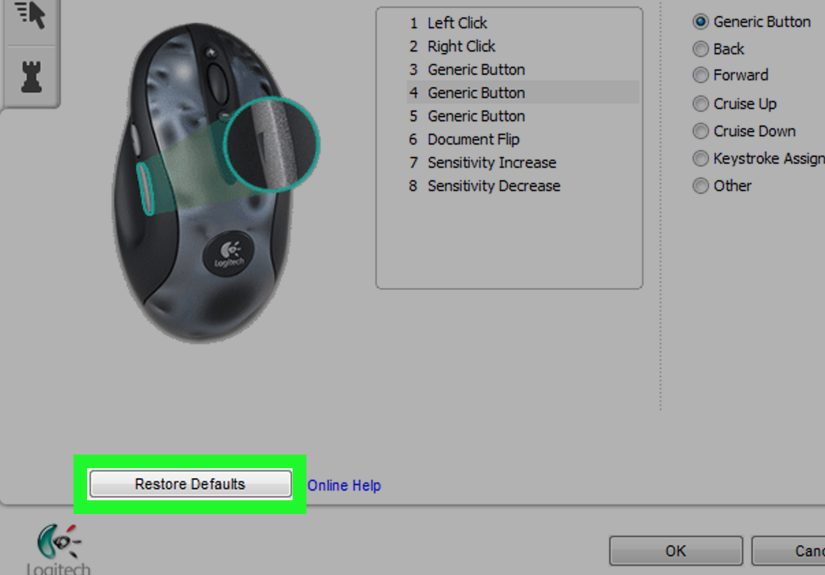
Step 5: If It’s a Gaming Mouse, Check the Manufacturer App (and Firmware)
A. Update firmware
Firmware updates can fix click detection bugs, receiver issues, and performance quirksespecially on wireless models. Visit your mouse manufacturer’s support page and install the latest firmware for your exact model.
B. Close the mouse software and test again
Sometimes the problem isn’t the hardwareit’s the software layer interpreting clicks oddly. A good diagnostic trick is to fully exit the mouse software (or even boot without it) and test.
For example, some troubleshooting guides recommend testing without Razer Synapse and trying a clean reinstall if the issue persists. If the mouse behaves normally without the software running, you’ve found your culprit.
C. Look for debounce or “double-click prevention” settings (model-dependent)
Some gaming mice support debounce adjustments (a small delay that filters out switch “bounce”). If your software has settings like “debounce,” “anti-double click,” “click response,” or “button response,” try increasing debounce slightly.
If you don’t see any option, that’s normalmany brands don’t expose it, and some handle it only at firmware level.
Step 6: Wireless Mice and the Hidden Villain: USB 3.0 Interference
If your mouse is wireless (2.4 GHz receiver) and the problem is randomespecially near external drives, webcams, or USB 3.0 devices you may be dealing with radio frequency interference.
Signs it’s interference
- The mouse double-clicks (or stutters) only sometimes.
- It gets worse when an external hard drive/USB 3 device is active.
- Moving the receiver to a different port changes the behavior immediately.
Fixes that work surprisingly well
- Move the receiver away: Use a short USB extension cable and place the dongle closer to your mouse (and farther from USB 3.0 ports/cables).
- Try a USB 2.0 port for the receiver if you have one.
- Don’t stack devices: Avoid having the receiver right next to a USB 3.0 drive or cable.
- Keep line of sight: Don’t hide the receiver behind the PC or under a metal desk.
This sounds like tech superstition until you try itand then it feels like magic. It’s not magic; it’s physics.
Step 7: Clean the Mouse (Because Dust Loves Drama)
A. Blow out the button gap
Debris under the button can cause inconsistent clicks or make a switch “chatter.” Use compressed air to gently blow into the gap around the problem button.
B. Wipe down the outside properly
Use a slightly damp microfiber cloth for the shell. For grime around buttons, use a cotton swab lightly moistened with isopropyl alcohol. Keep liquids minimalyou’re cleaning a mouse, not baptizing it.
C. Don’t spray random chemicals into the mouse
Avoid household oils and cleaners inside the mouse. If a product isn’t meant for electronics, it can leave residue or damage plastics. If you need deeper cleaning, stick to electronics-safe methods or consider professional service.
Step 8: The Hard TruthIt Might Be a Worn-Out Microswitch
If your mouse has been used heavily (especially older office mice and many gaming mice), the internal click switch can wear out. When that happens, one press can “bounce” electrically and register as two clicks. This is one of the most common causes of true single-click → double-click behavior.
How to tell it’s the switch
- The double-click happens across multiple computers and operating systems.
- It’s worst on one button (usually left-click) and gets worse over time.
- It’s most noticeable when you try to click-and-drag and the drag drops randomly.
Best options if it’s hardware
- Warranty/RMA: If the mouse is still under warranty, this is your best move.
- Repair service: Many local electronics repair shops can replace a switch quickly.
- DIY switch replacement: Possible, but it may require disassembly and (for many models) soldering. If you’re not experienced, skip this and use a repair shop.
- Replace the mouse: Sometimes the simplest fix is the most emotionally healthy.
Step 9: Temporary Workarounds (When You Need the Mouse to Behave Today)
If you’re mid-project and can’t replace the mouse immediately, here are realistic “get through the day” strategies:
- Switch the click task: Use keyboard shortcuts more (Enter to open, Ctrl+click alternatives, etc.).
- Use another button: If your mouse software lets you remap buttons, map “Left Click” to a side button temporarily.
- Increase double-click speed (shorter window): This may reduce accidental doubles caused by very rapid “chatter” in borderline cases (not a guaranteed fix).
- Try a software debouncer: Some utilities can filter rapid repeat clicks, but they can add delay and may not work well in games.
Preventing Future Double-Clicks (Mouse Longevity Tips)
- Keep it clean: Dust and crumbs are tiny saboteurs.
- Use a mousepad: Reduces debris ingestion and improves sensor consistency.
- Don’t store it “button-down”: Pressure on the button can fatigue the switch.
- For wireless: Use a receiver extension and keep it away from USB 3.0 noise sources.
Quick Troubleshooting Checklist
- Test on another PC (or another OS user profile)
- Switch USB ports, avoid hubs
- Replace battery / fully recharge
- Move wireless receiver using a USB extension
- Adjust Windows/macOS double-click speed
- Disable “single-click to open” in File Explorer options
- Exit mouse software, test again
- Update firmware and reinstall drivers
- Clean button gaps with compressed air
- If it persists everywhere: suspect microswitch wear
Extra: Real-World Scenarios and Lessons Learned (500+ Words)
Here are a few common “support case” style scenarios that come up again and again when people swear their mouse is haunted. These are the kinds of patterns you’ll recognize once you’ve trouble-shot this issue a couple times.
Scenario 1: “It only double-clicks when I’m working fast”
This is often a mix of timing and habit. Someone is editing spreadsheets or doing design work and starts clicking quicklysometimes the second click is unintentional. In these cases, adjusting double-click speed and practicing a slightly more deliberate click can help a lot. The giveaway is that the mouse passes a click test most of the time, and it behaves better when the user slows down. A small shift in double-click settings can make Windows less eager to interpret two separate clicks as one double-click.
Scenario 2: “It started randomly after I plugged in a new external drive”
This one is surprisingly common with wireless dongles. The user adds a USB 3.0 hard drive, capture card, webcam, or even a USB 3 hub and suddenly the mouse becomes unreliable: stutters, missed clicks, phantom clicks, occasional double-clicks. The fastest “Aha!” test is moving the receiver: plug it into a different port, preferably on the front of the PC, or use a short extension to bring it closer to the mouse. If the problem drops dramatically, you just found interference. The “lesson learned” is simple: treat the dongle like a tiny radio antenna. Give it a clear path, some breathing room, and distance from noisy USB 3.0 devices and cables.
Scenario 3: “It double-clicks everywhere, even on another computer”
This is the classic worn-switch case. It often starts with one annoying double-click every few hours, then becomes multiple times a minute, and eventually makes click-and-drag nearly impossible (because the drag “drops” as the switch chatters). Cleaning the outer shell might improve things for a day, but it keeps coming back. At this stage, you’re choosing between warranty replacement, paid repair, or swapping the mouse. If the mouse is a favorite (especially ergonomic models), repair can be worth it. If it’s a basic mouse, replacement is often the sensible move. The lesson: when the symptom follows the mouse across devices, it’s almost never “Windows being weird.”
Scenario 4: “My gaming mouse is brand-new… and it double-clicks”
When a new mouse double-clicks immediately, it’s either (1) a settings issue (like single-click open behavior or software mapping), (2) a firmware/software conflict, or (3) a defective unit. The most useful approach is to test it with the manufacturer software closed and then test it on a second computer. If it double-clicks in a clean environment, don’t waste weeks fighting itexchange it. The lesson: if it’s new, treat your time as valuable. Troubleshooting is great, but warranties exist for a reason.
Scenario 5: “It only happens in one app (or one game)”
This often points to software. Some apps interpret rapid clicks differently, and some overlays or mouse utilities can interfere. If it only double-clicks in one program, try disabling overlays, quitting peripheral software, and testing with a different profile. The lesson: hardware problems tend to be consistent across apps. App-specific weirdness is a software clue.
Conclusion
A mouse that double-clicks on a single click can be either a quick settings fix or a sign the internal switch is wearing out. Start simple: test the behavior, check “single-click to open,” adjust double-click speed, move wireless receivers away from USB 3.0 noise, and reinstall drivers or firmware. If the problem follows the mouse everywhere, it’s probably hardwareso a warranty claim, repair, or replacement is the cleanest win.
And remember: your mouse isn’t trying to ruin your day. It’s just… enthusiastic.





 Close
Close