
Table of Contents >> Show >> Hide
- The quickest answer (if you’re busy and slightly stressed)
- Before you start: choose your “home base” for contacts
- Method 1 (Recommended): Excel → CSV → Google Contacts → Android Sync
- Method 2: Excel → CSV → VCF (vCard) → Import on Android
- Method 3 (Device-brand route): Import/export using your phone’s Contacts app
- Troubleshooting: when the import gets weird (and it sometimes does)
- Problem: Phone numbers imported into “Notes” instead of “Phone”
- Problem: Names with accents or non-English characters look corrupted
- Problem: Duplicate contacts everywhere
- Problem: Some fields didn’t import (addresses, birthdays, notes)
- Problem: Imported contacts appear on Google Contacts web, but not on the phone
- Security and privacy tips (because your contacts are not just “data”)
- FAQ: quick answers to common “Wait, what about…?” questions
- Experiences & lessons from real-life contact imports (the “I’ve seen things” section)
- Conclusion: the cleanest path (and a simple checklist)
You’ve got an Excel spreadsheet full of contacts. Your Android phone has… vibes. And right now, the two are refusing to meet.
The good news: importing contacts from Excel to Android is totally doable, and you don’t need to manually retype 247 phone numbers
like it’s 2006 and you just got a flip phone for your birthday.
In this guide, you’ll learn the most reliable ways to move contacts from Excel into your Android phonecleanly, safely, and without
turning “Mom” into “Møm???” because of weird file encoding. We’ll cover the best method (using Google Contacts), a solid offline-ish
option (VCF/vCard), and practical troubleshooting so your phone numbers don’t end up in the Notes field like a sad little diary entry.
The quickest answer (if you’re busy and slightly stressed)
- Convert your Excel sheet to a CSV (preferably CSV UTF-8).
- Import that CSV into Google Contacts on a computer.
- Turn on Contacts sync on your Android phone (or refresh sync).
- Your contacts appear on the phonelike magic, but with fewer rabbits.
Before you start: choose your “home base” for contacts
Android can store contacts in a few places: your Google account, your phone’s local storage, or sometimes a manufacturer account
(like Samsung account). For most people, the best choice is your Google account because it syncs automatically, backs up
easily, and follows you to your next phone.
- Best for most people: Google account (sync + backup + easy updates)
- Best if you’re avoiding cloud sync: Import a VCF file directly on the phone
- Not recommended for Excel imports: SIM card (limited fields, easy to lose details)
Method 1 (Recommended): Excel → CSV → Google Contacts → Android Sync
This is the “set it and forget it” method. Once the contacts are in Google Contacts, your Android phone can pull them down through sync.
It’s also the easiest way to keep things tidy if you ever need to re-import, fix duplicates, or switch phones.
Step 1: Create (or verify) your contact columns in Excel
You can import a basic CSV with simple columns like Name and Phone, but for the smoothest import,
it helps to match Google Contacts-style fields.
Here are common, practical columns to use (you don’t need all of them):
- Given Name (First name)
- Family Name (Last name)
- Organization 1 – Name (Company)
- Email 1 – Type (e.g., Work, Home)
- Email 1 – Value (email address)
- Phone 1 – Type (Mobile, Work, Home)
- Phone 1 – Value (phone number)
- Address 1 – Type and Address 1 – Formatted (optional)
- Notes (optional)
Pro move: If you want near-perfect column names, export a small CSV from Google Contacts first and copy the headers.
That gives you a template that Google Contacts “likes” on import.
Step 2: Clean your spreadsheet (your future self will thank you)
A little cleanup prevents a lot of “Why do I have 14 entries for Kevin?” later.
- Remove extra spaces: “(555) 123-4567 ” can become a different value than “(555) 123-4567”.
- One contact per row: Don’t combine two people into one row because “they share a phone.” That’s how chaos begins.
- Standardize phone formats: Use one format consistently (examples below).
- Keep leading zeros: For certain numbers, set the cell format to Text before exporting.
- Split names if possible: First/Last imports are usually cleaner than a single full-name cell.
Example phone number formatting tips:
- US mobile: +1 415 555 0137 (international format is widely compatible)
- Extensions: put them in notes or use a consistent style like +1 212 555 0100 x123
- Avoid mixing: “415.555.0137” in one row and “(415) 555-0137” in another unless you enjoy duplicates
Step 3: Save your Excel file as CSV (preferably CSV UTF-8)
In modern Excel versions, you can often choose CSV UTF-8 (Comma delimited) when saving.
UTF-8 helps preserve special characters (accents, apostrophes, non-English names) so your contacts don’t come out looking like
they were typed by a haunted printer.
- In Excel, go to File → Save As (or Export).
- Choose a location.
- Select file type: CSV UTF-8 (Comma delimited) (*.csv) if available.
- Save. If Excel warns you about features not supported in CSV, that’s normalCSV is plain text.
Important: CSV saves only the active sheet. Make sure your contacts are on the sheet you’re exporting.
Step 4: Import the CSV into Google Contacts (on a computer)
The cleanest import experience is usually on a desktop/laptop browser. In Google Contacts, there’s an Import option
that accepts .csv and .vcf files.
- Open Google Contacts in your browser while signed into the Google account you use on your Android phone.
- Choose Import.
- Select your .csv file and import it.
- After import, scan a few contacts to verify names, phone numbers, and emails look right.
Step 5: Sync contacts to your Android phone
Now the fun part: getting those contacts onto your phone. If your Android phone is signed into the same Google account,
it can sync contacts automaticallyassuming sync is enabled.
- On Android, open Settings.
- Go to Google (or Passwords & accounts → your Google account, depending on device).
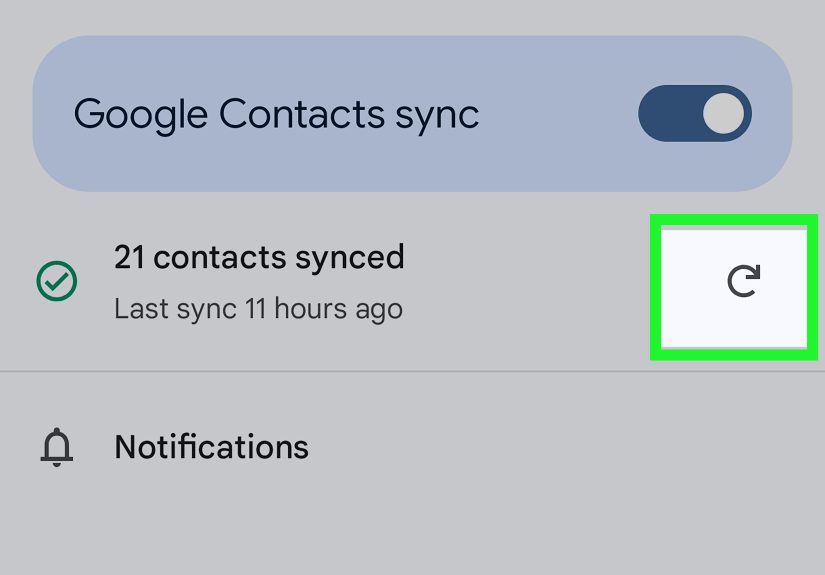
- Find Google Contacts sync / sync settings and make sure it’s ON.
- If needed, use the Refresh option for contacts sync status.
- Open the Contacts app and search for a contact you imported.
Reality check: Sync might take a few minutes, especially if you imported hundreds of contacts. If nothing shows up,
jump to the troubleshooting sectionno panic spirals necessary.
Method 2: Excel → CSV → VCF (vCard) → Import on Android
vCard (a .vcf file) is like a suitcase for contacts: it can carry names, numbers, emails, and more in a format
that Android generally imports well. This method is great when:
- You want to import contacts without relying on ongoing Google sync.
- You’re moving contacts to a phone used by someone else (with permission, obviously).
- You prefer a single file you can store (encrypted/securely) as a backup.
How to create a VCF if you start in Excel
Excel doesn’t natively “Save As VCF” in a clean, built-in way. The most reliable route is:
- Export Excel to CSV UTF-8.
- Import the CSV into Google Contacts.
- Export from Google Contacts as vCard (.vcf).
Why bother with the Google Contacts middle step? Because it does the heavy lifting of mapping fields and producing a VCF that Android
usually understands with fewer surprises.
Import the VCF file on Android
Once you have your .vcf file saved to your phone (Downloads folder, Google Drive, email attachment you saved locally, etc.),
you can import it from the Contacts app.
- Open the Contacts app on your Android phone.
- Tap Organize (or the menu) and choose Import from file.
- If prompted, choose where to save contacts (your Google account or device storage).
- Select the VCF file.
- Confirm import.
Tip: If you have multiple Google accounts on the device, choose the account you want these contacts stored under.
Otherwise, you’ll later wonder why “Work Tina” shows up on your personal phone but not in your work account. (Ask me how people discover this.)
Method 3 (Device-brand route): Import/export using your phone’s Contacts app
Many Android manufacturers (especially Samsung) include built-in options inside the Contacts app for Import/Export.
This is useful for moving contacts between storage locations (SIM ↔ phone ↔ account) or exporting a backup VCF.
However, a key truth remains: your phone usually can’t import an Excel file directly. It can import a VCF,
and sometimes it can pull from a synced account. So this method is best as a final step for managing where contacts live after the import.
Troubleshooting: when the import gets weird (and it sometimes does)
Problem: Phone numbers imported into “Notes” instead of “Phone”
This almost always happens because your CSV column headers don’t match what the importer expects.
Fix it by exporting a sample CSV from Google Contacts and using the same header style, especially for phone fields
like Phone 1 – Type and Phone 1 – Value.
Problem: Names with accents or non-English characters look corrupted
Use CSV UTF-8 when saving from Excel. If you already imported and it looks wrong, delete the imported batch (carefully),
re-export as CSV UTF-8, and import again.
Problem: Duplicate contacts everywhere
Duplicates can come from importing the same file twice, from multiple accounts syncing, or from slight formatting differences in phone numbers.
Try these fixes:
- In Google Contacts, use Merge & fix (it helps catch obvious duplicates).
- Ensure your Android Contacts app is displaying the correct account (Google vs device).
- Standardize phone numbers in Excel before importing (consistent format reduces “near duplicates”).
Problem: Some fields didn’t import (addresses, birthdays, notes)
CSV imports often support many fields, but exact success depends on field naming and how the target app maps data.
If those details matter a lot, consider importing via Google Contacts (with proper headers) and exporting to VCF afterward.
Problem: Imported contacts appear on Google Contacts web, but not on the phone
This is usually a sync/display issue:
- Confirm the phone is signed into the same Google account used for import.
- Make sure Contacts sync is enabled in Android settings.
- Refresh sync status (some devices provide a manual refresh option).
- In Contacts app settings, ensure you’re viewing contacts from the right account(s).
Security and privacy tips (because your contacts are not just “data”)
A contacts list is basically a social map of your lifenames, phone numbers, emails, workplaces, maybe addresses.
Treat the spreadsheet and exported files with care:
- Store the file securely: avoid leaving it in a public Downloads folder on a shared computer.
- Delete temporary exports: after import, remove extra copies from email attachments and cloud “recent files.”
- Use a trusted account: if importing to Google Contacts, make sure your Google account is protected (strong password + 2FA).
- Don’t share VCF files casually: they’re easy to forward and hard to “un-send.”
FAQ: quick answers to common “Wait, what about…?” questions
Can I import Excel contacts to Android without Google?
Not directly from Excel. But you can convert Excel → CSV, then CSV → VCF (often using Google Contacts as a converter),
and import the VCF file on the phone. That’s the best “minimal sync” approach.
Will contact photos import from Excel?
Typically, nonot from a basic Excel-to-CSV workflow. Photos are more reliably handled through account-based sync
(where photos already exist) or specialized contact management exports. For most people, re-adding photos later is simpler
than wrestling with photo URLs in CSV fields.
How many contacts can I import?
Most people can import hundreds or thousands without issues, but performance depends on device and account constraints.
If you’re importing a massive list, consider importing in batches (for example, 500–1,000 at a time) so it’s easier to spot errors early.
What’s better: CSV or VCF?
CSV is best for editing and bulk cleanup (spreadsheets love CSV). VCF is best for device importing and portability.
A common “best of both worlds” workflow is: Excel → CSV (cleanup) → Google Contacts → export VCF (portable backup).
Experiences & lessons from real-life contact imports (the “I’ve seen things” section)
If importing contacts were a movie genre, it would be a comedyuntil it becomes a thriller for ten minutes, and then it’s a comedy again.
Here are some practical, experience-based lessons people tend to learn the hard way (so you don’t have to).
1) The “Emoji Apocalypse” (aka: encoding matters)
Someone exports a contact list, imports it, and suddenly “José Álvarez” turns into “José Ã�lvarez.”
It’s not your phone being dramatic; it’s your file encoding.
The fix is usually simple: save the file as CSV UTF-8.
The bigger lesson is that contacts aren’t just numbersthey’re names with accents, punctuation, and sometimes the occasional emoji someone
added to identify “Pizza Guy 🍕.” If you don’t export with UTF-8, those characters can get scrambled.
2) The “Phone Number Went to Notes” mystery
This one is unbelievably common: after import, phone numbers aren’t clickable, because they landed in the Notes field instead of the Phone field.
Usually the spreadsheet had a column header like “cell” or “mobile_number” or “PHONE!!!” (enthusiasm is not a recognized CSV standard).
Google Contacts and Android importers tend to behave best when headers match what they expect.
The easiest strategy is to export a sample CSV from Google Contacts, then use that file as your template.
When the headers are aligned, the importer stops guessingand your phone numbers stop hiding in Notes like they’re ashamed.
3) The “Comma in the Company Name” trap
CSV stands for “comma-separated values,” which is great until your data contains commaslike “Smith, Johnson & Co.”
Excel usually wraps those fields in quotes so the comma doesn’t split the value into multiple columns… but not all tools treat
CSV files the same way.
If you notice addresses or organization names breaking into weird pieces after import, open the CSV in a plain text editor
and make sure fields with commas are quoted. Or re-export from Excel carefully. (And yes, you can absolutely keep commas in names;
the file just needs to be properly formatted.)
4) The “Two Johns” problem (and why duplicates happen)
Duplicates aren’t always because you imported twice. Sometimes it’s because the same person exists in two accounts:
a Google account contact and a device-stored contact, or a Google contact and a manufacturer-account contact.
Then Android shows both, because it’s being helpful in the way that toddlers “help” by reorganizing your pantry.
If you suddenly see two entries for the same person, check which accounts your Contacts app is displaying.
Many Contacts apps let you filter by account (Google only, device only, etc.). Once you pick one “source of truth,”
life gets calmer.
5) The “Sync Is Off” facepalm
Sometimes the import went perfectlybut the phone didn’t update because Contacts sync was disabled.
People often turn off sync to save battery or reduce background activity, and then forget about it until they need it.
If your contacts show on the Google Contacts website but not on your phone, don’t immediately re-import (that’s how duplicates are born).
First, verify sync is on and refresh it. Once sync catches up, your phone usually fills in the missing contacts.
6) The “I only needed 40 contacts” strategy
If your Excel file is huge but you only need a subsetsay, a client list for a work tripdon’t import everything “just in case.”
Create a smaller sheet with only the contacts you need, and import that. It’s cleaner, faster, and you won’t spend the next week
wondering who “Conference Lead 2019” is and why they’re calling you now.
7) The “Backup before bravery” habit
The best contact import experiences have one thing in common: the person backed up contacts before making changes.
That can mean exporting existing contacts to a VCF, or ensuring Google sync is active and up-to-date.
Then, if something goes sidewayslike importing with the wrong account selectedyou can roll back without tears.
Conclusion: the cleanest path (and a simple checklist)
If you want the easiest, most dependable import, use Google Contacts as your bridge: export Excel to CSV UTF-8, import into Google Contacts,
and sync to Android. If you need portability or want a single-file backup, export to VCF and import that file on your phone.
Here’s your final checklist:
- ✅ One contact per row in Excel
- ✅ Clean names and standardize phone formats
- ✅ Save as CSV UTF-8 if possible
- ✅ Import into Google Contacts (recommended)
- ✅ Confirm Android Contacts sync is enabled
- ✅ Spot-check 5–10 contacts before celebrating
Now go enjoy the rare satisfaction of a phonebook that’s actually correct. And if you still have time, maybe delete “Pizza Place (Old Number)”
before it calls you back with nostalgia and regret.





 Close
Close