
Table of Contents >> Show >> Hide
- What Does “Invert Colors” Mean on a Chromebook?
- Method 1: Use the Chromebook Keyboard Shortcut
- Method 2: Turn On Color Inversion in Chromebook Settings
- Color Inversion vs. Dark Mode vs. Night Light
- When Inverting Colors on a Chromebook Makes Sense
- When You Probably Should Not Use It
- Troubleshooting: Why Does My Chromebook Still Look Weird?
- Quick Tips for a Better Chromebook Viewing Experience
- Real-World Experiences With Inverted Colors on Chromebook
- Final Thoughts
If your Chromebook screen suddenly looks like it joined the dark side, do not panic. You probably did not break anything, summon a bug, or open a portal to the upside-down. In most cases, you simply turned on color inversion, a built-in accessibility feature in ChromeOS that flips light colors to dark and dark colors to light.
That feature can be genuinely useful. For some people, inverted colors make text easier to read, reduce glare in bright rooms, and create stronger contrast across menus, tabs, and system elements. For others, it is the digital equivalent of putting on somebody else’s prescription glasses: technically functional, but deeply unpleasant after five minutes.
The good news is that learning how to invert colors on Chromebook is refreshingly simple. There are two easy methods that work for most users: a keyboard shortcut for instant on-and-off control, and a settings-based method for when you want to adjust things more deliberately. In this guide, you will learn both approaches, how to turn the feature back off, how it differs from dark mode, and what to do if your display still looks odd afterward.
What Does “Invert Colors” Mean on a Chromebook?
Color inversion is an accessibility setting in ChromeOS that reverses the screen’s color values. White backgrounds become dark, black text becomes light, and many interface colors flip to their opposite-looking counterparts. The goal is not to make your screen stylish in a goth coffee-shop way, although it absolutely can do that. The goal is to improve visibility for people who find normal bright screens harsh or hard to read.
Unlike a standard dark theme, color inversion affects much more of what you see on-screen. That includes system menus, websites, app windows, icons, and often images. So if your favorite beach photo suddenly looks like it was developed on another planet, that is not your Chromebook being dramatic. That is color inversion doing exactly what it was told.
This is why Chromebook users often confuse inverted colors with dark mode. They are related, but they are not the same thing. Dark mode changes the interface to a darker palette. Color inversion flips the entire visual relationship of the display. One is a design preference. The other is an accessibility tool with a much stronger visual effect.
Method 1: Use the Chromebook Keyboard Shortcut
The fastest way to invert colors on a Chromebook is with a keyboard shortcut. This is perfect when you want to toggle the setting quickly without digging through menus.
Shortcut to Invert Colors on Chromebook
Press Ctrl + Search + H.
On some newer Chromebooks, the Search key may be labeled as the Launcher key, but the shortcut works the same way. If you are wondering where that key lives, it is usually in the spot where Caps Lock would sit on a traditional Windows laptop, just above the left Shift key.
Once you press the shortcut, ChromeOS will toggle high contrast or color inversion mode. On some versions of ChromeOS, you may see a confirmation prompt the first time. If that appears, approve it, and your screen should change immediately.
Why This Method Is So Handy
This shortcut is the Chromebook equivalent of a light switch. It is fast, requires zero menu-hunting, and is ideal if you only need inverted colors occasionally. For example, maybe you are reading a bright webpage in a sunny classroom, working under aggressive office fluorescents, or your eyes are simply tired after a long day of staring at spreadsheets, essays, or an online shopping cart you definitely did not mean to fill.
It is also the quickest way to fix the problem if you accidentally enabled inversion in the first place. Many users press the shortcut by mistake and then assume the screen is broken. Nope. Your Chromebook is innocent. Your fingers were just feeling adventurous.
If the Shortcut Does Not Work
If nothing happens, check a few simple things. First, make sure you are using the correct key combination: Ctrl + Search/Launcher + H. Second, try pressing the keys a little more deliberately, because Chromebook shortcuts can be picky if one key does not register. Third, restart the device if the system seems sluggish or unresponsive.
If the shortcut still refuses to cooperate, use the settings method below. It gives you the same result and is often easier if you prefer clicking to keyboard combinations.
Method 2: Turn On Color Inversion in Chromebook Settings
If shortcuts are not your thing, or you prefer to see exactly which display feature is enabled, the Accessibility menu is the best place to go. This method is also useful if you want to confirm whether inversion is really the reason your Chromebook display looks strange.
How to Invert Colors in Settings
- Click the time in the bottom-right corner of your Chromebook screen.
- Open Settings.
- Select Accessibility.
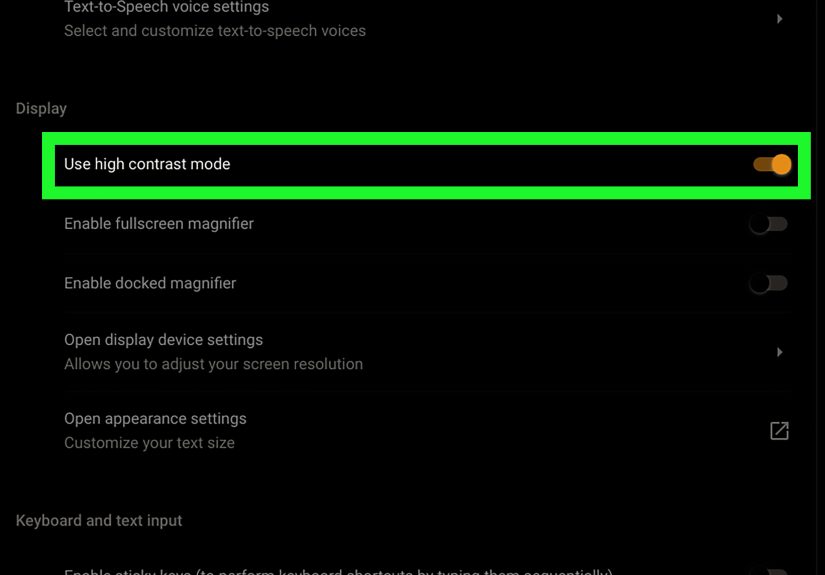
- Click Display and magnification.
- Turn on Color inversion.
That is it. Once enabled, your screen will flip colors right away.
On older ChromeOS versions, the wording may look a little different. You might see options such as Advanced, Manage accessibility features, or Use high contrast mode. The destination is basically the same: you are looking for the setting that reverses the screen colors.
How to Turn Inverted Colors Off
To return your display to normal, go back to the same Accessibility section and switch Color inversion off. Or use the shortcut again. ChromeOS treats it like a toggle, so the same shortcut that turns it on can also turn it off.
This is especially useful if you hand your Chromebook to somebody else. Not everyone appreciates surprise negative-image mode while trying to check email.
Color Inversion vs. Dark Mode vs. Night Light
These three features often get lumped together, but they do different jobs.
Color Inversion
This flips the screen’s colors. It is an accessibility feature meant to help some users with low vision, photosensitivity, or contrast needs. It is the strongest visual change of the three.
Dark Mode
Dark mode changes ChromeOS and supported apps to a darker interface without reversing every color value. It usually looks more polished than full inversion and is better for users who simply prefer darker menus and windows.
Night Light
Night Light adds a warmer, amber tone to the display to reduce blue light in the evening. It does not invert anything. It just makes the screen look less icy and a little more sunset-friendly.
If your goal is comfort at night, dark mode or Night Light may be the better fit. If your goal is stronger contrast across the whole display, inverted colors may help more. The trick is knowing which problem you are trying to solve before toggling settings like a game-show contestant.
When Inverting Colors on a Chromebook Makes Sense
Color inversion is not just a quirky trick. It can be practical in real situations.
For Low Vision or Light Sensitivity
Some users find bright white screens painful or exhausting. A darker inverted view can reduce glare and make text blocks easier to track, especially during long reading sessions.
For Bright Rooms
If you work near windows, under fluorescent lighting, or in classrooms with lighting designed by someone who apparently hates retinas, inversion can make some on-screen content feel easier to read.
For Temporary Relief
Sometimes your eyes are just done for the day. In those moments, quickly toggling inverted colors can be a useful short-term adjustment while you finish an assignment, email, or article draft.
When You Probably Should Not Use It
Inverted colors are not ideal for everything.
If you edit photos, shop online, work with design files, or need accurate colors for school or work, inversion can turn visual judgment into guesswork. A red button may look blue-ish, a product photo may look bizarre, and images can become confusing fast.
It can also be distracting if you are used to standard color layouts. Some people try it for five minutes and immediately decide their Chromebook looks haunted. That reaction is normal. Accessibility settings are meant to be helpful, not mandatory.
Troubleshooting: Why Does My Chromebook Still Look Weird?
If your display still seems off after turning color inversion off, one of these issues may be the real culprit.
1. Dark Mode Is Enabled
Dark mode can make menus and apps look much darker, but it will not fully invert photos and graphics. If your screen looks dark but not exactly “negative,” check whether dark mode is turned on.
2. Night Light Is Warming the Screen
If everything has a yellow, orange, or rosy tint, that is more likely Night Light than inversion. Turn it off in display settings and see whether the colors return to normal.
3. A Browser Extension Is Changing Web Colors
Extensions that force dark mode or high contrast on webpages can make websites look strange even when ChromeOS itself is normal. If only web pages look off, your browser may be the troublemaker.
4. External Display Settings Are Involved
If you are using a monitor, TV, or projector, the issue may be tied to the external display, cable, or that display’s own image settings. Test the Chromebook screen by itself to narrow things down.
5. ChromeOS Needs a Restart
Sometimes the least glamorous advice is the most effective. Restart the Chromebook. It fixes more odd display glitches than people like to admit.
Quick Tips for a Better Chromebook Viewing Experience
If you are experimenting with visual comfort, do not stop at inversion. ChromeOS has several useful display options that can work alongside or instead of it.
- Try Dark mode for a less dramatic version of a darker screen.
- Use Night Light in the evening to reduce blue light.
- Increase display size if text feels too small.
- Enable magnification if you need help seeing smaller elements.
- Adjust website text size if web pages are the main problem.
In other words, if inverted colors feel like using a chainsaw to slice a bagel, ChromeOS gives you a few more precise tools.
Real-World Experiences With Inverted Colors on Chromebook
In real life, using inverted colors on a Chromebook tends to create one of two reactions. The first is, “Oh wow, that actually helps.” The second is, “Why does my screen look like a sci-fi X-ray?” Both are completely valid.
Students often notice the feature first by accident. A hand slips across the keyboard, a shortcut gets triggered, and suddenly Google Docs looks like it is wearing a tuxedo it did not ask for. After the initial confusion, some users realize the setting is not just a weird visual prank. For long reading sessions, especially on bright white documents, the darker look can feel easier on tired eyes. A late-night study session with a glowing white screen is no joke, and inversion can make that experience feel less intense.
People who work in very bright spaces sometimes report a similar benefit. If you are using a Chromebook near a window, in a classroom with overhead lights, or in a café where the sun seems personally offended by your screen brightness, inverted colors can cut down on perceived glare. Menus, text, and icons may stand out more clearly. In those moments, the setting feels practical rather than experimental.
There is also a group of users who appreciate it for accessibility reasons. Someone with low vision, light sensitivity, or certain contrast preferences may find that inversion makes navigation easier. Text can feel more distinct, interface boundaries may stand out better, and long periods of reading can become less exhausting. That does not mean it works for everyone, but when it works, it can make a meaningful difference.
Of course, not every experience is glowing. Plenty of people switch it on and immediately switch it right back off. Photos can look strange, video thumbnails can feel distorted, and online shopping becomes a risky game of “Is that sweater black, navy, or from another dimension entirely?” If your work depends on accurate colors, inversion quickly stops being helpful and starts being chaos with Wi-Fi.
Another common experience is using inversion temporarily rather than all day. Some Chromebook users turn it on only when reading long articles, reviewing documents, or working through dense web pages. Then they switch back for everything else. That is where the keyboard shortcut shines. It lets users treat inversion like a tool instead of a permanent identity for the device.
What many people eventually discover is that color inversion is less about whether it is objectively “better” and more about whether it fits the moment. For reading? Maybe fantastic. For editing family photos or browsing furniture? Probably not. For accessibility support? Potentially very useful. For confusing your roommate into thinking your Chromebook is possessed? Also, yes, although that is not the official documentation language.
The overall experience is best when users know what the feature is for, how to toggle it quickly, and how it differs from dark mode. Once you understand that, color inversion stops feeling like a mystery and starts feeling like one more smart ChromeOS option you can use when it actually helps.
Final Thoughts
If you need to invert colors on a Chromebook, you really only need to remember two methods: the keyboard shortcut and the Accessibility settings path. The shortcut is best for speed. The settings menu is best for control. Together, they cover just about every normal situation.
More importantly, color inversion is not a random gimmick. It is a legitimate Chromebook accessibility feature that can improve readability, reduce glare, and help some users feel more comfortable during long screen sessions. It is not perfect for every task, but it is easy to test, easy to reverse, and easy to keep in your back pocket for the days when your eyes are not negotiating.
So the next time your Chromebook display goes full negative-photo drama, you will know exactly what to do. Press the shortcut, check the settings, and restore peace to your pixels.





 Close
Close