
Table of Contents >> Show >> Hide
- What “mark up” means in Word
- How to mark up a Word document step by step
- Advanced markup tools that save time
- Best practices for clean, professional markup
- Troubleshooting: common markup problems in Word
- Problem: Track Changes is on, but I cannot see edits
- Problem: Comments are missing or look different
- Problem: The document still shows markup when I print
- Problem: I want the clean final copy, but the edits are still there
- Problem: The wrong author name appears in comments and edits
- Problem: Word becomes slow in a heavily marked-up file
- When to use markup instead of just editing the file
- Experience section: what real markup work feels like in practice
- Final thoughts
Marking up a Word document sounds delightfully technical, but in real life it usually means one of three things: suggesting edits, leaving comments, or trying to save your coworker from sending a draft that still looks like it survived a red-ink tornado. If you have ever opened a file and seen colored insertions, strikethrough text, bubbles in the margin, and a comment thread that feels one passive-aggressive reply away from becoming performance art, congratulations. You have met Microsoft Word markup.
This guide explains how to mark up a Word document the right way, how to review someone else’s edits without losing your mind, and how to fix the common problems that make people mutter, “Why is Word doing this to me?” We will cover Track Changes, comments, markup views, printing, comparing versions, and cleanup before sharing. By the end, you will be able to review a document like a professional instead of like a raccoon in a silverware drawer.
What “mark up” means in Word
In Microsoft Word, markup usually refers to visible editing and review tools that show what changed in a document. The two stars of the show are Track Changes and Comments.
Track Changes
Track Changes records edits such as inserted text, deleted text, formatting changes, and sometimes moves within the document. Instead of silently replacing the original text, Word shows what was added, what was removed, and who did it. This is ideal for editing, legal review, school feedback, and business approvals.
Comments
Comments let you leave notes without directly editing the text. They are perfect for questions like “Can you verify this number?” or “This sentence is doing too much.” Comments are especially helpful when you want the writer to make the final call rather than forcing a specific wording change.
Markup views
Word also gives you different ways to view markup. Simple Markup keeps the page cleaner, while All Markup shows the whole glorious mess in full detail. If the page suddenly looks suspiciously normal, you may just be viewing a cleaner mode rather than having removed the edits.
How to mark up a Word document step by step
1. Turn on Track Changes
Open the document and go to the Review tab. Click Track Changes. Once it is on, every edit you make is recorded. If you delete a sentence, it will usually appear as removed text rather than vanishing forever. If you add a phrase, it will show as an insertion.
Example: Suppose the original sentence says, “Our team completed the project quickly.” If you change it to “Our team completed the project ahead of schedule,” Word can show the deleted word quickly and the inserted phrase ahead of schedule. That makes your reasoning visible to the next reviewer.
2. Add comments where explanation matters
Highlight the word, sentence, or paragraph you want to discuss, then choose New Comment from the Review tab. Type your note. Keep comments specific and useful. “Fix this” is not helpful. “This claim needs a current source” is helpful. “This intro reads like it had three coffees and no outline” is helpful only if the recipient enjoys your sense of humor.
Good comments often do one of these things:
- Ask a clear question
- Flag a factual issue
- Suggest a stronger structure
- Point out tone or clarity problems
- Request a source, date, or example
3. Choose the right markup view
On the Review tab, switch between markup views depending on what you need:
- Simple Markup: Best when you want a readable page with change indicators in the margin.
- All Markup: Best when you want to inspect every insertion, deletion, and formatting change.
- No Markup: Shows what the document would look like if the current changes were accepted. This does not remove markup.
- Original: Shows the document before tracked edits.
This matters because many people think their markup disappeared when they accidentally switched to No Markup. Word did not eat your edits. It is just being sneaky in a business-casual way.
4. Use Show Markup to control the clutter
If a heavily edited draft looks like a battlefield map, use Show Markup options to filter what appears. You can show or hide comments, insertions and deletions, formatting changes, and reviewer names. This is handy when you want to focus only on content edits or only on comments.
5. Review changes one by one
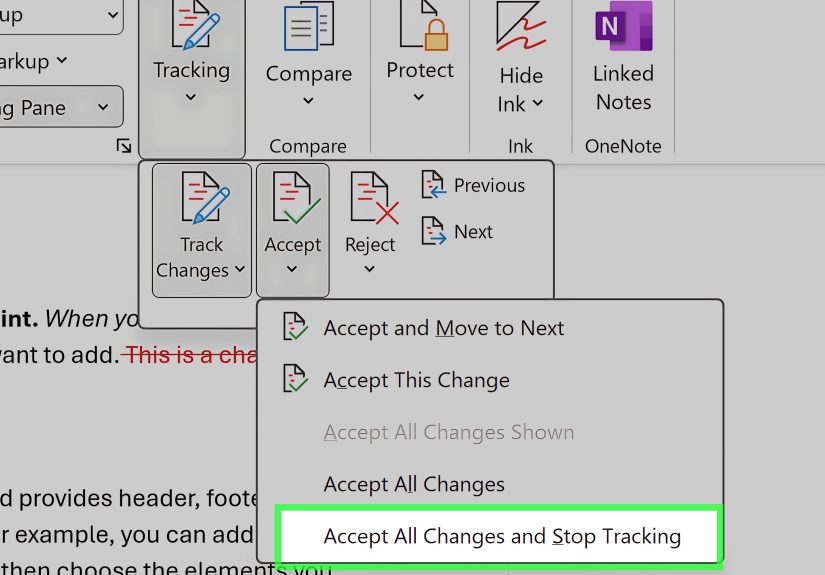
If you are the document owner, go through edits with Accept and Reject. Word can move from one change to the next, which is much easier than hunting them down manually. For a small document, this is the safest method because you can judge each edit in context.
6. Reply to and resolve comments
Modern Word comments work like little discussion threads. You can reply, tag people with @mentions, and resolve a thread when the issue is settled. That is a big step up from the old workflow of leaving mysterious one-line comments like “check” and hoping future-you remembers what that meant.
Advanced markup tools that save time
Compare two versions of a document
If someone ignored your request to use Track Changes and instead sent back “Final_v2_REAL_final_THIS_ONE.docx,” Word can compare two versions and generate a third document showing the differences. This is often called a legal blackline or compare view. It is a lifesaver for contracts, policy updates, and any draft history that resembles an archaeological dig.
Lock Track Changes
If you want to make sure reviewers cannot casually turn off tracking, Word offers a lock tracking option. This can be useful in formal review settings where every change needs to stay visible. It is not dramatic. It is just document governance with slightly more attitude.
Inspect the document before sharing
Before sending a final draft to a client, teacher, or manager, run Document Inspector. This tool can help find hidden data such as comments, tracked changes, document properties, and personal information. It is the digital equivalent of checking whether you are about to email someone a file containing internal notes like “rewrite this awful paragraph later.”
Best practices for clean, professional markup
Be specific, not theatrical
Markup should clarify the next step. Comments like “awkward” or “no” are technically comments, but they are also tiny acts of chaos. Explain what is wrong and what improvement would look like.
Use Track Changes for wording, comments for reasoning
If you are changing text directly, use Track Changes. If you are asking for a decision, context, or source, use comments. The combination keeps the review efficient.
Do not over-edit in one pass
Professional editors often separate big-picture review from line editing. First pass: structure, logic, missing pieces. Second pass: clarity and consistency. Third pass: grammar, punctuation, formatting. This makes the markup easier to understand and less overwhelming.
Name files like a functioning adult
Try file names such as Proposal_ClientReview_2026-04-05.docx instead of new new final fixed use this one 3.docx. Your future self deserves better.
Review before printing or exporting
If you do not want comments and tracked changes to appear in print, check the print settings carefully. Word can print markup unless you tell it not to. This is how confidential side notes end up making surprise public appearances.
Troubleshooting: common markup problems in Word
Problem: Track Changes is on, but I cannot see edits
Likely causes:
- You are in No Markup view instead of All Markup or Simple Markup.
- Show Markup filters are hiding insertions, deletions, or comments.
- The changes were already accepted or rejected.
Fix: Go to Review, switch to All Markup, and verify the Show Markup settings.
Problem: Comments are missing or look different
Likely causes:
- You are using modern comments, which appear in a newer threaded style.
- Comments are hidden in the current view.
- You are opening the file in a different version of Word or in Word for the web.
Fix: Choose Show Comments, check the Reviewing Pane, and confirm which version of Word you are using. Remember that comments and Track Changes are related review tools, but they are not the same thing.
Problem: The document still shows markup when I print
Likely cause: The Print Markup option is enabled.
Fix: Open File > Print, look at the settings, and turn off Print Markup. Also remember that hiding markup is not the same as removing it. If the document is truly final, accept or reject the changes and delete or resolve comments first.
Problem: I want the clean final copy, but the edits are still there
Likely cause: You switched views instead of finalizing the review.
Fix: Use Accept or Reject for tracked changes, then remove or resolve comments. Think of No Markup as a preview, not a cleanup button.
Problem: The wrong author name appears in comments and edits
Likely cause: Word is using the account or user name saved in the app settings.
Fix: Update the author or user name in Word settings before continuing. This matters in shared reviews because “Edited by Mom’s Laptop” is not usually the professional identity you want.
Problem: Word becomes slow in a heavily marked-up file
Likely causes:
- Too many tracked changes and comments
- Multiple versions merged into one file
- Large images, tables, or formatting changes
Fix: Save a backup copy, accept or reject completed edits in batches, split large review jobs into sections if possible, and compare versions instead of keeping years of revisions in one monster file.
When to use markup instead of just editing the file
Use markup when accountability matters. That includes team writing, legal review, academic feedback, client approvals, policy updates, grant applications, and anything that needs a visible revision trail. If you simply overwrite the text, nobody can tell what changed or why.
In contrast, if you are the only person working on a casual personal note, markup may be overkill. You do not need Track Changes to edit your grocery list unless you expect litigation over avocados.
Experience section: what real markup work feels like in practice
The funny thing about learning how to mark up a Word document is that the feature feels simple right up until you use it with actual humans. Then it becomes part editing tool, part communication system, part office diplomacy simulator.
In one common scenario, a manager opens a draft proposal, turns on Track Changes, and starts tightening every sentence. The markup is useful because the writer can see exactly what changed. But the comments often matter more than the edits. A change from “good results” to “measurable results” is helpful; a comment saying “Add last quarter’s conversion data here” is what actually moves the draft forward. The best reviewers do both: they improve the wording and explain the thinking.
Students and teachers experience markup a little differently. Students often panic when they first see a document full of red lines and comment bubbles, as if Word itself has become disappointed in them. But once they learn the system, markup becomes much less scary. A comment can point out a weak thesis, an unclear citation, or a paragraph that wandered off and started a new life somewhere else. Because the original text stays visible, the feedback feels more transparent and easier to learn from.
Editors tend to develop habits that make markup cleaner. Many review in passes. They might use one pass for structure, another for clarity, and another for grammar. That way the writer is not hit with every possible criticism all at once. Some editors also prefer comments for tone-sensitive suggestions. Instead of rewriting a sentence completely, they may leave a note like, “Could we make this sound more confident?” That preserves the writer’s voice while still improving the document.
There is also a practical trust issue in collaborative work. When people do not use Track Changes, confusion multiplies fast. Someone edits a paragraph, someone else edits the same paragraph, and suddenly nobody knows whose version is final. Markup prevents that chaos by creating a visible trail. It is not glamorous, but it saves enormous time.
And then there is the final cleanup phase, where many people discover that hiding markup is not the same as removing it. This is the classic “looks clean on my screen” disaster. Experienced users check the reviewing pane, inspect the document, and preview print settings before sending the file. That small habit can prevent very large embarrassment.
In other words, using Word markup well is not just about clicking the right buttons. It is about making revision clearer, calmer, and more collaborative. When used properly, it turns a messy back-and-forth into a process people can actually follow.
Final thoughts
If you know how to mark up a Word document, you know how to review writing without destroying the original, ask smart questions without derailing the draft, and finalize a document without accidentally publishing your internal commentary to the world. That is a valuable skill in school, business, publishing, legal work, and basically any place where words matter.
The secret is simple: turn on Track Changes when you edit, use comments when context matters, review markup in the correct view, and clean the file before you share it. Once you get the rhythm down, Word markup stops feeling like a confusing pile of red squiggles and starts feeling like a reliable review workflow.
And that, frankly, is a beautiful thing.







 Close
Close