
Table of Contents >> Show >> Hide
- What multicast streaming actually means
- Before you start: the boring stuff that saves hours
- Method 1: How to multicast stream using VLC through the GUI
- How receivers join the multicast stream in VLC
- Method 2: Multicast streaming with VLC command line
- Choosing between UDP and RTP in VLC
- Troubleshooting multicast in VLC without losing your mind
- Best practices for a cleaner multicast setup
- When VLC multicast is the right tool
- Conclusion
- Experience: what multicast streaming with VLC feels like in the real world
If you have ever wanted to send one video stream to several devices at once without making your network cry in the corner, multicast is your friend. And VLC, that Swiss Army knife of media players, makes it surprisingly doable. Whether you are testing video delivery in a lab, setting up internal signage, feeding a classroom demo, or just proving to coworkers that you really do know a cool networking trick, learning how to multicast stream using VLC is a useful skill.
In plain English, multicast lets one source send a stream to many listeners at the same time. That is different from unicast, where the sender has to create a separate stream for each viewer. With multicast, the network does more of the heavy lifting, which can make video distribution far more efficient on the right infrastructure. The catch is that multicast is not magic dust. Your switches, routers, VLANs, and receiver settings all need to cooperate. VLC can handle the media side beautifully, but it cannot bully a misconfigured network into behaving.
This guide walks through what multicast streaming is, when VLC makes sense, how to set it up through the interface and command line, and how to troubleshoot the usual gremlins when the video refuses to appear.
What multicast streaming actually means
Think of unicast like ordering ten separate pizzas for ten friends. Multicast is ordering one giant pizza and having the network slice it up only where needed. The sender publishes one stream to a multicast group address, and receivers join that group if they want the content. Devices that are not interested should stay out of the party.
That efficiency is the main reason multicast exists. It is especially useful for one-to-many delivery models such as internal video feeds, IPTV-style workflows, campus broadcasts, digital signage, monitoring walls, and lab environments where several machines need the same live source.
VLC fits well here because it can:
- Read local files, cameras, capture cards, and network sources
- Stream over UDP or RTP
- Receive multicast streams as a player
- Transcode when needed, though that does cost CPU
- Run from a GUI or the command line
Before you start: the boring stuff that saves hours
Before clicking anything in VLC, check these basics. They are not glamorous, but they are the difference between “Wow, it works” and “Why is the screen black again?”
1. Make sure your network supports multicast
Multicast works best on networks that are actually configured for it. On a simple flat LAN, local multicast tests can work easily. Once you cross VLANs or routers, things get more serious. You may need IGMP snooping on switches, an IGMP querier, and multicast routing such as PIM between network segments. If those pieces are missing, the stream may flood everywhere, go nowhere, or perform like it is being delivered by carrier pigeon.
2. Pick a multicast address and port
For IPv4 multicast, use an address in the multicast range. A simple test example is 239.255.12.42 on port 5004. Keep your port choice consistent on sender and receivers. If the sender uses one port and the receivers listen on another, VLC will sit there innocently while nothing useful happens.
3. Decide whether you need transcoding
If your source file already plays well on all receivers, avoid transcoding. Passing through the stream is lighter on CPU and usually simpler. If you need a different codec or lower bitrate, transcode it, but remember that every extra conversion step makes your machine sweat harder.
4. Think about TTL
TTL, or time to live, affects how far multicast packets can travel across Layer 3 hops. In practical terms, a low TTL often means your stream works on the local subnet and then mysteriously dies the moment it meets a router. If you are staying on one LAN, the default may be fine. If you need the stream to cross routed boundaries, raise the TTL accordingly.
Method 1: How to multicast stream using VLC through the GUI
If you prefer buttons over terminal commands, VLC’s interface can do the job just fine.
Step 1: Open the source
Launch VLC on the sending computer. Go to Media > Stream. Click Add and choose the video file you want to send. You can also use a live input device if your setup calls for that.
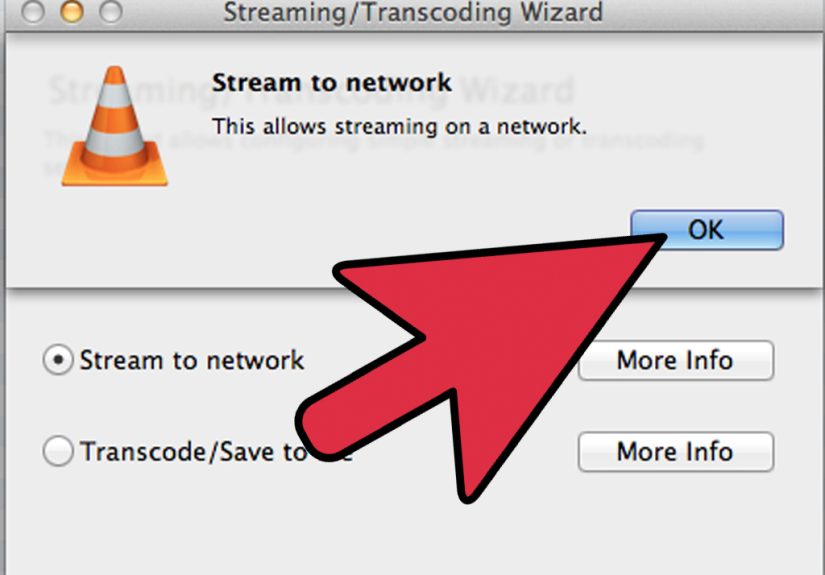
Step 2: Start the Stream wizard
After selecting the source, click Stream, then Next. This opens the output configuration where multicast becomes the star of the show.
Step 3: Choose the destination
In the destination area, select either UDP (legacy) or RTP / MPEG Transport Stream, depending on your VLC version and needs.
A practical choice for many setups is RTP or UDP carrying MPEG-TS. Enter:
- Address:
239.255.12.42 - Port:
5004
If VLC offers a TTL field, set it based on your network scope. For a local test, a small value is fine. For traffic that must cross routers, use a higher value.
Step 4: Set transcoding options
VLC may ask whether you want to activate transcoding. If all receivers support the current format, skip it. If compatibility matters more than CPU, choose a profile such as H.264 with AAC audio, or another profile available in your environment.
For lab work and internal playback, MPEG Transport Stream is often a dependable container because it is designed for streaming scenarios where packet loss and jitter are real possibilities.
Step 5: Begin streaming
Click Stream to start. The sender is now transmitting to the multicast group. If all is well, the network will deliver the stream only to listeners that join that address and port.
How receivers join the multicast stream in VLC
Now move to a receiving device and open VLC.
Step 1: Open the network stream
Go to Media > Open Network Stream.
Step 2: Enter the multicast URL
Use a network URL like this:
udp://@239.255.12.42:5004
Then click Play.
If the stream is already active and the network is passing multicast correctly, playback should begin. If not, do not panic. Multicast has a special talent for failing silently.
Step 3: Adjust caching if needed
If playback is choppy, go to VLC’s network caching settings or use advanced input options. Increasing caching can help smooth out jitter, especially on busy networks or wireless links. It adds a little delay, but it can make the stream much more watchable.
Method 2: Multicast streaming with VLC command line
If the GUI feels too cheerful for your taste, the command line gives you more control and makes repeatable tests easier.
Sender example
That basic form sends the file to the multicast group. On some systems you may want a more explicit stream output chain, especially if you need RTP or a particular mux.
This version is often clearer in production-style tests because it explicitly sets the destination, port, and transport stream mux.
Receiver example
For a headless or lab environment, you may see variants that use dummy audio and video outputs. Those are handy when you want to test transport behavior without rendering the media on screen.
Command-line VLC is great for repeatability. It is also great for making you notice typos with painful efficiency.
Choosing between UDP and RTP in VLC
In many real-world VLC multicast setups, you will choose between raw UDP-style delivery and RTP-based delivery. Both are legitimate, but they serve slightly different purposes.
Use UDP when:
- You want a simple local multicast test
- You control both sender and receivers
- You want the fewest moving parts
Use RTP when:
- You are working with standard real-time media workflows
- You want better media framing for audio or video delivery
- Your environment expects RTP-compatible behavior
Either way, remember that multicast delivery is still generally best-effort. If your network drops packets, the stream will not stop to apologize.
Troubleshooting multicast in VLC without losing your mind
No picture on the receiver
First, verify the obvious: same address, same port, same protocol. Then check whether the sender is actually transmitting. If possible, inspect the traffic with a packet capture tool. If no multicast packets are present on the receiver side, the problem is probably network-related rather than VLC-related.
Works on one VLAN but not another
This is where TTL and multicast routing usually enter the chat. If packets cannot cross the routed boundary, increase TTL and confirm that your routers are configured to carry multicast. Crossing subnets is where “it worked in the lab” becomes a famous last sentence.
The whole network seems flooded
Your switches may not be constraining multicast efficiently. IGMP snooping helps ensure multicast traffic is forwarded only to the ports that need it. Without it, multicast can behave more like a very rude guest who walks into every room uninvited.
Playback stutters
Try increasing network caching on the receiver. Also check bitrate, CPU usage, and whether you are transcoding unnecessarily. If you are pushing high-resolution media through a weak laptop while transcoding on the fly, VLC may be doing its best, but physics still gets a vote.
Receivers can join but only some work
Look at switch configuration, wireless infrastructure, and firewall behavior. Some Wi-Fi environments handle multicast poorly, and some enterprise security settings are less than enthusiastic about unusual UDP traffic.
Best practices for a cleaner multicast setup
- Test on a single LAN first before crossing VLANs or routers
- Use a consistent multicast group and documented port plan
- Avoid transcoding unless you really need it
- Set TTL intentionally instead of trusting defaults
- Use MPEG-TS when you want a stream container built for delivery over imperfect networks
- Document receiver URLs so users do not invent their own creative variations
- Keep a packet capture tool nearby for sanity checks
When VLC multicast is the right tool
VLC is excellent for testing, internal deployments, education, prototyping, signage pilots, and controlled video distribution. It is especially handy when you want a free, flexible tool that can both send and receive streams with minimal ceremony.
It is not always the best option for large-scale commercial delivery, internet-wide streaming, or workflows that demand strong session control, analytics, DRM, or adaptive bitrate delivery. In those cases, you may need a more specialized streaming platform. But for multicast inside a capable network, VLC punches far above its price tag, which is extra impressive because its price tag is basically zero.
Conclusion
Learning how to multicast stream using VLC is equal parts media setup and network awareness. VLC makes the streaming side approachable: choose a source, select a multicast destination, start the stream, and have receivers join with a matching network URL. The harder part is usually the network, not the media player. If your switches and routers support multicast correctly, VLC can be an efficient and reliable tool for one-to-many delivery.
Start small. Test on one subnet. Confirm the receiver URL. Raise TTL only when your design needs it. Add routing and IGMP controls when you move beyond a simple LAN. Once the fundamentals click, multicast streaming with VLC stops feeling mysterious and starts feeling like one of those satisfying setups that makes you look suspiciously competent.
Experience: what multicast streaming with VLC feels like in the real world
The first time I set up multicast in VLC, I assumed the hard part would be the software. Classic mistake. VLC was ready in minutes. The network, on the other hand, acted like it had been personally offended by my ambition. On the sender, everything looked perfect. On the first receiver, nothing. On the second receiver, still nothing. That was the moment I learned one of the most important truths about multicast: when it fails, it often fails with the confidence of something that thinks it is doing a fantastic job.
What finally helped was changing my mindset. Instead of asking, “Why is VLC broken?” I started asking, “Where are the packets disappearing?” That shift saved me hours. I began testing with one sender and one receiver on the same switch. Suddenly, it worked. Great news, but also deeply humbling. The software had been fine all along. The trouble started only when the stream crossed network boundaries. TTL was too low, and the switches needed the right multicast behavior to avoid either flooding traffic or dropping it on the floor like an unwanted brochure.
Another lesson came from transcoding. Early on, I turned on transcoding because it sounded professional. More options, more codecs, more power, more pain. CPU usage climbed, latency increased, and I ended up fixing a problem I did not actually have. Once I tried a simpler pass-through style setup, playback became smoother and the machine stopped sounding like it was preparing for takeoff. Since then, I only transcode when compatibility truly demands it.
I also learned that receiver instructions matter more than people think. If you tell five users to open a multicast stream manually, at least one will type the wrong port, one will use the wrong protocol, one will forget the @ symbol, and one will swear they entered everything correctly while definitely not entering everything correctly. Writing the exact URL in a shared note turned out to be one of the highest-return improvements in the whole project.
Over time, multicast with VLC became less intimidating and more enjoyable. Once the network was configured properly and the workflow was documented, it was almost elegant. One sender, multiple viewers, stable bandwidth use, and far less duplication than a pile of parallel unicast streams. That is the moment multicast starts to feel smart rather than scary. You stop fighting the setup and start appreciating how efficient it can be. And yes, you also become the person who says, “Did anyone check IGMP?” in meetings, which is either a badge of honor or a sign that you need more hobbies.





 Close
Close