
Table of Contents >> Show >> Hide
- What Is a CHM File?
- Step 1: Save the CHM File Locally and Check the Extension
- Step 2: Open the CHM File on Windows or Mac
- Step 3: Fix Common Problems If the CHM File Will Not Open
- Why CHM Files Still Show Up Today
- Best Tips for Opening CHM Files Without Drama
- Example Scenarios
- Frequently Asked Questions
- Conclusion
- Experience Section: What It Is Really Like to Deal with CHM Files
- SEO Tags
So you found a .CHM file on your computer and now you are staring at it like it is an ancient relic from the age of dial-up internet. Fair. CHM files are not exactly the celebrities of the modern file-format world, but they are still very much alive. Software manuals, legacy documentation, archived help systems, technical references, and old-school user guides still use them.
The good news is that opening a CHM file is usually not hard. The slightly less good news is that it can be weirdly picky depending on whether you are using Windows or a Mac, where the file came from, and whether your system thinks the file looks suspicious. In other words, your CHM file might be innocent, but your computer may still treat it like a trench-coat-wearing stranger in a dark alley.
This guide breaks everything down into 3 simple steps. You will learn how to open a CHM file on a PC or Mac, how to fix the classic blank-page problem, and what to do when the file opens with all the enthusiasm of a sleepy sloth. By the end, you should be able to read your file, extract its contents, or at least stop glaring at it.
What Is a CHM File?
A CHM file is a Compiled HTML Help file. Think of it as a bundle of web-style help pages packaged into one compressed file. Inside, a CHM usually contains HTML pages, images, links, a table of contents, and sometimes a search index. For years, software developers used CHM files as built-in help manuals for Windows programs. That is why they still show up in developer tools, archived documentation, and older business software.
If that sounds a little retro, it is. But retro does not mean useless. Plenty of CHM files still contain valuable instructions, technical walkthroughs, and product documentation that you may actually need. So let us get that file open.
Step 1: Save the CHM File Locally and Check the Extension
Before you start double-clicking like a maniac, make sure the file really ends in .chm. Sometimes people confuse CHM with similar-looking file extensions, and that can send you down a very annoying rabbit hole. If the extension is correct, save the file somewhere local, such as your Desktop or Downloads folder.
This matters because CHM files can behave badly when opened from certain remote locations, shared folders, or zipped archives. If you are trying to open the file directly from an email attachment, a cloud-sync preview, or a network drive, you are basically inviting trouble to dinner.
Quick checklist before opening
- Make sure the file extension is .chm.
- Download or copy the file to a local folder on your computer.
- Extract it first if it came inside a ZIP or another archive.
- Rename the file if it has strange characters or an overly long file path.
This first step sounds boring, but it prevents a shocking number of CHM headaches. File issues often look dramatic when the fix is simply, “Hey, maybe do not open it from a mystery location.”
Step 2: Open the CHM File on Windows or Mac
Now for the main event. The way you open a CHM file depends on your operating system.
On a Windows PC
Windows usually has the easiest path. In many cases, you can simply double-click the CHM file and it will open in the built-in Windows help viewer. If everything goes smoothly, you will see a window with navigation on the left and content on the right. Congratulations. Your CHM file and your computer are getting along.
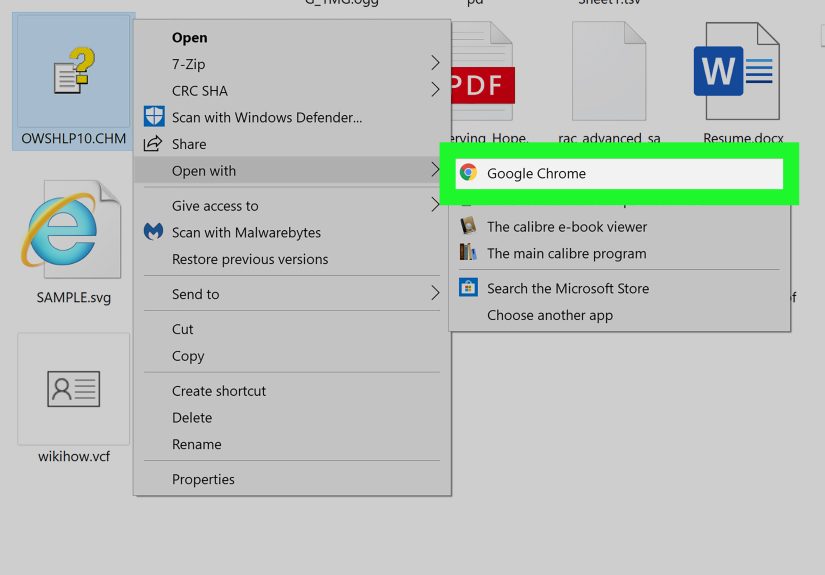
If double-clicking does not work, try this:
- Right-click the CHM file.
- Select Open with.
- Choose the Windows help viewer if available.
Some users also prefer third-party readers on Windows, especially when they want a lighter interface or better compatibility for older files. That can be handy if the default viewer acts moody.
On a Mac
On a Mac, the process is a little less plug-and-play. CHM files are closely tied to the Windows help ecosystem, so the most reliable approach on macOS is to use a dedicated CHM reader app or a tool that can convert or extract the content.
Here is the usual method:
- Install a CHM reader for macOS.
- Open the app.
- Use the app to import or open the CHM file.
If you only need the information inside the file, not the traditional help-file layout, another option is to convert the CHM into a more modern format or extract its contents. That can be especially useful when you want to read the material on multiple devices, search it more easily, or preserve the text for reference.
If you just need the contents, not the CHM experience
Sometimes you do not care about fancy navigation panes. You just want the text, images, and pages. In that case, tools that extract or convert CHM files can save the day. This is a smart move when the viewer refuses to cooperate or when you are working on a Mac and want a cleaner reading experience.
Step 3: Fix Common Problems If the CHM File Will Not Open
This is the part where most people get stuck. The file opens, but it shows a blank page. Or it says the page cannot be displayed. Or it acts like it opened while showing you absolutely nothing useful, which is honestly a bold design choice.
Here are the most common fixes.
Fix 1: Unblock the file on Windows
If the CHM file came from the internet, email, or another outside source, Windows may flag it as potentially unsafe. That can stop the contents from displaying properly even though the file itself opens.
To fix that:
- Right-click the CHM file.
- Choose Properties.
- On the General tab, look for an Unblock option.
- Check it or click it, then select Apply and OK.
This little checkbox solves a surprisingly large number of CHM problems. It is the digital equivalent of your computer saying, “All right, fine, I guess I trust this one.”
Fix 2: Move the file to a local folder
If the CHM file is on a shared network folder, external path, or odd storage location, move it to your local drive and try again. CHM files can be picky about where they live. A file that refuses to work from a remote location may open perfectly once copied to the Desktop.
Fix 3: Extract the archive first
If the CHM came inside a ZIP, RAR, or 7Z archive, do not try to read it while it is still half-trapped in archive limbo. Extract it fully first. Then open the standalone CHM file from the extracted folder.
Fix 4: Try a different reader
If the default method fails, use a different CHM-compatible app. This is especially useful on Mac, but it can help on Windows too. Some viewers handle indexing, images, and text encoding better than others.
Fix 5: Convert the file
If your main goal is reading the material, not preserving the CHM format, conversion is often the easiest path. Turning a CHM into EPUB, PDF, or HTML can make it much simpler to read, search, and store. It is not cheating. It is strategic laziness, which is often the best kind.
Why CHM Files Still Show Up Today
You might reasonably ask, “Why are we still dealing with this file format in the twenty-first century?” Excellent question. CHM files hang around because many organizations still rely on older software, internal documentation systems, archived manuals, and development tools that were built during the golden age of desktop help files.
That means you are likely to encounter CHM files in situations like these:
- Legacy enterprise software documentation
- Developer SDK manuals and technical references
- Archived knowledge bases
- Offline help systems bundled with Windows software
- Old ebooks and niche technical guides
So while CHM may not be trendy, it is still useful. Think of it as the cargo shorts of file formats: not glamorous, but weirdly practical.
Best Tips for Opening CHM Files Without Drama
- Always save the file locally before opening it.
- If it opens blank on Windows, check the Unblock setting first.
- Use a dedicated CHM reader on Mac instead of forcing random apps to guess.
- Extract the file from archives before opening it.
- Convert the file if readability matters more than keeping the original format.
- Keep a backup copy before editing, converting, or moving older documentation files.
Example Scenarios
Example 1: Windows user downloads a software manual
You download a CHM manual from a vendor website, double-click it, and the window opens with a blank page. The fix is usually simple: right-click the file, open Properties, and select Unblock. Suddenly the contents appear, and you feel like a wizard for solving a problem with one checkbox.
Example 2: Mac user receives a CHM file from a coworker
You receive a CHM reference guide for an older application, but your Mac has no obvious way to open it. Instead of wrestling with random programs, you install a dedicated CHM reader or convert the file into another format. Five minutes later, you are reading the guide instead of starting an unnecessary feud with your laptop.
Example 3: File opens from a ZIP but content looks broken
You try to preview the CHM directly from a compressed archive and everything looks wrong. After extracting the file to a normal folder, it opens correctly. Moral of the story: compressed folders are for storage, not for chaos experiments.
Frequently Asked Questions
Can I open a CHM file by double-clicking it?
Yes, usually on Windows. On Mac, you will generally get better results with a dedicated CHM reader.
Why does my CHM file open but show a blank page?
The file may be blocked by Windows security settings, stored in a problematic location, or opened from inside an archive. The first thing to check is the Unblock option in Properties.
Can I convert a CHM file?
Yes. If you do not need the original help-file interface, converting or extracting the file can make it easier to read and manage.
Are CHM files safe?
They can be safe, but you should treat them like any downloaded file: use trusted sources, be cautious with unknown attachments, and do not assume every file from the internet deserves instant trust.
Conclusion
Opening a CHM file on a PC or Mac is not complicated once you know the trick. The short version is this: save it locally, open it with the right tool, and unblock or convert it if needed. On Windows, double-clicking often does the job. On Mac, a dedicated CHM reader or converter is usually the smarter play.
The reason CHM files feel confusing is not because they are impossible. It is because they are old enough to have opinions. Still, once you know the format’s habits, they become much easier to handle. So the next time a CHM file lands in your Downloads folder, you will know exactly what to do instead of staring at it like it just crawled out of 2004.
Experience Section: What It Is Really Like to Deal with CHM Files
In real life, most people do not go searching for CHM files because they are excited about them. A CHM file usually appears when you are already trying to solve another problem. Maybe you are installing an older piece of software. Maybe your company still uses a legacy system with documentation that was written back when flip phones were cool. Maybe a developer sent you an offline manual and casually assumed you would know what to do with it. That is usually how the CHM adventure begins.
One common experience on Windows is the false sense of victory. You double-click the file, a viewer opens, and for one beautiful second you think the problem is solved. Then the content area is blank. Or you get a message that sounds technical enough to inspire panic. This is where many people assume the file is corrupted, when in reality Windows is just being extra cautious. Once you find the Unblock option in Properties, it feels almost silly. The file was fine. The operating system was simply acting like an overprotective parent.
Mac users tend to have a different experience. The file does not open in the neat, obvious way people expect. That can make the format feel broken when it is really just unfamiliar territory for macOS workflows. The moment people switch to a proper CHM reader, things usually become much smoother. That is why the biggest lesson with CHM files is not technical genius. It is using the right tool instead of hoping random apps will magically understand an older help format.
Another very normal experience is finding a CHM file inside a ZIP archive and trying to open it too soon. People do this all the time because modern systems make previews look effortless. But CHM files do not always love being handled halfway. Extracting the file first often solves the issue immediately. It is one of those fixes that feels almost rude in its simplicity.
There is also the “I only need the text” crowd, and honestly, they have a point. If your real goal is reading instructions, not admiring the original CHM layout, converting or extracting the content can be the least frustrating path. Many users end up preferring that approach because it makes the material easier to search, save, and reuse. In practice, the best CHM strategy is often the least dramatic one: open it natively when possible, but convert it when convenience wins.
The biggest takeaway from real-world CHM use is that these files are not hard once you stop expecting them to behave like modern PDFs or web pages. They are older, a little stubborn, and sometimes comically particular. But when you know the routine, they become manageable fast. And that is oddly satisfying. Few tech wins feel as smugly rewarding as opening a cranky old file format and making it behave.





 Close
Close