
Table of Contents >> Show >> Hide
- What You Need Before You Start
- Ad Hoc vs. Infrastructure: Which One Do You Use?
- Step 1: Check That Your Game Supports Multiplayer
- Step 2: Turn On the WLAN Switch and Prepare Both PSPs
- Step 3: Set Up Ad Hoc Channel (If Your Game Needs It)
- Step 4: Decide Who Is the Host and Who Is the Guest
- Step 5: Create the Multiplayer Lobby on the Host PSP
- Step 6: Join the Game on the Second PSP
- Step 7: Start the Match and Play!
- Step 8: Fix Common PSP Two-Player Connection Problems
- Bonus: Playing Two Players with Only One Game Disc (When Supported)
- Extra Tips for a Better PSP Multiplayer Experience
- Real-World Experiences & Pro Tips for Playing Two Players on PSP
- Conclusion
- SEO Meta Summary
If you’ve still got a PlayStation Portable lying around, congratulations: you own one of the most underrated multiplayer machines of all time. The PSP can connect wirelessly to other systems so you can race, fight monsters, or battle it out in classic fighting games side by sideno big TV required. This step-by-step guide walks you through exactly how to play two players on PSP, from checking your game to fixing annoying “failed to connect” errors.
We’ll focus on using your PSP’s built-in wireless features (mainly Ad Hoc mode) to get two systems talking to each other. Whether you’re trying to hunt in Monster Hunter Freedom Unite, drift through corners in Need for Speed, or smack a friend around in Tekken, the basic process is very similar.
What You Need Before You Start
Before you jump into the 8 steps, make sure you have:
- Two PSP systems (any model: 1000, 2000, 3000, or Go).
- A multiplayer-compatible game that supports Ad Hoc or Infrastructure mode (check the UMD box or digital game info for “Ad Hoc” or “Multiplayer”).
- Charged batteries or power adapters for both systems.
- Some space between you and your friendyou’ll usually want to sit within the same room so the wireless signal is stable.
The PSP uses Wi-Fi to link multiple systems together and can connect several players in the same local network using what’s called Ad Hoc mode, where devices talk directly to each other without needing a router.
Ad Hoc vs. Infrastructure: Which One Do You Use?
Ad Hoc Mode (Local Multiplayer)
Ad Hoc mode is what you’ll use most of the time for two-player PSP gaming. In this mode, your PSPs connect directly to each other, like walkie-talkies for gamers. No router, no internet, no complicated network setupjust your PSPs and a compatible game.
- Perfect for couch co-op or playing in the same room.
- Commonly used in games like Monster Hunter, Tekken, and racing titles.
- Usually labeled as “Ad Hoc,” “Local Multiplayer,” or “Wireless Play” in game menus.
Infrastructure Mode (Online Multiplayer)
Infrastructure mode lets the PSP connect through a Wi-Fi router to play online. Some older games supported online servers, but many official servers have been shut down, and this setup is more complex. For a simple two-player setup at home, Ad Hoc mode is easier, faster, and more reliable.
In this guide, we’ll assume you’re using Ad Hoc mode to get two PSPs playing together in the same space.
Step 1: Check That Your Game Supports Multiplayer
Not every PSP game supports two players, so your first job is to confirm that yours does.
- Check the UMD case: Look at the back of the box for icons like “Ad Hoc,” “Multiplayer,” or a small Wi-Fi symbol.
- Check the in-game menus: From the title screen, look for options like “Multiplayer,” “Wireless Play,” “Ad Hoc,” “Co-op,” or “VS Mode.”
- Digital downloads: If you’re using a digital version, check the game info page for multiplayer features.
If your game mentions Ad Hoc or local multiplayer, you’re good to go. If it’s purely single-player, sadly, no amount of button mashing will turn it into a two-player masterpiece.
Step 2: Turn On the WLAN Switch and Prepare Both PSPs
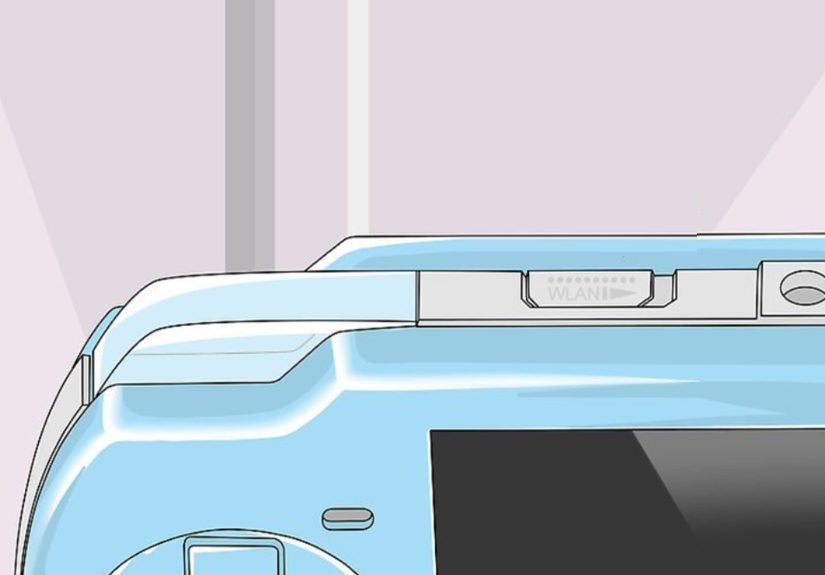
The PSP has a physical WLAN switch that controls its wireless connection. If this is off, multiplayer simply won’t work.
- Find the WLAN switch: It’s usually on the top or left side of the PSP shell, labeled “WLAN.”
- Slide it to ON on both PSPs.
- Turn on both systems using the power slider.
- Check battery levels: Multiplayer sessions drain the battery faster. If you’re low, plug into a charger.
Optional but helpful: set a recognizable nickname for each PSP (under Settings > System Settings > Nickname) so it’s easier to identify who’s who when joining lobbies.
Step 3: Set Up Ad Hoc Channel (If Your Game Needs It)
Many games just manage the channel for you when you start an Ad Hoc session. But some titles let you choose or require that everyone is on the same channel.
- From the PSP main menu (XMB), go to Settings > Network Settings > Ad Hoc Mode.
- Select either Automatic (recommended) or pick the same numbered channel on both PSPs.
- Confirm and back out to the main menu.
If you’re unsure, “Automatic” is usually the safest option and works for most games.
Step 4: Decide Who Is the Host and Who Is the Guest
In virtually every PSP multiplayer game, one system acts as the host (the one that creates the room or lobby) and the other acts as the guest (the one that joins).
- The host usually selects the map, mode, time limit, and rules.
- The guest browses for an existing room and joins it.
Pick who will host based on who:
- Has the game loaded and ready first.
- Has a more stable PSP (better battery, no random crashes).
Once you’ve agreed on host and guest, you’re ready to jump into the game itself.
Step 5: Create the Multiplayer Lobby on the Host PSP
Now the fun part begins: actually loading the game and creating the room.
- Insert the game UMD (or launch the digital game) on the host PSP.
- From the title screen, go to Multiplayer, Wireless, Ad Hoc, or VS Modethe exact wording depends on the game.
- Select an option like “Create Room,” “Host Game,” “Create Session,” or “Create Lobby.”
- Set the match options: number of players, time limit, map or track, difficulty, and any special rules.
- Confirm and start waiting in the lobby. The game will now broadcast a session for other PSPs to find.
At this point, the host should see a screen that looks like a waiting room, sometimes with a message like “Waiting for players…” or a list of slots where players will appear.
Step 6: Join the Game on the Second PSP
Now switch to the guest PSP and repeat the launch process.
- Insert the same game UMD (or launch the same digital game) on the second PSP.
- From the title screen, go to the same Multiplayer / Ad Hoc section.
- This time, choose “Join Game,” “Search for Games,” “Find Session,” or similar wording.
- Wait while the PSP scans for available rooms. The host’s lobby should appear by name or by the host’s nickname.
- Select the host’s room and confirm your choice.
- Once connected, customize your character, vehicle, or loadout if the game allows.
If everything works, you should now see both players in the lobby. Take a second to celebrate. Or trash talk. Your choice.
Step 7: Start the Match and Play!
With both PSPs connected and sitting comfortably in the lobby, it’s time to actually play.
- On the host PSP, choose “Start Game,” “Begin Match,” or the equivalent command.
- Both PSPs will usually show a loading screen at the same time while the game syncs data.
- Once the game loads, you’ll both appear in the same race, arena, battlefield, or dungeon.
From here, it’s standard gameplayexcept now your opponent or co-op partner is sitting right next to you. Just remember that handhelds are not throwable objects, no matter how suspicious your friend’s “lucky” winning streak looks.
Step 8: Fix Common PSP Two-Player Connection Problems
Sometimes, even when you’ve followed all the steps, the PSPs refuse to cooperate. Here are some common problems and how to fix them:
Problem: “No games found” when searching
- Double-check that the WLAN switch is ON on both PSPs.
- Make sure both PSPs are running the same game and preferably the same region (e.g., both are U.S. copies).
- Confirm that the host PSP is already in a lobby before the guest searches for games.
- Move the systems closer togetherwalls and distance can weaken the signal.
Problem: Disconnected in the middle of a match
- Check battery levels; a low battery can cause sudden shutdowns.
- Avoid blocking the PSP’s Wi-Fi antenna with your hands for long periods.
- Try switching the Ad Hoc channel from “Automatic” to a specific channel on both PSPs.
Problem: One PSP is very slow or laggy
- Close any background processes (like music playback from the XMB).
- Check that your UMD isn’t badly scratched or dirty.
- If the game supports lower graphics or fewer effects in multiplayer, try enabling those options.
Most two-player issues are solved by checking the WLAN switch, staying close together, and making sure the game settings match on both systems.
Bonus: Playing Two Players with Only One Game Disc (When Supported)
Some PSP games support features similar to “Game Sharing” on other handhelds, where one UMD can be used to let another player join in with limited content. In a few cases, clever players have discovered that you can start a multiplayer session on one PSP, then very carefully move the UMD to another system to get both connected before the game fully loads.
However, this trick:
- Does not work with every game.
- Can cause crashes or longer load times.
- May limit what modes or maps the second player can access.
For the smoothest, least-stressful experience, it’s better when both players have their own copy of the game. But if you’re experimenting with older titles and you’re both patient, one-disc multiplayer can be a fun challenge to try.
Extra Tips for a Better PSP Multiplayer Experience
- Use short sessions if your batteries are oldplay several short matches instead of one marathon session.
- Lower in-game music volume so you can hear each other strategizing (or complaining).
- Agree on house rules: no screen-peeking (if you’re sitting close enough to see each other’s screens), no pausing during intense moments, and no rage-quitting mid-battle.
Real-World Experiences & Pro Tips for Playing Two Players on PSP
On paper, learning how to play two players on PSP is all about channels, lobbies, and menus. In reality, the best memories come from the tiny human details: shouting when someone falls off a track, panicking when a boss turns toward your under-leveled character, or laughing when you both accidentally blow yourselves up with the same grenade.
One of the classic examples is co-op hunting in games like Monster Hunter Freedom Unite. The setup is textbook: one person hosts the gathering hall, the other joins, and suddenly your quiet solo grind turns into a full-blown strategy session. You’ll quickly discover that multiplayer completely changes how you play. Instead of running in blindly, one of you might focus on drawing the monster’s attention while the other sets traps or attacks from behind. That “we actually pulled it off” moment after a tough fight is where the PSP really shines.
Racing games are another place where the PSP two-player magic shows up. Link up for a few laps in a racing title and you’ll see just how personal a handheld race can feel. Sitting shoulder to shoulder, you know exactly when your friend misses a drift because their whole body language changes. You don’t even need voice chatthe groan when you pass them on the final corner says it all.
There’s also something satisfying about how low-setup, low-pressure PSP multiplayer can be. You don’t need a huge TV, a fast router, or online accounts. You just sit near each other, switch on the WLAN, and play. That simplicity makes it easy to turn a quick “let’s try one match” into a whole evening of friendly competition.
Over time, you’ll develop your own rituals and habits. Maybe you always pick the same map because it’s “neutral territory,” or you’ve banned certain overpowered weapons because they cause too many arguments. You might even create your own mini-tournaments: best of five races, first to three wins in a fighting game, or co-op challenges like “beat this mission without anyone fainting.”
If you’re playing on older hardware, one of the best pro tips is to treat your PSPs gently. Long multiplayer sessions can heat them up a bit, so give them a rest between matches. Keep your UMDs clean and protected; a tiny scratch that’s no big deal in single-player can cause an inconvenient freeze right as your friend is about to admit defeat (convenient timing for them, of course).
Another small but impactful tip is to optimize comfort. Because you’re both looking at separate screens, you’re free to sit however you like. Grab a couple of chairs, a couch, or even sit back-to-back if you want to prevent “accidental” screen-peeking in competitive games. A fan, snacks, and some background music can turn simple two-player matches into a full-on retro game night.
Most importantly, remember that PSP multiplayer is less about perfect performance and more about shared moments. Yes, it’s nice when the connection is flawless and nobody disconnects. But even the glitches become part of the story: the time your friend’s battery died right before victory, or the moment a lag spike saved you from a finishing blow. Those imperfections are part of the charm of handheld two-player gaming, and the PSP delivers that charm in a uniquely portable, personal way.
Conclusion
Setting up two-player PSP multiplayer might look technical at first, but once you understand the basicsturn on the WLAN switch, use Ad Hoc mode, choose a host, create a lobby, join, and playit becomes second nature. After a session or two, you’ll spend far less time fumbling through menus and far more time teaming up for epic boss fights or bragging about photo-finish race wins.
Dig your PSPs out of the drawer, charge them up, grab a multiplayer game, and follow these 8 steps. With a little practice, you’ll turn that nostalgic handheld into your favorite portable co-op machine all over again.




 Close
Close