
Table of Contents >> Show >> Hide
- Before You Sign In: Know Your Zoom Account Type (It Matters)
- How to Sign in to Zoom on Desktop (Windows & Mac)
- How to Sign in to Zoom on Mobile (iPhone/iPad & Android)
- Can You Join a Zoom Meeting Without Signing In?
- Forgot Your Zoom Password? Here’s the Clean Fix
- Common Zoom Sign-In Problems (And How to Fix Them)
- How to Switch Accounts or Sign Out (Desktop & Mobile)
- Security Upgrade: Make Sign-In Smoother (and Safer)
- FAQ: Quick Answers About Signing in to Zoom
- Real-World Experiences: What Signing In to Zoom Actually Feels Like (Plus How to Avoid the Usual Traps)
- Experience #1: “I Signed In… Why Don’t I See My Meetings?”
- Experience #2: “Zoom Keeps Logging Me Into the Wrong Google Account”
- Experience #3: “SSO Wants a Company Domain… I Have No Idea What That Is”
- Experience #4: “I Hit ‘Forgot Password’ and Nothing Shows Up”
- Experience #5: “Joining a Meeting as a Guest Saved My Day”
Zoom is one of those apps that’s either the reason you got a job done… or the reason you’ve yelled,
“WHY WON’T YOU LET ME IN?” at your screen like it personally betrayed you. The good news: signing in is
usually easy once you know which sign-in method your account actually uses (email/password, Google,
Apple, Facebook, Microsoft, or company SSO).
This guide walks you through signing in to Zoom on desktop and mobile, choosing the right login method,
fixing common sign-in problems, and avoiding the classic “I definitely have an account… right?” moment.
We’ll keep it practical, a little funny, and very “you can do this.”
Before You Sign In: Know Your Zoom Account Type (It Matters)
Zoom gives you multiple ways to sign in. That’s helpful… until you try the wrong one three times in a row.
Here’s the quick reality check:
- Email + password: You created a Zoom account with an email address and set a password.
- Google/Apple/Facebook/Microsoft: You sign in by clicking that provider’s button (OAuth login).
- SSO (Single Sign-On): Your school/company uses a domain-based login (you’ll see “Sign In with SSO”).
- Meeting attendee only: You can often join a meeting without signing in at all.
If you’re unsure, think back to what you normally click. If your finger goes straight to “Google,” you’re not
an email/password person (at least not for that Zoom account).
How to Sign in to Zoom on Desktop (Windows & Mac)
Option 1: Sign in with Email and Password (Zoom Account Login)
- Open the Zoom desktop app (Zoom Workplace / Zoom client).
- Click Sign In.
- Enter the email address tied to your Zoom account.
- Enter your password.
- Click Sign In.
If you’re on a shared computer, double-check you’re not signing into someone else’s Zoom account.
Nothing says “awkward” like accidentally opening a coworker’s meeting schedule.
Option 2: Sign in with Google, Apple, Facebook, or Microsoft
If you originally created your account using Google/Apple/Facebook (or your organization supports Microsoft sign-in),
don’t force an email/password login. Use the matching provider button instead:
- Open the Zoom desktop app.
- Click Sign In.
- Select the provider icon/button: Google, Apple, Facebook, or Microsoft.
- Complete the sign-in in your browser window (or pop-up), then return to the Zoom app.
Pro tip: If you have multiple Google accounts, make sure your browser selects the correct one.
Zoom will happily sign you into the wrong accountlike a golden retriever who just grabbed the nearest tennis ball.
Option 3: Sign in with SSO (Company or School Login)
If your Zoom account is managed by an organization, SSO is common. Instead of an email/password you remember,
you’ll use a company domain and then log in via your organization’s identity provider (like Okta, Microsoft Entra ID, etc.).
- Open the Zoom desktop app.
- Click Sign In with SSO.
- Enter your company domain (your admin or IT team can provide it).
- Click Continue.
- Finish signing in on your organization’s login page.
If you don’t know the company domain, Zoom typically offers a “I don’t know the company domain” path where you enter your email
to help route you correctly.
Option 4: Sign in via the Zoom Web Portal (Browser Login)
Prefer a browser or need to tweak settings quickly? Sign in through the Zoom web portal:
- Open your browser.
- Go to Zoom’s sign-in page.
- Choose your sign-in method (email/password, SSO, or provider login).
Once you’re in, you can manage meetings, recordings, profile settings, and account security from the portal.
How to Sign in to Zoom on Mobile (iPhone/iPad & Android)
Step-by-Step: Sign in on the Zoom Mobile App
- Open the Zoom app.
- Tap Sign In (or choose your provider/SSO option if shown).
- Use the correct sign-in method for your account.
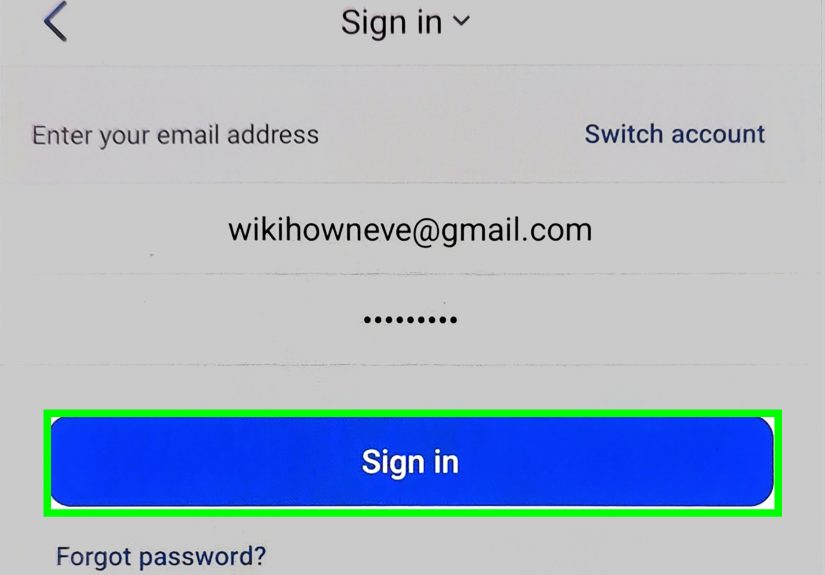
Mobile Option 1: Email + Password
- Tap Sign In.
- Enter your email address and password.
- Tap Sign In.
Mobile Option 2: Google, Apple, Facebook, or Microsoft
- On the sign-in screen, tap the matching provider button.
- Approve sign-in with the provider (you may see a browser view or in-app prompt).
- Return to Zoomyour account should load automatically.
If you use Apple sign-in, watch for the “Hide My Email” situation. If you chose it when creating the account,
your Zoom email may be an Apple relay address, not your everyday inbox. That can matter later for password resets.
Mobile Option 3: SSO
- Tap SSO on the sign-in screen.
- Enter your company domain.
- Tap Continue.
- Complete your organization’s login flow.
Can You Join a Zoom Meeting Without Signing In?
Yepoften you can. Zoom typically allows attendees to join a meeting using a meeting link, meeting ID, and passcode
without being signed into an account. This is especially common for guests or students joining a class session.
Desktop: Join Without Signing In
- Open the Zoom app.
- Click Join a Meeting.
- Enter the Meeting ID and your display name.
- Enter the passcode if prompted.
- Click Join.
Mobile: Join Without Signing In
- Open the Zoom app.
- Tap Join a Meeting.
- Enter the Meeting ID, your name, and passcode (if required).
When should you sign in anyway? If you need to host, schedule meetings,
use cloud recordings, or access your saved settings, signing in is the move.
Forgot Your Zoom Password? Here’s the Clean Fix
If you use email/password and can’t remember it (we’ve all been there), use Zoom’s password reset flow.
Typically, you enter your email (or phone number if applicable), receive a verification code, and set a new password.
- Open your browser and go to Zoom’s forgot password page.
- Enter your email address (or phone number, if supported for your account).
- Get the verification code (email or SMS) and follow the prompts.
- Create a new password and sign in again.
Important: If you normally sign in with Google/Apple/Facebook, a password reset might not apply the way you expect.
In that case, sign in using that provider button. If you need both options, Zoom lets you add/link a password login
to certain provider-based accounts in some scenarios through your profile settings.
Common Zoom Sign-In Problems (And How to Fix Them)
1) “This Zoom Account Does Not Exist”
This error usually means you’re using the wrong sign-in method or the wrong email address.
Try these fixes:
- Try signing in with the provider you used (Google/Apple/Facebook/Microsoft) instead of email/password.
- Check for typos (extra spaces love to sneak in).
- If it’s an org account, try SSO and confirm the domain with IT.
2) You Never Receive the Verification Email
If Zoom sends a verification email/code and it doesn’t show up:
- Check spam/junk folders (your inbox is innocent until proven guilty).
- Wait a few minutessome mail servers delay automated emails.
- If you manage email settings, allow Zoom’s no-reply sender domain/address.
- Try a different sign-in method if available (SSO or provider login).
3) SSO Redirect Loops or “Domain Not Found”
SSO issues often come down to the domain or an organizational login policy:
- Confirm the domain with your organization’s IT/admin.
- Use the “I don’t know the company domain” option if it appears, then enter your work/school email.
- Update the Zoom app to the latest version before retrying.
- Try signing in via the web portal first to confirm your org login is working.
4) Wrong Account Opens (Especially with Google)
If Zoom signs you into the wrong Google account, it’s usually your browser session causing trouble.
Fix it like this:
- In your browser, sign out of extra Google accounts (or open an Incognito/Private window for the correct one).
- Then retry “Sign in with Google” from the Zoom app.
- If you’re on a managed work device, ask IT if multiple Google identities are restricted.
5) “Your account has been locked” or Too Many Attempts
If you tried the wrong password too many times, take a breath:
- Wait a bit and try again (locks can be temporary).
- Reset the password if you use email/password.
- If this is an org account, contact your admin/IT to check security policies.
How to Switch Accounts or Sign Out (Desktop & Mobile)
Sign Out on Desktop
- Open Zoom.
- Click your profile picture (top-right).
- Select Sign Out.
- Then sign in again using the correct method for the account you want.
Sign Out on Mobile
- Open Zoom.
- Go to Settings.
- Scroll down and tap Sign Out.
If you’re switching between a personal Zoom account and a work SSO account, it’s smart to sign out completely first.
Some “it keeps logging me into the wrong place” headaches come from half-signed-in sessions.
Security Upgrade: Make Sign-In Smoother (and Safer)
A smooth login is great. A safe login is better. If your organization enables it, Zoom can use
two-factor authentication (2FA) to protect accounts. The specifics vary by account/admin setup, but the concept is the same:
after password/provider sign-in, you verify with an additional factor (authenticator app, code, etc.).
Quick Safety Wins
- Use the correct sign-in method so you don’t create accidental duplicate accounts.
- Don’t reuse passwords (your 2014 “Password123!” deserves retirement).
- Keep Zoom updated to reduce sign-in bugs and security issues.
- Sign out on shared devicesfuture you will be grateful.
FAQ: Quick Answers About Signing in to Zoom
Do I need a Zoom account to join a meeting?
Often, no. Many meetings allow joining as a guest using a link/ID and passcode. But hosting and scheduling usually requires signing in.
Why does Zoom ask me to sign in on the web when I’m using the app?
Provider logins (Google/Apple/Facebook/Microsoft) and SSO commonly open a browser window to complete authentication, then send you back to the app.
Can I use the same email for multiple Zoom accounts?
It’s possible to end up with separate accounts if you sign up with email/password and also use a provider login that maps differently.
The simplest approach: pick one primary method and stick to it, and consider linking sign-in methods when available.
What’s the fastest way to confirm I’m signed into the right account?
Look at your profile name/email in the Zoom app settings or your profile page in the web portal. If your meeting list looks “wrong,” it probably is.
Real-World Experiences: What Signing In to Zoom Actually Feels Like (Plus How to Avoid the Usual Traps)
Let’s talk about the part no one admits: most Zoom “login problems” aren’t really problemsthey’re plot twists.
Like when you swear you have an account, but Zoom swears back… loudly… that you do not. Here are some common experiences
people run into, and how to handle them without losing your morning coffee to stress.
Experience #1: “I Signed In… Why Don’t I See My Meetings?”
This usually happens when you have more than one Zoom identity floating around: a personal account, a work account,
maybe an old school account from three laptops ago. You sign in successfully, but the calendar is empty and your profile
picture looks suspiciously like the default silhouette of a person who has never scheduled a meeting in their life.
What worked: signing out completely, then signing back in with the method you used when you created the meetings.
If your meetings were scheduled through a work account, that often means SSO (not Gmail, not email/password).
A good “sanity check” is to open your profile and confirm the email address. If it’s not the one you expected, you’re
in the wrong neighborhood.
Experience #2: “Zoom Keeps Logging Me Into the Wrong Google Account”
The browser is the hidden puppet master here. If Chrome is signed into multiple Google accounts, Zoom may select the one
that’s currently “active,” even if it’s your personal Gmail and you’re trying to access your work Zoom. People often think
Zoom is broken when it’s really just being overly helpful.
What worked: opening a private/incognito browser window, signing into the correct Google account there, and then clicking
“Sign in with Google” again. It’s also helpful to remove extra Google sessions (temporarily) if you’re in a hurry.
And yes, it’s annoying. But it’s the kind of annoying that’s fixed in two minutes once you know the trick.
Experience #3: “SSO Wants a Company Domain… I Have No Idea What That Is”
SSO is fantastic when you already know the magic word. When you don’t, it feels like a riddle delivered by a very polite robot.
Many organizations use a short domain value (sometimes the company name, sometimes an abbreviation, sometimes something nobody would
guess in a million years).
What worked: using the “I don’t know the company domain” option when available, or checking an internal IT page (many companies
and universities publish a short Zoom login guide for employees/students). Once you find the domain once, save it somewhere.
Your future self will thank you.
Experience #4: “I Hit ‘Forgot Password’ and Nothing Shows Up”
Password reset emails are like rideshare drivers: they usually arrive fast, but occasionally they take a weird route.
Spam filters, email delays, and security settings can all interfere. Also, if you never had an email/password login in the first place
(because you used Google/Apple), the password reset path may not do what you expect.
What worked: checking spam/junk, waiting a few minutes, and confirming you used the right email address. If the account was created
through Google/Apple, people often solved it instantly by signing in with the provider button instead of resetting a password they don’t have.
Experience #5: “Joining a Meeting as a Guest Saved My Day”
Sometimes you don’t need to sign in at allespecially if you’re just attending. People in a rush (job interview, doctor telehealth visit,
class lecture, you name it) often forget that Zoom provides a “Join a Meeting” option right on the start screen.
If you have the meeting ID and passcode (or a meeting link), you can usually get in without wrestling your login.
What worked: using “Join a Meeting,” entering the ID and passcode, and thenonly if neededsigning in later to access features like chat history,
calendar integrations, or hosted meeting controls. It’s like taking the side entrance when the front door is crowded.
Bottom line: the best Zoom sign-in experience comes from matching your login method to your account’s origin story.
Once you know whether you’re an email/password person, a Google/Apple person, or an SSO person, Zoom becomes a lot less dramatic.
And if it does get dramatic? You now have the script.







 Close
Close