
Table of Contents >> Show >> Hide
- Why Your Mac Calendar and iPhone Calendar Are Not Automatically Matching
- The Easiest Method: Sync a Mac Calendar to an iPhone With iCloud
- How to Sync Google Calendar or Outlook Between a Mac and iPhone
- Which Sync Method Is Best?
- Can You Sync a Mac Calendar to an iPhone With Finder?
- How to Sync Only Certain Calendars
- Common Reasons a Mac Calendar Will Not Sync to an iPhone
- Quick Fixes When Calendar Sync Stops Working
- Best Practices for Smooth Calendar Syncing
- Final Thoughts
- Real-World Experiences With Syncing a Mac Calendar to an iPhone
- SEO Tags
If your Mac knows you have a dentist appointment at 3:00 p.m. but your iPhone acts like you are gloriously free all afternoon, welcome to one of modern life’s smallest but most annoying betrayals. The good news is that syncing a Mac calendar to an iPhone is usually simple once you know which method to use. The even better news is that you do not need to bribe your devices with coffee and positive affirmations.
In most cases, the easiest way to sync Apple Calendar between a Mac and iPhone is with iCloud. But that is not the only route. You can also sync Google Calendar, Outlook, Exchange, and other calendar accounts so your events appear on both devices. And if you prefer a cable-and-Finder setup, there is a more old-school path too.
This guide walks you through the best ways to sync a Mac calendar to an iPhone, explains why syncing sometimes fails, and shares practical fixes that can save you from the classic “Wait, was that meeting today?” moment. Let’s make your schedule less chaotic and your devices less dramatic.
Why Your Mac Calendar and iPhone Calendar Are Not Automatically Matching
Before you fix the problem, it helps to know what is actually going on. Your Mac and iPhone do not magically read each other’s minds. They sync through a service or account. That service might be iCloud Calendar, Google Calendar, Outlook, Exchange, or another CalDAV-based account.
So when your events are not showing up across devices, the issue is usually one of these:
- You are signed in to different accounts on each device.
- Calendar syncing is turned off on the Mac, the iPhone, or both.
- You created the event in a local “On My Mac” calendar that does not sync to iPhone automatically.
- The calendar exists, but it is hidden from view on one device.
- Your devices need a refresh, update, or a quick settings check.
Think of it this way: your event is not lost. It is usually just hanging out in the wrong digital neighborhood.
The Easiest Method: Sync a Mac Calendar to an iPhone With iCloud
If you use Apple devices and want two-way syncing without extra fuss, iCloud is the gold standard. Once it is enabled on both devices with the same Apple Account, changes made on your Mac should appear on your iPhone, and changes made on your iPhone should appear on your Mac.
Step 1: Turn On iCloud Calendar on Your Mac
- On your Mac, open System Settings.
- Click your name at the top of the sidebar.
- Select iCloud.
- Look for Calendars under apps saved to iCloud.
- Turn Calendars on.
After that, open the Calendar app on your Mac and make sure the iCloud calendars are visible. If the calendar list is hidden, choose View > Show Calendar List. If your iCloud calendar is unchecked, your events may be syncing perfectly while staying invisible. Sneaky, but common.
Step 2: Turn On iCloud Calendar on Your iPhone
- Open Settings on your iPhone.
- Tap your name.
- Tap iCloud.
- Tap See All if needed.
- Tap iCloud Calendar or Calendars.
- Turn on Use on this iPhone.
Now open the Calendar app on your iPhone, tap Calendars at the bottom, and confirm your iCloud calendars are selected.
Step 3: Test the Sync
Create a test event on your Mac, like “Coffee with Sam, Friday at 10:00 a.m.” Give it a minute, then check your iPhone. If it appears there, congratulations: your calendar sync is alive and well. Now create a second test event on your iPhone and confirm it appears on the Mac. That proves the sync is truly two-way.
How to Sync Google Calendar or Outlook Between a Mac and iPhone
Not everyone lives entirely inside Apple’s ecosystem. Maybe your work calendar is in Outlook. Maybe your family runs on Google Calendar. Maybe your office uses Exchange because apparently stress needs a server too. The good news is that you can still sync those calendars between a Mac and iPhone.
On Your Mac
Open the Calendar app, then choose Calendar > Add Account. Select your provider, such as Google or Microsoft Exchange, and sign in. Once the account is added, the calendars tied to that account should appear in the Calendar app.
You can also manage these accounts in System Settings > Internet Accounts, where you can turn Calendar syncing on or off for each account.
On Your iPhone
- Open Settings.
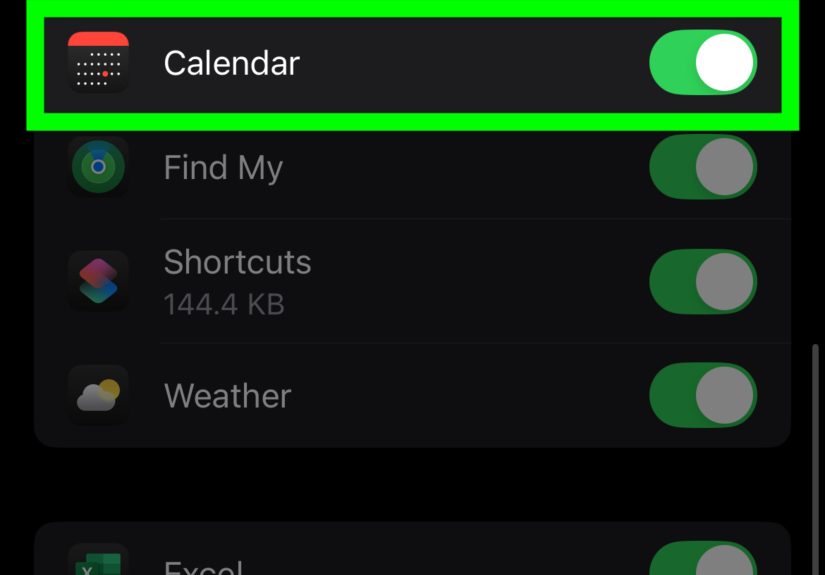
- Tap Apps, then Calendar.
- Tap Calendar Accounts.
- Tap Add Account.
- Choose Google, Outlook.com, Microsoft Exchange, or another provider.
- Sign in and make sure Calendars is turned on for that account.
Once both devices use the same calendar account, your events should stay in sync. For example, if you add your Google account to both your Mac and your iPhone, Google becomes the middleman keeping both devices updated. It is like hiring a reliable assistant, except this one never asks for lunch.
Which Sync Method Is Best?
Here is the short version:
- Use iCloud if you mainly use Apple Calendar and want the cleanest Apple-to-Apple experience.
- Use Google Calendar if you already live in Gmail, share calendars with others, or switch between Apple and non-Apple devices.
- Use Outlook or Exchange if your workplace relies on Microsoft services.
- Use Finder sync if you prefer a direct Mac-to-iPhone connection or manage specific local calendars manually.
For most people, iCloud is the easiest answer. For mixed-device households or work setups, Google or Outlook may fit better.
Can You Sync a Mac Calendar to an iPhone With Finder?
Yes, you can. Apple still supports syncing certain content between a Mac and iPhone through Finder, and calendars are part of that option under the Info tab. This is the more manual route, but it can help in certain setups.
How to Do It
- Connect your iPhone to your Mac with a cable, or use an approved Wi-Fi sync setup.
- Open a Finder window.
- Select your iPhone in the sidebar.
- Click the Info tab.
- Choose the calendar sync option.
- Select all calendars or only selected calendars.
- Click Apply.
This method is useful if you want tighter control over which calendars move over. But for daily life, iCloud or account-based syncing is usually easier because it updates more seamlessly in the background. Finder sync feels a bit like using a fax machine in a world full of cloud storage: still functional, just not usually your first pick.
How to Sync Only Certain Calendars
Maybe you want your personal calendar on your iPhone but not your obscure “2024 Tax Paperwork Panic” calendar. Fair enough.
On a Mac, you can choose which calendars are visible in the sidebar, and with Finder sync you can select specific calendars. On an iPhone, open the Calendar app, tap Calendars, and check only the calendars you want to display.
This does not always remove the account itself; it often just controls what you see. That distinction matters. Sometimes the calendar is syncing just fine, but it is hidden, which is the calendar version of your keys being in your hand while you are searching for them.
Common Reasons a Mac Calendar Will Not Sync to an iPhone
If syncing still is not working, run through this checklist before declaring war on technology.
1. You Are Not Using the Same Apple Account
If your Mac is signed in to one Apple Account and your iPhone uses another, iCloud Calendar will not sync between them. This is the first thing to check, and yes, it happens more often than people admit.
2. Calendar Sync Is Turned Off
Double-check that Calendars is enabled in iCloud settings on both devices. Also verify that any Google, Outlook, or Exchange account has its Calendars toggle turned on.
3. The Calendar Is Hidden
On iPhone, tap Calendars and make sure the relevant calendar is checked. On Mac, show the calendar list and make sure the calendar is selected there too.
4. The Event Was Saved to the Wrong Calendar
This is a big one. You may create an event on your Mac in an On My Mac calendar that is stored locally, while your iPhone only syncs iCloud or Google calendars. In that case, the event stays loyal to the Mac and never travels.
To avoid this, set the correct default calendar and pay attention to where new events are being saved.
5. Your Devices Need a Refresh
On a Mac, open the Calendar app and choose View > Refresh Calendars. For shared accounts, you can also check the account’s refresh settings in Calendar > Settings > Accounts. On iPhone, simply opening Calendar, switching views, or restarting the app can help trigger a refresh.
6. Software or Network Problems
If your iPhone or Mac is running outdated software, or your internet connection is shaky, syncing can lag or fail. Update macOS and iOS, then make sure both devices are online.
7. Date and Time Settings Are Wrong
If your date, time, or time zone settings are off, sync can behave strangely. Set them automatically when possible. Otherwise your devices may think you are somehow attending lunch tomorrow and yesterday at the same time.
Quick Fixes When Calendar Sync Stops Working
- Check Apple’s system status if iCloud seems slow or broken.
- Update your Mac and iPhone to the latest software available to you.
- Turn Calendar sync off and back on for the affected account.
- Restart both devices because sometimes the oldest fix remains undefeated.
- Refresh calendars on Mac from the View menu.
- Re-add the account if Google, Outlook, or Exchange events still are not appearing.
- Check storage and connectivity if syncing keeps stalling.
If you are dealing with older events that do not appear on the iPhone, also look at the iPhone’s calendar sync range for past events in Settings. Sometimes the issue is not that events failed to sync, but that the phone is only showing a shorter window of history.
Best Practices for Smooth Calendar Syncing
- Use one primary calendar service whenever possible.
- Name calendars clearly, such as Personal, Work, Family, and Travel.
- Set the correct default calendar on each device.
- Avoid creating duplicate accounts for the same service.
- Check calendar visibility before assuming sync failed.
- Refresh and update devices regularly.
A little calendar housekeeping goes a long way. Your future self will appreciate not having three versions of “Mom’s birthday dinner” scattered across two apps and one mystery account from 2018.
Final Thoughts
If you want to sync a Mac calendar to an iPhone, iCloud is usually the fastest and easiest method. Turn on Calendar in iCloud on both devices, make sure you are signed in with the same Apple Account, and confirm the correct calendars are visible. If you use Google Calendar, Outlook, or Exchange, add the same account to both your Mac and iPhone and turn Calendar syncing on.
And if things go sideways, do not panic. Most sync issues come down to a hidden calendar, the wrong account, an event saved in the wrong place, or a settings toggle that quietly wandered off. Once you know where to look, fixing Apple Calendar sync problems becomes a lot less mysterious.
Real-World Experiences With Syncing a Mac Calendar to an iPhone
One of the most common experiences people have with Apple Calendar syncing is that everything seems fine until the exact moment it really matters. Your Mac shows a client call at 2:00 p.m., you grab your iPhone on the way out the door, and suddenly that event is nowhere to be found. It feels dramatic, but in real life the cause is usually boring: the event was saved to the wrong calendar, or that calendar was simply unchecked on the phone.
A lot of users also notice that the first successful sync feels almost magical. You create an event on your Mac for a pediatrician appointment, pick up your iPhone thirty seconds later, and there it is, sitting in your day view like it owns the place. That is the moment people usually realize how much easier planning becomes when their Apple devices finally cooperate. Suddenly, rescheduling dinner, adding reminders to a trip, or checking a family calendar while standing in line at the grocery store becomes effortless.
Another very real experience is the confusion caused by multiple calendars with similar names. Someone might have an iCloud calendar, a Gmail calendar, a work Exchange calendar, and one lonely local calendar on the Mac. Then they add an event quickly on the laptop without noticing where it is being saved. Later, they check the iPhone and assume the sync failed, when the actual problem is that the event is sitting happily inside an “On My Mac” calendar that never had a chance of reaching the phone. It is not a broken system. It is more like putting a letter in the wrong mailbox and then blaming the mail carrier.
Work setups add another layer. People often sync personal events through iCloud and business events through Outlook or Exchange, which works well until one account has permissions or refresh settings that behave differently. In those cases, the experience is less “Apple magic” and more “corporate puzzle box.” Still, once both accounts are added correctly to the Mac and iPhone, the system usually settles down and behaves the way it should.
Travel is another area where synced calendars really earn their keep. A flight added on a Mac while booking a trip can show up on an iPhone in time for airport-day panic. Hotel check-in times, restaurant reservations, conference sessions, and family plans all become easier to manage when one update reaches both devices. For many people, that convenience is the difference between feeling organized and feeling like they are one missed alert away from chaos.
Perhaps the most relatable experience of all is this: once your Mac calendar and iPhone are truly in sync, you stop thinking about syncing altogether. And that is the goal. Good calendar sync fades into the background. It does not ask for applause. It just quietly prevents missed meetings, double bookings, and the deeply humbling moment when you realize your phone had no idea you promised to be somewhere important. In tech, that kind of quiet reliability is beautiful.







 Close
Close