
Table of Contents >> Show >> Hide
- Before You Start: Quick 30-Second Checklist
- Step 1: Confirm You’re Signed Into the Right Google Account
- Step 2: Turn On Contacts Sync for Your Google Account
- Step 3: Set Google as the Default for New Contacts (So Sync Keeps Working)
- Step 4: Force a Manual Sync and Confirm It Worked
- Bonus: Sync Device and SIM Contacts Into Google (So They’re Backed Up)
- Why Google Contacts Sync Matters (Beyond “I Want My Numbers Back”)
- Troubleshooting: If Google Contacts Still Won’t Sync
- 1) Contacts sync is ON… but only for the wrong account
- 2) You saved contacts to “Phone” (local) instead of Google
- 3) Auto-sync is disabled (globally)
- 4) Your phone needs the “sync nudge” (manual sync + restart)
- 5) Clear cache for Contacts (and try again)
- 6) Advanced fix: confirm “Google Contacts Sync” isn’t disabled
- 7) Still stuck? Back up, then remove and re-add the Google account
- Safety Net: Back Up and Restore Contacts (So You’re Never One Glitch Away From Panic)
- Frequently Asked Questions
- Real-World Experiences: What Actually Happens When You Try This
- Conclusion
If your contacts are scattered across “Phone,” “SIM,” “That One Old Email You Regret,” and three different Google accounts,
you’re not alone. The good news: syncing Google Contacts with Android is usually a four-step jobno incense, no chanting,
and absolutely no “factory reset” (unless you enjoy chaos).
This guide shows you exactly how to sync Google Contacts with Android, what to do if your contacts aren’t syncing,
and how to avoid the classic trap of saving new numbers to your device instead of your Google account.
We’ll keep it simple, practical, and just funny enough to make “Account sync” feel less like a punishment.
Before You Start: Quick 30-Second Checklist
- Wi-Fi or mobile data is on (sync can’t teleport through airplane mode).
- You know which Google account you want to use (personal, work/school, or both).
- You can open Contacts and see whether contacts are stored under Google or “Phone.”
Tip: If you use a work or school Google account (Google Workspace), you may get better results using the
Google Contacts app, because some devices’ built-in Contacts apps don’t display every field the same way.
Step 1: Confirm You’re Signed Into the Right Google Account
Most “my contacts disappeared” stories aren’t mysteriousyour phone is simply signed into the wrong Google account,
or the Contacts app is showing a different account than you expect.
How to check (fast)
- Open Settings on your Android phone.
- Tap Passwords & accounts (or Accounts, depending on your phone).
- Look under Google and confirm the email address you want is listed.
If you have multiple Google accounts
That’s totally fine. Just remember: each Google account has its own Contacts list.
If you add “Mom” to Account A and your phone is displaying Account B, your phone will swear you never met her.
Pro move: verify contacts exist in the Google account
If you suspect your phone is empty but your Google account is full, you can verify your contacts on the web by signing
into Google Contacts in a browser. If they’re there, the issue is syncing or display filtersnot lost data.
Step 2: Turn On Contacts Sync for Your Google Account
This is the main event. Android can store contacts in multiple places, but only contacts stored in your Google account
reliably sync across devices (phone, tablet, Chromebook, and your future phone that you swear you won’t drop).
Option A: The classic Android sync path
- Open Settings.
- Tap Passwords & accounts (or Accounts).
- Select your Google account.
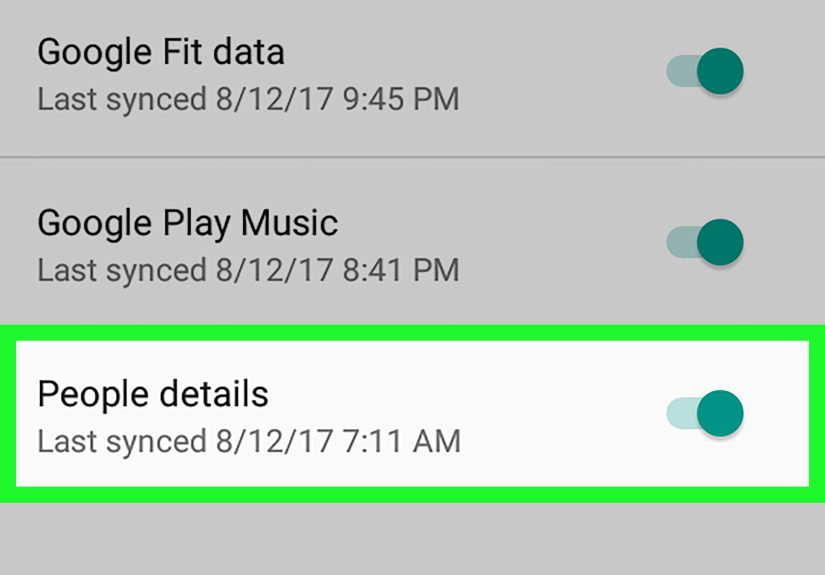
- Tap Account sync.
- Turn Contacts ON.
Option B: The Google “Contacts sync” setting path (common on Pixel and many Android builds)
- Open Settings.
- Tap Google > All services (wording may vary).
- Tap Google Contacts sync.
- Open Status and turn sync ON.
If you only do one thing today, do this step. It’s the equivalent of plugging in the router before calling tech support.
Step 3: Set Google as the Default for New Contacts (So Sync Keeps Working)
Sync can be enabled and still feel “broken” if new contacts are being saved to your device (Phone) or SIM card instead of
your Google account. Those locally saved contacts may not sync anywhereand they definitely won’t magically appear on your next phone.
On Google Contacts app (recommended)
- Open the Contacts app by Google (if you don’t have it, install it from Google Play).
- Tap your profile icon (top right).
- Tap Contacts app settings.
- Select Default account for new contacts.
- Choose your preferred Google account.
On Samsung Contacts (common on Galaxy phones)
Samsung phones often use Samsung’s Contacts interface (which can still sync with Google).
Look for settings like Manage contacts > Set default storage location, then choose your Google account.
This ensures new contacts save to Google instead of “Phone.”
Also check your display settings
Sometimes contacts are syncing fineyou’re just not displaying them. In your Contacts app, look for options like:
- Contacts to display (Google vs. Phone vs. SIM)
- Customize / All contacts / Google account toggles
- Hide contacts without numbers (can make it seem like people vanished)
Translation: your contacts might not be missing. They might just be wearing an invisibility cloak made of settings.
Step 4: Force a Manual Sync and Confirm It Worked
If you’ve turned sync on and nothing happens (or you’re impatient, which is valid), run a manual sync to refresh everything.
Manual sync method 1: “Refresh” in Google Contacts sync
- Open Settings.
- Tap Google > All services > Google Contacts sync.
- Tap Status.
- Tap Refresh.
Manual sync method 2: “Sync now” in Account sync
- Open Settings > Passwords & accounts.
- Select your Google account.
- Tap Account sync.
- Tap More (three dots) > Sync now (if available).
Confirm sync worked (the sanity check)
- Open your Contacts app and search for a contact you know exists.
- Check whether that contact appears under the correct Google account.
- If possible, verify on the web in Google Contacts: if it’s there, your data is safely in your account.
Bonus: Sync Device and SIM Contacts Into Google (So They’re Backed Up)
If you have contacts stored on your device or SIM, you may want them copied into Google Contacts so they’re backed up and
available on your next device. Many Android phones include an option to sync device/SIM contacts automatically.
Common path
- Open Settings > Google > All services.
- Tap Backup & restore (or similar).
- Choose Google Contacts sync.
- Turn on Also sync device and SIM contacts / Sync device and SIM contacts automatically.
Important: Depending on your device maker and Android version, wording and menu placement can vary. If you don’t see this option,
use your Contacts app’s Import/Export or Move contacts tools to transfer local contacts into your Google account.
Why Google Contacts Sync Matters (Beyond “I Want My Numbers Back”)
Syncing isn’t just convenienceit’s protection. When your contacts are saved to your Google account:
- You can sign into a new phone and your contacts come with you.
- Edits update across devices (no more “which phone has the correct number?”).
- You can recover recently deleted contacts using Trash (depending on the app/account feature set).
And if you ever sign out of the Google account on that phone, Google contacts are removed from the device to help protect your privacy
but they remain in your Google account and can sync again when you sign back in.
Troubleshooting: If Google Contacts Still Won’t Sync
If you followed the four steps and sync still isn’t working, don’t panic. Most issues are caused by one of these common culprits.
Here are fixes that work across many Android phones.
1) Contacts sync is ON… but only for the wrong account
- Go back to Account sync and ensure Contacts is enabled for the correct Google account.
- In Contacts, confirm you’re displaying contacts from that same account.
2) You saved contacts to “Phone” (local) instead of Google
This is the sneakiest problem because sync can be working perfectly… for the contacts actually stored in Google.
Fix it by moving or exporting local contacts into your Google account:
- In your Contacts app, look for Manage contacts > Move contacts (or Import/Export).
- Move from Phone or SIM to your Google account.
3) Auto-sync is disabled (globally)
Some phones have a global sync toggle (or battery-saving mode) that stops background syncing. Check:
- Battery Saver / Power saving settings
- Data Saver settings (may restrict background data)
- Any “pause sync” or “sync off” toggles in account settings
4) Your phone needs the “sync nudge” (manual sync + restart)
- Run Refresh or Sync now (Step 4 above).
- Restart the phone.
- Open Contacts and wait a minute on Wi-Fi.
5) Clear cache for Contacts (and try again)
If the Contacts app is stuck, clearing cache can help without deleting your account data:
- Open Settings > Apps.
- Find Contacts (and sometimes Contacts Storage).
- Tap Storage & cache > Clear cache.
- Try a manual sync again.
6) Advanced fix: confirm “Google Contacts Sync” isn’t disabled
On rare occasions, the background sync component can be disabled at the system level.
If you’re comfortable digging a little deeper:
- Go to Settings > Apps.
- Open the menu and enable viewing system apps (wording varies).
- Look for Google Contacts Sync and ensure it’s enabled.
7) Still stuck? Back up, then remove and re-add the Google account
This is the “last sensible resort” step:
- First, export a backup of contacts (see next section).
- Then remove the Google account from the phone and add it back.
- Re-enable Contacts sync and run a manual sync.
Safety Net: Back Up and Restore Contacts (So You’re Never One Glitch Away From Panic)
Sync is great. A backup is better. A backup plus sync is basically contact-keeping nirvana.
Export contacts to a file (VCF)
- Open Contacts.
- Go to Settings > Export.
- Save the .VCF file to a safe location like Google Drive.
Import contacts from a VCF file
- Open Contacts > Settings.
- Tap Import.
- Select your .VCF file and import into your Google account.
Recover deleted contacts
If you deleted contacts recently, check the Contacts app’s Trash feature (when available).
Many Google contact management setups allow recovery within a limited windowso it’s worth checking before you assume the worst.
Frequently Asked Questions
Why are some contacts on my phone but not on Google?
Because they were saved to Phone or SIM storage instead of your Google account.
Turn on Contacts sync and move/import those contacts into Google to back them up.
Will syncing merge duplicates automatically?
Sometimes you’ll see duplicate entries (especially after importing from SIM or switching phones).
Google Contacts often suggests merges, and many Contacts apps include a Merge & fix-style tool.
If duplicates are out of control, consider cleaning them up in Google Contacts so the fix syncs everywhere.
If I sign out of Google on my phone, do I lose my contacts?
They’ll be removed from that device for privacy, but they stay in your Google account.
When you sign back in, they can sync again.
Do I need the Google Contacts app?
Not always, but it helpsespecially if your manufacturer’s Contacts app hides Google-specific options,
or if you use a work/school account and want consistent fields and sync behavior.
Real-World Experiences: What Actually Happens When You Try This
Let’s talk about the part no one puts in the official steps: the little surprises you run into when real phones,
real accounts, and real human habits collide. If you’ve ever thought, “My contacts were here yesterday,” you’ve
already met the most common sync “experience”your phone didn’t forget your friends; it just changed which list it was showing.
One classic scenario: you add a new contact after a busy daymaybe a teacher, a client, or the friend-of-a-friend who
promised to send you that link. You tap Save, feel accomplished, and move on. Weeks later, you upgrade phones, sign in,
and… that person is gone. What happened? Nine times out of ten, the contact was saved to Phone storage,
not your Google account. Sync was technically “on,” but only Google-stored contacts were being backed up. The fix isn’t
dramatic: set Google as the default account for new contacts (Step 3), then move local contacts into Google once and you’re safe.
Another real-life wrinkle: multiple Google accounts. Plenty of people have at least twoone personal, one school/work,
and sometimes a third “spam-catcher” account that exists purely because you wanted a coupon in 2017. Android can sync
contacts from multiple accounts to the same device, which is convenientuntil you’re searching for a name and the Contacts
app is filtered to show only one account. You’ll swear someone vanished, but they’re just sitting comfortably in the
other account’s contact list. The “experience lesson” here is simple: when contacts go missing, check display settings
before you assume a sync failure.
Samsung owners often have a special variation of this story. Samsung’s Contacts app is powerful, but it loves offering
multiple storage options: Samsung account, Google account, phone storage. That’s helpful for flexibility, but it also
increases the odds you’ll save contacts to the wrong place. In day-to-day use, people don’t noticeuntil they log into
a new phone and discover half their contacts stayed behind. Setting the default storage location to Google feels like
a small tweak, but it changes everything: every new contact becomes a backed-up contact automatically.
Then there’s the “sync is on but nothing is happening” moment. This often shows up after a big Android update, a device
migration, or when battery-saving settings are turned up to maximum. Background syncing can be delayed or paused, so you
see old contacts but not recent changes. In real life, the quickest win is a manual sync (Step 4) followed by a restart.
It sounds almost too simple, but it works surprisingly often because it forces the phone to refresh account data instead
of waiting for the next scheduled sync window.
Finally, the most reassuring experience: verifying contacts on the web. When you check Google Contacts in a browser and
see your list intact, the stress level drops instantly. At that point, you’re not “recovering lost contacts”you’re
just fixing how your phone is syncing or displaying them. That’s a much nicer problem to have. If you take only one
mindset from these stories, make it this: contacts are safest when Google has them, and your phone is
simply the guest list viewer. Keep the guest list in the cloud, and switching devices becomes boringin the best way.
Conclusion
Syncing Google Contacts with Android doesn’t have to be a whole thing. The winning formula is:
sign into the right Google account, turn on Contacts sync, set Google as the default for new contacts, and force a manual sync
when your phone gets stubborn. Once your contacts live in Google, your phone upgrades get easier, your backups get stronger,
and “Where did that number go?” becomes a question you only ask about socks.






 Close
Close