
Table of Contents >> Show >> Hide
- What Is Revo Uninstaller?
- Before You Start: A Few Smart Precautions
- How to Uninstall Using Revo Uninstaller: 8 Steps
- Step 1: Download and Open Revo Uninstaller
- Step 2: Find the Program You Want to Remove
- Step 3: Click the Uninstall Button
- Step 4: Run the Program’s Built-In Uninstaller
- Step 5: Choose a Scan Mode
- Step 6: Review Leftover Registry Items
- Step 7: Delete Leftover Files and Folders
- Step 8: Restart Your Computer
- How to Use Revo Uninstaller for Stubborn Programs
- How to Use Hunter Mode
- Can Revo Uninstaller Remove Windows Apps?
- Revo Uninstaller Free vs. Pro: Which One Should You Use?
- Common Mistakes to Avoid
- When Should You Use Revo Instead of Windows Uninstall?
- Practical Example: Removing an Old Media Converter
- Extra Experience: Real-World Tips for Using Revo Uninstaller Smoothly
- Conclusion
Uninstalling software should be simple: click “Uninstall,” watch a progress bar do its little dance, and move on with your life. Unfortunately, Windows programs sometimes leave behind files, folders, registry entries, services, shortcuts, update tools, and enough digital crumbs to make your PC feel like a cookie factory. That is where Revo Uninstaller becomes useful.
Revo Uninstaller is a Windows utility designed to remove unwanted programs more thoroughly than the basic Windows uninstall process. It usually starts by running the program’s own built-in uninstaller, then scans for leftovers that may remain after the standard removal. In plain English: Windows takes out the trash; Revo checks behind the couch.
This guide explains how to uninstall using Revo Uninstaller in 8 clear steps. You will learn how to choose the right program, create backups, run the regular uninstaller, scan for leftover files, safely review registry items, and handle stubborn apps that refuse to leave politely.
What Is Revo Uninstaller?
Revo Uninstaller is an uninstall manager for Windows PCs. Its main purpose is to help users remove desktop programs, Windows apps, browser extensions, and leftover traces that normal uninstallers may miss. Revo Uninstaller Free is suitable for many basic removals, while Revo Uninstaller Pro adds advanced tools such as Forced Uninstall, Quick Uninstall, Batch Uninstall, Windows Apps management, Browser Extensions removal, traced installations, backups, and deeper cleanup options.
The key idea is simple: Revo does not just delete a program randomly. It typically launches the program’s official uninstaller first, then performs an additional scan for remaining registry entries, files, folders, and related data. This two-part approach helps reduce clutter and can be especially helpful when a program was poorly designed, partially removed, or updated so many times that it now behaves like it owns the computer.
Before You Start: A Few Smart Precautions
Before uninstalling anything, pause for a moment. That “mysterious program” might be a printer driver, security tool, graphics package, VPN client, audio manager, or software required by your laptop manufacturer. Removing the wrong item can cause features to stop working.
Check Whether You Still Need the Program
Ask yourself three quick questions: Do I recognize this software? Did I install it intentionally? Does another program depend on it? If the answer is “I have no idea,” do a little research before deleting it. For example, removing an old game is usually harmless. Removing a chipset driver helper because it “sounds boring” may create a very exciting afternoon, and not in the good way.
Close the Program First
Close the app you want to remove before starting. Also close related windows, launchers, background tools, and browser tabs. If the program is running, the uninstaller may fail to remove certain files because Windows is still using them.
Back Up Important Data
If the program stores personal files, projects, presets, databases, templates, saved games, or license information, back them up first. Uninstalling a photo editor should not remove your photos, but uninstalling a specialized tool may remove settings or local project data if those files live inside the program’s folders.
How to Uninstall Using Revo Uninstaller: 8 Steps
Step 1: Download and Open Revo Uninstaller
Start by downloading Revo Uninstaller from the official Revo website or a trusted software source. Install it normally, or use the portable version if you prefer a version that does not need a traditional installation. The portable option is useful for technicians, power users, or anyone who wants to keep a cleanup tool on a USB drive.
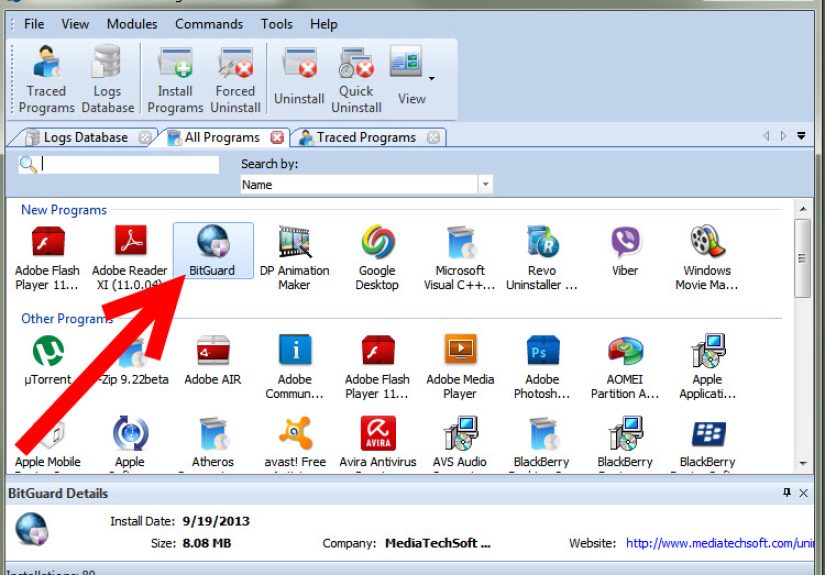
Once Revo opens, you will see a list of installed programs. Give it a moment to load everything. On computers with many applications, this can take a little time. Think of it as Revo walking into your software closet and turning on the lights.
Step 2: Find the Program You Want to Remove
Look through the list and select the program you want to uninstall. You can usually sort, search, or browse through installed applications. Choose carefully. Programs with similar names can be confusing, especially when a main app has extra components such as update services, language packs, plug-ins, or helper tools.
For example, if you want to uninstall a video editor, you may see the main editor, a codec pack, a content library, and an auto-updater. In many cases, you should remove the main program first. If you are not sure, check the publisher name and installation date to confirm you are selecting the correct item.
Step 3: Click the Uninstall Button
After selecting the unwanted program, click the Uninstall button. Revo will begin the uninstall workflow. In Revo Uninstaller Pro, you may see an overview screen with options such as creating a System Restore Point or a Registry backup before continuing.
Leave these safety options enabled unless you have a specific reason not to. A restore point or backup can be helpful if something behaves unexpectedly after removal. Registry cleanup is powerful, but power should come with a seat belt.
Step 4: Run the Program’s Built-In Uninstaller
Revo usually launches the selected program’s own uninstaller first. This is important because the built-in uninstaller knows how the software was installed, what services it created, and what official components should be removed.
Follow the prompts on the screen. You may see options such as “Remove user settings,” “Delete configuration files,” or “Keep personal data.” Read these carefully. If you plan to reinstall the program later, keeping settings may save time. If you want a clean break, removing settings may be better.
When the built-in uninstaller finishes, do not close Revo. The standard uninstall is only the first act. The leftovers scan is where Revo earns its reputation.
Step 5: Choose a Scan Mode
After the built-in uninstaller runs, Revo scans for leftover items. Depending on your version, you may see scan modes such as Safe, Moderate, or Advanced. These modes control how deeply Revo searches for remaining registry entries, files, and folders.
Safe mode is the most conservative. It is best for beginners or for removing software that may be connected to important system functions. Moderate mode offers a balanced cleanup and is often a good everyday choice. Advanced mode searches more deeply and may find more leftovers, but it also requires more careful review.
If you are new to Revo Uninstaller, start with Safe or Moderate. Advanced mode can be useful, but do not treat it like a “delete everything” button. The goal is clean removal, not a dramatic registry bonfire.
Step 6: Review Leftover Registry Items
Revo may display leftover registry entries related to the removed program. This is the step where patience matters. Registry entries are small pieces of configuration data used by Windows and installed software. Some are harmless leftovers. Others may be shared or connected to broader software families.
Review the detected items before deleting them. Revo usually organizes leftover registry entries so users can select relevant items. Avoid deleting anything that does not clearly belong to the program you removed. If you are unsure, leave it alone. A tiny leftover entry is usually less annoying than accidentally deleting something important.
For example, if you uninstall “Example Photo Studio,” leftover entries clearly labeled with that exact software name or publisher are usually safe candidates. But if you see a vague shared entry related to Microsoft, Intel, NVIDIA, printer services, security software, or Windows components, be cautious.
Step 7: Delete Leftover Files and Folders
After registry cleanup, Revo may show leftover files and folders. These can include cached installers, logs, configuration files, empty folders, temporary data, or user-specific settings. Review the list and remove only items that clearly belong to the program you are uninstalling.
Common leftover locations include Program Files, ProgramData, AppData, and user profile folders. Some leftovers are safe to delete; others may contain templates, saved projects, or custom settings. If you are uninstalling a creative app, accounting program, game launcher, or development tool, pay special attention before deleting user data.
Once you are comfortable with the list, select the leftovers and click Delete. Revo will remove the selected items and finish the cleanup process.
Step 8: Restart Your Computer
When Revo finishes, restart your PC if prompted. Even if you are not prompted, restarting is a good idea after removing large programs, drivers, antivirus tools, VPNs, browser extensions, or anything that runs in the background.
A restart allows Windows to release locked files, update startup entries, remove scheduled tasks, and complete pending changes. It is the computer equivalent of taking a deep breath after finally cleaning the garage.
How to Use Revo Uninstaller for Stubborn Programs
Some programs do not uninstall cleanly. Others disappear from the installed programs list but leave files behind. In those cases, Revo Uninstaller Pro’s Forced Uninstall feature can help.
Forced Uninstall is designed for programs that are damaged, partially removed, missing their built-in uninstaller, or not listed among installed programs. You can enter the program name, point Revo to a related file or folder, or do both. Revo then searches for a built-in uninstaller, trace logs, and leftover data that may belong to that program.
This feature is especially helpful when an uninstall attempt failed halfway through. For instance, imagine removing an old PDF tool, only to discover its folder still exists, its startup process still appears, and Windows insists the app is both gone and not gone. Forced Uninstall can help clean up that awkward software ghost.
How to Use Hunter Mode
Hunter Mode is one of Revo’s most distinctive tools. Instead of choosing a program from a list, you activate Hunter Mode and use a target-style icon to point at a program window, desktop shortcut, system tray icon, or running process. Revo then offers actions such as uninstalling, stopping automatic startup, ending the process, opening the containing folder, or checking properties.
Hunter Mode is useful when you do not know the name of a program but can see it running. For example, if a random pop-up appears every time your PC starts, Hunter Mode can help identify the program behind it. It feels a little like software detective work, minus the trench coat.
Can Revo Uninstaller Remove Windows Apps?
Yes, Revo Uninstaller Pro includes a Windows Apps module for uninstalling supported Microsoft Store and built-in Windows apps. This is separate from the regular desktop program list. To use it, open Revo Uninstaller Pro, choose Windows Apps, select the app, and click Uninstall.
However, not every Windows component should be removed. Some built-in apps are connected to system features. If you are unsure whether a Windows app is safe to uninstall, research it first. Removing a weather app is one thing. Removing something tied to system security, device management, or Windows services is another.
Revo Uninstaller Free vs. Pro: Which One Should You Use?
Revo Uninstaller Free is often enough for basic desktop program removal. It can help uninstall unwanted programs and clean leftover traces. For casual users who only need to remove an occasional app, the free version may be perfectly adequate.
Revo Uninstaller Pro is better for users who frequently install and remove software, manage multiple computers, troubleshoot broken uninstallers, or want advanced features such as Forced Uninstall, Windows Apps removal, Browser Extensions removal, Batch Uninstall, Quick Uninstall, real-time installation monitoring, logs, backups, and uninstall history.
If your computer is mostly stable and you only uninstall ordinary apps now and then, start with the free version. If you regularly test software, clean up client machines, or battle stubborn programs like a digital exterminator, Pro may be worth considering.
Common Mistakes to Avoid
Deleting Everything Without Reading
The biggest mistake is selecting every leftover item without checking what it is. Revo is a tool, not a mind reader. Review before deleting, especially when registry entries or shared folders appear.
Removing Drivers Without a Plan
Graphics drivers, printer packages, audio tools, and network utilities can affect hardware. If you remove them, make sure you know how to reinstall the correct version.
Uninstalling Security Software Carelessly
Antivirus and firewall tools often include background services and self-protection features. Use the official removal process when recommended by the vendor, and restart afterward.
Forgetting to Back Up App Data
Some programs store important data locally. Before uninstalling business software, creative tools, password managers, tax software, or note-taking apps, confirm where your data is saved.
When Should You Use Revo Instead of Windows Uninstall?
The built-in Windows uninstall option is fine for many normal apps. You can uninstall programs through Settings, Installed Apps, or Control Panel. But Revo becomes useful when you want a cleaner uninstall, when the normal uninstaller fails, when leftover folders remain, or when you need to identify a program that is running but hard to find.
Use Windows uninstall for simple, trusted apps that remove cleanly. Use Revo when you want more control, more visibility, and an extra cleanup pass. Think of Windows uninstall as a broom and Revo as the broom plus the dustpan plus the person who checks under the rug.
Practical Example: Removing an Old Media Converter
Suppose you installed a free media converter two years ago. You no longer use it, but it still launches an update checker every time Windows starts. Here is how the Revo process might look:
First, open Revo and find the media converter in the program list. Select it and click Uninstall. Let the built-in uninstaller run. If it asks whether to remove user settings, choose the option that matches your needs. After the uninstaller finishes, choose Moderate scan mode. Review leftover registry entries that clearly mention the converter’s name or publisher. Delete only the relevant items. Then review leftover folders in Program Files or AppData. If they contain only cache files and old settings, remove them. Restart the computer.
After the restart, check Task Manager’s Startup tab. If the updater is gone, congratulations: you have successfully evicted a tiny software tenant that overstayed its lease.
Extra Experience: Real-World Tips for Using Revo Uninstaller Smoothly
From practical use, the best way to approach Revo Uninstaller is to treat it as a careful cleanup assistant rather than a magic button. The software is powerful, but the smartest results come from combining its features with common sense. Before uninstalling anything, I like to spend a minute identifying the program, checking the publisher, and making sure it is not connected to something I still use. That one minute can prevent a lot of “Why did my printer disappear?” energy later.
One helpful habit is to uninstall programs in small batches. Even if your computer is full of old trial software, toolbars, game launchers, update helpers, and apps you installed during a moment of optimism in 2021, resist the urge to remove twenty things at once. Uninstall one or two, restart if needed, and confirm the system still behaves normally. This makes troubleshooting much easier if something goes wrong.
Another useful experience is choosing the scan mode based on the program type. For simple utilities, Moderate mode is often enough. For stubborn apps that left folders behind after previous removal attempts, Advanced mode may be useful, but it deserves careful review. For system-related tools, drivers, VPN clients, cloud sync apps, and security software, I prefer a conservative approach. Leaving a harmless leftover is better than removing a shared component and creating a new problem.
Revo is also useful after uninstalling bloated software suites. Some programs install multiple background helpers, update schedulers, browser add-ons, and companion services. After removal, Revo may reveal folders or registry entries that explain why the program always seemed to come back like a sequel nobody requested. Cleaning these leftovers can make the system feel tidier, especially on older PCs with limited storage.
Hunter Mode is excellent when dealing with annoying startup pop-ups. If a window appears but you cannot identify the app in the installed programs list, Hunter Mode can help connect the visible window to its process. This is especially handy for tray utilities, old updaters, or programs with names that look nothing like the brand shown on the screen.
Forced Uninstall is best saved for broken situations. If a program appears in folders but not in the installed apps list, or if Windows says the uninstaller cannot be found, Forced Uninstall can search by program name or file path. The trick is to provide accurate information. Pointing Revo to the correct folder gives it a better chance of finding related leftovers.
Finally, always restart after removing large or stubborn software. Many files cannot be deleted while Windows is running, and some changes only finish after rebooting. A restart may feel old-fashioned, but it still solves a surprising number of software cleanup mysteries. In short: use Revo thoughtfully, review before deleting, back up when needed, and your PC will stay cleaner without turning maintenance into a weekend drama.
Conclusion
Learning how to uninstall using Revo Uninstaller is a smart skill for anyone who wants a cleaner Windows PC. The basic process is simple: open Revo, select the unwanted program, run the uninstaller, scan for leftovers, review the results, delete only what clearly belongs to the removed app, and restart your computer. For stubborn programs, tools like Forced Uninstall and Hunter Mode offer extra control when the normal Windows uninstall process falls short.
Revo Uninstaller is not about deleting everything aggressively. It is about removing software carefully and thoroughly. Use it with attention, and it can help reduce clutter, clear old leftovers, and make software removal feel less like wrestling an octopus in a server room.
Note: Always download Revo Uninstaller from an official or trusted source, create backups when available, and review leftover registry entries and files carefully before deleting them.







 Close
Close