
Table of Contents >> Show >> Hide
- What Sixaxis Controller Actually Does
- What You Need Before You Start
- How to Pair a PS3 Controller Wirelessly with Android
- Best Ways to Use a PS3 Controller on Android
- Troubleshooting Common Sixaxis Controller Problems
- Is Sixaxis Controller Still Worth Using?
- Conclusion
- Real-World Experience: What This Setup Feels Like After the Novelty Wears Off
- SEO Tags
Touch controls are fine right up until your thumbs slide off the screen, your character walks into a wall, and you suddenly remember why physical buttons were invented in the first place. That is exactly why the old PlayStation 3 controller still has a loyal fan club in the Android gaming world. If you already own a Sixaxis or DualShock 3 pad, pairing it with Android can turn a slippery touchscreen session into something that actually feels like gaming instead of thumb aerobics.
The catch is that using a PS3 controller wirelessly on Android is not the same as pairing a modern Bluetooth gamepad. This is an older, more stubborn, more “some assembly required” setup. In most cases, you need a rooted Android device, the Sixaxis Controller app, the free compatibility checker, and either a desktop pairing utility or a rooted OTG-assisted setup. It is a little retro, a little hacky, and occasionally a little dramatic, but when it works, it works beautifully.
This guide explains how to use a PS3 controller wirelessly on Android with Sixaxis Controller, what you need before you start, how to pair everything correctly, what usually goes wrong, and whether this classic setup still makes sense today.
What Sixaxis Controller Actually Does
Sixaxis Controller is a specialized Android utility designed to connect a genuine PS3 Sixaxis or DualShock 3 controller to an Android device over Bluetooth. Unlike many newer controllers that Android can recognize more naturally, the PS3 controller is a bit of a diva. It does not behave like a simple Bluetooth accessory out of the box, which is why this method relies on root access and device-level compatibility.
That is the big headline: wireless PS3 controller support through Sixaxis Controller is generally a rooted method. If your phone or tablet is not rooted, your more realistic option is usually a wired OTG connection instead of a Bluetooth setup. That makes Sixaxis Controller less of a casual convenience app and more of a niche power-user tool for emulator fans, retro tinkerers, and people who enjoy turning old hardware into new tricks.
The upside is that the app can be surprisingly flexible. It has historically supported multiple controllers, custom mappings, and input methods that make old-school Android gaming far more comfortable than mashing glass with your thumbs like you are trying to crack walnuts.
What You Need Before You Start
Your Setup Checklist
- A genuine PS3 Sixaxis or DualShock 3 controller
- A rooted Android phone or tablet
- The Sixaxis Compatibility Checker
- The Sixaxis Controller app
- Bluetooth enabled on your Android device
- A mini-USB cable for the controller
- A computer with a pairing tool, or a rooted OTG-based setup if your device supports on-device pairing
Before you do anything else, run the compatibility checker. This step matters more than optimism. Sixaxis Controller has always depended heavily on kernel, Bluetooth stack, and ROM behavior, so not every Android device plays nice. If the checker fails, that is your cue to stop before you waste time, patience, and possibly a perfectly decent afternoon.
How to Pair a PS3 Controller Wirelessly with Android
Step 1: Run the Compatibility Checker
Open the compatibility checker and let it test your device. If it reports that your phone or tablet supports the required Bluetooth handling, you can move forward. If it throws Bluetooth configuration errors or acts like your device has personally offended it, that usually means the setup will be unreliable even if you brute-force your way past the warning.
This is the part where old guides on the internet tend to get overly cheerful. Do not skip the compatibility test. It is the difference between “cool retro project” and “why did I just spend an hour yelling at a controller from 2008?”
Step 2: Find Your Android Device’s Bluetooth Address
Turn Bluetooth on, then find your Android device’s Bluetooth address in system settings. Older setup methods use this address during pairing because the PS3 controller typically stores a master device address rather than pairing like a modern plug-and-play pad.
Write that address down carefully. One wrong character here and the controller will happily connect to absolutely nothing, which is a very on-brand move for legacy hardware.
Step 3: Pair the Controller to Android
The classic Sixaxis workflow uses a desktop utility such as SixaxisPairTool. Connect the PS3 controller to your computer with a mini-USB cable, open the pairing utility, and let it read the controller’s current master address. Then replace that address with your Android device’s Bluetooth address and update it.
Some later setups and rooted devices can perform pairing directly on the Android side with USB OTG, which is more convenient because it removes the need for a PC. Still, the classic PairTool method remains the best-known route and is the one most older Sixaxis Controller guides are built around.
Once the controller has been updated, disconnect it from the computer. At this point, you have effectively told the PS3 pad, “Congratulations, your new best friend is this Android device now.” If you want to use the controller with a PS3 again later, reconnect it to the console by USB and press the PS button to re-pair it.
Step 4: Open Sixaxis Controller on Android
Launch Sixaxis Controller on your rooted Android device and grant superuser permissions when prompted. Root access is not a side note here; it is the whole trick. Without it, the app usually cannot configure the Bluetooth communication path needed for the PS3 controller.
If Android asks for a pairing code during the process, older setups commonly use 0000 or 1234. Not every device will ask, but if yours does, those are the usual suspects.
Step 5: Turn On the Controller
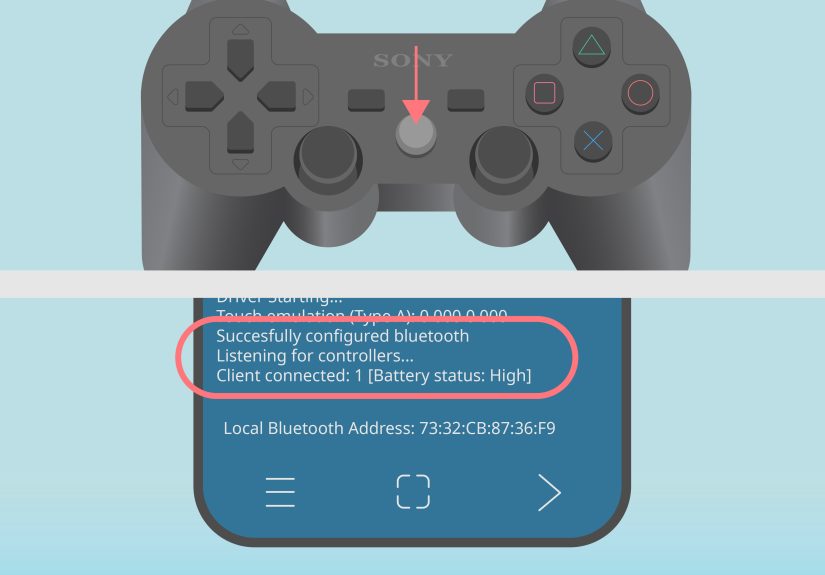
Press the PS button on the controller. If everything is aligned correctly, Sixaxis Controller should detect it and show a successful connection message. This is the moment where the stars align, the LEDs calm down, and your old controller gets a second career.
If the connection fails, do not immediately assume the controller is dead. In most cases, the problem is one of four things: bad compatibility, incorrect Bluetooth address, missing root permissions, or a controller that still thinks it belongs to another host.
Step 6: Set the Input Method and Map Controls
Many setups require switching the input method to Sixaxis Controller so games and emulators can properly read button presses. After that, open your emulator or Android game settings and map the buttons. This is where the setup changes from “ancient tech ritual” to “oh wow, this actually works.”
Some games support physical controllers directly, while others may need manual mapping. Emulators usually give you the best experience because they are more willing to let you define every button exactly how you want it.
Best Ways to Use a PS3 Controller on Android
Emulators
This is where the setup shines. A PS3 controller with a good emulator feels natural, especially for PlayStation, SNES, Genesis, arcade, and action-heavy games. The analog sticks, D-pad, and shoulder buttons all make far more sense than a touch overlay that covers half the screen and still somehow misses your jump input.
Controller-Supported Android Games
Some Android titles support external controllers natively, and those games are the easiest win. If a game already understands physical input, you spend less time wrestling with mapping and more time actually playing.
Android-to-TV Retro Setups
If you connect your Android phone or tablet to a TV, this setup starts to feel like a tiny homemade console. It is especially fun for couch co-op, nostalgia nights, and proving that old gaming hardware never really retires; it just gets reassigned.
Troubleshooting Common Sixaxis Controller Problems
The App Says the Device Is Not Compatible
Believe it. Compatibility has always been the make-or-break issue with Sixaxis Controller. Some devices simply do not expose the Bluetooth behavior the app needs, even when rooted.
The Controller Will Not Connect
Double-check the Android Bluetooth address you wrote to the controller. If one character is wrong, pairing will fail. Also confirm that the app received root access and that Bluetooth is enabled before launching the app.
The Controller Still Tries to Work with the PS3
That usually means it is still paired to the console or another host. Re-run the pairing process and write the correct Android Bluetooth address to the controller again.
The Game Ignores Button Presses
Open the game settings and check for controller support. If the game does not support external input, try manual mapping or switch to an emulator that allows custom controls.
The Controller Acts Weird or Stops Responding
Reset the controller using the small button on the back. Then reconnect and pair it again. Also make sure the battery has enough charge, because a drained controller loves to impersonate a software problem.
Is Sixaxis Controller Still Worth Using?
For casual players, probably not. Modern Android works far better with newer Bluetooth gamepads that do not require root, pairing hacks, or detective work. If your goal is simple plug-and-play convenience, a newer controller is the smarter choice.
But for retro enthusiasts, emulator fans, and anyone who already owns a PS3 controller and enjoys squeezing extra life out of old hardware, Sixaxis Controller is still a clever solution. It is less about convenience and more about utility, nostalgia, and the undeniable charm of making older tech do one more cool thing.
In other words, this setup is not the easiest route, but it is absolutely the most “I built this from spare parts and stubbornness” route. And honestly, that has its own appeal.
Conclusion
Learning how to use a PS3 controller wirelessly on Android with Sixaxis Controller is part tutorial, part compatibility test, and part patience exam. The core idea is simple: root the device, confirm support with the compatibility checker, pair the controller to your Android Bluetooth address, connect through Sixaxis Controller, and map your controls in the games or emulators you want to use.
When it works, the result is excellent. Your Android device becomes far more comfortable for retro gaming, action titles, and TV-connected play sessions. When it does not work, the issue is usually not you. It is the awkward marriage of old Bluetooth behavior, root-level requirements, and Android fragmentation doing what it does best: being memorable for all the wrong reasons.
Still, if you like tinkering and want to rescue a forgotten PS3 controller from drawer duty, this is one of the more satisfying Android gaming projects you can pull off.
Real-World Experience: What This Setup Feels Like After the Novelty Wears Off
There is a specific kind of joy that comes from getting a PS3 controller to work wirelessly on Android. It is not the smooth, polished joy of buying a modern controller, pressing a pairing button, and being done in thirty seconds. No, this is the deeper, nerdier satisfaction of convincing two devices from different eras to cooperate through determination, careful setup, and just enough stubbornness to qualify as a personality trait.
The first few minutes usually feel clumsy. You are checking compatibility, staring at Bluetooth addresses that look like robot license plates, and wondering whether rooting your phone was a clever move or the opening scene of a future headache. Then, once the controller finally connects, something changes. Suddenly the entire setup feels less like a workaround and more like a tiny custom console you assembled yourself.
That is especially true with emulators. Once a PS3 pad is mapped properly, old games feel dramatically better. Platformers become playable instead of slippery. Racing games stop feeling like you are steering with wet soap. Fighting games gain that critical benefit known as “buttons that exist.” Even menu navigation feels better because you are no longer poking at virtual controls that disappear at the exact moment you need them most.
Another interesting part of the experience is how much it changes the way you think about older hardware. A PS3 controller is no longer just a leftover accessory from a retired console. It becomes part of a flexible gaming kit. Add a phone clip, a TV connection, or a tablet stand, and suddenly that old controller is back in circulation like it never missed a shift.
There is also a weirdly charming DIY vibe to the whole thing. Friends who see the setup for the first time usually react in one of two ways. The first group says, “Wait, that works?” The second says, “That seems like a lot of effort.” Both are correct. It does work, and yes, it is a lot of effort compared with modern alternatives. But that effort is also part of the appeal. You are not just using tech; you are repurposing it.
Of course, the downsides are real. Compatibility can be moody. Some Android builds cooperate; others behave like you asked them to decode ancient runes. A controller that works perfectly on one device may become a dramatic little brick on another. That inconsistency is the biggest reason this method feels like an enthusiast project rather than a mainstream recommendation.
Even so, when the setup is stable, it is surprisingly pleasant in day-to-day use. The controller is comfortable, the button layout is familiar, and long retro sessions are much easier on the hands than touchscreen gaming. For players who already love tinkering, the experience becomes less about chasing the newest gadget and more about making the most of the gear they already own. And there is something refreshingly satisfying about that.







 Close
Close