
Table of Contents >> Show >> Hide
- Why Android “Trash” Isn’t One Place
- Way #1: Empty the Files Trash (Downloads, Documents, Random Stuff)
- Way #2: Empty the Photo & Video Trash (Google Photos / Gallery)
- Way #3: Empty Cloud & Communication App Trash (Drive + Gmail)
- Quick Troubleshooting: “I Emptied Trash… Why Is My Storage Still Full?”
- Safety Checklist Before You Tap “Delete Forever”
- Conclusion
- Bonus: Common Real-World Experiences (500+ Words)
Android “trash” is like that one junk drawer in your kitchenexcept it’s not one drawer. It’s a whole
neighborhood of drawers, each managed by a different app, each holding onto your “deleted” stuff like it’s
planning a reunion tour.
If your phone is yelling Storage almost full (or you’re about to hand your device to someone else and
would prefer your old screenshots not to become a family heirloom), learning how to empty trash on Android is a
genuinely useful life skill.
This guide synthesizes best practices from official Android/Google help documentation and major U.S. tech
publishersthen rewrites it into one practical, no-nonsense plan. You’ll get three reliable ways to empty trash,
what “Delete forever” actually means, and how to avoid the classic “I deleted it… why do I still have no space?”
moment.
Why Android “Trash” Isn’t One Place
Unlike many computers, Android doesn’t have one universal recycle bin for everything. Instead, apps often keep
their own “Trash,” “Bin,” or “Recently Deleted” area. That’s good for accidental deletes (we love a second chance),
but it also means your storage might not truly recover until you empty the trash in the apps that matter.
Translation: emptying “trash” on Android is usually a three-app cleanupfiles, photos, and cloud/email.
Let’s do it the smart way.
Way #1: Empty the Files Trash (Downloads, Documents, Random Stuff)
If you’ve deleted downloads, PDFs, videos, voice notes, or mystery files you don’t remember saving, start here.
On many Android phones, file managers move deleted items into a trash area for a while before they’re gone for
good.
Option A: Files by Google (Works on Many Android Phones)
Best for: Pixels and many other Android devices, especially if you use Files by Google for cleaning
storage.
- Open Files by Google.
- Tap the menu (three lines) in the top-left.
- Tap Bin or Trash.
- Select items you want to remove, or choose a “select all” option if available on your version.
- Tap Delete, then confirm.
Important: Once you delete from the Bin/Trash in Files by Google, it’s permanently deleted. If you
aren’t 100% sure, restore first, then decide what to keep.
Option B: Your Phone’s Built-In “Files” App (Android File Manager)
Some phones use a built-in file manager labeled simply Files. In newer Android versions, deleting a
file may move it to Trash rather than instantly vaporizing it.
- Open Files.
- Tap a category like Downloads, Images, Videos, or Documents.
- Select the files you no longer need.
- Tap Delete (often this means “Move to Trash”).
-
Then find the app’s Trash section (menu-dependent), and permanently delete items from there if you
want the space back immediately.
Option C (Samsung): Empty Trash in My Files
Best for: Samsung Galaxy phones using My Files (Samsung’s file manager).
- Open My Files (usually inside the Samsung folder).
- Tap the menu and look for Trash or Recycle bin.
- Open it, then choose Empty or delete selected items.
Samsung devices commonly keep deleted items in trash for a limited time (often around 30 days) before automatic
deletion, but if you need storage now, emptying trash is the fastest way to reclaim it.
Pro Tip: The “Clean” Button Can Skip Trash
Many file cleaners include a “Clean junk” flow that may delete certain categories permanently (like cache-like
junk or temp files) without moving them into Trash. That’s usually fine for true junkbut treat it like a
paper shredder, not a filing cabinet.
Way #2: Empty the Photo & Video Trash (Google Photos / Gallery)
Photos and videos are the heavyweight champions of storage use. Deleting a few large videos can free up more
space than uninstalling five apps you barely use anyway.
Google Photos: Empty Trash the Right Way
Google Photos keeps deleted items in Trash for a period of time. How long depends on whether they were backed up.
That’s helpfuluntil you’re desperately trying to free up storage today, not “within the next couple months.”
- Open Google Photos.
- Tap Collections (or Library on some layouts).
- Tap Trash.
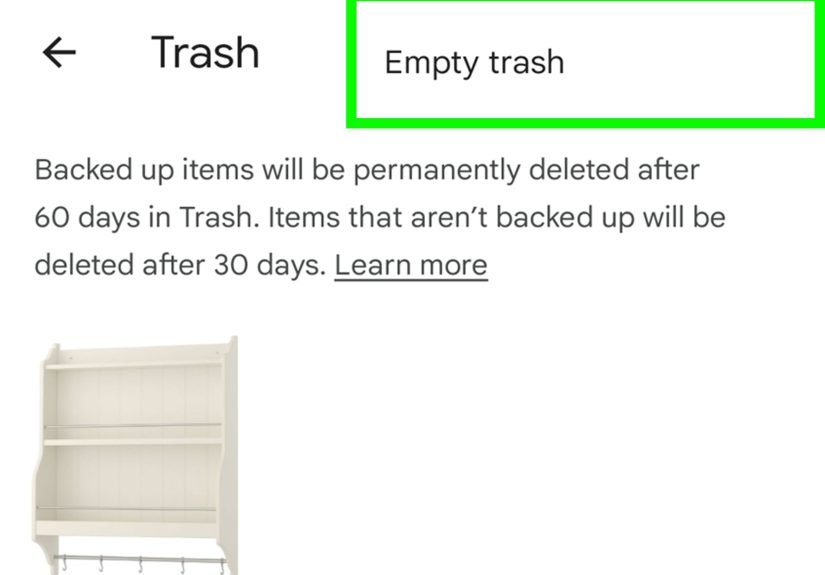
- Tap More (three dots) and choose Empty Trash.
- Confirm Delete permanently.
Heads-up: “Empty Trash” means the items can’t be restored from Google Photos after that. If there’s
anything you might want later, restore it first.
Samsung Gallery: Empty Trash (Fastest Route)
If you use Samsung’s Gallery app (or another manufacturer’s gallery), it may have its own Trash separate from
Google Photos. On Samsung, you typically:
- Open Gallery.
- Tap Menu (three lines).
- Tap Trash.
- Tap More options (three dots) → Empty → confirm Delete.
Bonus Photo Reality Check: SD Cards & “On This Device”
If you save media to an SD card or you manage local folders separately (“On this device”), your gallery app may
be the only way to permanently delete those files. Google Photos can show them, but device-level deletion rules
vary depending on Android version and storage location.
Way #3: Empty Cloud & Communication App Trash (Drive + Gmail)
Here’s the part people miss: moving things to trash in cloud services often does not reclaim storage
immediately. If your Google storage is full, you may have to empty trash in multiple Google apps to get space
back.
Google Drive: Empty Trash to Reclaim Space
- Open Google Drive.
- Tap Menu (three lines).
- Tap Trash.
- To permanently delete specific files, tap More next to a file and choose Delete forever.
- If you have an option to Empty trash, use it to permanently remove everything in one go.
If you shared a file you own, permanently deleting it can remove access for others. (So if your coworker suddenly
messages “Heyyyy where did that file go,” you’ll know why.)
Gmail: Empty the Trash Folder
Gmail keeps deleted emails in Trash for a while (usually up to 30 days). If you want the space and privacy now,
empty Trash manually.
- Open the Gmail app.
- Tap Menu (three lines).
- Tap Trash.
- Tap Empty trash now.
Other Apps with Their Own Trash
Depending on what you use, you may also want to check trash in apps like Dropbox, OneDrive, messaging apps with
archived/deleted sections, and manufacturer tools. The pattern is usually the same: open the app → find
Trash/Bin/Recently Deleted → empty it.
Quick Troubleshooting: “I Emptied Trash… Why Is My Storage Still Full?”
- You emptied one trash, not the others. Photos, files, Drive, and Gmail can all have separate trash.
-
Your biggest storage hog is videos. A few 4K clips can eat gigabytes. Sort by size and delete the
monsters first. -
Apps and offline downloads are huge. Streaming apps, maps, podcasts, and social apps can store
downloads and caches. -
Cloud storage vs. device storage confusion. Deleting from Google Photos can affect cloud backups,
while “Delete from device” affects local storage. Pick the action that matches your goal. -
Storage reporting lag. After mass deletion, Android sometimes needs a moment (or a reboot) to
update the storage meter.
Safety Checklist Before You Tap “Delete Forever”
- Back up what matters (especially if you’re cleaning up before a device reset or sale).
- Scan Trash first for accidental deletes. “Empty” is instant regret when you hit the wrong folder.
- Know what you’re deleting: local file vs. cloud copy vs. shared file in Drive.
- When in doubt, restore and move the item into a safe folder before continuing cleanup.
Conclusion
Emptying trash on Android isn’t hardit’s just scattered. The most reliable approach is to hit the three big
buckets:
(1) file manager trash, (2) photo/video trash, and (3) cloud and email trash.
Do those, and you’ll usually reclaim real storage (plus peace of mind) in minutes.
And remember: your phone isn’t “lying” when it says you’re still low on spaceit’s just waiting for you to empty
the hidden bins where “deleted” stuff goes to hang out for a while like it still pays rent.
Bonus: Common Real-World Experiences (500+ Words)
Let’s talk about what actually happens in the wildbecause the “Tap Empty Trash” instructions are the easy part.
The tricky part is the human part: what people assume Android is doing vs. what it’s really doing.
Experience #1: The Great Download Cleanout That Changed Nothing.
A lot of people start by deleting a pile of PDFs, ZIPs, and random memes from the Downloads folder, then feel
personally betrayed when storage barely moves. The reason is almost always the same: the file manager moved them
into Trash. So your phone is basically saying, “I heard you, and I put your files in a waiting room.” If you
want immediate space, go into the file app’s Trash/Bin and delete them permanently.
Experience #2: “I deleted 2,000 photos and still have no space.”
This one is iconic. On Android, photos can live in multiple places: local folders, Google Photos backup, and a
manufacturer gallery app that keeps its own Trash. People delete in one place but forget the other. Or they delete
from Google Photos, which sends items to Google Photos Trash for weeks. Result: storage doesn’t come back right
away, and you start questioning reality. The fix is simple: empty Trash in the photo app(s) you actually useand
if you’re on a Samsung, check Gallery Trash too.
Experience #3: The “Cloud vs. Phone” Mix-Up.
Someone frees up Google storage by deleting backed-up photos, but suddenly those photos vanish from multiple
devices. Another person deletes photos “from device” and wonders why Google storage didn’t change. Both are doing
logical thingsjust not the right thing for their goal. The best mental model is:
- Delete from device = helps phone storage.
- Delete from Google Photos / Drive / Gmail = helps cloud storage (after you empty trash).
Experience #4: The Storage Meter That Refuses to Budge.
You empty trash everywhere, yet your storage graph still looks like a sad bar chart. Don’t panic. First, give it a
minuteAndroid sometimes updates storage totals slowly after big deletions. Next, restart the phone to force a
refresh. If it’s still not moving, the usual culprits are offline downloads (Netflix/YouTube/Spotify), big
messaging media folders, or apps with massive cached data. Deleting trash is necessary, but it’s not always the
whole story.
Experience #5: The “Oops, That Was Important” Moment.
Trash is a safety netuntil you empty it. Plenty of people only discover the safety net exists after they’ve
already jumped without a parachute. The best habit is to do a quick scan before emptying: sort by recent, check
for anything irreplaceable (photos, IDs, receipts, work docs), then delete permanently. It takes 30 seconds and
saves hours of regret.
Experience #6: Cleaning Before Selling a Phone.
When people prep a phone for resale, they often delete files and assume that’s enough. But if items are still in
Trash across Photos, Gallery, Drive, and file managers, you’re leaving recoverable breadcrumbs. If privacy is the
goal, emptying trash is part of the processthen follow up with a proper factory reset and account removal. Think
of it like moving out: you can’t just take your furniture; you also have to return the keys.
The big takeaway: Android cleanup works best when you treat it like a checklist, not a single button. Emptying
trash is the step that turns “deleted” into “gone,” and it’s often the missing piece between “I tried to free up
space” and “Oh wow, I have room again.”





 Close
Close