
Table of Contents >> Show >> Hide
- First, a 60-second refresher: SMS vs. MMS vs. RCS
- Before you try: the 5-item MMS success checklist
- Way 1: Send MMS with Samsung Messages (the classic route)
- Way 2: Send MMS with Google Messages (modern default on many U.S. Galaxy phones)
- Way 3: Send MMS via Email-to-MMS (carrier gateway method)
- If MMS won’t send on your Samsung Galaxy: the fix-it playbook
- Best practices: make your MMS faster, clearer, and less likely to embarrass you
- Wrap-up: which way should you use?
- Extra: Real-world “MMS experiences” (the stuff nobody tells you) 500+ words
MMS sounds like something your phone does when it’s bored (“I’m going to randomly refuse to send that one photo of your dog, just to keep life spicy”). But when it works, it’s simple: you attach a photo/video/audio to a text and send it like a normal message. This guide gives you three practical ways to send MMS on a Samsung Galaxyplus the settings that make MMS behave like a well-trained golden retriever.
First, a 60-second refresher: SMS vs. MMS vs. RCS
If you’ve ever wondered why a “text” sometimes turns into a “multimedia message,” here’s the cheat sheet:
- SMS = plain text only. No photos, no videos, no GIFs, no “here’s my parking spot” screenshots.
- MMS = multimedia over carrier messaging. Photos, short videos, audio clips, group texts (often), and sometimes longer text that gets converted.
- RCS = modern messaging features (typing indicators, better media, read receipts in supported chats). It uses data (Wi-Fi or mobile) and may fall back to SMS/MMS if the other person/carrier/device doesn’t support it.
Translation: if you want the highest chance your message gets through to “any phone, anywhere,” MMS is still the old reliable backuplike a flip phone that refuses to die.
Before you try: the 5-item MMS success checklist
Do these once and you’ll fix most “MMS won’t send” drama before it starts:
- Mobile data ON (even if you’re on Wi-Fi). Many carriers require cellular data for MMS.
- Signal check: MMS is less forgiving than SMS. If you have one bar and a dream, keep expectations realistic.
- Permissions: your messaging app needs access to Photos/Storage and sometimes Camera/Microphone.
- Default messaging app: decide whether you’re using Samsung Messages or Google Messages and set it as default.
- Attachment size: carriers often cap MMS size. If you attach a 4K video of your entire vacation, MMS may politely decline.
Way 1: Send MMS with Samsung Messages (the classic route)
If your Galaxy has Samsung Messages installed, this is the most straightforward “do the thing” method. It’s also the one most people use when they just want to text a photo without thinking about protocols, carriers, or the meaning of life.
How to send a photo as an MMS in Samsung Messages
- Open Messages (Samsung Messages).
- Tap Compose (usually a chat bubble with a pencil).
- Select a contact (or type a phone number).
- Tap the + or Attachment icon.
- Choose what you want to send: Gallery (photo/video), Camera (take one now), or sometimes Audio.
- Add a caption if you want (“Proof I’m outside today”).
- Tap Send.
Your phone will automatically switch from SMS to MMS when you attach media. You usually don’t need to manually “turn on MMS” inside the chat it’s more like your phone quietly changes gears and hopes you don’t notice.
How to send a group MMS (a.k.a. “family chat chaos mode”)
- Open Samsung Messages and tap Compose.
- Add multiple recipients.
- Attach your photo/video/audio the same way as above.
- Send.
Group messaging can be configured to send messages as mass text (SMS) or group MMS. If you want replies to stay in one thread like civilized society, you generally want group MMS.
Samsung Messages settings that matter (quick tune-up)
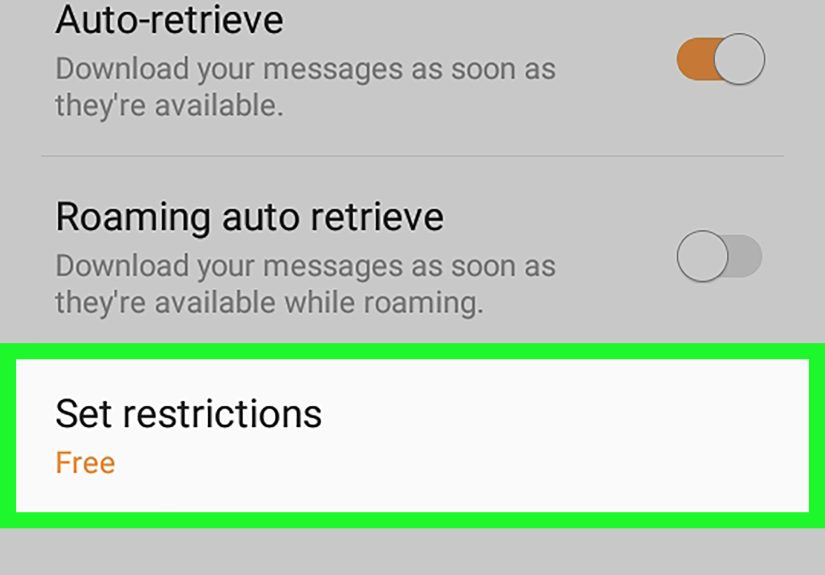
- Auto-download MMS: helpful so incoming photo messages don’t sit there forever like a loading screen from 2009.
- Group messaging: enables group MMS behavior (single thread).
- Roaming MMS: only enable if you travel and understand potential charges.
Menu names vary by model and One UI version, but you’ll typically find these under: Messages > More options (⋮) > Settings.
Way 2: Send MMS with Google Messages (modern default on many U.S. Galaxy phones)
On newer Samsung phones sold in the U.S., Google Messages is often the default messaging app. That’s good news because Google Messages tends to handle the “RCS when possible, MMS when needed” balancing act smoothly.
Step 1: Turn on Chat features (RCS) for better media when available
- Open Google Messages.
- Tap your profile icon (top right) or More (⋮), then Messages settings.
- Tap RCS chats or Chat features.
- Turn it on and verify your number if prompted.
When RCS is available (both sides supported), your photos and videos usually send at better quality than MMS and can work over Wi-Fi. When RCS isn’t available, Google Messages automatically falls back to SMS/MMSwhich is exactly what you want for reliability.
Step 2: Send an MMS (photo/video/GIF) in Google Messages
- Open Google Messages.
- Tap Start chat.
- Select a contact (or type a phone number).
- Tap the + (or attachment icon).
- Choose Gallery, Files, Camera, or GIFs.
- Pick your media, add text if you want, then tap Send.
If your recipient is on an older phone, has RCS turned off, or your carrier decides to be dramatic today, that message will go as MMS. You don’t have to do anything specialGoogle Messages will make the call.
Pro moves: when you want to force “compatibility mode”
Sometimes you’re messaging a mix of iPhones, Androids, and one person who still thinks “the cloud” is weather. If you need maximum compatibility:
- Keep attachments small: send one photo at a time or let the app compress it.
- Prefer photos over long videos: MMS video limits are often tight.
- Use a link for large media: if you must share a big file, consider sharing a cloud link instead of MMS (but that’s not MMSjust survival).
Way 3: Send MMS via Email-to-MMS (carrier gateway method)
This method is the “secret passage” option: you send an email, and your carrier converts it into an MMS that lands in the recipient’s Messages app. It’s useful when:
- You’re on a computer and want to message a phone number without signing into a messaging app.
- You’re automating alerts (though many carriers restrict or shut down gateways due to spam).
- Your messaging app is acting up and you want a Plan B.
Important: availability depends on the carrier. Some carriers have reduced or discontinued email-to-text services.
Example: Verizon (send a picture as an MMS from email)
- Open your email app (Gmail, Outlook, Samsung Emailanything that can attach a file).
- In the To field, enter: [email protected].
- Add a subject/body if you want (keep it simple).
- Attach the photo/video.
- Send.
The recipient gets it as an MMS (picture/video message). It’s weirdly satisfying, like mailing a postcardbut with pixels.
T-Mobile note: if you use tmomail.net, keep emails plain text
Some T-Mobile email-to-text setups require the email to be plain text (no HTML formatting). If you paste in a fancy signature with ten social icons and a motivational quote, the gateway may reject it.
AT&T warning: email-to-text was discontinued (as of June 17, 2025)
AT&T announced its email-to-text and text-to-email service was shut down effective June 17, 2025. So if you try the gateway method with AT&T numbers and it fails, it’s not youit’s the service being gone.
When to use this method (and when not to)
- Use it when you need a fallback or you’re sending from a non-phone device.
- Skip it for sensitive info. Gateways are not designed for privacy, and carriers aggressively filter them because spammers ruined everything for everyone.
If MMS won’t send on your Samsung Galaxy: the fix-it playbook
If your MMS is stuck on “Sending…” long enough to develop a personality, run through these fixes in order:
1) Turn on mobile data (yes, even if Wi-Fi is on)
MMS commonly requires mobile data. Toggle Mobile data on, then resend the message.
2) Check your APN (Access Point Name) settings
APN settings tell your phone how to reach your carrier’s network for data and MMS. If you brought an unlocked phone or switched carriers, MMS can break even when calls and SMS still work.
Typical path on Samsung: Settings > Connections > Mobile networks > Access Point Names. If you see a Reset to default option, try that first, then reboot.
3) Reduce attachment size
- Send one photo instead of 10.
- Trim videos to a few seconds.
- Screenshot a video frame if your goal is “look at this,” not “cinematic masterpiece.”
4) Restart the phone (the “turn it off and on” classic)
It’s cliché because it works. Restarting refreshes radio connections and can clear messaging glitches.
5) Clear the messaging app cache (last-mile weirdness fix)
If one messaging app is misbehaving: Settings > Apps > Messages (or Google Messages) > Storage > Clear cache. (Try cache before you go nuclear with “Clear data.”)
6) Confirm your plan supports MMS
Most plans dobut provisioning errors happen. If MMS suddenly stops across all contacts, your carrier can check whether MMS is properly enabled on your line.
Best practices: make your MMS faster, clearer, and less likely to embarrass you
- Use Google Messages with RCS when possible for better media qualityespecially in mixed Android chats.
- Assume MMS compresses: if quality matters (documents, receipts, forms), consider sending as a file/link instead.
- Group chat strategy: if the chat includes iPhones and Androids, results vary by carrier and settings. Keep messages smaller and expect occasional “why did it split into 12 texts?” moments.
- Send during strong signal: MMS is more likely to fail in elevators, parking garages, and that one corner of your kitchen where Wi-Fi is great but cellular is a rumor.
Wrap-up: which way should you use?
If you want the simplest path, use the app already on your phone: Samsung Messages (Way 1) or Google Messages (Way 2). If you need a backup or you’re sending from email, try Email-to-MMS (Way 3)but only if your carrier still supports it.
And if MMS still refuses to cooperate, don’t spiral. It’s usually one of three things: mobile data is off, APN settings are wrong, or the attachment is too large. Fix those and you’ll be back to sending blurry-but-beloved memes in no time.
Extra: Real-world “MMS experiences” (the stuff nobody tells you) 500+ words
Let’s talk about the actual lived reality of MMS on Samsung Galaxy phones: it’s the messaging equivalent of a reliable old car. It starts most mornings, it gets you where you need to go, and once in a while it makes a noise that forces you to pull over and question your choices.
Experience #1: The “why is this photo a potato?” moment.
Someone asks you to “text me that picture,” so you do the normal thing: open Messages, attach the photo, hit send. It arrives looking like it was transmitted through a tunnel, underwater, during a thunderstorm. That’s not your Samsung camera failing you it’s MMS compression. Carriers often shrink media to fit size limits, so the photo that looked crisp in your Gallery can arrive as a charming watercolor. This is why a lot of people prefer Google Messages with RCS turned on when both sides support it: it’s more likely to keep quality intact. But when you’re sending to “anyone with a phone number,” MMS is still the compatibility kingjust not the quality king.
Experience #2: The “Wi-Fi is perfect, but MMS won’t send” betrayal.
You’re on Wi-Fi, streaming videos, browsing, living your best bandwidth lifeyet MMS sits on “Sending…” like it’s waiting for permission from the universe. This happens because MMS often relies on the carrier’s mobile network. So even with Wi-Fi connected, your phone may need mobile data enabled to push MMS out. The emotional whiplash is real: you feel connected to everything… except the one message you’re trying to send. The fix is usually boring but effective: toggle mobile data on, resend, and watch it instantly go through like it was never mad in the first place.
Experience #3: The group chat that turns into a slideshow of confusion.
A family group chat is where messaging standards go to get stress-tested. One person has an iPhone, one has an Android, one has notifications off forever, and someone’s carrier is doing maintenance at the exact wrong time. Sometimes replies split into individual messages. Sometimes images fail to download. Sometimes someone reacts with a “?” and accidentally starts a new thread that lives outside the main one like a lost sock. The best coping strategy: keep attachments small, limit long videos, and if you need to share something important (like a PDF or a dozen photos), send a link instead of trying to shove your whole digital life through MMS.
Experience #4: The “it worked yesterday” mystery.
MMS issues often appear after a carrier switch, a new SIM, or a software updateright when you least want to troubleshoot anything. The most common silent culprit is APN settings. Everything else can workcalls, SMS, even internet browsingwhile MMS fails because the MMS fields in APN aren’t correct. Resetting APNs to default and rebooting fixes a surprising number of cases. It feels too simple, which is why many people don’t try it until they’ve already yelled at their phone for ten minutes. (Totally normal, by the way. Phones are emotionally resilient.)
Experience #5: The underrated win: MMS is still the universal backup.
Even with modern messaging apps everywhere, MMS remains useful because it works with basically any phone numberno need for both people to use the same app, create an account, or learn a new interface. It’s the messaging equivalent of a plain cheeseburger: not fancy, but it shows up when you need it. If you set up your Samsung Galaxy with either Samsung Messages or Google Messages correctlyand keep mobile data enabledyou’ll have a dependable way to send photos and short videos in a pinch.
So yes, MMS can be quirky. But once you understand its rules (mobile data, size limits, APN settings), it becomes predictableand that’s the best kind of tech.






 Close
Close