
Table of Contents >> Show >> Hide
- The Quick Answer
- What “Saved Reels” Actually Means
- How to Find Saved Reels on the Facebook App
- How to Find Saved Reels on Facebook Desktop
- Why You Might Not See Saved Reels Right Away
- How to Save a Reel So You Can Find It Later
- How to Organize Saved Reels with Collections
- How to Find Liked Reels if You Saved the Wrong Thing in Your Head
- Troubleshooting Tips When Facebook Saved Reels Are Missing
- Best Habits for Never Losing Saved Reels Again
- Final Thoughts
- Experiences People Commonly Have When Looking for Saved Reels on Facebook
- SEO Tags
If you have ever saved a Facebook Reel at midnight because it promised to fix your back pain, organize your closet, and make restaurant-quality pasta in six minutes, welcome. You are among friends. Facebook makes it easy to save Reels, but finding them again can feel a little like looking for sunglasses while they are already on your head.
The good news is that your saved Reels are usually not gone. They are just tucked inside Facebook’s Saved area, a Reel library view, or a filter that is easy to miss. The exact path can vary a bit depending on whether you are using an iPhone, Android phone, or desktop browser. That is where people get tripped up. One device says Menu, another says Saved, and a third acts like you should already know where everything lives. Very polite. Very helpful.
This guide breaks it all down in plain American English, with no techno-drama and no scavenger hunt. By the end, you will know how to find your saved Reels on Facebook, how to organize them, what to do when they seem to disappear, and how to avoid losing that brilliant sourdough tutorial ever again.
The Quick Answer
If you want the fastest version, here it is: your saved Reels are most often found in Facebook’s Saved section. On mobile, open the Facebook app, tap Menu, then look for Saved. On desktop, open Facebook and go to Saved from the left-hand menu. If Facebook gives you filters, choose Reels.
On some app versions, there is also a second route: open Reels, tap your profile icon, and then choose Saved. That is why two people can be standing next to each other, both holding iPhones, and still swear Facebook is showing them different planets.
What “Saved Reels” Actually Means
Before we get into the steps, it helps to know what Facebook means by a saved Reel. A saved Reel is a short video you bookmarked for later. It is different from a Reel you merely watched, liked, or shared. If you only watched a Reel and never tapped Save Reel, it may not appear in the same place.
This is where many people get mixed up:
- Saved Reels are the ones you bookmarked.
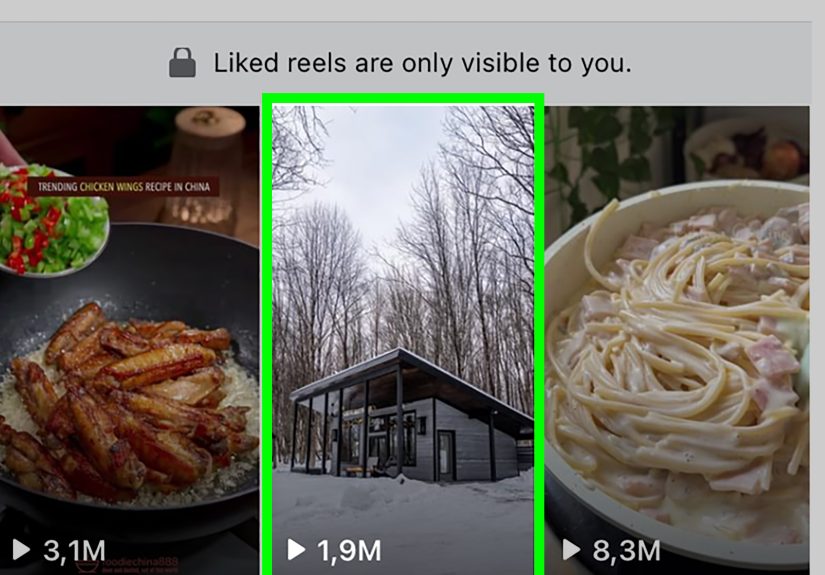
- Liked Reels are the ones you reacted to.
- Watched Reels may be tracked differently, often through activity or history views.
- Your own Reels live in your profile’s Reels section, not in Saved unless you saved them yourself.
So if you are asking, “Why can’t I find my Facebook saved Reels?” the first thing to check is whether you actually saved them or just liked them. Facebook treats those like two different drawers in the same messy digital kitchen.
How to Find Saved Reels on the Facebook App
Method 1: Go Through the Saved Section
This is the easiest and most dependable way for most users.
- Open the Facebook app.
- Tap Menu. On Android, this is usually in the top right. On iPhone, it is usually in the bottom right.
- Look for Saved. If you do not see it immediately, tap See more.
- Once you are inside Saved, browse your items or use a filter if Facebook offers one.
- Select Reels to narrow the list.
If your app does not show a Reel filter, do not panic. Your saved Reels may still appear mixed in with other saved content like posts, Marketplace listings, recipes, articles, and random life advice from a stranger named Todd.
Method 2: Go Through the Reels Area
Some versions of Facebook now surface saved and liked Reels from inside the Reels experience itself.
- Open the Facebook app.
- Tap Reels or the Video tab.
- Open any Reel.
- Tap your profile icon in the upper area of the screen.
- Choose Saved.
If you also want to revisit videos you reacted to, this same area may show a Liked option. That can be helpful when you know you loved a Reel but cannot remember whether you saved it or just handed it a thumbs-up like an overly supportive aunt.
How to Find Saved Reels on Facebook Desktop
If you are on a laptop or desktop computer, the process is often cleaner because Facebook gives you a more visible Saved tab.
- Open Facebook in your web browser and sign in.
- Look at the left sidebar and click Saved.
- If Facebook offers filters, choose Reels.
- Click any saved Reel to open it.
On some desktop layouts, you may also be able to visit your profile, click the Reels tab, and then open Saved Reels. If that option is missing, go back to the Saved section. It is usually the more universal route.
A desktop browser is also a smart backup option when the app feels glitchy. Sometimes the content is there, but the app is being dramatic.
Why You Might Not See Saved Reels Right Away
If your saved Reels are playing hide-and-seek, one of these common reasons is probably behind it.
1. You Are Using a Mobile Browser Instead of the App
Facebook does not always make Reel-saving features fully available on mobile browsers. If you are trying this in Safari or Chrome on your phone and things look incomplete, switch to the Facebook app instead.
2. You Liked the Reel but Never Saved It
This is the classic mix-up. If the Reel is not in Saved, check your liked activity or the liked area inside Reels. Plenty of people think “I definitely saved that,” when what they really did was tap Like and move on with confidence.
3. The App Layout Changed
Facebook updates menus more often than most people update their passwords. Labels can move. The Reels tab can become a Video tab. The Saved shortcut can disappear behind a See more button. If your screen looks different from a tutorial, that does not mean the feature is gone.
4. The Reel Was Removed or Made Unavailable
If the original creator deleted the Reel, changed its privacy, or Facebook removed it, the item may not open normally even if it once appeared in your saved content.
5. Your App or Browser Needs an Update
Outdated apps and browsers can cause missing menus, loading issues, or playback problems. If Saved is blank or Reels will not open, update the Facebook app first. On desktop, make sure your browser is current too.
6. Your Connection Is Weak
Sometimes the simplest answer wins. If your internet connection is shaky, saved videos may fail to load, thumbnails may not appear, or filters may not respond. Try Wi-Fi, mobile data, or a quick app relaunch.
How to Save a Reel So You Can Find It Later
If you want to build a clean little library of your favorite Facebook videos, saving a Reel is easy:
- Open the Reel you want to keep.
- Tap the three-dot menu.
- Select Save Reel or Save.
That is it. The Reel should be added to your saved content. If Facebook asks whether you want to place it in a collection, say yes if you enjoy order, labels, and a false but comforting sense of control.
How to Organize Saved Reels with Collections
Facebook lets you place saved items into collections. This is useful if your saved area has turned into a chaotic museum of workout clips, travel inspiration, dog videos, meal prep hacks, and one suspiciously ambitious DIY bathroom remodel.
You can create collections such as:
- Recipes
- Home organization
- Travel ideas
- Fitness Reels
- Funny videos
- Gift ideas
Collections make finding your saved Reels much faster later, especially if you use Facebook as your unofficial “I’ll deal with this later” filing cabinet.
Can Other People See Your Saved Reels?
Usually, saved items are private. In most cases, only you can see what you save. However, if you place saved items into a collection and change that collection’s privacy, other people may be able to view it depending on the setting you choose.
That means your saved Reel of “how to clean your air fryer with one lemon” is typically your business alone. But if you create a public or shared collection, that content may no longer be private. Always check the collection’s audience settings if privacy matters to you.
How to Find Liked Reels if You Saved the Wrong Thing in Your Head
Some people are not really hunting for saved Reels. They are hunting for that Reel they remember seeing and approving of emotionally. In Facebook terms, that often means Liked, not Saved.
Here are a couple of ways to check:
- Inside the Reels area, tap your profile icon and see whether Liked appears.
- On desktop, check your Activity log to review likes and reactions.
This is handy when you know you interacted with a Reel but cannot remember exactly how. Welcome to modern memory: we remember the vibe, not the button.
Troubleshooting Tips When Facebook Saved Reels Are Missing
If you still cannot find them, try this checklist:
- Update the Facebook app.
- Restart the app and sign in again if needed.
- Switch devices and check desktop if mobile looks wrong.
- Check Saved and Reels both, because the route can differ.
- Review your internet connection.
- Check media or video settings if videos are not loading.
- Make sure you are in the right account, especially if you manage multiple profiles or Pages.
One more practical note: Facebook is famous for testing slightly different interfaces across devices and account types. So if your friend says, “Just tap this thing,” and you do not see that thing, it does not automatically mean you are cursed. It may just be Facebook being Facebook.
Best Habits for Never Losing Saved Reels Again
Finding your saved Reels on Facebook is easier when you build a few good habits:
- Use collections instead of dumping everything into one giant Saved pile.
- Name collections clearly, like “Dinner Ideas” or “Small Bathroom Hacks.”
- Save immediately when you know a Reel is useful.
- Do not rely on memory. Memory is loyal until it absolutely is not.
- Clean out old saved items every so often so the useful ones are easier to spot.
- Use the app for phone access instead of a mobile browser when possible.
These small habits turn Facebook from a black hole of “I know I saw that somewhere” into something much more useful.
Final Thoughts
Finding your saved Reels on Facebook is not hard once you know where Facebook hides the keys. For most users, the shortest path is through Saved. For others, the Reels area and profile icon offer a quicker route. The trick is understanding that Facebook’s layout can vary by device, app version, and interface updates.
So the next time you are looking for that Reel with the perfect banana bread recipe, a tiny-space storage hack, or a comedian explaining adulthood with alarming accuracy, do not start doom-scrolling your feed from scratch. Check Saved, look for the Reels filter, and let Facebook hand back the clip you were smart enough to bookmark in the first place.
Experiences People Commonly Have When Looking for Saved Reels on Facebook
One of the most relatable experiences around Facebook Reels is the moment you know you saved something useful, but you cannot remember where Facebook tucked it away. It usually starts innocently. You are watching a quick video about meal prep, houseplants, travel tips, or a cleaning trick that claims to change your life with vinegar and optimism. You tap Save, feel accomplished, and move on. Then three days later, when you actually need the tip, Facebook suddenly becomes a maze.
Another common experience is confusing saved with liked. A lot of people are absolutely certain they bookmarked a Reel, only to realize they only reacted to it. The Reel felt important, and your brain filed that emotion under “saved forever.” Facebook, however, is less sentimental. It sorts by actions, not feelings.
People also run into the device problem. On a phone, the path may feel different from what they saw on a laptop. On Android, the menu placement can look one way; on iPhone, another. On desktop, everything may appear clean and obvious. On mobile, it can feel like Facebook hid the feature behind three doors, two curtains, and a button labeled See more. That difference alone causes a lot of frustration.
Then there is the classic “I followed the tutorial exactly, and my screen looks nothing like that” experience. This happens because Facebook updates its interface often. The app might say Reels, Video, or just show a profile shortcut that was not there last month. People often assume they are doing something wrong, when in reality the layout simply changed again. If Facebook were a furniture store, it would rearrange the aisles every weekend.
Many users also discover that saving too many things without organizing them creates a second problem. Yes, the Reel is technically saved. No, it is not easy to find when it is buried under fifty recipes, twenty dog videos, twelve travel clips, and one deeply unrealistic morning routine. This is why collections feel boring until the day they save your sanity.
Privacy is another concern people notice later. Most assume saved items are private, which is generally true, but confusion starts when collections enter the picture. Shared or public collections can change who sees those saved items. That surprise catches some people off guard, especially if they thought their saved videos were visible only to them.
And finally, there is the experience almost everyone has had at least once: the Reel really is gone. Maybe the creator deleted it. Maybe the privacy changed. Maybe Facebook removed it. That can be frustrating, but it is also a reminder that saved does not always mean permanent. If a Reel matters a lot, it is worth organizing it quickly, revisiting it sooner, or looking for the creator’s page before the trail goes cold.
In other words, hunting for saved Reels on Facebook is not just a tech task. It is a very modern life moment: part organization, part memory test, and part negotiation with an app that occasionally behaves like it enjoys keeping secrets.






 Close
Close